


Basic Fixes:
- Use browsers with ad-blocks: Certain Android browsers come with native ad-blocking support that can help keep ads at bay. This can also decrease the chances of you accidentally tapping on an ad and installing an unknown app on your Android device.
- Double-check apps before installing: Most free apps have ad walls blocking access to certain features. When you click on them, your phone might start an automatic app installation. So, ensure the apps you install don’t have such features.
- Set up Family Link restrictions: The Family Link app allows you to restrict the download of apps depending on their age rating on your child’s phone. Additionally, the app installation must be approved by the parent’s phone, eliminating accidental app downloads.
Fix 1: Disable Install Unknown Apps
As a safety feature, your Android phone allows you to restrict downloads of apps from unknown sources. You can still install new apps from official sources, like the Google Play Store, but app downloads from other unknown sources will be restricted. This can help curb unknown app downloads. Here’s how.
Step 1: Open Settings and tap on Apps.
Step 2: Tap the three-dot icon at the top-right corner. Tap on Special access.
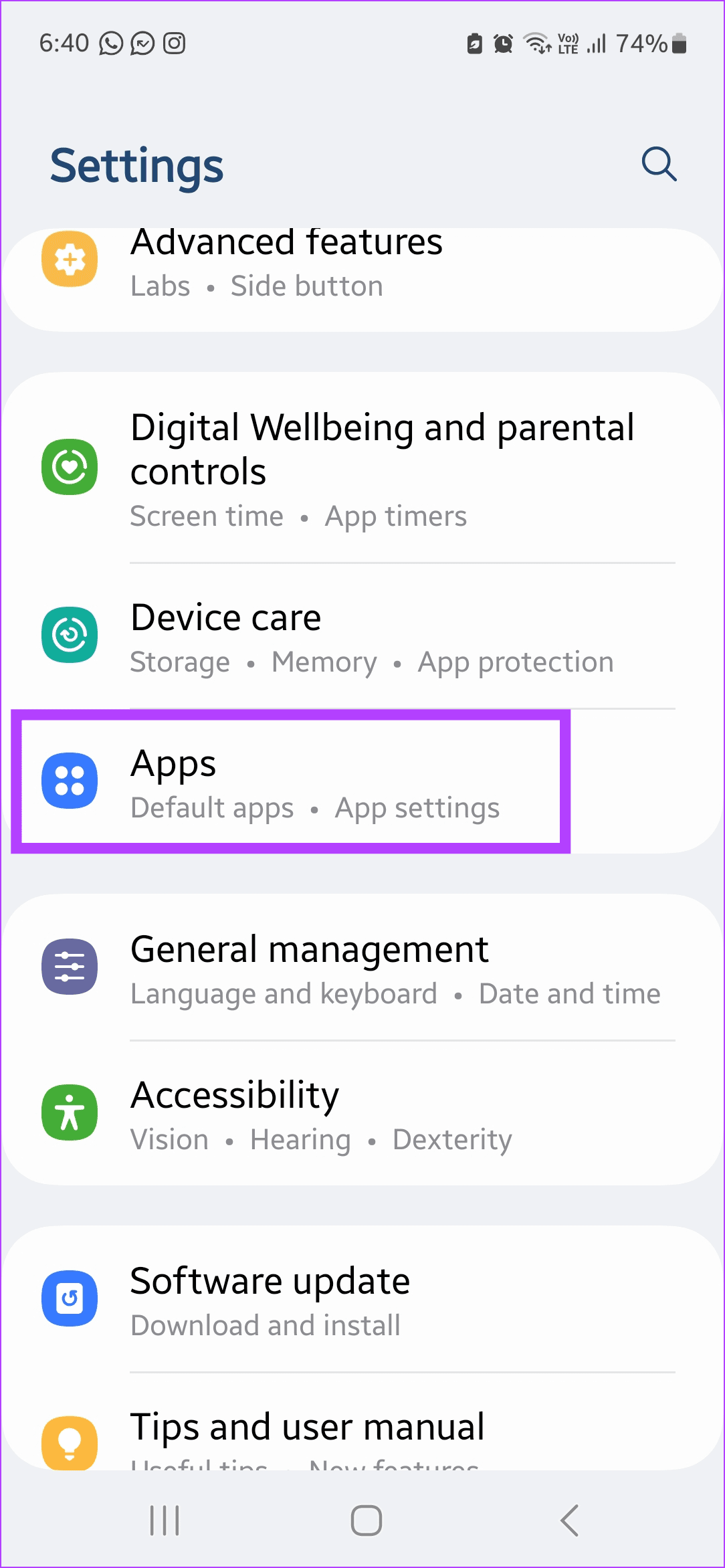
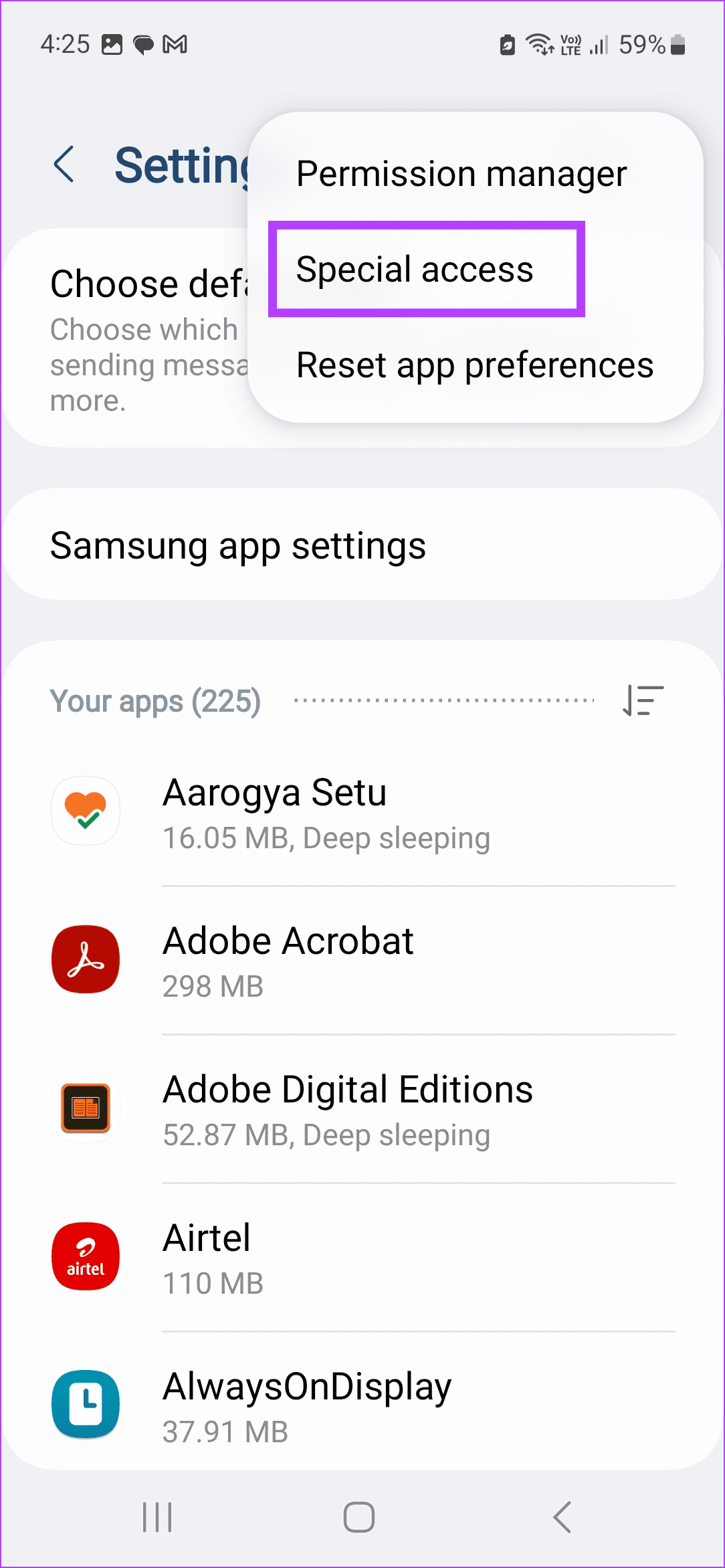
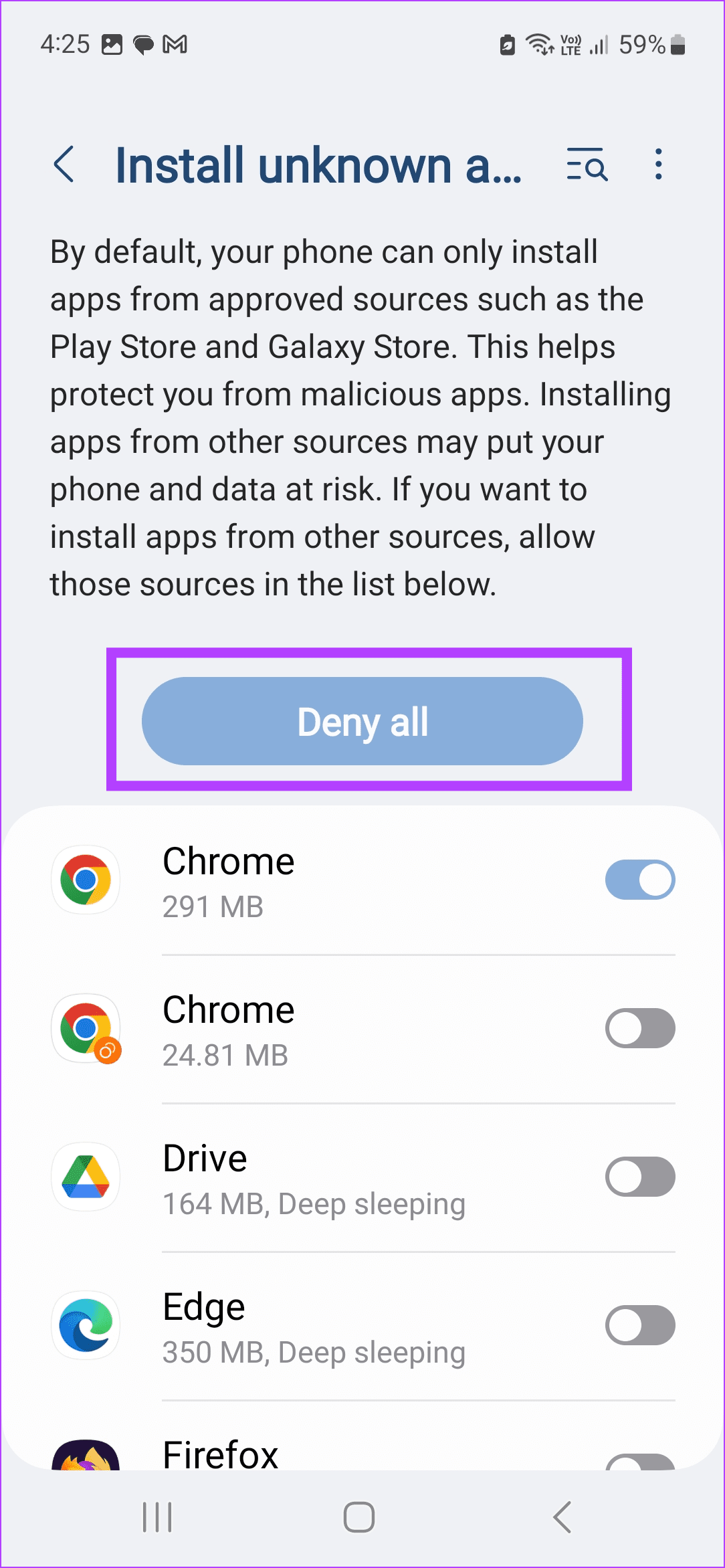
Step 3: Tap on Install unknown apps. Here, tap on Deny all and ensure all toggles are turned off.

Fix 2: Disable Sync Apps to Devices in Play Store
When you connect other devices running on the same Google account with your Android phone, it might automatically sync the device data with your phone. This can cause unknown apps to be installed unprompted. To stop this, disable the relevant setting in the Google Play Store using the below steps.
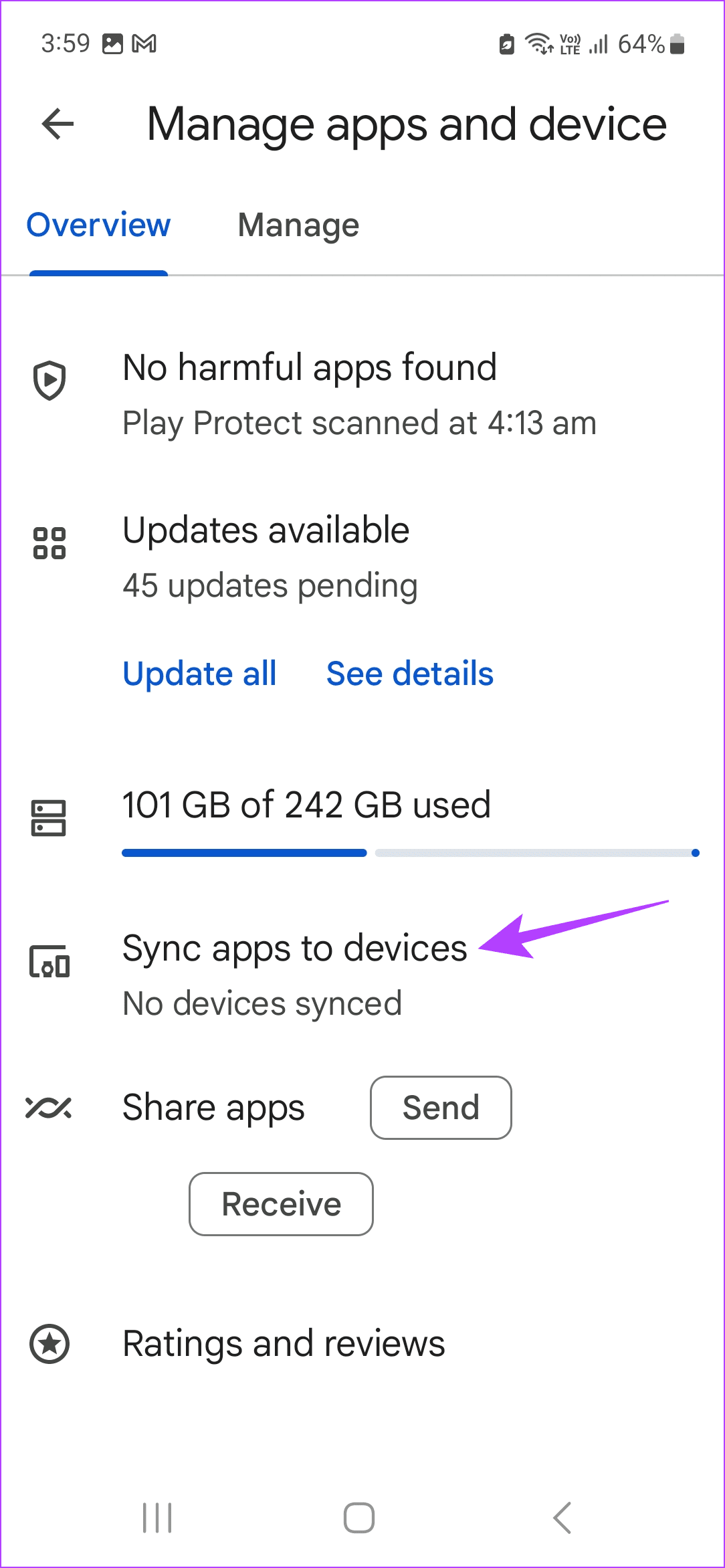
Step 1: Open Google Play Store → your profile icon → Manage apps and device.
Step 2: Tap on Sync apps to devices and disable sync for the relevant device.


Fix 3: Turn off Lock Screen Ads
Certain device manufacturers allow ads from affiliated services on your device’s lock screen. This can increase your chances of accidentally installing an unknown app via an ad. To prevent this, disable ads from your device’s lock screen. Here’s how.
Step 1: Open Settings and tap on Wallpaper and style. Tap Change wallpapers.
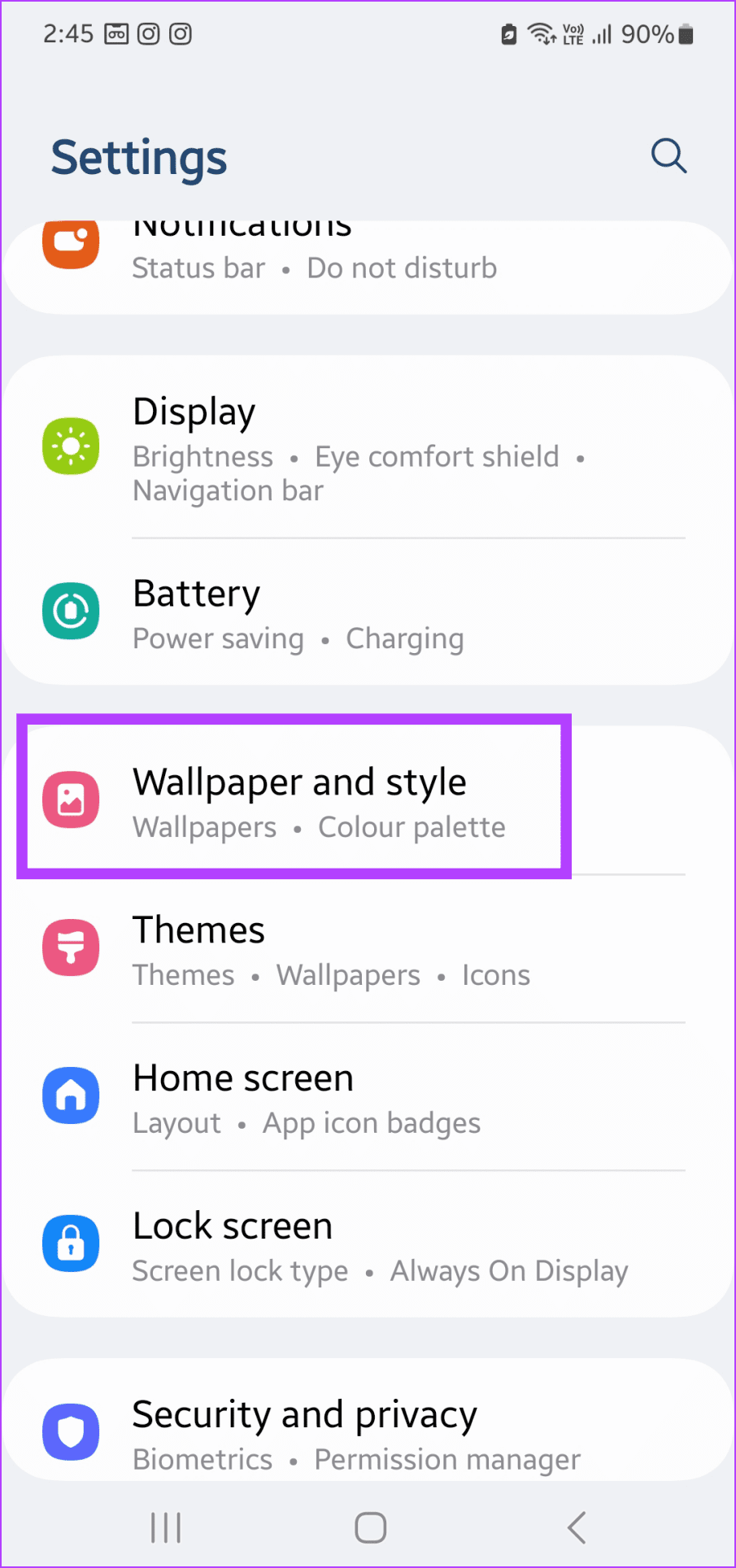

Step 2: Tap on Wallpaper services and select None.


Also Read: How to remove ads from Samsung Galaxy phone lock screen
Fix 4: Switch to Official Apps
Android allows you to switch to third-party apps for basic device functions, like making calls, sending texts, etc. However, if these apps are unreliable and you constantly install unknown apps on your phone, we recommend switching to the official app instead. Here’s how.
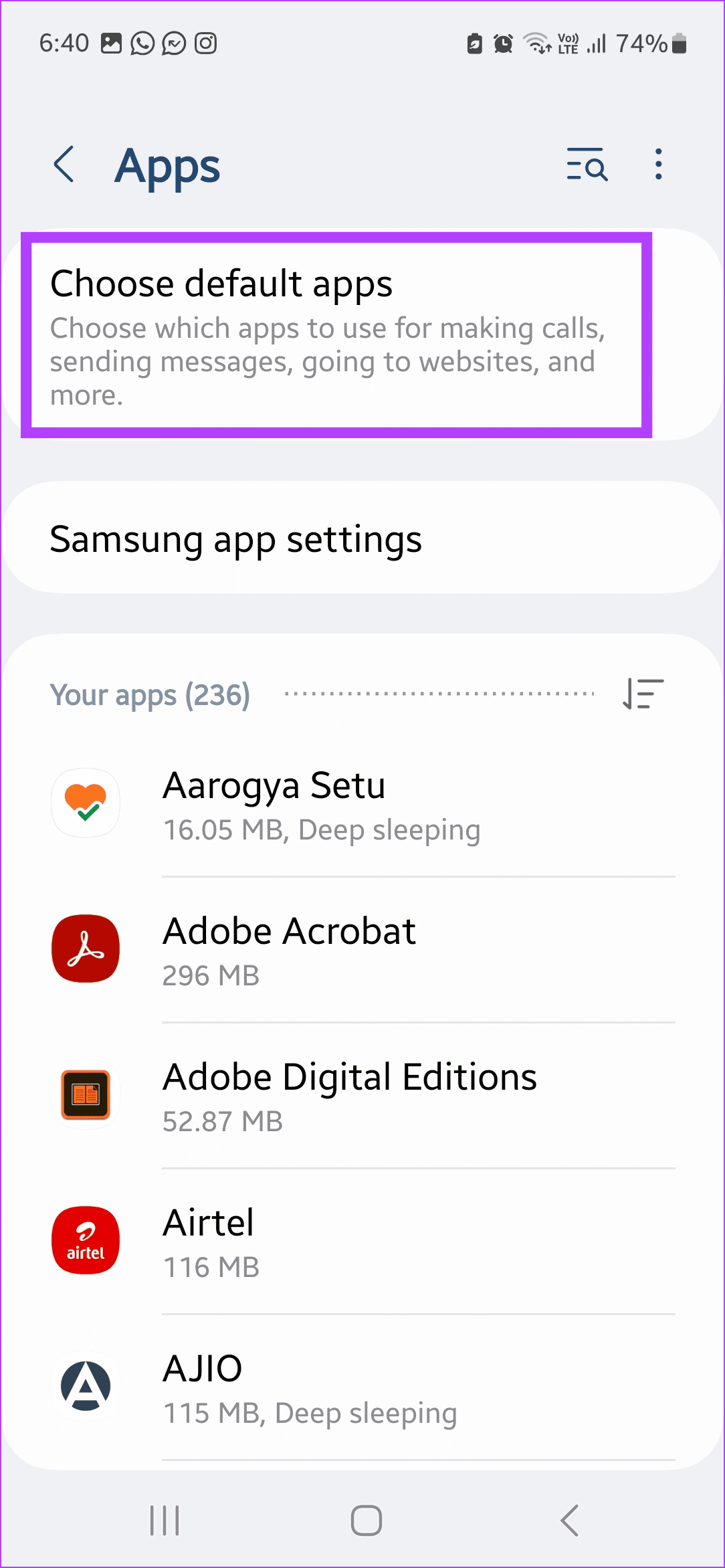
Step 1: Open Settings and tap on Apps. Tap on Choose default apps.
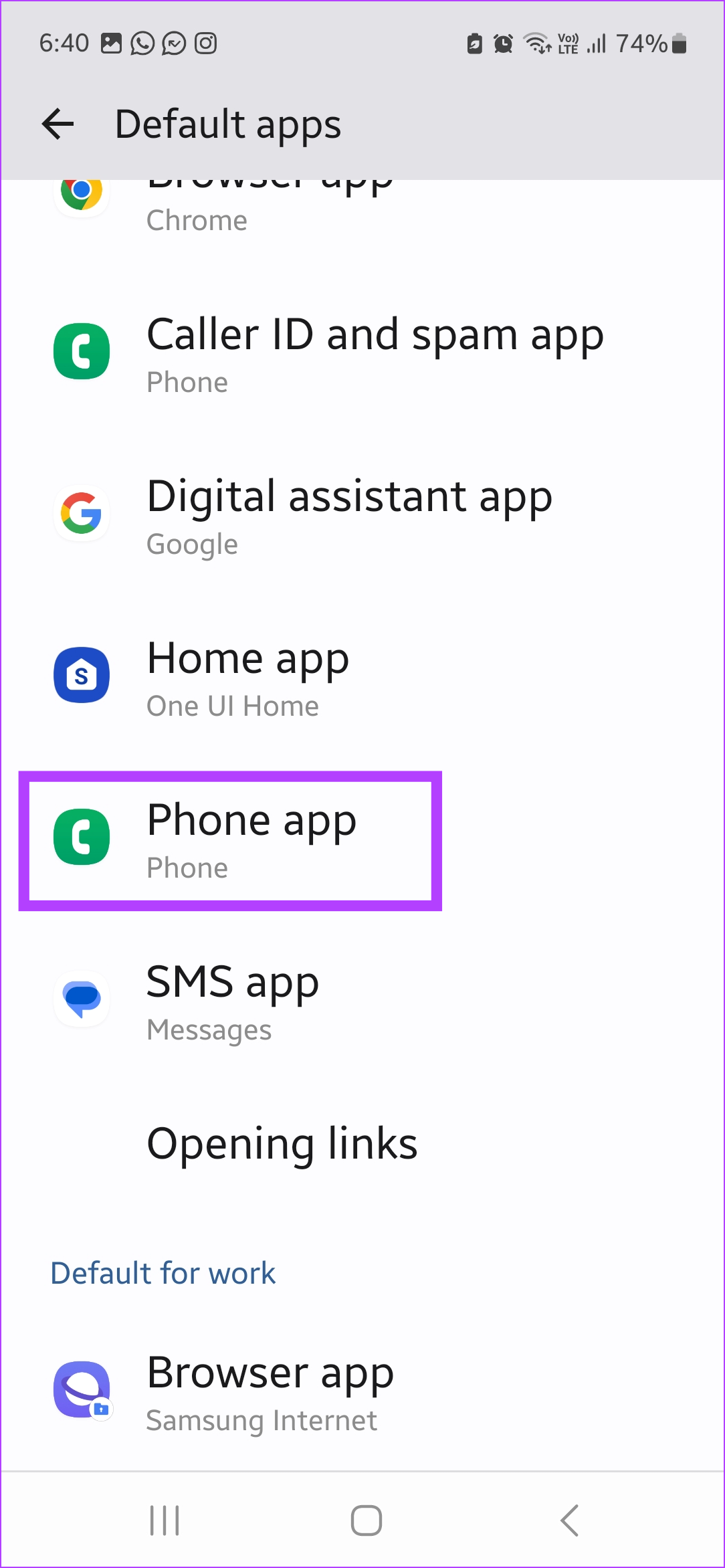
Step 2: Tap on the relevant app and change the default app.

Also Read: How to check if an app is govt-owned on Google Play Store
Fix 5: Disable Appear on Top
Banner ads from other apps can show on top of your apps, increasing your chances of accidentally clicking on a link and installing unknown apps. To stop this, revoke the app’s permission to appear on top of other apps. Here’s how.
Step 1: Open Settings → Apps → the relevant app. Tap on Appear on top.
Step 2: Turn off the Allow permission toggle.
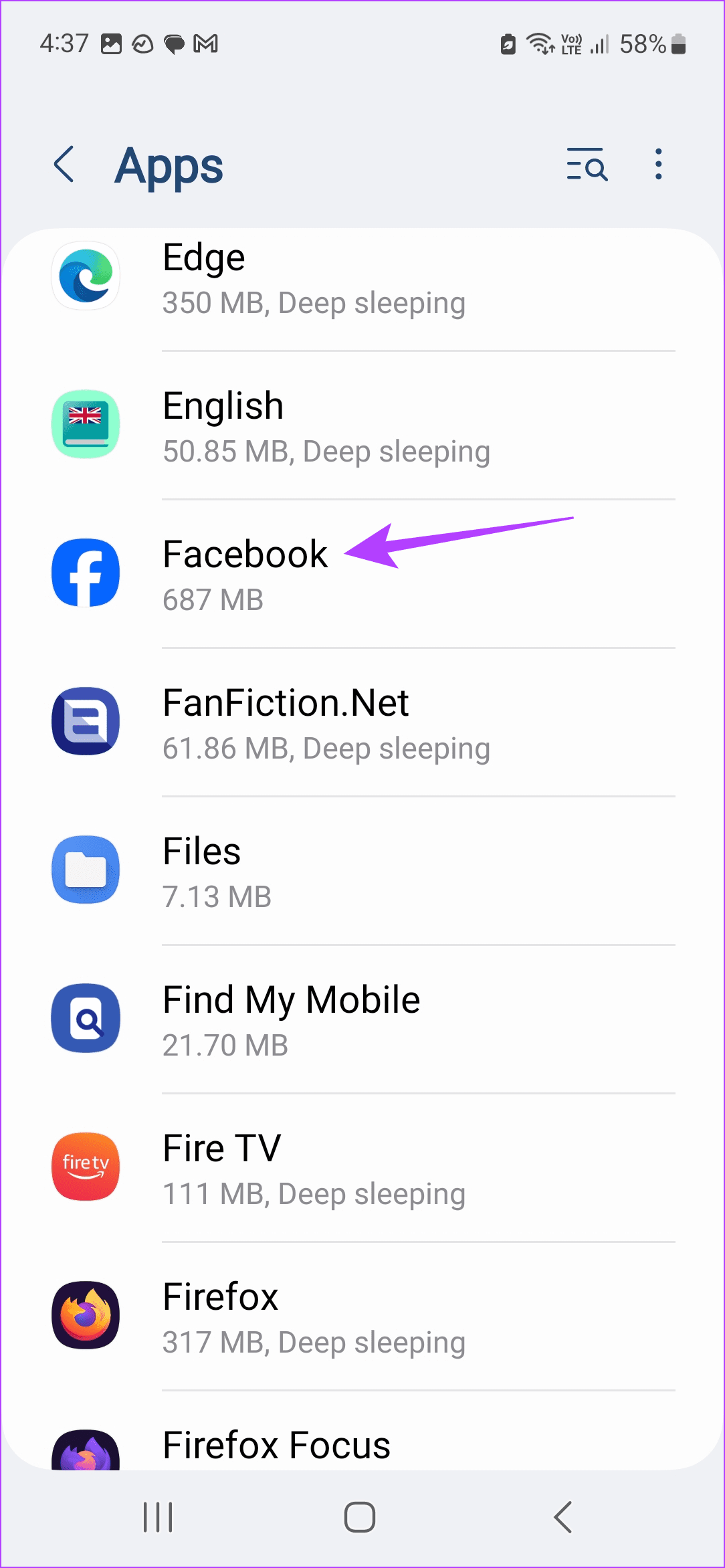


Repeat these steps to revoke the appear-on-top permission for other apps as well. This will ensure that apps cannot show content on top of other apps.
Was this helpful?
Last updated on 28 June, 2024
5 Comments
Leave a Reply
Read Next
 4 Ways to Fix Apps Not Installing on Android
Basic Fixes Restart device: Restart your Android device to fix temporary bugs and glitches.
4 Ways to Fix Apps Not Installing on Android
Basic Fixes Restart device: Restart your Android device to fix temporary bugs and glitches.
 3 Ways to Fix Fire TV Stick Not Installing Apps
Basic Fixes: Check your internet connection: When your Fire TV Stick is not installing an app, you should first ensure your internet connection is stable and has good speeds to
3 Ways to Fix Fire TV Stick Not Installing Apps
Basic Fixes: Check your internet connection: When your Fire TV Stick is not installing an app, you should first ensure your internet connection is stable and has good speeds to
 Top 9 Ways to Fix Mac Apps Stuck on Installing
The macOS ecosystem has useful apps and services to elevate your experience.
Top 9 Ways to Fix Mac Apps Stuck on Installing
The macOS ecosystem has useful apps and services to elevate your experience.
 Installing and Using Github for Android
GitHub is a company that provides hosting for software development version control using Git.
Installing and Using Github for Android
GitHub is a company that provides hosting for software development version control using Git.
 How to Stop Texts From Unknown Numbers on Your Phone
How to Block Messages From Unknown Numbers on iPhone Apple allows you to block spam texts sent from unknown numbers.
How to Stop Texts From Unknown Numbers on Your Phone
How to Block Messages From Unknown Numbers on iPhone Apple allows you to block spam texts sent from unknown numbers.
 5 Ways to Fix Unknown USB Device Error on Windows 11
Fix 1: Scan for Hardware Changes Using Device Manager You can use Device Manager on Windows to force your PC to scan for hardware changes and detect the new USB
5 Ways to Fix Unknown USB Device Error on Windows 11
Fix 1: Scan for Hardware Changes Using Device Manager You can use Device Manager on Windows to force your PC to scan for hardware changes and detect the new USB
 4 Ways to Fix “Unknown Hard Error” in Windows
Try Basic Fixes Install Windows updates: Microsoft regularly releases updates for both Windows 10 and 11 to introduce new features, fix bugs, and enhance security.
4 Ways to Fix “Unknown Hard Error” in Windows
Try Basic Fixes Install Windows updates: Microsoft regularly releases updates for both Windows 10 and 11 to introduce new features, fix bugs, and enhance security.
 How to Block Unknown Numbers on WhatsApp
Block WhatsApp Numbers Saved in Contacts Before we tell you how to block WhatsApp messages from unknown numbers, you might also want to know how to block WhatsApp contacts.
How to Block Unknown Numbers on WhatsApp
Block WhatsApp Numbers Saved in Contacts Before we tell you how to block WhatsApp messages from unknown numbers, you might also want to know how to block WhatsApp contacts.
The article above may contain affiliate links which help support Guiding Tech. The content remains unbiased and authentic and will never affect our editorial integrity.

Yes, people may not be closing the advertisement. But I think the evil advertisers are actually altering the so called “X” to close the app. Where the “X” is may not be the location of the actual close button. I have deleted apps because I was downloading so many unwanted apps on my Kindle Fire. I gave up with the provider of my game apps and uninstalled all of their apps on all my devices.
this does not solve the issue, this is a random article written based on a singular issue the journalist covered. The real problem are companies like motorola, who just put whatever they want when they want on your device. Android system update…hey lets put a bunch of apps on your phone we think you have to have.
Along with denying permissions, denying access to the phone helps. Keep data off and when you turn in for the day, shut the phone down. With no power, no apps download. Extends battery life 30%, too.
Most of the issues date back years, this isn’t new – altho new to me now in 2024. What seemed to start it I cant tell – new tablet linked by google might have kicked off something yet it’s the old device picking up all the trash. Up until now, nothing for years. Work thru the permissions, they are hidden well in confusing menus, and keep in mind another solution – you can get a new phone from somebody besides Samsung, who seems to currently be out of control. If all you need is a phone, not a small computer, there are plenty of options.
I did every one of these things multiple times, and I’m still sitting here watching unwanted apps appear on my phone faster than I can delete them.
The culprit is usually the most recent game I downloaded, and none of this can do anything to stop it.
Just admit you have no clue!
My biggest issue here is Samsung just randomly, out of the blue, dropping several games onto my phone that I never requested, searched for or desired in the first place. They seem to be treating me as if I’m a mental invalid, or something, that can’t think for myself and choose what to install and what to not install. Almost like they’re saying “Hey, we know you don’t REALLY want these, but we think we know better than you and that you aren’t really capable of making your own decisions, so WE’LL DO THAT FOR YOU! DON’T WORRY, YOU’LL BE JUST FINE!”. And mind you, it’s ALWAYS games, never any other kinds of apps. I have tried everything I’ve read to stop this, but still they come. Almost like my phone has been taken over. Very aggravating.