In most cases, your Phone Link not receiving messages is caused by an improper connection between the PC and the phone. However, the underlying problem is usually due to the nature of the connection of the Windows process that manages the utility. Here are the most common solutions that should help if you keep experiencing the issue over a few days.
Fix 1 – Phone Link Not Receiving Messages Due to Power Management
In some cases, Battery Saver or background app restrictions can interfere with Phone Link’s connection and syncing. Check that Battery Saver is turned off and that Phone Link is allowed to run in the background.
Step 1. Go to Settings and enter “System.”
Step 2. Find “System Components.”
Step 3. Search or scroll for “Phone Link,” then click on the three-dot icon on its entry and click “Advanced options.”

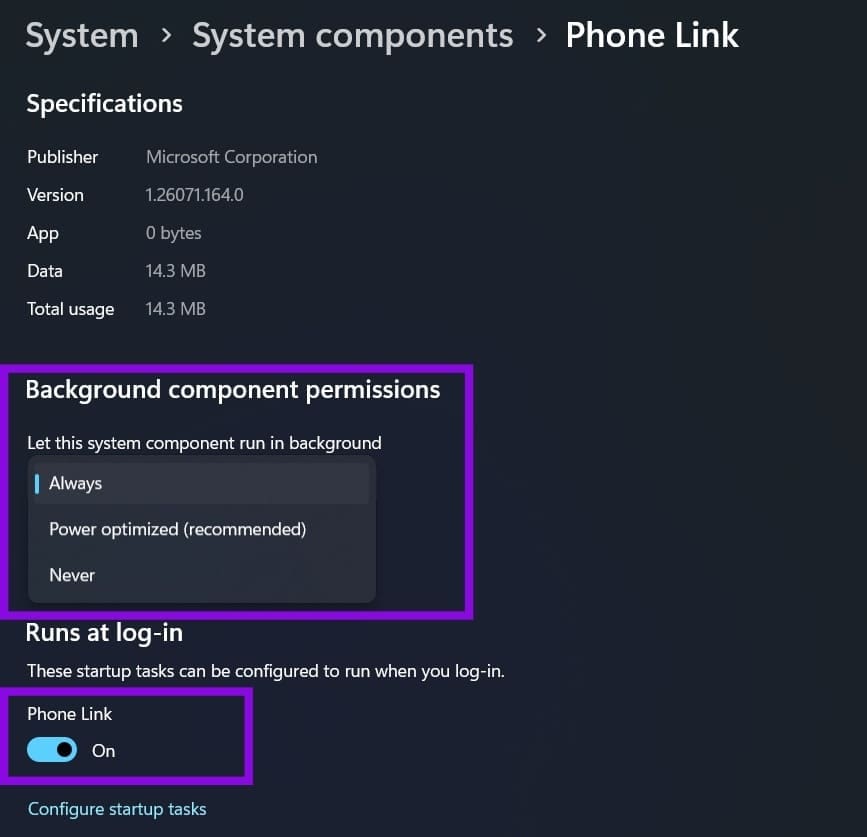
Step 4. Under “Background component permissions,” set the drop-down to “Always” and toggle on the “Runs at log-in” option.
Fix 2 – Manually Restart the Phone Service
If the background process doesn’t open, you can try to restart the service that’s responsible for it.
Step 1. Hit “Win + R” and input “services.msc” in the box, then hit “Enter.”
Step 2. Scroll down to “Phone Service” and double-click on it.

Step 3. If the service is working, click on “Stop.” Then, click on “Start” to restart it.
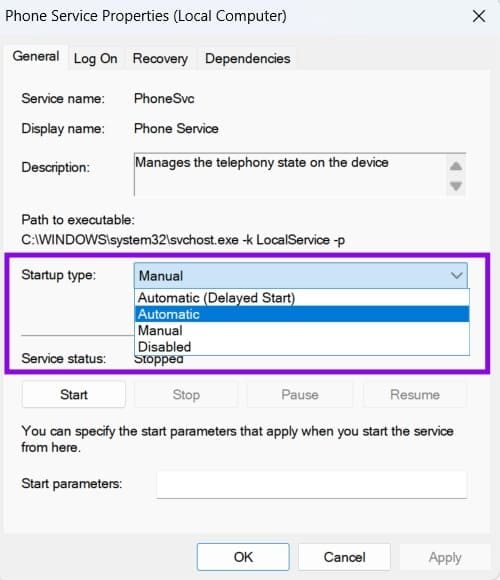
Step 4. You can also try changing the “Startup type” option from “Manual” to “Automatic” and restart the PC to check if that fixes the issue.
Fix 3 – Review Phone Link App Permissions on Phone
In some cases, Phone Link may not receive messages if the necessary permissions are not enabled on your phone. The exact steps will vary slightly depending on the model of phone you have.
Step 1. On your phone, go to “Settings.”
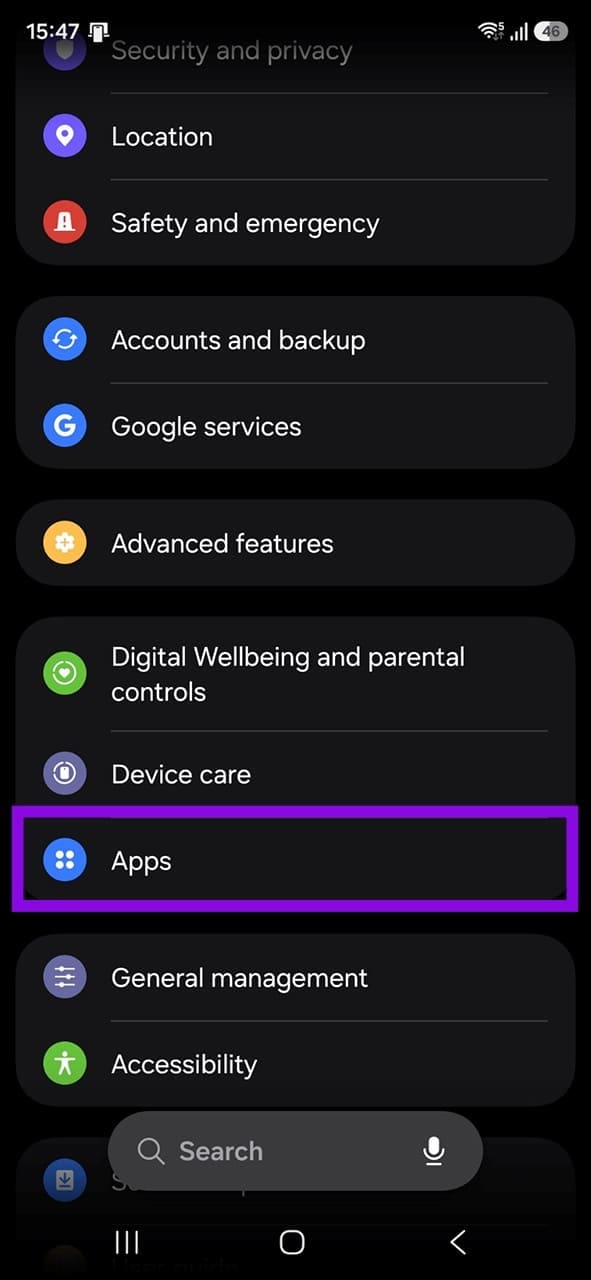
Step 2. Tap on “Apps” or “App Settings.”
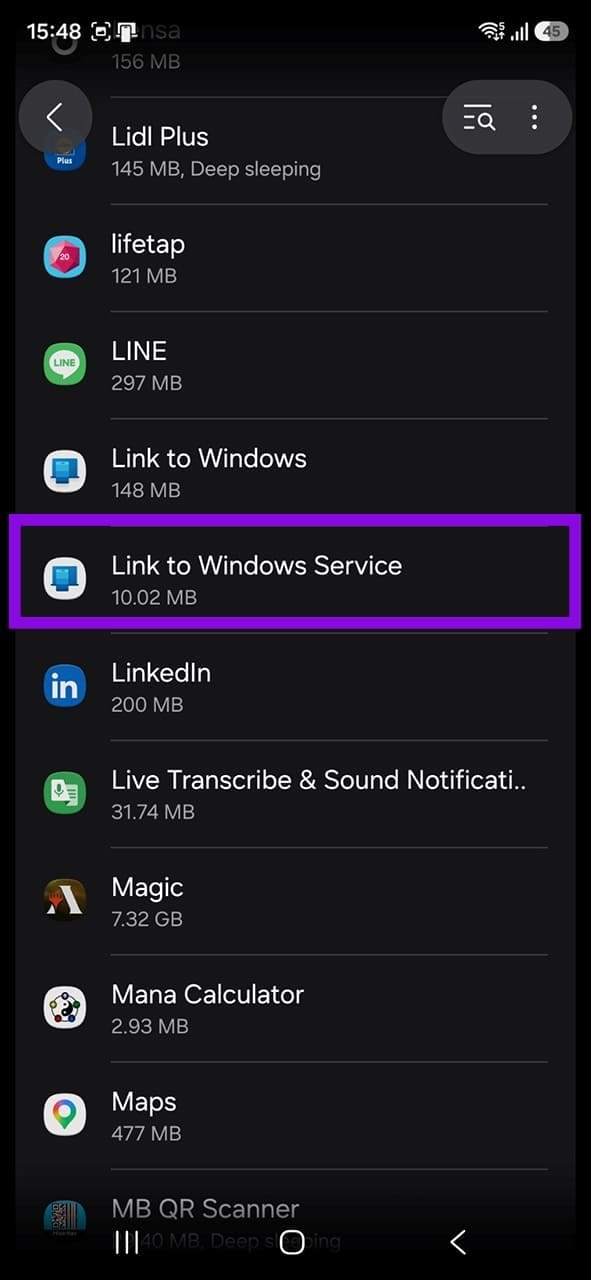
Step 3. Scroll down and find “Link to Windows Service,” then tap on the entry.
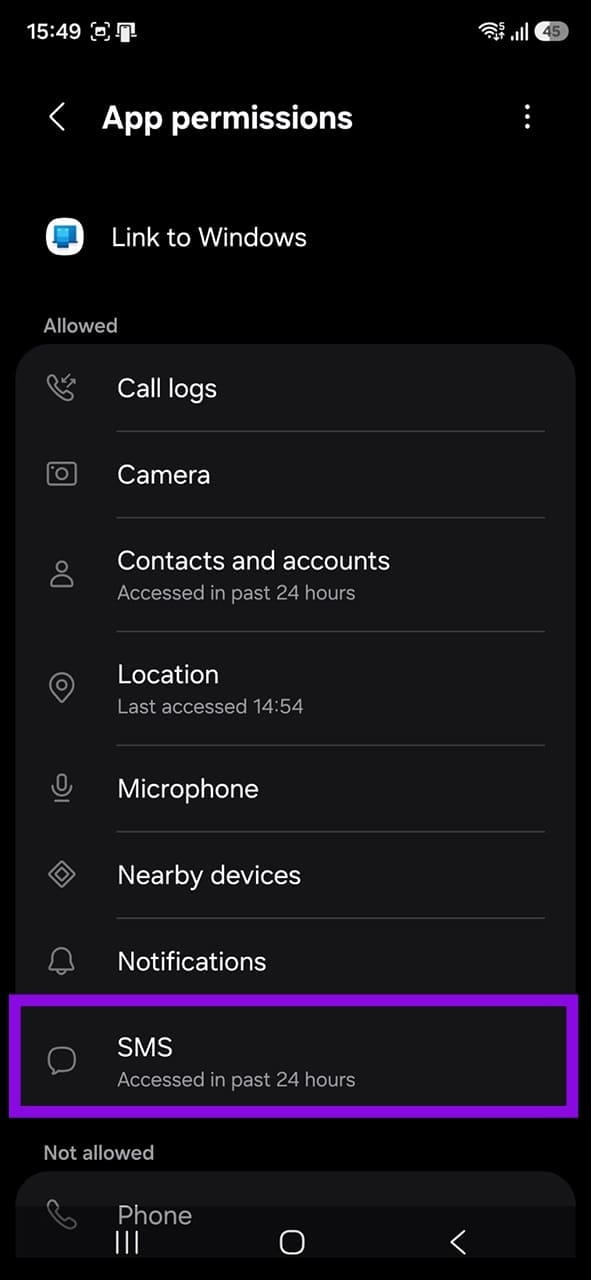
Step 4. Tap “Permissions,” then find “SMS” or “Messages” and make sure the required permission is enabled.

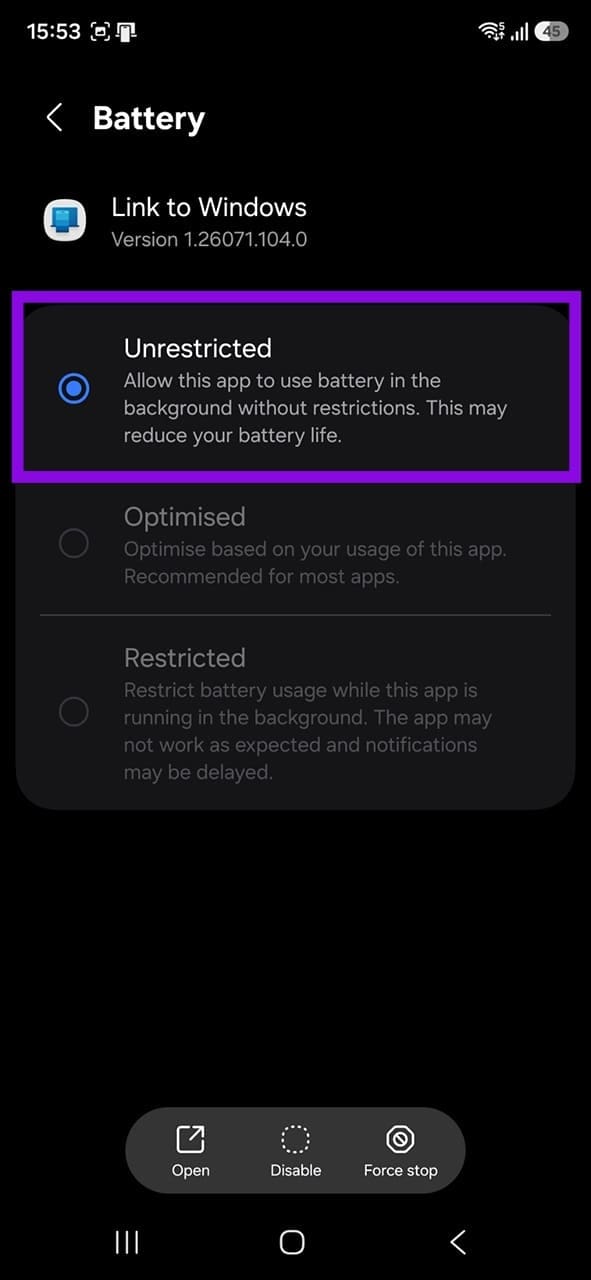
Step 5. Go to the “Battery” section and make sure “Unrestricted” is chosen.
Step 6. Go back to the Apps section and check the “Link to Windows Service” app to make sure that it has permission for “Nearby devices.”
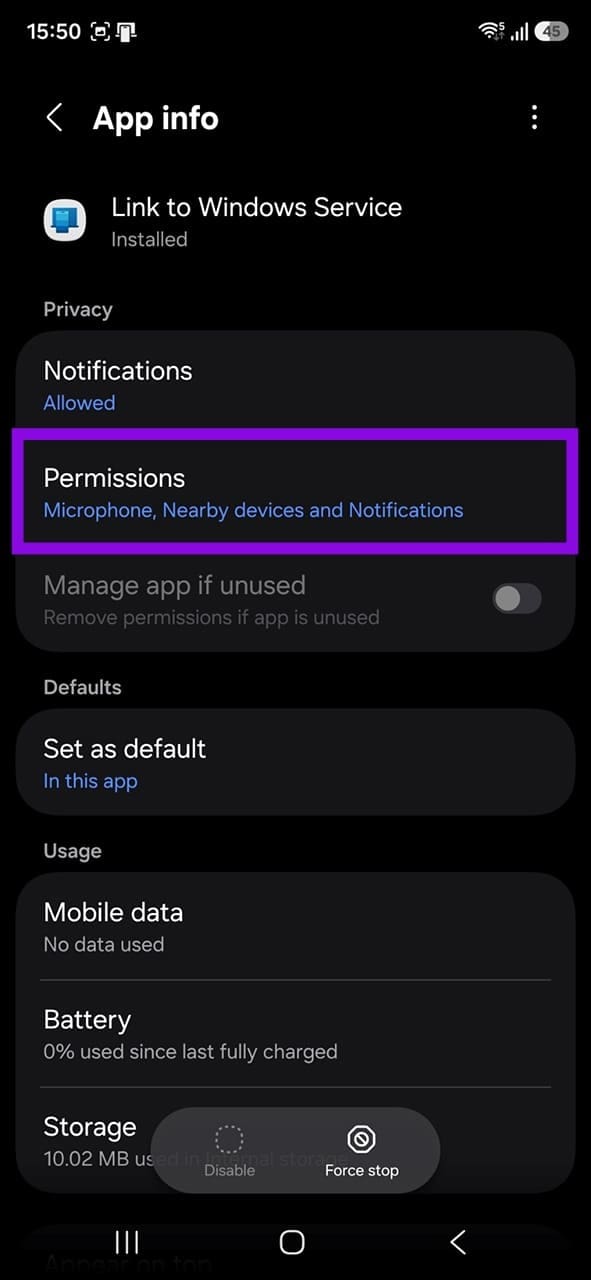
You can also try using the “Force Stop” option on both apps, then restarting them manually.
If you’re using a third-party app as your primary messaging app, be aware that some messages may not appear in Phone Link.
Fix 4 – Repair Phone Link
If your Windows is up to date, but Phone Link doesn’t work despite manual reconnections, you can try to repair it separately.
Step 1. Go to “Settings” and find Phone Link in “System components.”
Step 2. Click the three-dot icon next to Phone Link, select “Advanced options,” then scroll down and select “Repair.”

Step 3. Follow the on-screen prompts.
Was this helpful?
Last updated on 01 September, 2026
Read Next
 Why Am I Receiving the Same Text Messages on Two iPhones
Basic Fixes Check the Apple account: Open Settings on the 2nd iPhone > Profile name > Choose the iPhone name > Remove from Account.
Why Am I Receiving the Same Text Messages on Two iPhones
Basic Fixes Check the Apple account: Open Settings on the 2nd iPhone > Profile name > Choose the iPhone name > Remove from Account.
 Why Can’t I Receive Text Messages on My Android Phone?
Why You’re Unable to Receive Text Messages on Android Several factors can affect your Android phone's default messaging experience.
Why Can’t I Receive Text Messages on My Android Phone?
Why You’re Unable to Receive Text Messages on Android Several factors can affect your Android phone's default messaging experience.
 6 Fixes for Samsung Galaxy Phones Not Receiving Text Messages
Basic Fixes Check cellular network: Ensure that you have a working cellular network on your phone.
6 Fixes for Samsung Galaxy Phones Not Receiving Text Messages
Basic Fixes Check cellular network: Ensure that you have a working cellular network on your phone.
 4 Ways to Fix WhatsApp Not Receiving Messages
Basic Fixes to Try Check for WhatsApp app update: Keeping apps updated helps ensure they receive critical security or bug updates as soon as possible.
4 Ways to Fix WhatsApp Not Receiving Messages
Basic Fixes to Try Check for WhatsApp app update: Keeping apps updated helps ensure they receive critical security or bug updates as soon as possible.
 How to Fix Instagram Not Receiving or Showing Messages
Why Can't I See My Messages on Instagram?
How to Fix Instagram Not Receiving or Showing Messages
Why Can't I See My Messages on Instagram?
 3 Ways to Stop Receiving WhatsApp Messages Without Blocking
https://youtu.be/8PzB-2WkB8Q WhatsApp doesn’t have a privacy setting to stop messages from contacts unless blocked (which they might know about).
3 Ways to Stop Receiving WhatsApp Messages Without Blocking
https://youtu.be/8PzB-2WkB8Q WhatsApp doesn’t have a privacy setting to stop messages from contacts unless blocked (which they might know about).
 How to Stop Receiving Direct Messages on Instagram Without Blocking
Direct messages, or DMs, are a great way to connect with your friends on Instagram privately.
How to Stop Receiving Direct Messages on Instagram Without Blocking
Direct messages, or DMs, are a great way to connect with your friends on Instagram privately.
 5 Ways to Fix Phone Link App Not Working on Windows 11
Fix 1: Enable Phone Link Features The Phone Link app allows you to enable or disable specific features for your linked devices.
5 Ways to Fix Phone Link App Not Working on Windows 11
Fix 1: Enable Phone Link Features The Phone Link app allows you to enable or disable specific features for your linked devices.
The article above may contain affiliate links which help support Guiding Tech. The content remains unbiased and authentic and will never affect our editorial integrity.