It’s never fun to have to try every USB port on your PC in the hope that one of them detects your device. But it’s even less fun if your device is detected but listed as unknown. Is this a problem with your device or your machine? In this article, we explore some of the main reasons for a USB device showing up as unknown device and offer a few fixes to help.
What Causes a USB Device Showing Up as Unknown Device?
When you plug in your USB device, whether it’s an external storage device or a keyboard, your PC automatically begins communicating with it. Most plug-and-play devices use standard protocols so they can be used almost instantly. More specialized devices like printers or drawing tablets will require extra drivers of their own. Some Wi-Fi adapters even come with their own preloaded drivers on the device.
When your device is not recognized and listed as unknown, this could be due to several causes. These include:
- Faulty USB port – Your port itself isn’t functioning properly or, at the least, well enough to detect that something is plugged in, but not enough to know what.
- Faulty device – If your device is old, corrupted, or damaged, it might have difficulty connecting.
- Driver issues – Despite standard protocols, sometimes a device cannot connect because of incorrect or missing drivers.
- Power management – Power settings can disable the detection of devices to save battery life.
- Corrupted or outdated software – Lack of updates or malware can prevent proper device detection.
Fixes to Try
If you’re encountering an unknown device USB Windows 11, there are some troubleshooters you can use to regain detection of your device. Let’s take a look:
Try a Different Port
For port or device damage, first check by using another USB port on your PC. Inspect the USB device for damage too. You can also test the device on another PC, if possible.
Update Your USB Drivers
To update your USB driver components:
Step 1. Open the Run Dialog (Win + R) and type “devmgmt.msc” before hitting “Enter.”
Step 2. Scroll down to “Universal Serial Bus controllers” and click to expand.
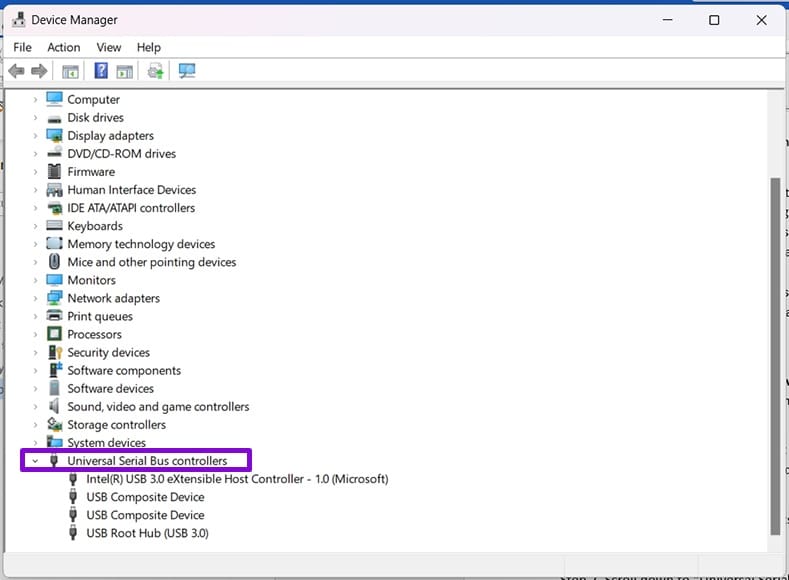
Step 3. If any devices have a yellow exclamation mark (indicating a driver problem), right-click them and select “Update drivers.”
Step 4. Click “Search automatically for drivers.”
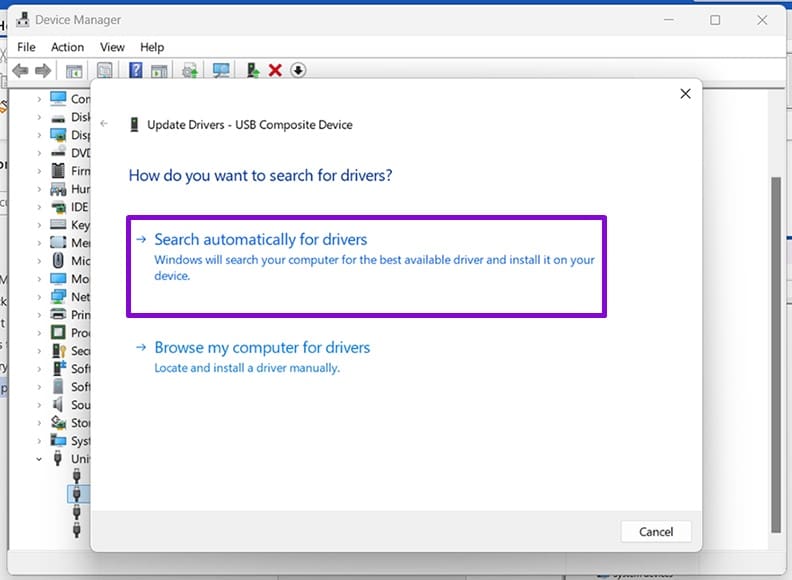
Step 5. See if there are any new ones that need to be installed and follow the steps.
Change Power Settings
If you suspect your power options are getting in the way, you can disable them:
Step 1. Type “Power Management” into the Windows Search Bar and choose “Edit power plan.”
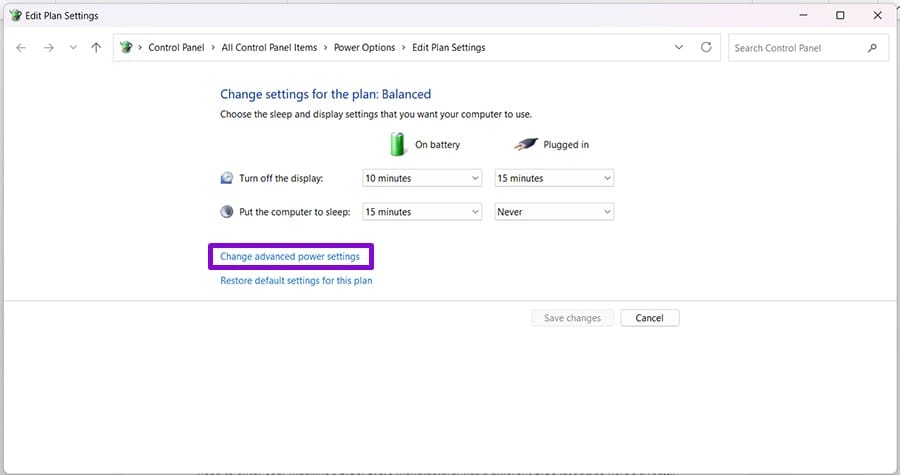
Step 2. Click “Change advanced power settings” in the next window.
Step 3. In the Power Options window, click “USB selective suspend setting.”
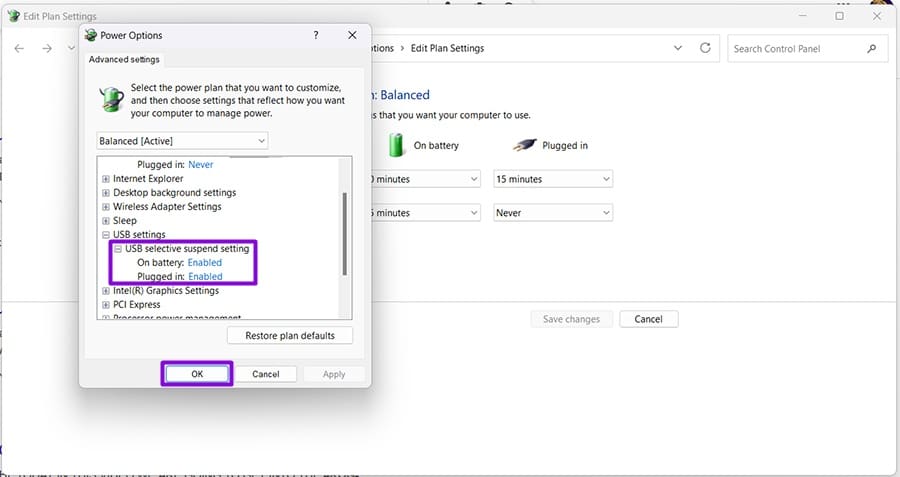
Step 4. Set USB selective suspend to “Disabled” for both “On battery” and “Plugged in” (if available), then test the device again.
Step 5. Click “OK” to finalize and test your USB device again.
Check Your BIOS
Sometimes, USB ports can be hindered by the BIOS. You’ll need to change things there:
Step 1. Restart your machine, and when you see the manufacturer logo appear, hit the BIOS key, and press the key your manufacturer uses to enter BIOS/UEFI, commonly “Delete,” “F2,” “Esc,” or “F10.”
Step 2. In the BIOS menu, look for a USB configuration menu or similar.
Step 3. Ensure that any option you see to enable the USB ports is toggled on.
Step 4. Save your changes and boot as normal.
Disable Fast Startup
Fast Startup prioritizes speed when booting, but can also interfere with port detection. Here’s how to disable it:
Step 1. Open the Control Panel via the Search Bar.
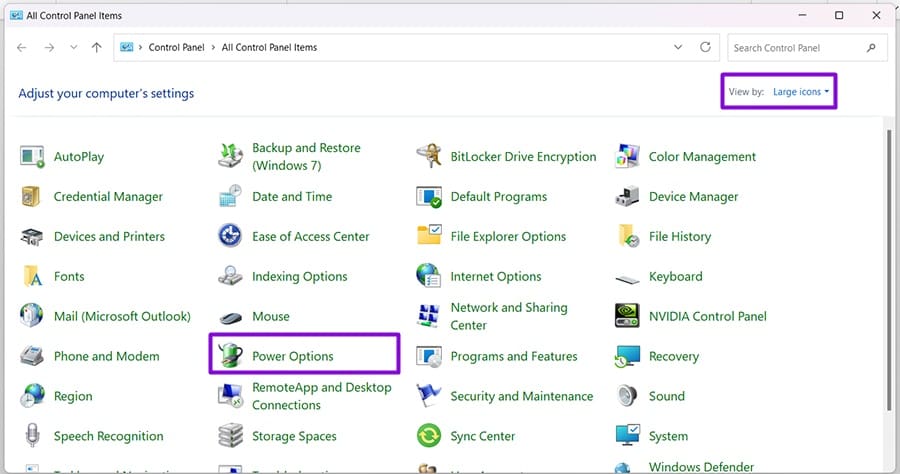
Step 2. Change “View” to “Large icons” and click “Power Options.”
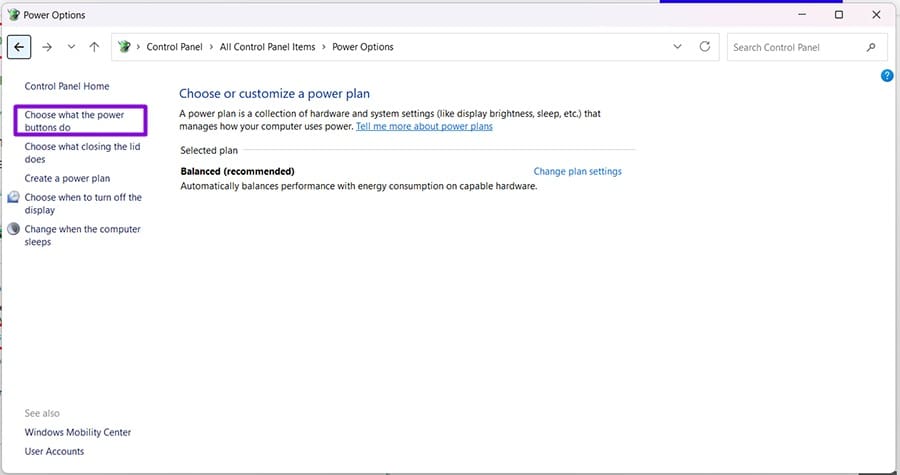
Step 3. Click “Choose what the power buttons do.”
Step 4. Choose “Change settings that are currently unavailable.” Ensure you have Admin permissions.
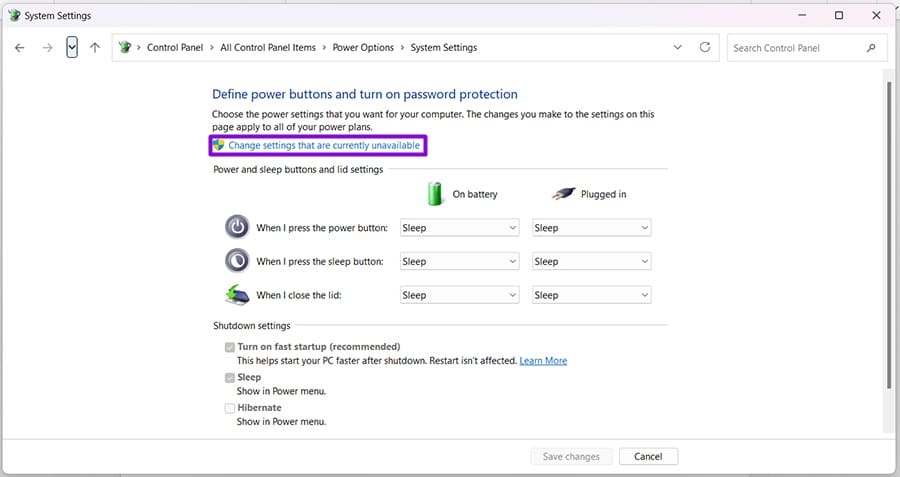
Step 5. Uncheck “Turn on fast startup” and then click “Save changes.”
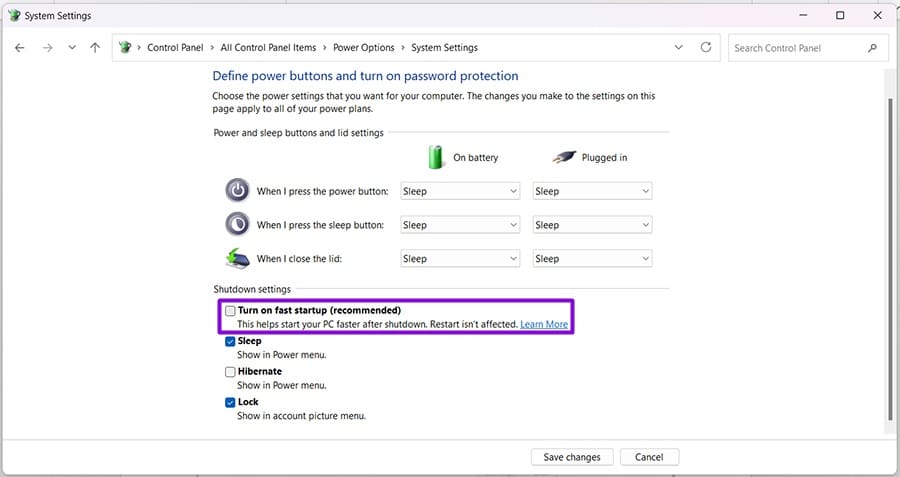
Step 6. Reboot your machine and test.
Was this helpful?
Last updated on 01 August, 2026
Read Next
 5 Ways to Fix Unknown USB Device Error on Windows 11
Fix 1: Scan for Hardware Changes Using Device Manager You can use Device Manager on Windows to force your PC to scan for hardware changes and detect the new USB
5 Ways to Fix Unknown USB Device Error on Windows 11
Fix 1: Scan for Hardware Changes Using Device Manager You can use Device Manager on Windows to force your PC to scan for hardware changes and detect the new USB
 4 Ways to Fix “Unknown Hard Error” in Windows
Try Basic Fixes Install Windows updates: Microsoft regularly releases updates for both Windows 10 and 11 to introduce new features, fix bugs, and enhance security.
4 Ways to Fix “Unknown Hard Error” in Windows
Try Basic Fixes Install Windows updates: Microsoft regularly releases updates for both Windows 10 and 11 to introduce new features, fix bugs, and enhance security.
 How to Block Unknown Numbers on WhatsApp
Block WhatsApp Numbers Saved in Contacts Before we tell you how to block WhatsApp messages from unknown numbers, you might also want to know how to block WhatsApp contacts.
How to Block Unknown Numbers on WhatsApp
Block WhatsApp Numbers Saved in Contacts Before we tell you how to block WhatsApp messages from unknown numbers, you might also want to know how to block WhatsApp contacts.
 How to Fix Unknown Apps Keep Installing Automatically on Android
Basic Fixes: Use browsers with ad-blocks: Certain Android browsers come with native ad-blocking support that can help keep ads at bay.
How to Fix Unknown Apps Keep Installing Automatically on Android
Basic Fixes: Use browsers with ad-blocks: Certain Android browsers come with native ad-blocking support that can help keep ads at bay.
 How to Stop Texts From Unknown Numbers on Your Phone
How to Block Messages From Unknown Numbers on iPhone Apple allows you to block spam texts sent from unknown numbers.
How to Stop Texts From Unknown Numbers on Your Phone
How to Block Messages From Unknown Numbers on iPhone Apple allows you to block spam texts sent from unknown numbers.
 Which USB 3.2 Gen 2 Type-C Cables Should You Buy and Why
Buying the right USB-C cable is a challenging feat.
Which USB 3.2 Gen 2 Type-C Cables Should You Buy and Why
Buying the right USB-C cable is a challenging feat.
 What Is a USB Data Blocker and Why Do You Need One
If you’ve traveled several times, you’ve probably had one of those moments when your smartphone ran out of juice.
What Is a USB Data Blocker and Why Do You Need One
If you’ve traveled several times, you’ve probably had one of those moments when your smartphone ran out of juice.
 6 Best USB-C (USB 3) Cables for iPhone 15 Pro and iPhone 15 Pro Max
The iPhone 15 Pro series has received significant enhancements.
6 Best USB-C (USB 3) Cables for iPhone 15 Pro and iPhone 15 Pro Max
The iPhone 15 Pro series has received significant enhancements.
The article above may contain affiliate links which help support Guiding Tech. The content remains unbiased and authentic and will never affect our editorial integrity.