If your laptop battery keeps draining while shut down, the laptop might not have actually powered down or firmware or hardware features continued drawing power. This could be due to programs preventing shutdown, for example if you accidentally put the laptop to sleep by closing the lid instead of shutting it down.
Most batteries do lose a bit of charge on their own, which gets worse in warmer conditions and with age, but your laptop should still be able to survive a weekend when shut down. Here’s what to do if you fear the laptop battery draining while off.
Fix 1 – Turn Off Fast Startup
Fast Startup ideally allows you to start up the laptop faster by saving the current state of vital programs in a separate file that gets loaded first. But on some laptops, firmware features associated with Fast Startup can allow a small amount of power draw while the system appears to be off.
Step 1. Open the Control Panel (available in search) and go to “Power Options.”
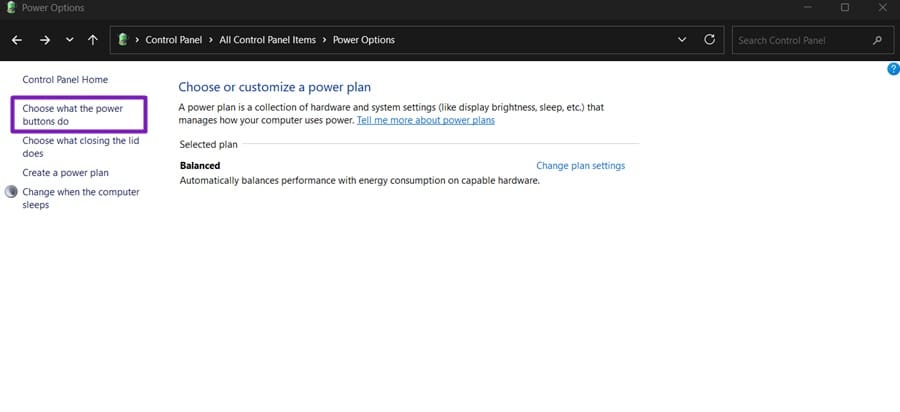
Step 2. Click “Choose what the power buttons do” in the left pane.
Step 3. Click on “Change settings that are currently unavailable” at the top.
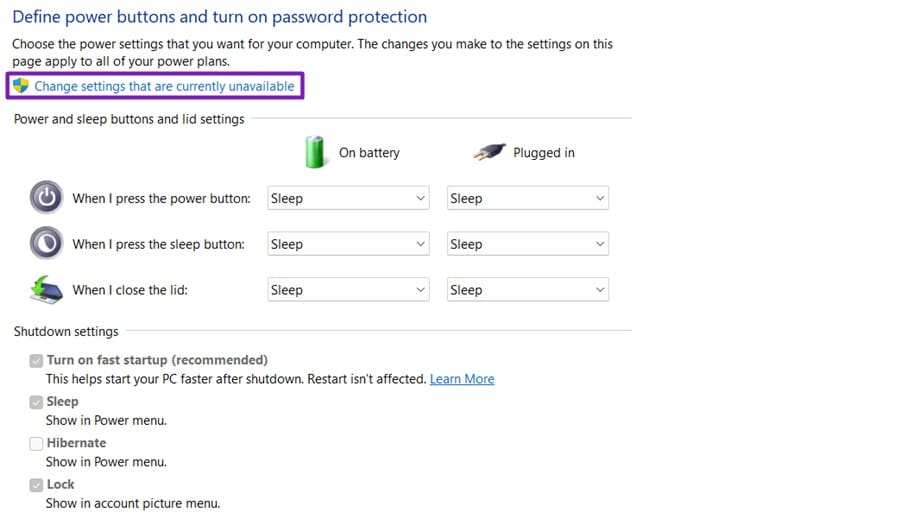
Step 4. Uncheck “Turn on fast startup (recommended)” and hit “Save changes.”

Step 5. Shut down the laptop normally.
Step 6. Wait for a few hours to turn on the laptop and recheck the battery level.
Fix 2 – Disable Hibernation
Hibernation means the laptop is on (and is drawing power), but the screen is dark. If the power light is faulty or turns off, you might falsely believe the laptop is shut down when it isn’t.
Step 1. Open Command Prompt as an administrator.
Step 2. Run the command “powercfg /a” to see which sleep states your laptop supports.
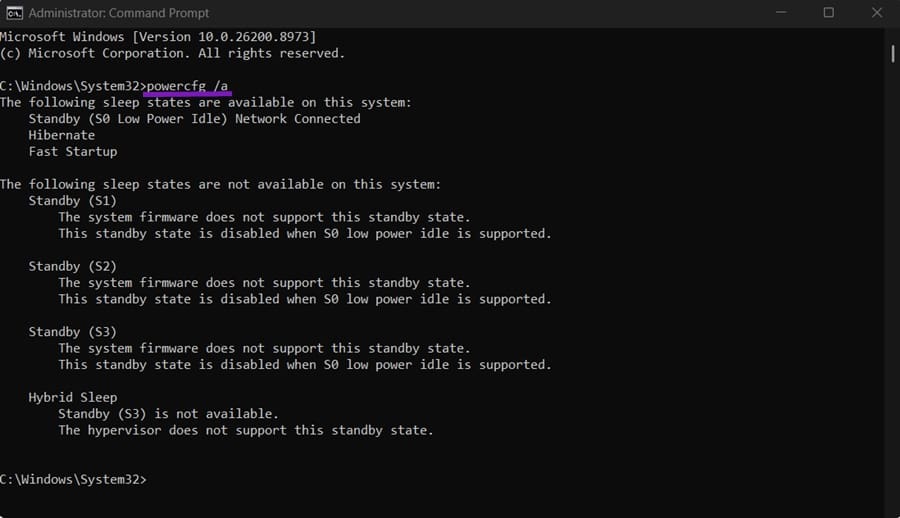
Step 3. In the “available” list, look for “Hibernate.” If it’s there, use “powercfg /hibernate off” to disable it.
Step 4. To undo this, run the command “powercfg /hibernate on.”
Fix 3 – Stop Components From Drawing Power
Some components (or as Windows calls them, devices) can wake the computer or remain partially active during hibernation or other energy-saving states. The Intel Management Engine Interface is the most common component that drains battery power. As its name suggests, this applies only to Intel processors, but it’s still worth checking for other components.
Step 1. Open Command Prompt as an administrator, then run the command “powercfg -devicequery wake_armed.” This will list every device permitted to wake the PC.
Step 2. Open Device Manager, expand “System devices,” and find “Intel Management Engine Interface.”
Step 3. Right-click on it and select “Properties,”
Step 4. Go to the “Power Management” tab then check “Allow the computer to turn off this device to save power.” Then disable “Allow this device to wake the computer.”
Step 5. For each device from the list, find it in the Device Manager, open its properties, and uncheck “Allow this device to wake the computer” whenever the option appears.
Fix 4 – Disable USB Charging in BIOS
Many laptops can charge a phone from a USB port even while shut off or hibernating. This feature can eventually drain the battery if you happen to unplug the laptop, but you can prevent this in BIOS.
Step 1. Restart the PC and press “Del,” “F2,” “F10,” or “Esc” while it’s booting to enter BIOS.
Step 2. Find “USB Charging,” “USB Power-Off Charging,” “Sleep and Charge,” or “Always On USB.” It should be under “Power management” or “Advanced” settings.
If you can’t find the feature, go to “System Information” in search and find the “BaseBoard Product” details, which will list your exact motherboard model. Search for the model online and cross-reference its manual for charging USB devices to learn the correct settings path.
Step 3. Set the option to “Disabled,” then save and exit (there should be a listed shortcut on the sidebar).
Fix 5 – Use the Battery Health Report
If changing settings didn’t help, the battery itself may simply be nearing the end of its lifespan. Windows can create a detailed report on that, which can be read in a browser.
Step 1. Open Command Prompt as an administrator.
Step 2. Type in “powercfg /batteryreport” and hit “Enter.”

Step 3. Note the file path it prints, then open that HTML file in a browser (you can drag over the file path, hit “Ctrl + C” to copy, and then paste that in File Explorer to open it).
Step 4. Compare the entries for “Full Charge Capacity” and “Design Capacity.” A large gap indicates that the battery has degraded and might need to be replaced.

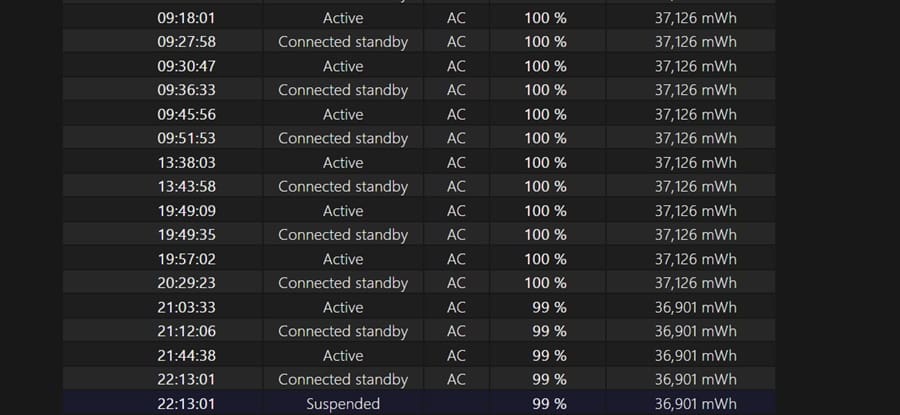
Step 5. Check the “Battery usage” and “Usage history” sections for drops. This can help you determine if the laptop actually turned off in that time.
For more information, you can use dedicated manufacturer tools like HP Support Assistant, MyASUS, and Dell SupportAssist.
Was this helpful?
Last updated on 12 August, 2026
Read Next
 Why Does Netflix Keep Logging Me Out and 3 Ways to Fix It
Why Netflix Logged You Out Automatically There are a few reasons why Netflix asks for sign-in every time you open the service.
Why Does Netflix Keep Logging Me Out and 3 Ways to Fix It
Why Netflix Logged You Out Automatically There are a few reasons why Netflix asks for sign-in every time you open the service.
 Should You Keep Laptop Plugged in or Use It on Battery Power?
Can You Overcharge Your Laptop Battery?
Should You Keep Laptop Plugged in or Use It on Battery Power?
Can You Overcharge Your Laptop Battery?
 How to Stop Chrome From Draining the Battery on iPhone and iPad
Basic Fixes Close Unwanted Tabs: If Chrome is open with multiple tabs, your battery will drain faster.
How to Stop Chrome From Draining the Battery on iPhone and iPad
Basic Fixes Close Unwanted Tabs: If Chrome is open with multiple tabs, your battery will drain faster.
 6 Ways to Fix iPhone Battery Draining While Charging
https://youtu.be/Eotj1OWfuME Fix 1: Use MFi-Certified Cables and Adapters It’s advisable to use Apple’s original accessories that ship with the phone.
6 Ways to Fix iPhone Battery Draining While Charging
https://youtu.be/Eotj1OWfuME Fix 1: Use MFi-Certified Cables and Adapters It’s advisable to use Apple’s original accessories that ship with the phone.
 10 Tips to Fix Kindle Battery Draining Fast
1.
10 Tips to Fix Kindle Battery Draining Fast
1.
 4 Ways to Fix Google Maps Draining Battery on Android and iPhone
https://youtu.be/HEEhE2uFRfw Try Basic Fixes Remove the Google Maps widget from home screen: If you use Google Maps' live traffic widget to get traffic information on your home screen, the app’s
4 Ways to Fix Google Maps Draining Battery on Android and iPhone
https://youtu.be/HEEhE2uFRfw Try Basic Fixes Remove the Google Maps widget from home screen: If you use Google Maps' live traffic widget to get traffic information on your home screen, the app’s
 4 Ways to Fix MacBook Draining Battery When Closed
https://youtu.be/fkXYhA950FQ Preliminary Fixes Disable the background process: If you are downloading a large file or installing an app from the Mac App Store, pause the process first and close the
4 Ways to Fix MacBook Draining Battery When Closed
https://youtu.be/fkXYhA950FQ Preliminary Fixes Disable the background process: If you are downloading a large file or installing an app from the Mac App Store, pause the process first and close the
 5 Ways to Fix Android Phone Draining Battery While Charging
Why Is Your Phone Losing Battery While Charging Your Android phone may quickly lose battery while charging due to software or hardware issues, such as: You're charging your phone with
5 Ways to Fix Android Phone Draining Battery While Charging
Why Is Your Phone Losing Battery While Charging Your Android phone may quickly lose battery while charging due to software or hardware issues, such as: You're charging your phone with
The article above may contain affiliate links which help support Guiding Tech. The content remains unbiased and authentic and will never affect our editorial integrity.