Why Can’t I Share Posts to Story on Instagram
1. Check the Account Type
Instagram has different privacy settings that control how content is shared and who can see it. If the account is private, posts cannot be shared to stories unless you follow the account and the account owner has allowed their followers to share their posts.
To check the account type, launch the Instagram app or go to the web and navigate to the profile from which you want to share the post. Check to see if the account is public or private. Public accounts display their content to everyone, while private accounts restrict content to approved followers.

Also Read: Instagram privacy settings that you should know
2. Permission to Share
If the person’s account profile is public, but you still can’t share their post onto your story, they may have disabled the Allow Resharing of Stories option. It doesn’t matter whether you have enabled this option for your account. It depends on the account from which you are trying to share.
How to Fix Cannot Share Instagram Posts to Stories
If you’ve checked the above reasons and don’t find them affecting you, employ these fixes with your Instagram profile.
Fix 1: Turn off and on Resharing Toggle
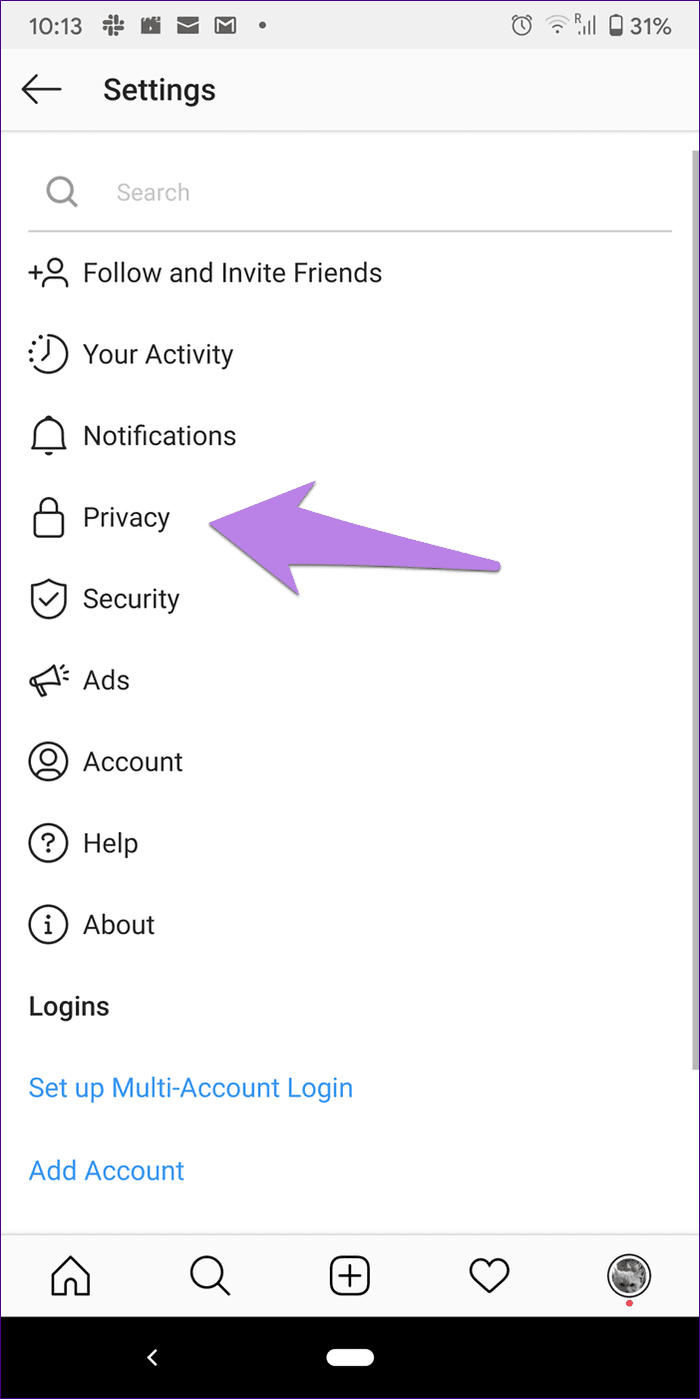
Step 1: Launch the Instagram app and tap the profile icon to view your profile screen.
Step 2: Tap on the hamburger menu icon at the top and select Settings.


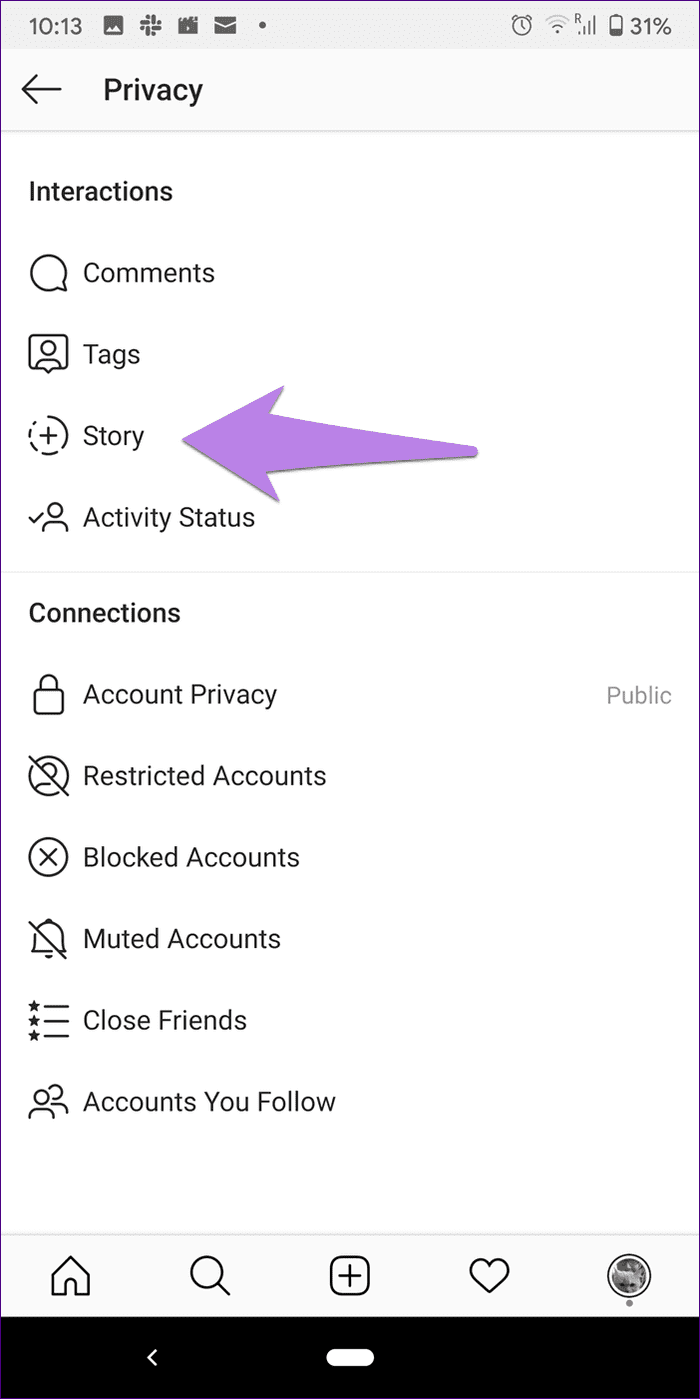
Step 3: Tap on Privacy > Story.
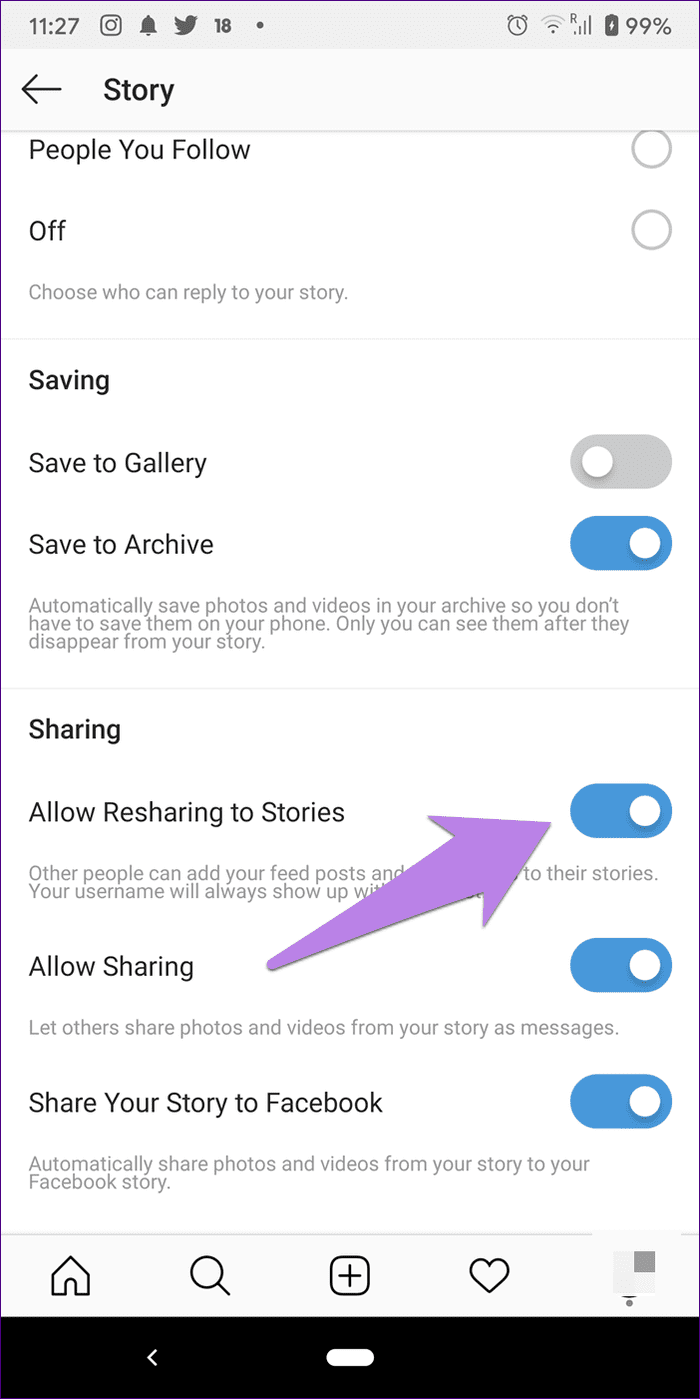
Step 4: Turn on the toggle for Allow Resharing to Stories.
Fix 2: Clear Cache (Android Only)
Unfortunately, there’s no direct way to purge the Instagram cache on iOS. However, you can clear the app’s cache on Android to give it a fresh start.
Step 1: Open Settings on your phone > go to Apps & notifications.
Step 2: Tap on Instagram under All apps.


Step 3: Tap on Storage > Clear cache.
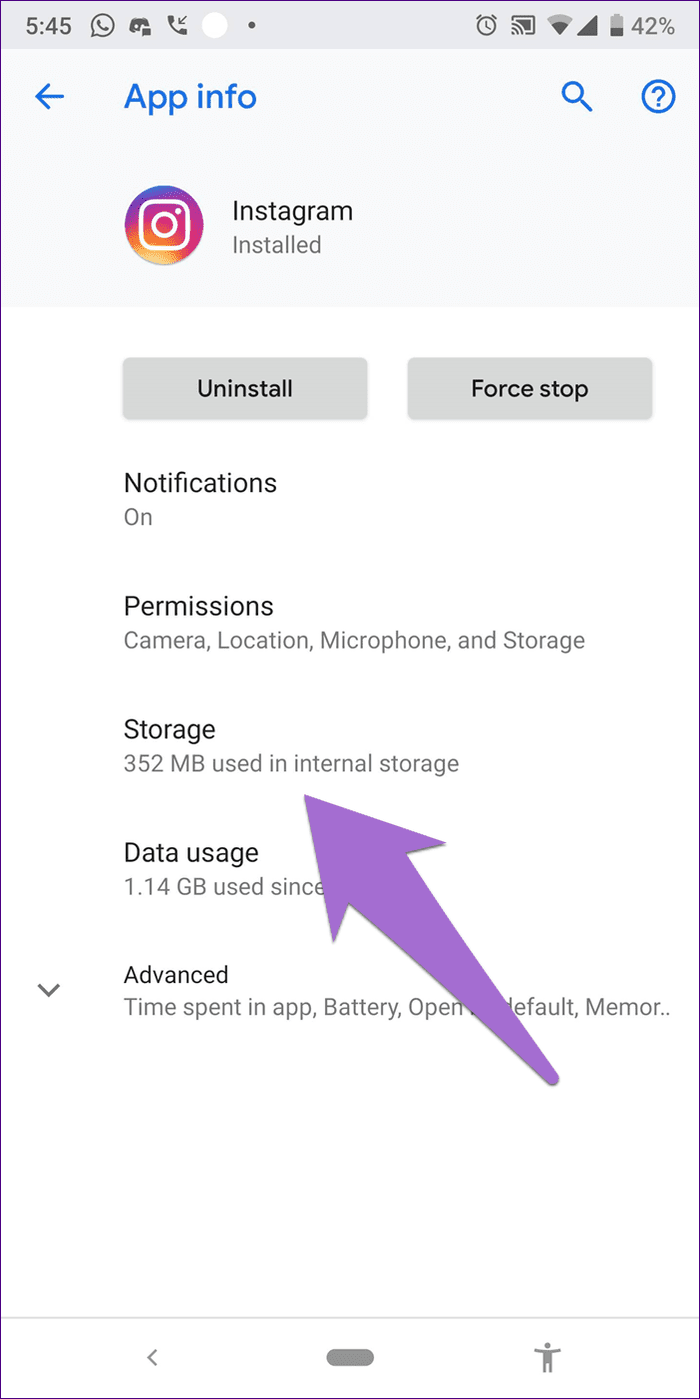

Now, restart the Instagram app. Initially, the app might feel a bit slow because it collects fresh cache to load the posts and other elements faster.
Fix 3: Update Instagram or Reinstall It
You can install any pending updates for the Instagram app on your Android phone or iPhone. If your phone has no pending updates, reinstall the Instagram app. That will not delete your published posts, stories, or followers.
Uninstall the app from your Android phone or iPhone. After that, restart your phone and download the latest version of Instagram from Google Play Store and Apple App Store.
Was this helpful?
Last updated on 29 August, 2024
Read Next
 How to Add a Link to Instagram Story and Posts
Are you looking for ways to drive more traffic to your website or promote your brand on Instagram?
How to Add a Link to Instagram Story and Posts
Are you looking for ways to drive more traffic to your website or promote your brand on Instagram?
 How to Share (Repost) Someone Else’s Story on Instagram
Have you ever stumbled upon a captivating Instagram story you wished to share with your followers?
How to Share (Repost) Someone Else’s Story on Instagram
Have you ever stumbled upon a captivating Instagram story you wished to share with your followers?
 How to Share Instagram Post to Snapchat Story
Can You Link Instagram to Snapchat No, you cannot directly connect Instagram to Snapchat.
How to Share Instagram Post to Snapchat Story
Can You Link Instagram to Snapchat No, you cannot directly connect Instagram to Snapchat.
 How to Share Comments on Instagram Story
Instagram stories are an easy way to share updates with your followers quickly.
How to Share Comments on Instagram Story
Instagram stories are an easy way to share updates with your followers quickly.
 Why Can’t I Share My Facebook Post to Instagram
Preliminary Checks Before Troubleshooting Is the post private or restricted?
Why Can’t I Share My Facebook Post to Instagram
Preliminary Checks Before Troubleshooting Is the post private or restricted?
 Facebook Story vs Messenger Story: Similarities and Differences
Key Differences and Similarities FeatureFacebook StoriesMessenger StoriesCross-PostingFacebook Stories are visible to Messenger contacts.Messenger Stories are visible to Facebook friends.AvailabilityAvailable on mobile apps and the Facebook website.Available only on the mobile
Facebook Story vs Messenger Story: Similarities and Differences
Key Differences and Similarities FeatureFacebook StoriesMessenger StoriesCross-PostingFacebook Stories are visible to Messenger contacts.Messenger Stories are visible to Facebook friends.AvailabilityAvailable on mobile apps and the Facebook website.Available only on the mobile
 How to View Instagram Posts and Stories Without an Account
How to See Instagram Stories Without an Account Unlike posts on Instagram (mentioned below), users can see who opened/viewed their Instagram Stories.
How to View Instagram Posts and Stories Without an Account
How to See Instagram Stories Without an Account Unlike posts on Instagram (mentioned below), users can see who opened/viewed their Instagram Stories.
 How to Unlike or Unsave All Posts on Instagram at Once
How to Unlike All Posts on Instagram On Mobile App The steps are identical on Android devices and iPhones.
How to Unlike or Unsave All Posts on Instagram at Once
How to Unlike All Posts on Instagram On Mobile App The steps are identical on Android devices and iPhones.
The article above may contain affiliate links which help support Guiding Tech. The content remains unbiased and authentic and will never affect our editorial integrity.