

If you’re finding sent emails in Inbox, Outlook might not actually be moving them there. Conversation view can display your replies alongside incoming messages, while a rule or another mail-handling setting may be responsible if separate copies are appearing in the Inbox. In other cases, an add-in, a damaged profile, or an outdated Office build could be involved.
Here’s why you may see sent emails showing up in Inbox, Outlook settings to check, and how to get your sent messages back where they belong.
Fix 1 – Turn Off Conversation View or Messages From Other Folders
Conversation view groups all emails in a thread together, including the ones you sent from the Sent Items folder. Your replies then show up in the Inbox even though they’re still stored in Sent Items.
Step 1. In classic Outlook, go to the “View” tab.
Step 2. Uncheck “Show as Conversations” and choose whether to apply it to “This folder” or “All mailboxes.”
Step 3. If you’d rather keep conversations, click “Conversation Settings” on the same tab and uncheck “Show Messages from Other Folders” instead.
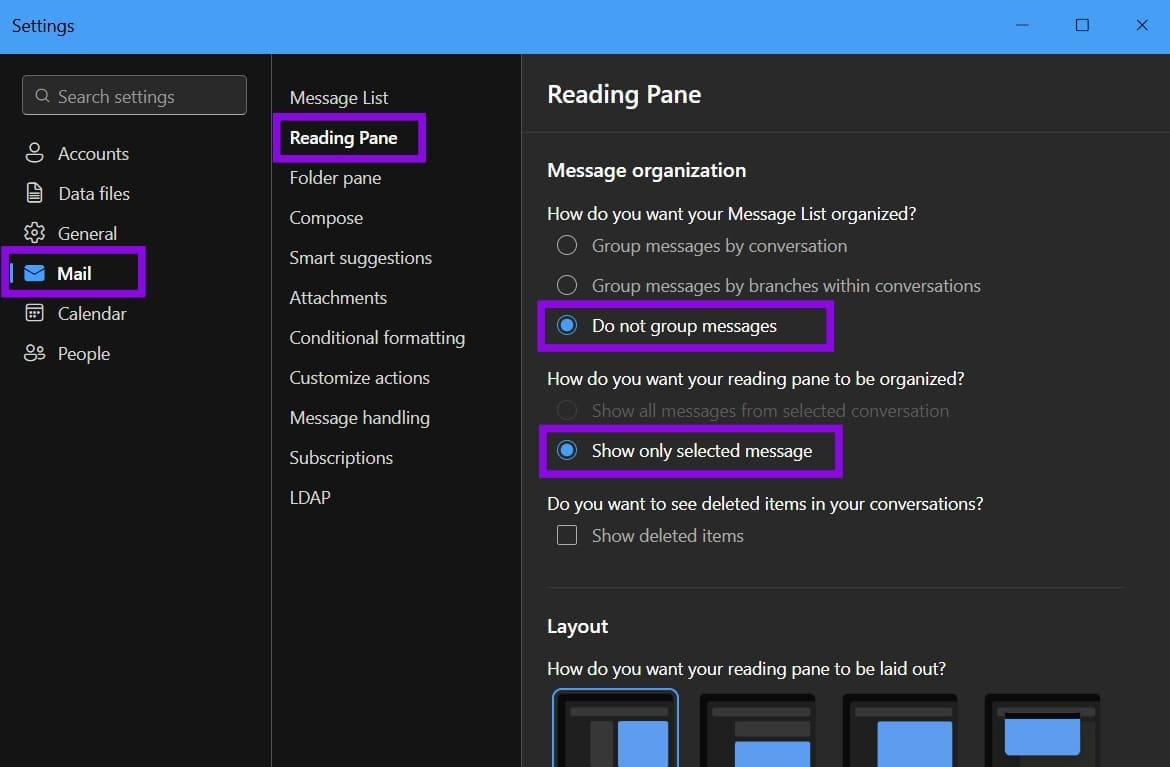
In the new Outlook app, open “Settings,” go to “Mail” and then to “Reading pane,” then select “Do not group messages” and “Show only selected message.”
Fix 2 – Check for a Rule That Copies Sent Emails Showing Up in Inbox Outlook
A rule you created or imported might copy sent messages to the Inbox. In classic Outlook, a rule of this type may read something like “Apply this rule after I send the message … move a copy to the Inbox folder.”
Step 1. For classic Outlook, on the “Home” tab, click on “Rules,” and go to “Manage Rules & Alerts.”
Step 2. On the “Email Rules” tab, click each rule and read its description at the bottom of the window.
Step 3. If a rule applies after sending and moves or copies messages to the Inbox, uncheck it to disable it or click “Delete Rule.”
Step 4. Click “Apply” and then “OK.”
In the new Outlook app, open “Settings” and select “Mail” and then “Rules.” If you find a rule that redirects or copies sent messages to the Inbox, disable or delete it.
Fix 3 – Make Sure Outlook Saves Copies to Sent Items
If Outlook isn’t set to save sent emails in the Sent Items folder, they can end up in unexpected places, especially combined with rules or add-ins that handle sent mail.
Step 1. In classic Outlook, go to “File” and select “Options.”
Step 2. Select “Mail” in the left-hand panel and scroll down to the “Save messages” section.
Step 3. Check “Save copies of messages in the Sent Items folder,” then click “OK.”
Fix 4 – Disable Add-ins Causing Sent Emails in Inbox
Some add-ins interact with sent mail and can make copies that can go to seemingly random folders. Disabling them one by one helps find the problematic one.
Step 1. Go to “File,” then to “Options,” and select “Add-ins.”
Step 2. Next to “Manage,” pick “COM Add-ins” from the drop-down and click “Go.”
Step 3. Uncheck all add-ins and click “OK.”
Step 4. Restart Outlook and send a test email. If the message no longer appears in the Inbox, re-enable the add-ins one at a time, restarting Outlook and testing after each, until the problem returns.
Once you find the add-in responsible, keep it disabled, remove it, or contact its developer for an update.
Fix 5 – Create a New Outlook Profile
If none of the settings above explain it, your Outlook profile might be corrupted. Testing with a fresh one tells you quickly.
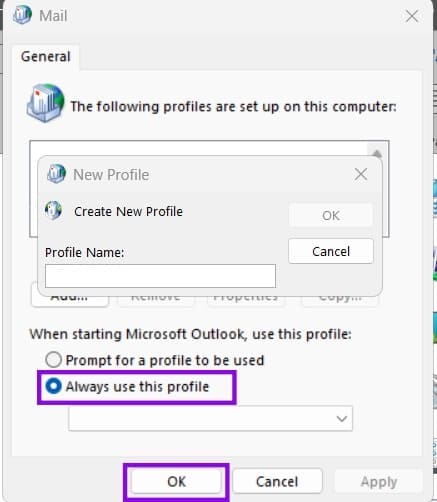
Step 1. Close Outlook, open “Control Panel,” and search for “Mail.” Select the Mail applet to manage your Outlook profiles.

Step 2. Click on“Add.” Name the profile and follow the prompts to add your email account.
Step 3. Select “Always use this profile,” pick the new profile from the drop-down, and click “OK.”
Step 4. Open Outlook and send a test email.
If the new profile works, reconnect any required Outlook data files and recreate or import your rules as needed. Back up any PST files before changing or moving them.
Fix 6 – Update or Repair Office
An older Office build might have a bug affecting how Outlook handles sent mail, and damaged installation files can cause similar problems.
Step 1. In classic Outlook, go to “File” and select “Account” or “Office Account.” Under “Product Information,” select “Update Options” and then “Update Now.”
Step 2. If the issue continues, open “Settings,” go to “Apps,” and select “Installed apps,” then click the three-dot menu next to Microsoft 365 or Microsoft Office and select “Modify.”
Step 3. Choose “Quick Repair” first. If that doesn’t help, use “Online Repair.”
Was this helpful?
Last updated on 23 October, 2026
Read Next
 Declutter Your Inbox: How to Filter Unread Emails in Gmail
Method 1: Using a Query in the Search Field Like Google Search, there are various tips and tricks for using Gmail Search to get the desired results.
Declutter Your Inbox: How to Filter Unread Emails in Gmail
Method 1: Using a Query in the Search Field Like Google Search, there are various tips and tricks for using Gmail Search to get the desired results.
 3 Ways to Fix Telegram Photos Not Appearing in Gallery
Basic Fixes Check network connection: If your device is not connected to the internet or has an issue, Telegram won't download pictures to your gallery.
3 Ways to Fix Telegram Photos Not Appearing in Gallery
Basic Fixes Check network connection: If your device is not connected to the internet or has an issue, Telegram won't download pictures to your gallery.
 How to Turn Off Focused Inbox in Outlook on Web, Desktop, or Mobile
Not too long ago, Outlook introduced a Focused Inbox feature that automatically sorts your incoming email into two tabs.
How to Turn Off Focused Inbox in Outlook on Web, Desktop, or Mobile
Not too long ago, Outlook introduced a Focused Inbox feature that automatically sorts your incoming email into two tabs.
 6 Fixes for Sent Items Not Showing in Microsoft Outlook for Windows
Fix 1: Make Sure Outlook Is Configured to Save Sent Items Your sent emails may not show up in Outlook if you have previously configured the app to not save
6 Fixes for Sent Items Not Showing in Microsoft Outlook for Windows
Fix 1: Make Sure Outlook Is Configured to Save Sent Items Your sent emails may not show up in Outlook if you have previously configured the app to not save
 How to Solve Vertical Blue Lines Appearing on Laptop Screen
Check if the Error is Software or Hardware-based To fix the vertical blue lines on your laptop screen, you need to find the root cause.
How to Solve Vertical Blue Lines Appearing on Laptop Screen
Check if the Error is Software or Hardware-based To fix the vertical blue lines on your laptop screen, you need to find the root cause.
 4 Ways to Fix Microsoft Outlook Stuck on Updating Inbox on Windows
Fix 1: Disable Cached Exchange Mode Cached Exchange Mode (CEM) is a feature available in Microsoft Outlook that allows you to keep a copy of your Exchange mailbox on your
4 Ways to Fix Microsoft Outlook Stuck on Updating Inbox on Windows
Fix 1: Disable Cached Exchange Mode Cached Exchange Mode (CEM) is a feature available in Microsoft Outlook that allows you to keep a copy of your Exchange mailbox on your
 How to See Your Sent Friend Requests on Facebook and Instagram
How to Check and Cancel Your Sent Friend Requests on Facebook The Friend Requests tab on Facebook makes it simple to track all the friend requests you have sent and
How to See Your Sent Friend Requests on Facebook and Instagram
How to Check and Cancel Your Sent Friend Requests on Facebook The Friend Requests tab on Facebook makes it simple to track all the friend requests you have sent and
 How to Turn Off Sent Message Sound on iPhone and Android
Notifications and sounds tell you about new messages, but some sounds, like the one when you send a message from your phone, may be unnecessary.
How to Turn Off Sent Message Sound on iPhone and Android
Notifications and sounds tell you about new messages, but some sounds, like the one when you send a message from your phone, may be unnecessary.
The article above may contain affiliate links which help support Guiding Tech. The content remains unbiased and authentic and will never affect our editorial integrity.

