Why Do My Instagram Reels Look Blurry?
Before we discuss how to fix blurry Instagram Reels, let’s examine why they look blurry in the first place.
- Your internet connection might not be working properly.
- There are smudges or debris on your device’s camera lens.
- Your device is restricting the Instagram app.
- The Instagram app is out-of-date.
- The video’s aspect ratio is incorrect.
Basic Fixes:
- Check your internet connection: If your internet is not up to the mark, it might reflect in your uploaded Reels. To check this, run a speed test. If the results are less than ideal, try connecting to a better network. Or, if you’re on Mobile Data, connect to a Wi-Fi network and check again.
- Clear your device’s camera lens: Debris or smudges on your camera’s lens can cause your recorded content to look splotchy or blurry. In this case, use a microfiber or any soft cloth to gently clean your device’s camera lens before recording again.
- Check the aspect ratio and lighting: If you record Reels in bad lighting, they might become blurry. This can also be the case if you record in an incorrect aspect ratio. So, ensure your surroundings are well-lit and shoot in a 4:5 aspect ratio.
- Update the Instagram app: App updates not only introduce new features to the app but also help keep up with the software changes on your device and fix any bugs. So, to fix the issue of blurry Instagram Reels, check and install any pending software updates.
Fix 1: Use Instagram’s Camera
While you can upload your photos and videos to create Reels, all the uploaded content might not be of the same quality. To ensure this does not happen, you can use the camera feature in the Instagram app to capture and upload the Reel. Here’s how.
Step 1: Open the Instagram mobile app and swipe left on the screen.
Step 2: Once the Instagram camera opens, select Reel. Now, record and upload your Instagram Reel.

Fix 2: Enable High-Quality Uploads
If all the recorded content is blur-free, it might still look distorted if there is compression when uploading. To prevent this, enable high-quality uploads on Instagram. Follow the below steps to do it.
Step 1: Open Instagram and tap on your profile icon at the bottom-right corner.
Step 2: Here, tap on the hamburger icon. Then, tap on Settings and privacy.
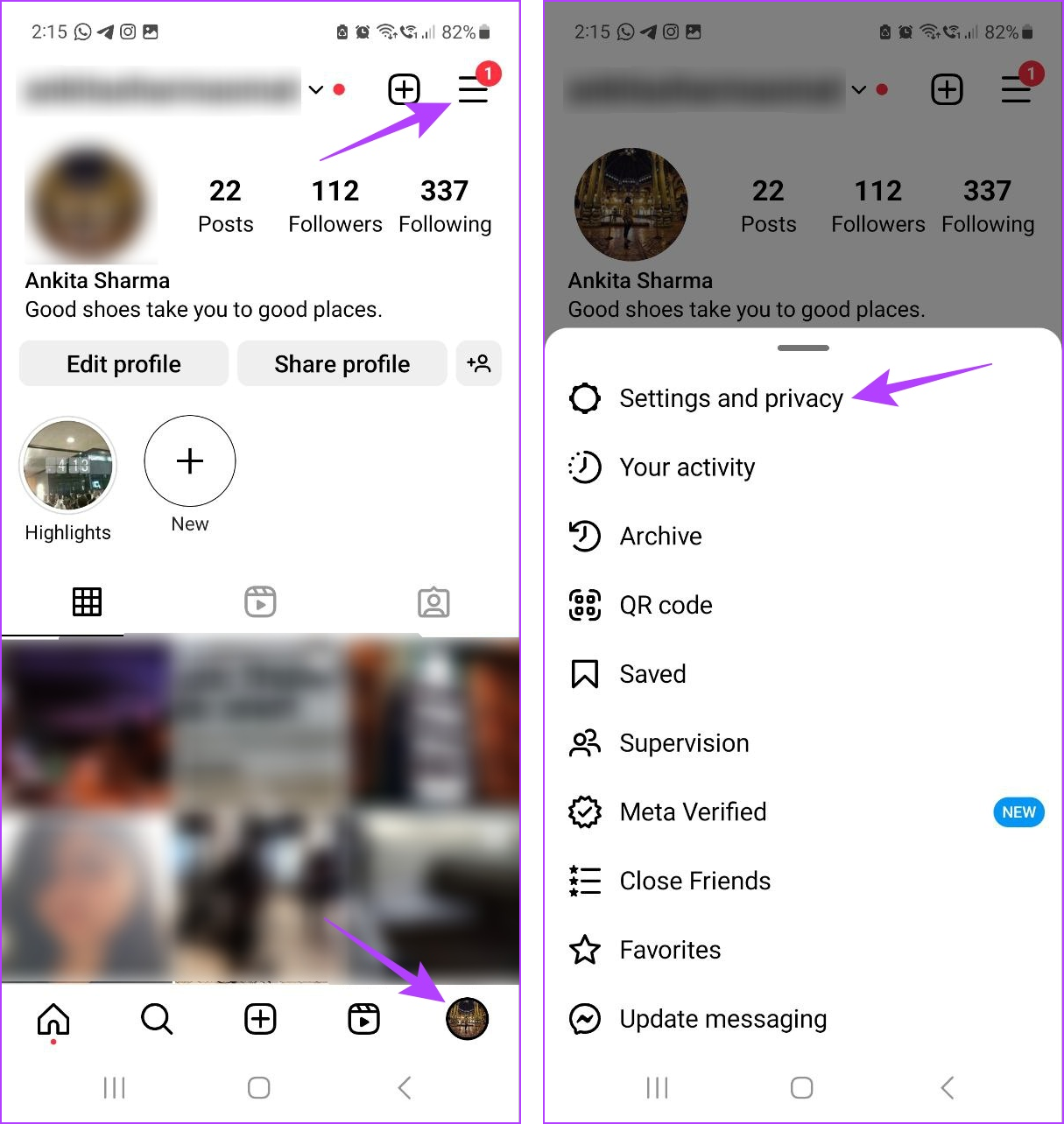
Step 3: Scroll down and tap on Data usage and media quality.
Step 4: First, turn off the Data Saver toggle. Then, turn on the Upload at highest quality toggle.

Also Read: How to fix closed captions or subtitles not working on Instagram Reels
Fix 3: Turn off Battery Saver
Your device settings might also throttle Instagram if the app is restricted on your device. To ensure this is not the case, unrestrict the Instagram app on your Android device and turn off Low Data Mode on your iOS device. Here’s how to do it.
Unrestrict Battery on Android
Step 1: Open Settings and tap on Apps. Here, tap on Instagram.

Step 2: Then, tap on Battery > select Unrestricted.

Turn off Low Power Mode on iOS
Step 1: Open Settings and tap on Battery. Ensure the Low Power Mode toggle is turned off.

This will ensure Instagram can operate and upload Reels without restrictions on your phone. However, this might also result in a higher-than-normal battery drain.
Was this helpful?
Last updated on 26 June, 2024
Read Next
 Why Do Photos Get Blurry on WhatsApp Status: 3 Ways to Fix This
https://youtu.be/k2MGRKNamFQ Basic Fixes Switch to the stable version of WhatsApp: While beta versions give you early access to new features and cool tricks, they may also introduce several bugs and
Why Do Photos Get Blurry on WhatsApp Status: 3 Ways to Fix This
https://youtu.be/k2MGRKNamFQ Basic Fixes Switch to the stable version of WhatsApp: While beta versions give you early access to new features and cool tricks, they may also introduce several bugs and
 4 Ways to Fix Blurry Stories on Instagram
Stories on Instagram are a great way to share the moments that you cherish, with your friends and followers.
4 Ways to Fix Blurry Stories on Instagram
Stories on Instagram are a great way to share the moments that you cherish, with your friends and followers.
 3 Ways to Fix Sound Not Working on Instagram Reels
Basic Troubleshooting Unmute/raise the volume: When your phone is silent, Instagram mutes the video on the home feed and the Reels tab.
3 Ways to Fix Sound Not Working on Instagram Reels
Basic Troubleshooting Unmute/raise the volume: When your phone is silent, Instagram mutes the video on the home feed and the Reels tab.
 How to Fix Reels Not Showing on Instagram
Basic Fixes Check your Internet connection: You need a stable internet connection to view Instagram reels.
How to Fix Reels Not Showing on Instagram
Basic Fixes Check your Internet connection: You need a stable internet connection to view Instagram reels.
 4 Ways to Fix if You Can’t Pause Instagram Videos or Reels
Fix 1: Tap to Open Videos From Feed The videos on the feed or timeline cannot be paused like reels.
4 Ways to Fix if You Can’t Pause Instagram Videos or Reels
Fix 1: Tap to Open Videos From Feed The videos on the feed or timeline cannot be paused like reels.
 How to Fix Instagram Showing the Same Reels
Basic Fixes Check your network connection: Ensure your device has a good internet connection.
How to Fix Instagram Showing the Same Reels
Basic Fixes Check your network connection: Ensure your device has a good internet connection.
 3 Ways to Fix Blurry Text in Google Chrome
Fix 1: Disable Hardware Acceleration When you disable hardware acceleration, you offload graphics processing tasks from the computer's graphics card to the central processing unit, which is helpful if the
3 Ways to Fix Blurry Text in Google Chrome
Fix 1: Disable Hardware Acceleration When you disable hardware acceleration, you offload graphics processing tasks from the computer's graphics card to the central processing unit, which is helpful if the
 How to Add Captions (Subtitles) to Instagram Reels and Stories
Enable Auto-Generated Captions to any Reels This is similar to YouTube subtitles.
How to Add Captions (Subtitles) to Instagram Reels and Stories
Enable Auto-Generated Captions to any Reels This is similar to YouTube subtitles.
The article above may contain affiliate links which help support Guiding Tech. The content remains unbiased and authentic and will never affect our editorial integrity.