How Google Photos Works?
Before we focus on privacy and sharing, it’s important to understand the basics of Google Photos. It’s a typical photo viewer app where you can access all the photos on your device—that is until you back up your photos.
- When you open the app for the first time on your phone, the app will ask whether you want to take a backup of your photos to the Google Photos library.
- If you agree, you can access them on other devices linked with the same Google account.
- They will also be stored in the cloud, thus, saving storage space on your device.
- Further, you can take advantage of the powerful search feature, which is otherwise unavailable.
- If you deny it, you can continue to use the app as a regular photo viewer.
Google Photos Backup vs. Sync
While you can control the backup functionality for each device individually, you cannot control the sync feature. That is, even if the Back up and sync setting is turned off on your device, any photos you back up in the Google Photos Library will automatically reflect on all the connected devices. That’s because snaps in the Google Photos library are continuously syncing.
Are Google Photos Private?
Yes. Whether the backup feature is turned on or not, the photos can be accessed by you only. That is, by default, anything shown in the Google Photos apps on Android or iOS (iPhone/iPad) is visible to you only.
Google Photos isn’t a social network. Your photos are not visible through your Google profile or anything like that. So, any photo you add to it or take a backup of is private unless you share it manually.
No other person has access to them until you share the photos with them (more on that below). However, if the backup is turned on or you manually back up a photo to Google Photos, it will reflect on other devices where you are logged in with the same Google account.
How to Share Your Google Photos
Method 1: Share via Link
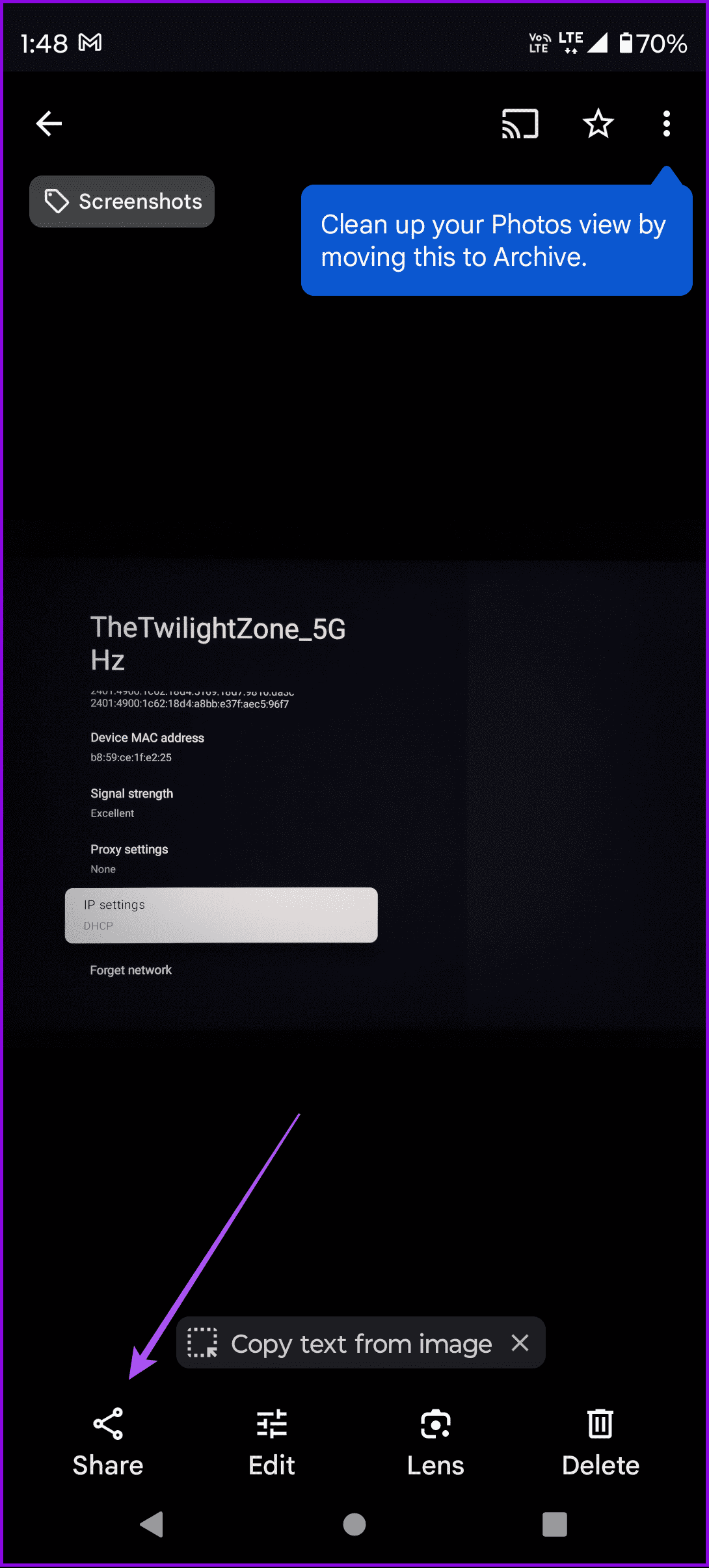
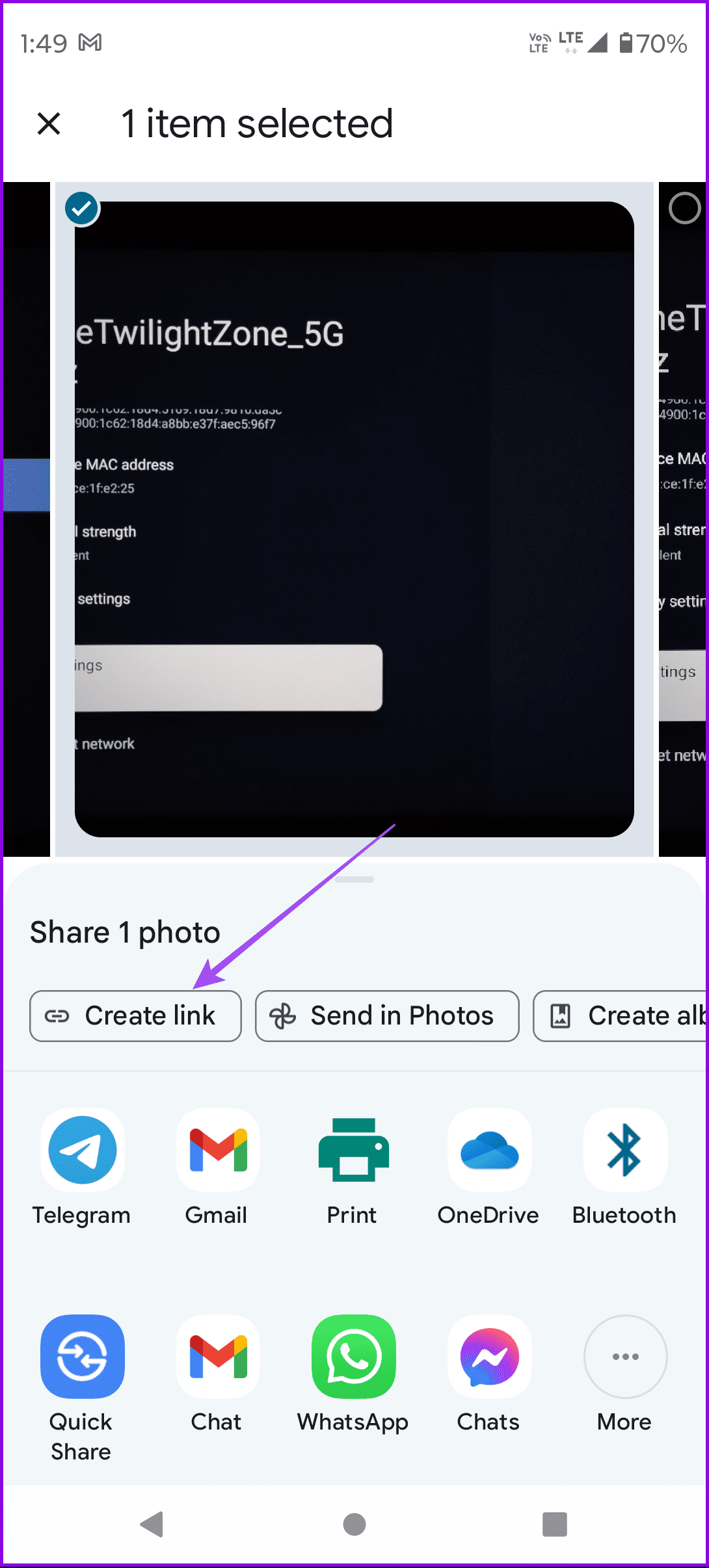
Open your photo in Google Photos > tap on Share > select Create a Link > share that link with any user.
Method 2: Share via Other Google Photos Users
Open your photo in Google Photos > tap on Share > Send in Photos > choose the user account name.

Method 3: Partner account
Lastly, you can add a partner account in Google Photos. By doing so, certain photos, depending on the set conditions, will be automatically shared with your partner.
Stop Sharing Photos With Another Phone
To stop your photos from showing up on another phone, turn off the Back up and sync setting. Follow these steps:
Step 1: Open the Google Photos app and go to Settings.
Step 2: Tap on Back up and sync and disable Back up and sync.


Tip: Check out our post if Google Photos is not playing videos.
Was this helpful?
Last updated on 29 August, 2024
Read Next
 Google Drive vs Google Photos: Which Is Best for Storing Photos
Google Drive vs Google Photos Comparison Key Differences Feature Google Drive Google PhotosFile Types All types Photos, Videos, GIFsOrganization Folders & Subfolders AlbumsPhoto Quality Original Original, High (compressed), Express (compressed)Storage
Google Drive vs Google Photos: Which Is Best for Storing Photos
Google Drive vs Google Photos Comparison Key Differences Feature Google Drive Google PhotosFile Types All types Photos, Videos, GIFsOrganization Folders & Subfolders AlbumsPhoto Quality Original Original, High (compressed), Express (compressed)Storage
 How to Remove Photos from Google Drive but Not Google Photos
Google Drive and Photos are two similar yet distinct products for storing photos and videos.
How to Remove Photos from Google Drive but Not Google Photos
Google Drive and Photos are two similar yet distinct products for storing photos and videos.
 How to Delete Photos From Google Photos But Not From Phone
What Happens When You Delete Photos?
How to Delete Photos From Google Photos But Not From Phone
What Happens When You Delete Photos?
 How to Move Photos from Email to Google Photos
Earlier, when you received photos on Gmail, it was easy to move them to Google Photos.
How to Move Photos from Email to Google Photos
Earlier, when you received photos on Gmail, it was easy to move them to Google Photos.
 What Happens When You Delete Photos from Google Photos
If you use the gallery app on your phone without the cloud storage service, things are pretty easy.
What Happens When You Delete Photos from Google Photos
If you use the gallery app on your phone without the cloud storage service, things are pretty easy.
 How to Upload Photos to Google Photos on Android, iPhone, PC
How to Upload Photos on Google Photos From Mobile There are two ways to add pictures to Google Photos from Android or iOS devices.
How to Upload Photos to Google Photos on Android, iPhone, PC
How to Upload Photos on Google Photos From Mobile There are two ways to add pictures to Google Photos from Android or iOS devices.
 How to Download Photos From Google Photos on Desktop and Mobile
If you save photos in Cloud services like Google Photos, you may want to download your precious memories to your local storage.
How to Download Photos From Google Photos on Desktop and Mobile
If you save photos in Cloud services like Google Photos, you may want to download your precious memories to your local storage.
 How to Delete Photos From iPhone But Not From Google Photos
How to Delete Photos from iPhone But Keep Them in Google Photos Open Google Photos, swipe up the photo you want to delete, and select Delete from Device.
How to Delete Photos From iPhone But Not From Google Photos
How to Delete Photos from iPhone But Keep Them in Google Photos Open Google Photos, swipe up the photo you want to delete, and select Delete from Device.
The article above may contain affiliate links which help support Guiding Tech. The content remains unbiased and authentic and will never affect our editorial integrity.