Find Your Downloads Using the Files App
The Files app was released with iOS 11. By default, all the files you download are stored in the iCloud Drive folder of the Files app on your iPhone and iPad. The Files app creates a separate Downloads folder for each file. If you don’t remember where to look for the attachment on your iPhone, here’s how to access it.
Step 1: Open the Files app on your iPhone or iPad.
Step 2: Tap on the iCloud Drive folder at the top and select the Downloads folder.

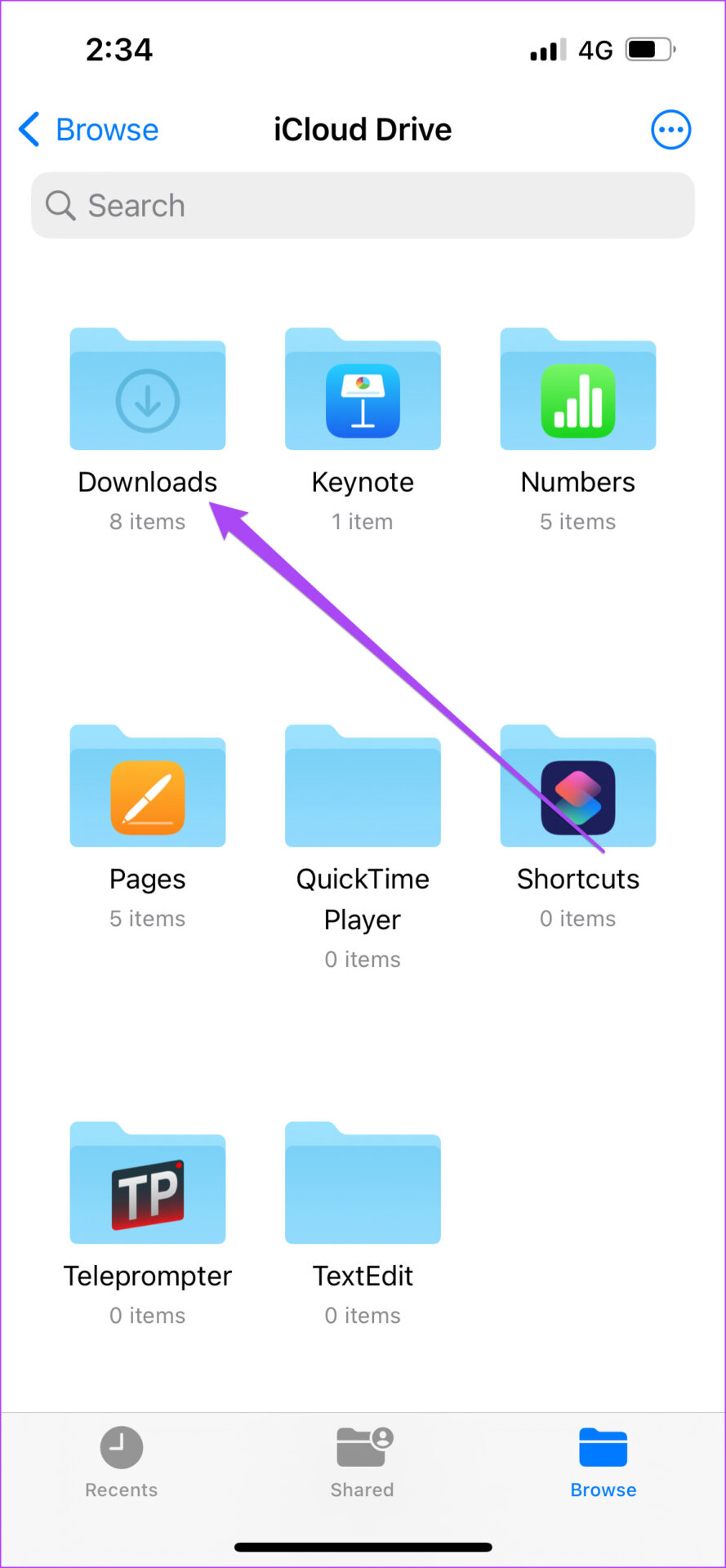
You will see all your downloaded files on your screen. You can long-press any file or folder icon to access other options, such as Quick Look, Compress, Copy, Move, Share, etc.
Interestingly, the Files app also adds this Downloads folder to the Favorites list for quick access. Here’s how to access it.
Step 1: Open the Files app on your iPhone or iPad.
Step 2: Tap on Downloads under Favorites. You can now access all your downloaded files like images, documents, ringtones, and more.
You can also add a new folder in the Downloads by tapping the three dots > New Folder > naming your new folder.


iCloud Drive vs. On My iPhone in Files App
The Files app offers two storage options – iCloud Drive and iPhone or iPad’s Internal Storage. The iCloud Drive automatically creates separate folders for specific files like Pages, Keynote, Numbers, and Quick Time Player. Whenever you download a file from the iCloud drive, you can visit the specific folder to open and access the file type based on supported apps. The biggest advantage is that the files you download sync to the iCloud account, and you can access it on your iPad, Mac, and even a Windows 11.
However, when you save the files on your iPhone or iPad, you save them on the device’s internal storage. Those files will only be accessible on your iPhone and not your iPad or Mac connected through the same Apple ID. You can share them separately on apps like Messages and WhatsApp.
Can’t Find Downloaded Files? Here’s How to Fix This
- Use the search bar in the Files app: The Files app has a dedicated search bar where you can look for your downloaded files. You can search by entering specific characters of your file name.
- Use Spotlight Search: This feature lets you search for any file or app on your iPhone. You can use the same to search for your downloads.
- Check app folder: The Files app creates folders for apps like WhatsApp and Telegram for checking the downloads. You can access the respective app folder in the Files app.
- Check downloaded files from Chrome: If you prefer using Chrome, refer to our post on how to check the files downloaded using Chrome.
- Force quit and relaunch the Files app: If the app has been running in the background for some time, try force quitting and relaunching it.
- Update iOS: This will install the latest version of the Files app on your iPhone. Go to Settings > General > Software Update.
Was this helpful?
Last updated on 01 July, 2024
Read Next
 How to Find Telegram Downloaded Files on Android, iPhone, and Mac
Telegram can send large and uncompressed files effortlessly compared to other messaging apps.
How to Find Telegram Downloaded Files on Android, iPhone, and Mac
Telegram can send large and uncompressed files effortlessly compared to other messaging apps.
 4 Fixes for “This Message Has Not Been Downloaded From the Server” on iPhone
Try These Basic Fixes Free up storage space: A common reason the Mail app may not download emails is due to a lack of free storage space.
4 Fixes for “This Message Has Not Been Downloaded From the Server” on iPhone
Try These Basic Fixes Free up storage space: A common reason the Mail app may not download emails is due to a lack of free storage space.
 Top 2 Ways to Watch Videos Downloaded From Telegram on iPhone
Method 1: Play Videos in the Photos App Step 1: Open the Telegram app and move to the conversation.
Top 2 Ways to Watch Videos Downloaded From Telegram on iPhone
Method 1: Play Videos in the Photos App Step 1: Open the Telegram app and move to the conversation.
 How to View and Manage Your Previously Downloaded Apps on Android and iPhone
How to View Your App Download History on Android Google Play Store makes it easy to access your app download history on Android.
How to View and Manage Your Previously Downloaded Apps on Android and iPhone
How to View Your App Download History on Android Google Play Store makes it easy to access your app download history on Android.
 How to Fix Apple Music Not Playing Downloaded Songs
Basic Fixes: Check the Apple Music server status: If Apple Music is not working properly, you will have issues playing any song, downloaded or otherwise.
How to Fix Apple Music Not Playing Downloaded Songs
Basic Fixes: Check the Apple Music server status: If Apple Music is not working properly, you will have issues playing any song, downloaded or otherwise.
 3 Ways to Fix Downloaded Songs Not Showing on Apple Music
Basic Fixes Check internal storage: Your iPhone needs more internal storage to store downloaded songs.
3 Ways to Fix Downloaded Songs Not Showing on Apple Music
Basic Fixes Check internal storage: Your iPhone needs more internal storage to store downloaded songs.
 How to Add Downloaded Music to Apple Music Library
If you download songs on your iPhone and use the Files app to listen to them, you are doing it wrong.
How to Add Downloaded Music to Apple Music Library
If you download songs on your iPhone and use the Files app to listen to them, you are doing it wrong.
 How to Save Pictures or Videos From Files to Photos App on iPhone and iPad
Option 1: How to Move a Single Picture or Video Present in an iPhone or iPad Folder From Files to Photos App Step 1: Launch the Files app on your
How to Save Pictures or Videos From Files to Photos App on iPhone and iPad
Option 1: How to Move a Single Picture or Video Present in an iPhone or iPad Folder From Files to Photos App Step 1: Launch the Files app on your
The article above may contain affiliate links which help support Guiding Tech. The content remains unbiased and authentic and will never affect our editorial integrity.