Basic Fixes
- Update WhatsApp: Open the Google Play Store or Apple App Store, search WhatsApp, and tap Update (if available).
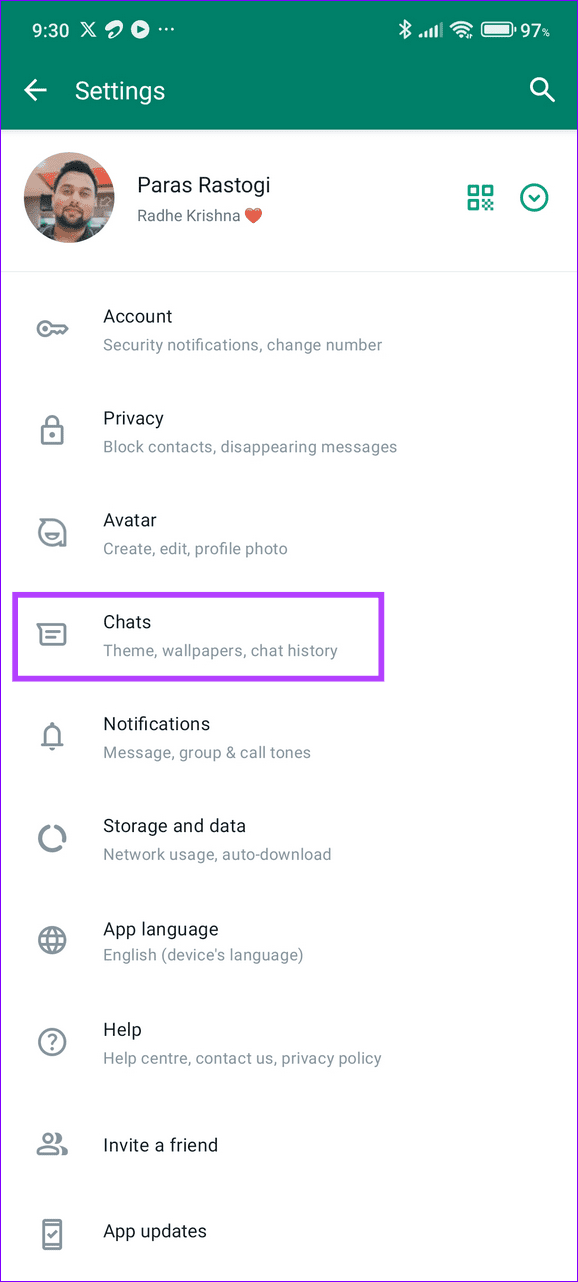
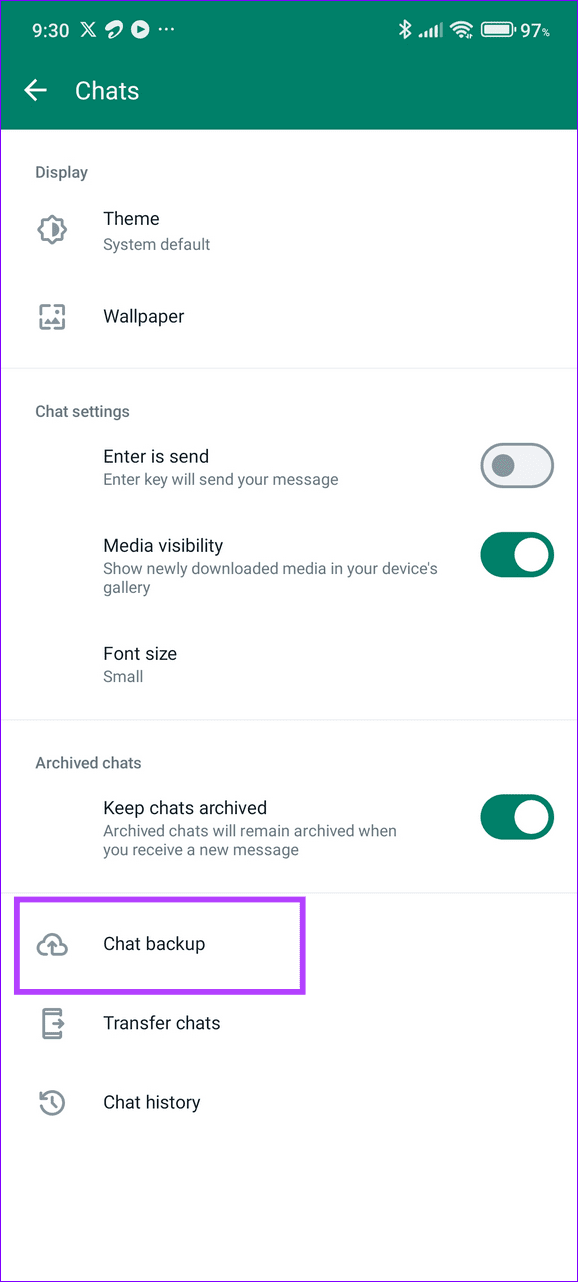
- Reinstall WhatsApp: Long-tap the WhatsApp icon to remove the app and head to your respective device app store to reinstall the WhatsApp. Ensure taking a backup from WhatsApp Settings > Chat > Chat Backup before uninstalling it.
- Update the system software: Open your device’s Settings app, tap Software Update, and install available system updates.
Fix 1: Enable Picture in Picture Mode From Device Settings
WhatsApp picture-in-picture mode may not work on your phone if it is disabled under device settings. Enable it manually and retry playing a video in WhatsApp.
Android
Step 1: Open the Settings app > select the Search icon at the top-right > search Picture-in-Picture.

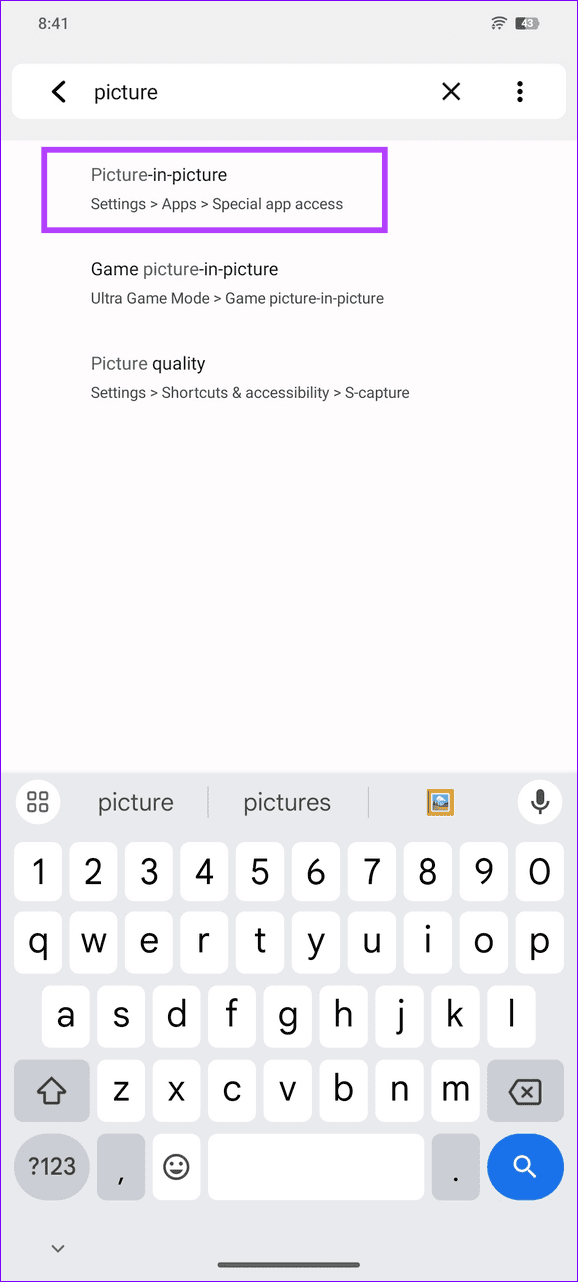
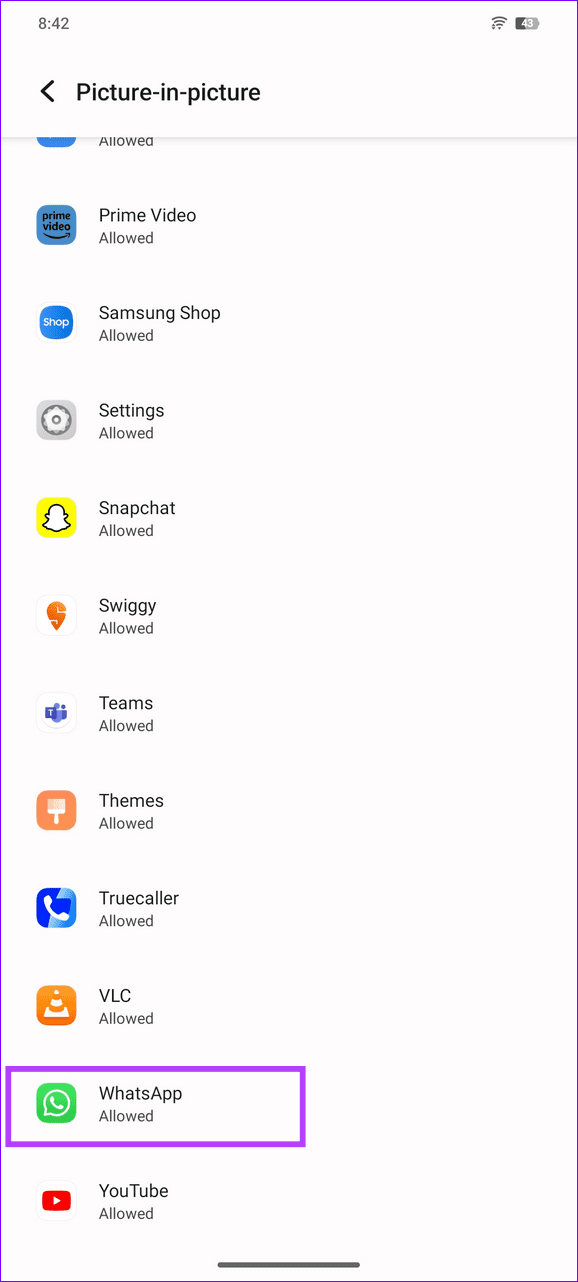
Step 2: Tap Picture-in-Picture from the search results and scroll down to select WhatsApp.
Step 3: Toggle on Allow picture-in-picture to enable it for WhatsApp.

iOS
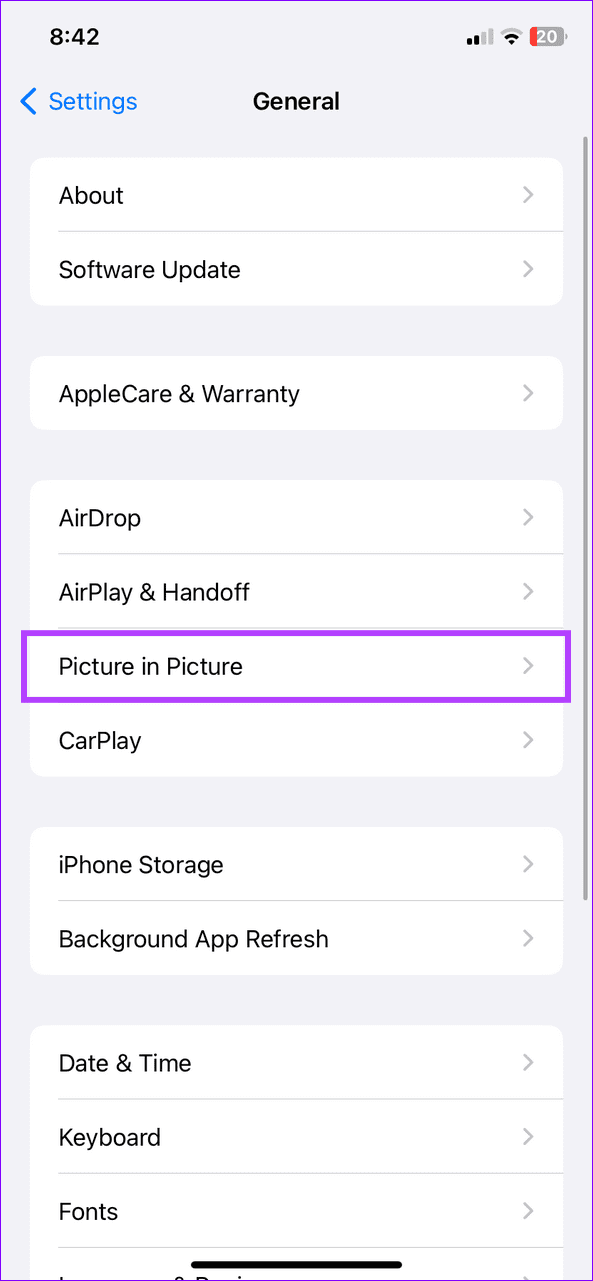
Step 1: Open iPhone Settings > select General > tap Picture in Picture.
Step 2: Toggle on Start PiP Automatically.


Fix 2: Clear WhatsApp Cache (Android)
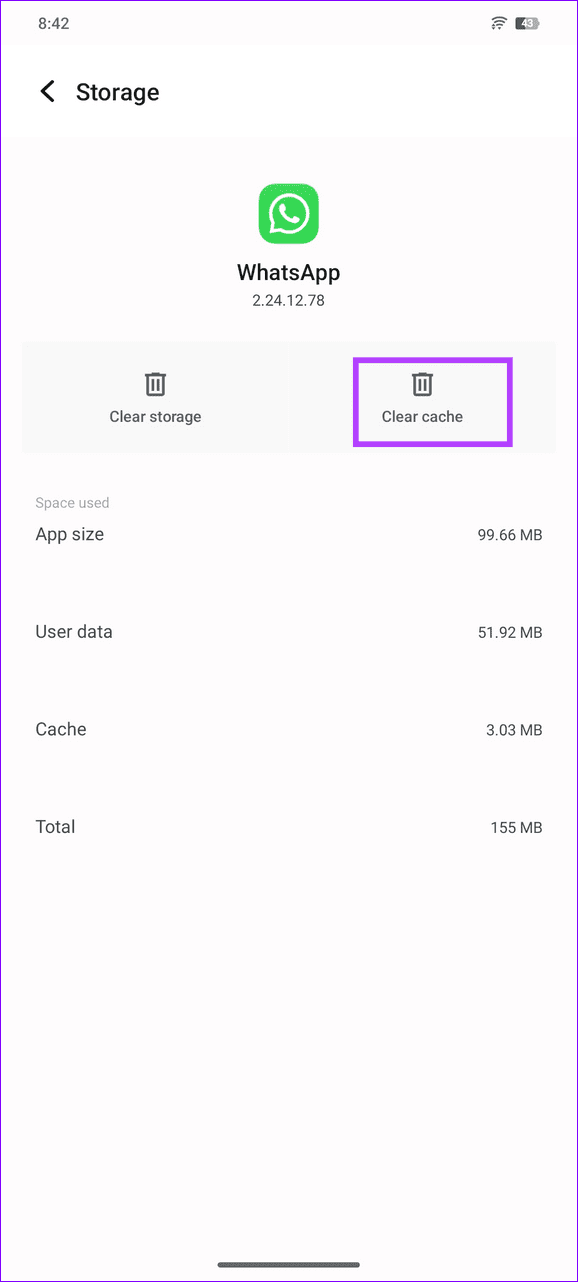
Excessive cache accumulation can malfunction WhatsApp resulting in issues in using its picture-in-picture mode. Clear the WhatsApp cache manually to restore its normal functioning.
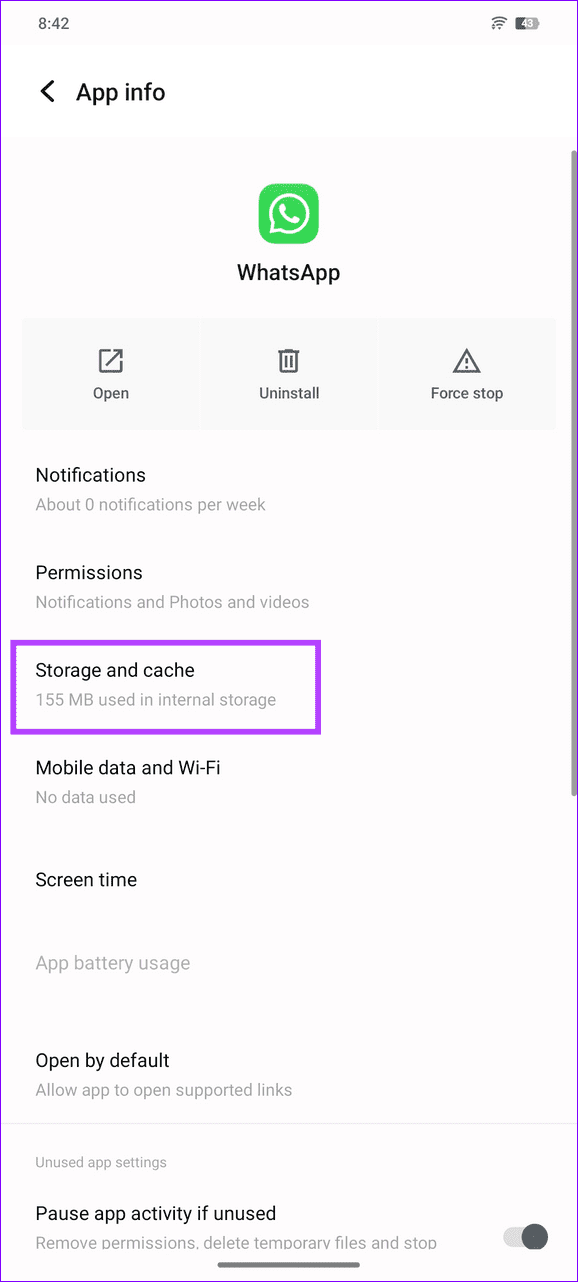
Long-tap the WhatsApp icon to open App info, select Storage and cache, and tap Clear cache.

Fix 3: Disable App Lock in WhatsApp
If Picture-in-Picture mode stops working as soon as you run WhatsApp in the background, its app lock feature might be preventing it. Disable it under WhatsApp settings and retry playing a video.
Android
Step 1: Open WhatsApp, tap the vertical three-dot menu at the top-right, and select Settings.
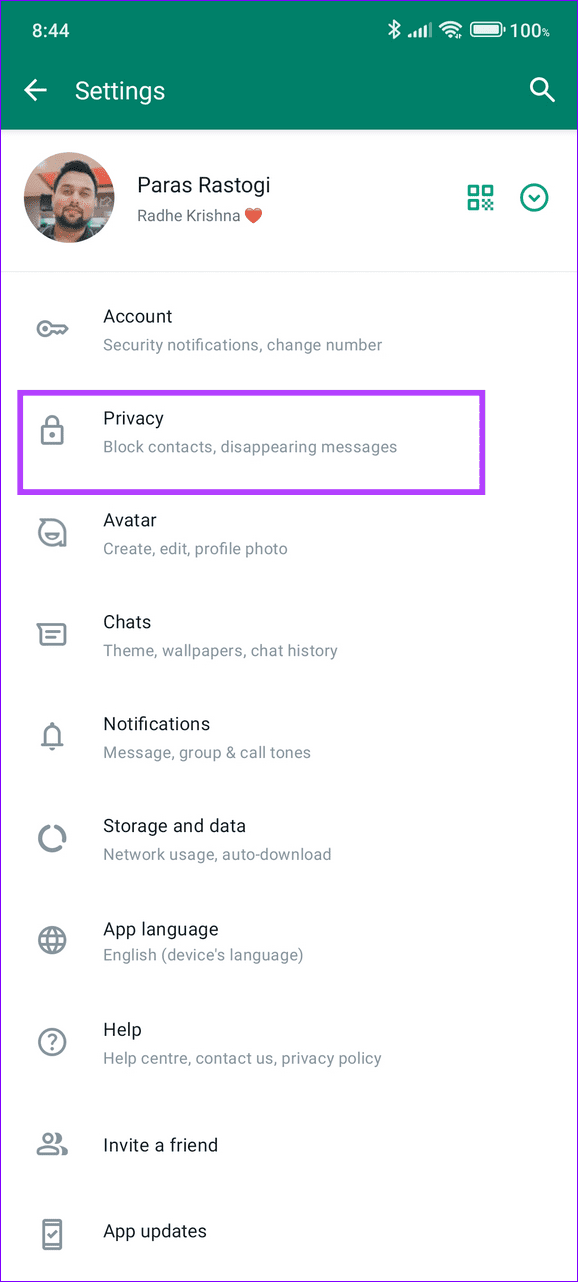
Step 2: Select Privacy and scroll down to view more options.

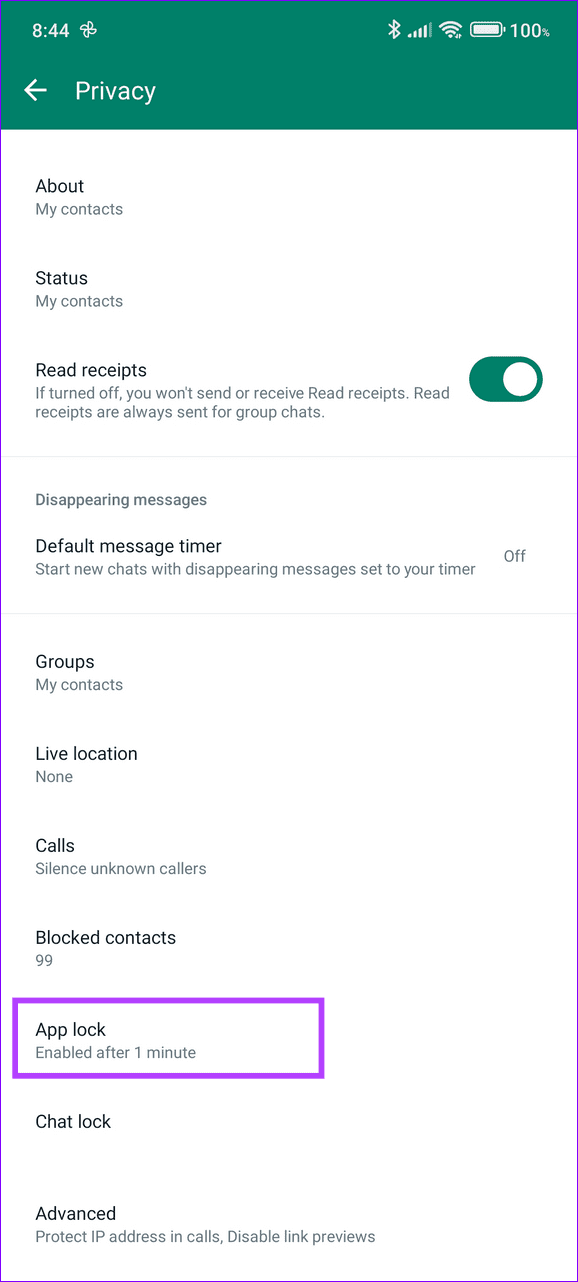
Step 3: Tap App Lock and toggle off Unlock with biometric to disable the WhatsApp app lock.

iOS
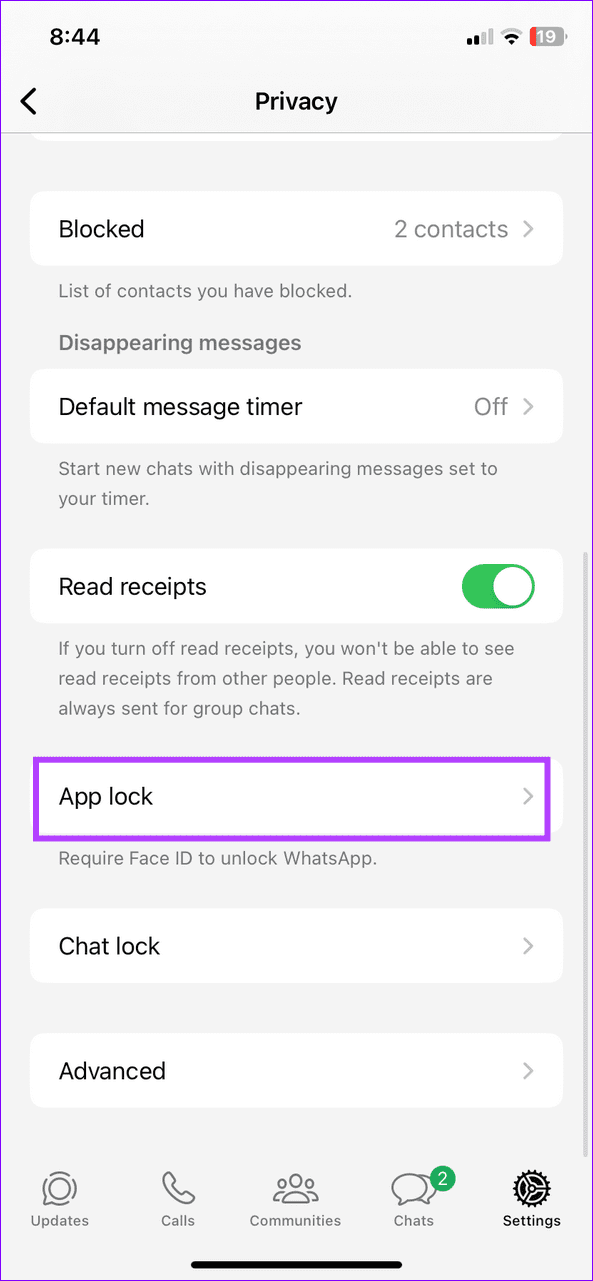
Step 1: Tap the Gear icon in WhatsApp to open its app Settings, and select Privacy.
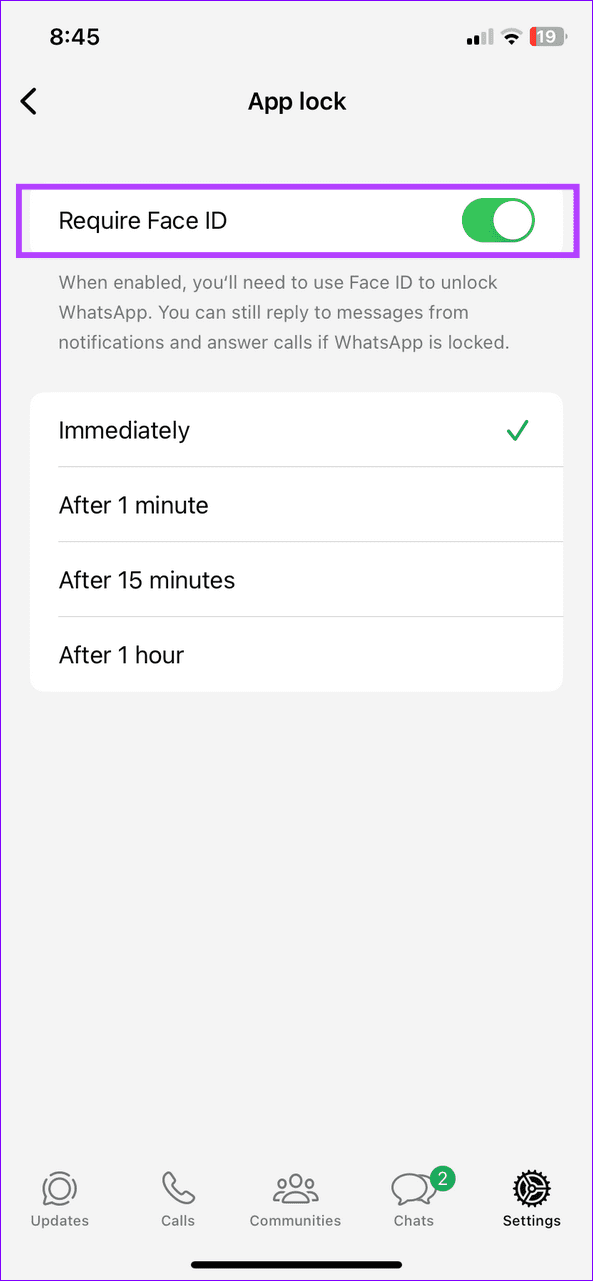
Step 2: Select App lock and toggle off Require Face ID.

Fix 4: Leave WhatsApp Beta Program (Android)
A buggy update in WhatsApp Beta can cripple its Picture-in-Picture mode. Leave the WhatsApp Beta program from the Google Play Store, uninstall the app, and reinstall its stable version.
Before you uninstall the beta version of WhatsApp, take a backup of your chats from WhatsApp Settings > Chats > Chat Backup, to easily restore them later.
Was this helpful?
Last updated on 15 July, 2024
Read Next
 4 Ways to Fix Picture-In-Picture Mode Not Working on Android
Try Basic Fixes Update the problematic app: If the picture-in-picture mode is not working due to a buggy app build, you should be able to fix it by updating the
4 Ways to Fix Picture-In-Picture Mode Not Working on Android
Try Basic Fixes Update the problematic app: If the picture-in-picture mode is not working due to a buggy app build, you should be able to fix it by updating the
 4 Ways to Fix the iPhone Picture-in-Picture Not Working
Before you begin, try restarting your iPhone, and update the app you are trying to use picture-in-picture with, to the latest version.
3 Ways to Fix Prime Video Picture-in-Picture Not Working on Android and iPhone
Basic Fixes Restart Prime Video: Restart the Prime Video app and your smartphone to eliminate bugs and glitches.
4 Ways to Fix the iPhone Picture-in-Picture Not Working
Before you begin, try restarting your iPhone, and update the app you are trying to use picture-in-picture with, to the latest version.
3 Ways to Fix Prime Video Picture-in-Picture Not Working on Android and iPhone
Basic Fixes Restart Prime Video: Restart the Prime Video app and your smartphone to eliminate bugs and glitches.
 3 Ways to Fix Picture-In-Picture Not Working in Facebook Messenger
Common Fixes Restart device - Long-press the physical Power button and tap Reboot to restart Android.
3 Ways to Fix Picture-In-Picture Not Working in Facebook Messenger
Common Fixes Restart device - Long-press the physical Power button and tap Reboot to restart Android.
 Top 6 Fixes for Facetime Picture-in-Picture Not Working on iPhone & iPad
With the Picture-in-Picture (PiP) mode, multitasking is easy on iPhone and iPad.
Top 6 Fixes for Facetime Picture-in-Picture Not Working on iPhone & iPad
With the Picture-in-Picture (PiP) mode, multitasking is easy on iPhone and iPad.
 3 Fixes for Netflix Picture-In-Picture Mode Not Working on Android
Fix 1: Upgrade Netflix Plan If you are from a country where Netflix offers an ad-supported version, you must upgrade to a premium plan.
3 Fixes for Netflix Picture-In-Picture Mode Not Working on Android
Fix 1: Upgrade Netflix Plan If you are from a country where Netflix offers an ad-supported version, you must upgrade to a premium plan.
 What Is WhatsApp Profile Picture Size and How to Add Any Picture to It
What’s the Best Size for a WhatsApp profile Picture While WhatsApp has opened up to many new features, from sharing HD photos to screen sharing, it remains stringent on its
What Is WhatsApp Profile Picture Size and How to Add Any Picture to It
What’s the Best Size for a WhatsApp profile Picture While WhatsApp has opened up to many new features, from sharing HD photos to screen sharing, it remains stringent on its
 3 Fixes for Picture-in-Picture Not Working in Telegram
Basic Fixes Force quit and relaunch Telegram: This will give the app a fresh start on your iPhone or Android phone.
3 Fixes for Picture-in-Picture Not Working in Telegram
Basic Fixes Force quit and relaunch Telegram: This will give the app a fresh start on your iPhone or Android phone.
The article above may contain affiliate links which help support Guiding Tech. The content remains unbiased and authentic and will never affect our editorial integrity.