How to Make a WhatsApp Call
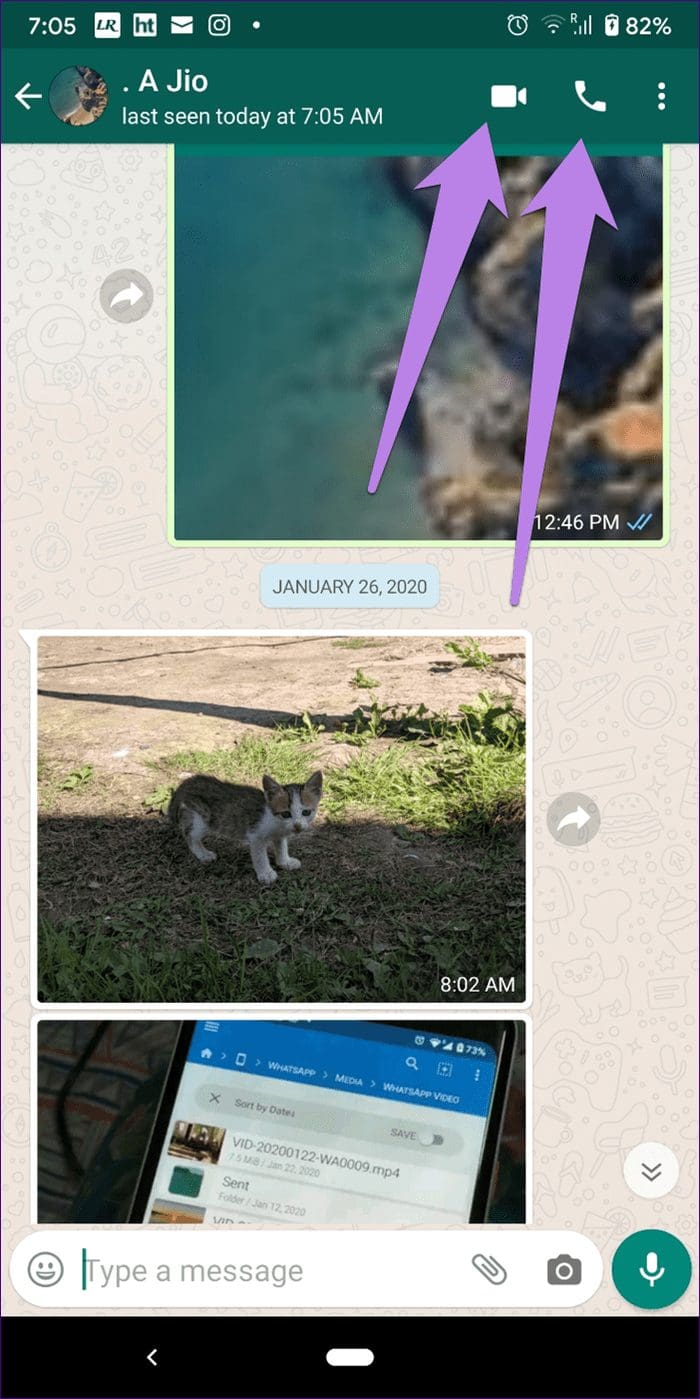
Calling people on WhatsApp is a cakewalk. On both Android and iPhone, all you need to do is open the contact in WhatsApp whom you want to call, and then press the voice call button or the video call button.
How to Identify WhatsApp Calls
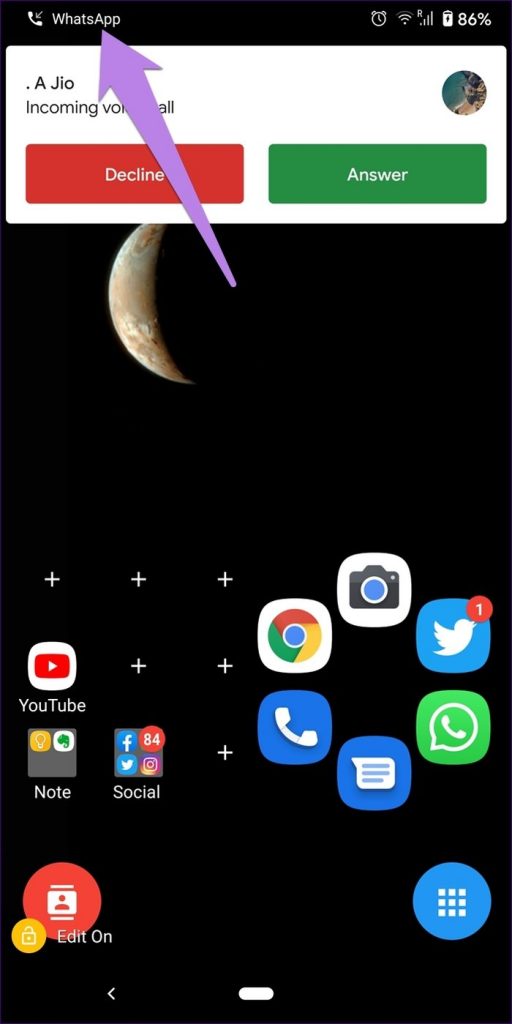
All incoming WhatsApp calls show the WhatsApp text to distinguish it from regular phone calls. You will either find it in the status bar or on the WhatsApp call screen.

How to Answer and Reject WhatsApp Calls
The method to answer or reject the call changes whether your phone is locked or not. Let’s check it separately for Android and iPhone
On Android
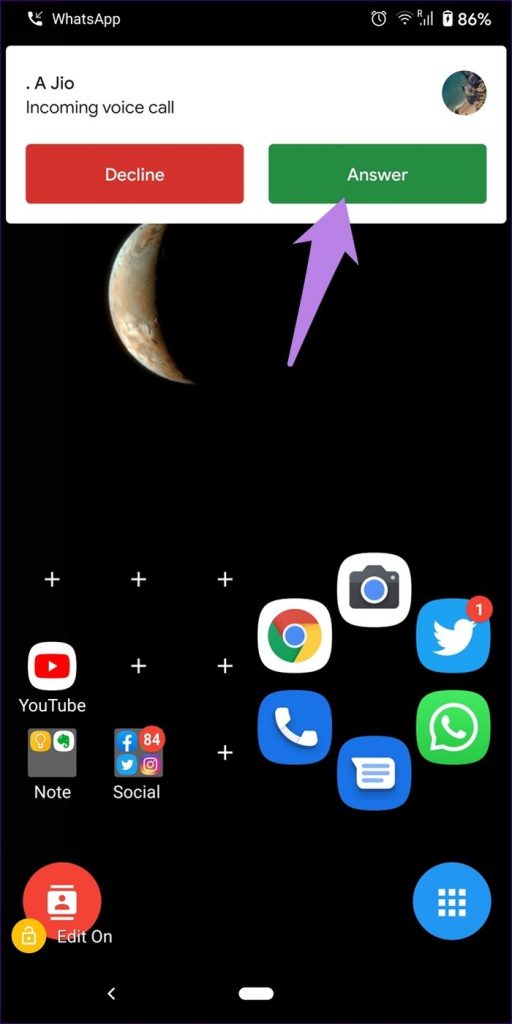
- If the phone is unlocked – Tap the Answer button to accept or Decline to reject.
- If the phone is locked – A different calling screen pops up. Swipe up from the green button to accept the call. Swipe up the red button to reject the call.

On the iPhone
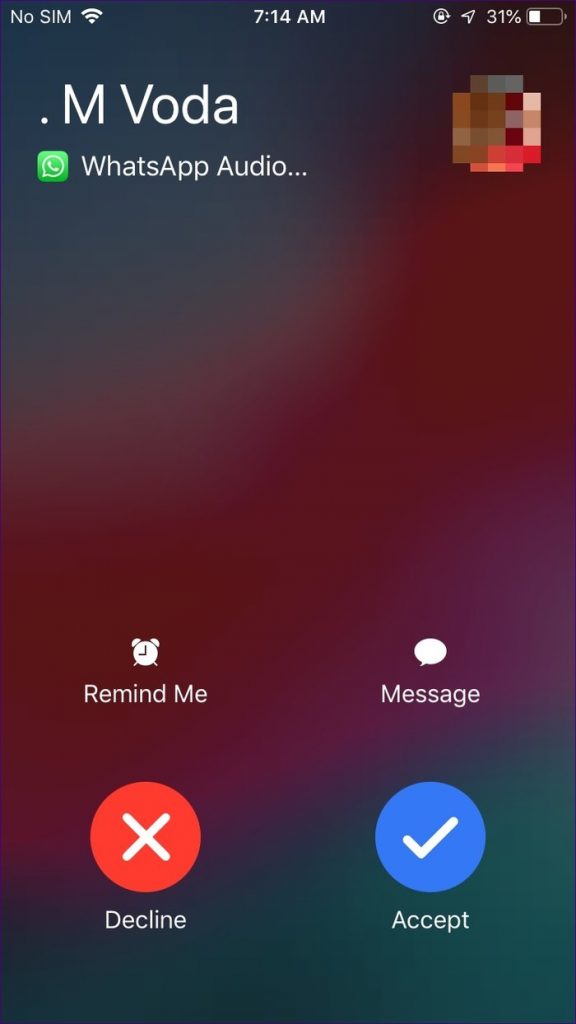
- When unlocked – Tap the blue Accept button to answer the call. Tap Decline to reject it.
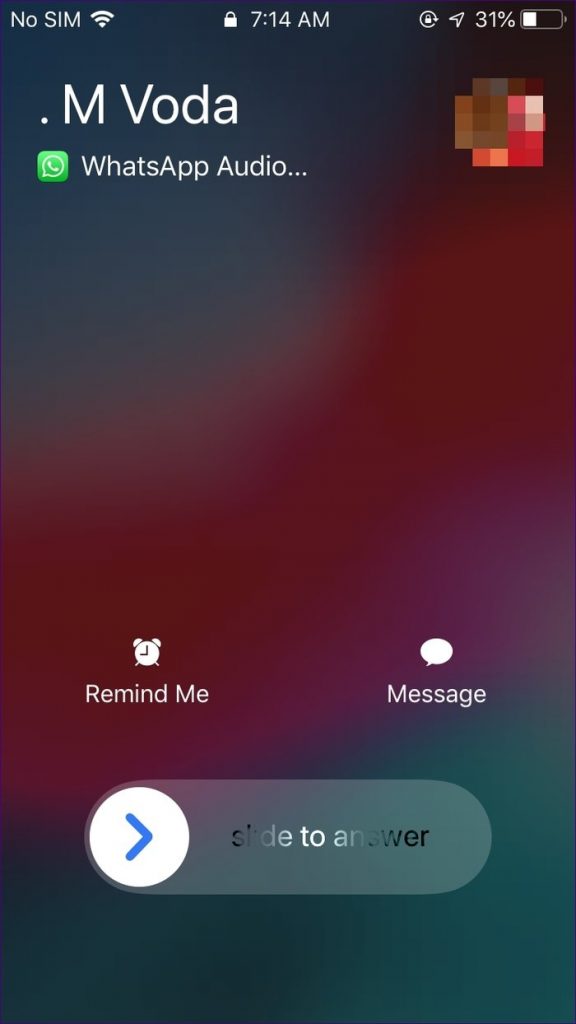
- When Locked – Swipe right the Slide to answer button. To reject the call, press the physical power button twice.
How to Switch Between Voice and Video Calls
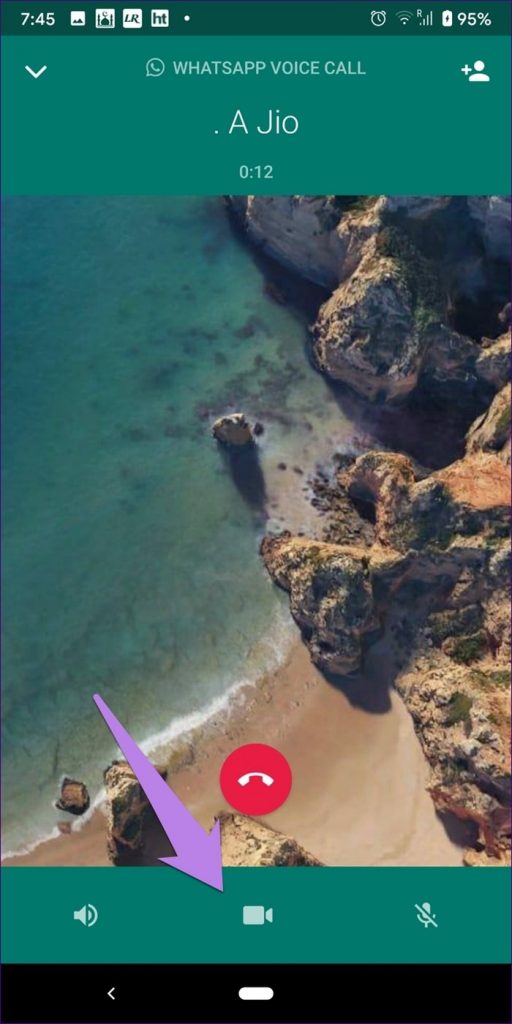
If you are on a voice call with someone, you can switch to a video call by tapping the video button on the call screen. Notably, the call will not be connected automatically. The other person will receive a notification that you are trying to video call them and they’ll have to accept it before the call can switch.
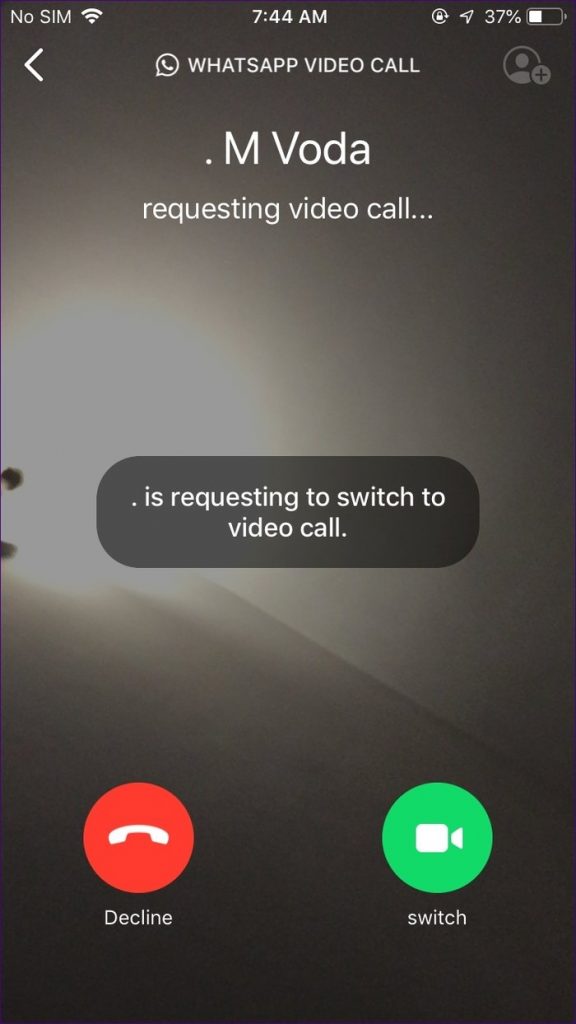
You can also switch from video to voice calls in WhatsApp. For that, tap the video button to turn it off.
How to Make Group Calls on WhatsApp
Yes, our beloved WhatsApp supports group calling too. You can have up to 32 or fewer participants in WhatsApp group video calls. And the participants don’t need to be from a WhatsApp group only. You can have a group call without a WhatsApp group too.
There are three ways to make a group call on WhatsApp.
Method 1: From the Group
Open the group chat and tap the voice call or video call icon from the top. WhatsApp will immediately call all participants in the call.
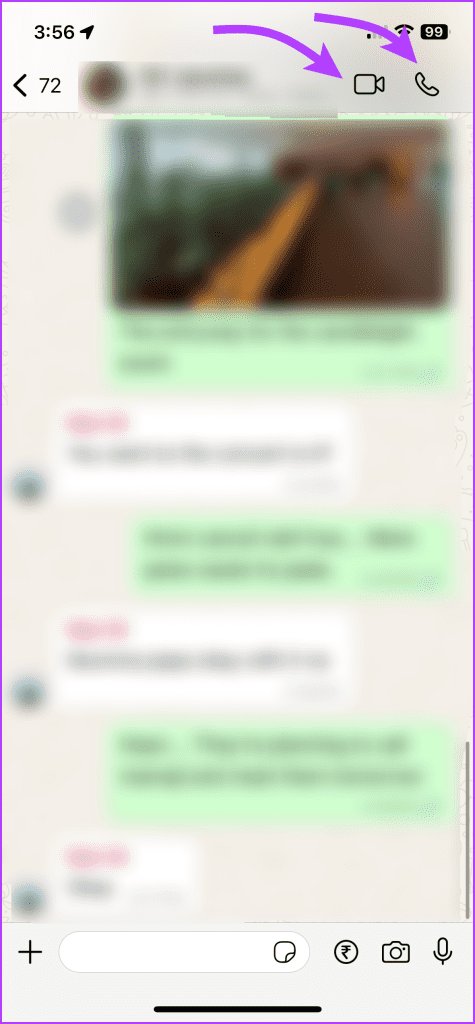

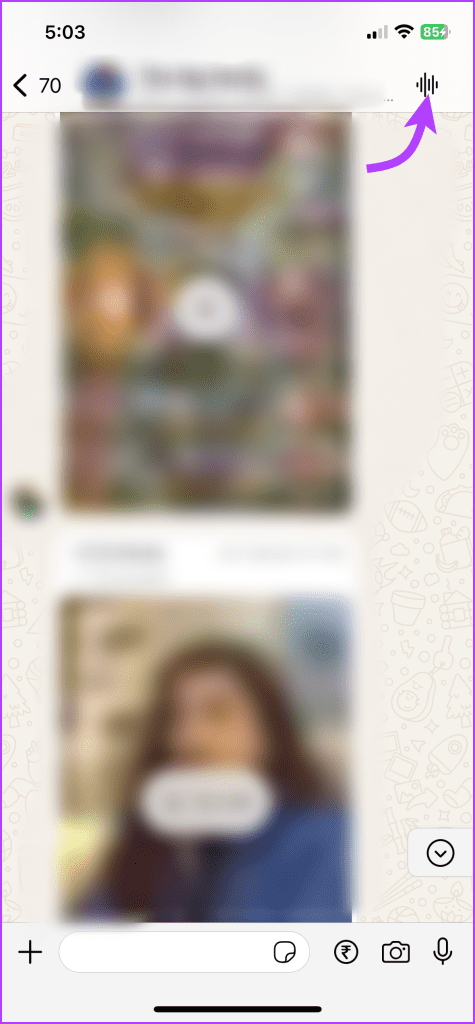
Notably, if there are more than 32 people in the group, tap Group info. Tap Voice chat, then Start voice chat.

Method 2: Make a Group Video Call From an Individual Chat
First, you need to call one contact, go to their chat, and tap video or voice call option. Tap the Add Person icon. Next, find the person you want to add to the group call and tap Add. For more participants tap the contact icon.


Method 3: From the Calls Tab
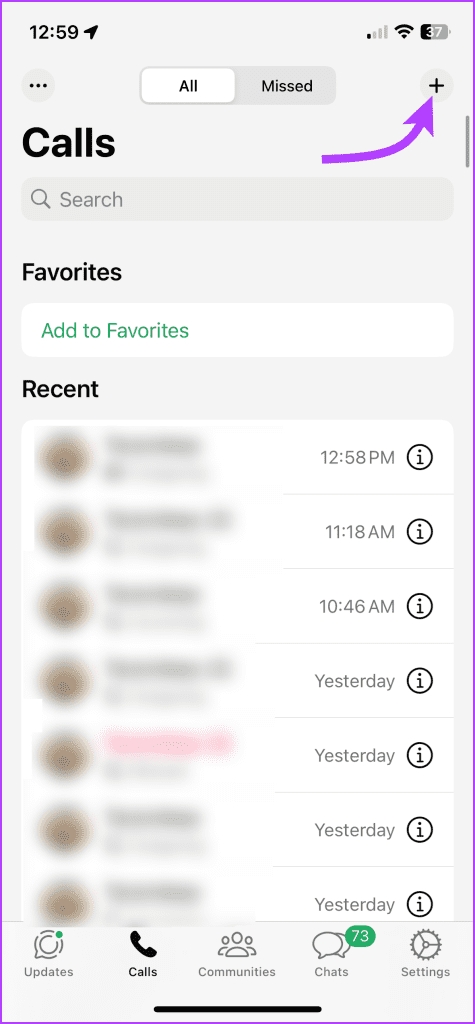
For that, go to the Calls tab on your Android or iPhone. Tap the +icon from the top (iOS interface) or new call icon bottom (Android). Start selecting the participants, remember you can select up to 31 people. Once done tap the voice or video call button.
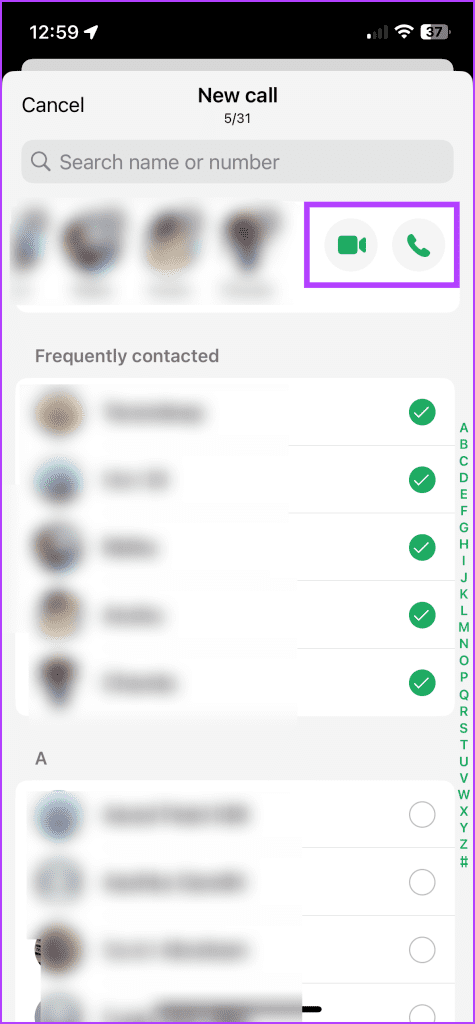
There’s also an option to create a link and invite other WhatsApp users to join the voice or video call. Just like iMessage or Zoom calls, you can create a link and share it with people.
How to Check WhatsApp Call Duration
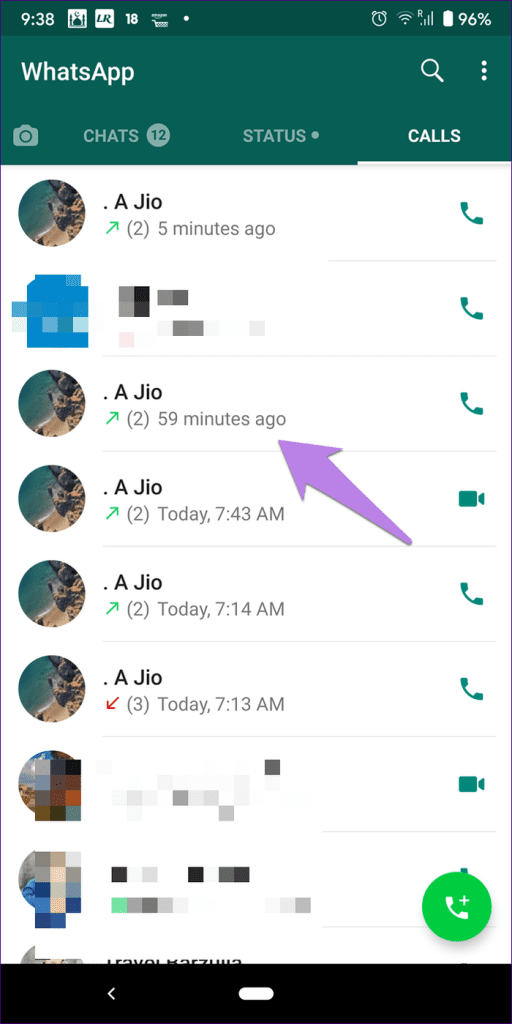
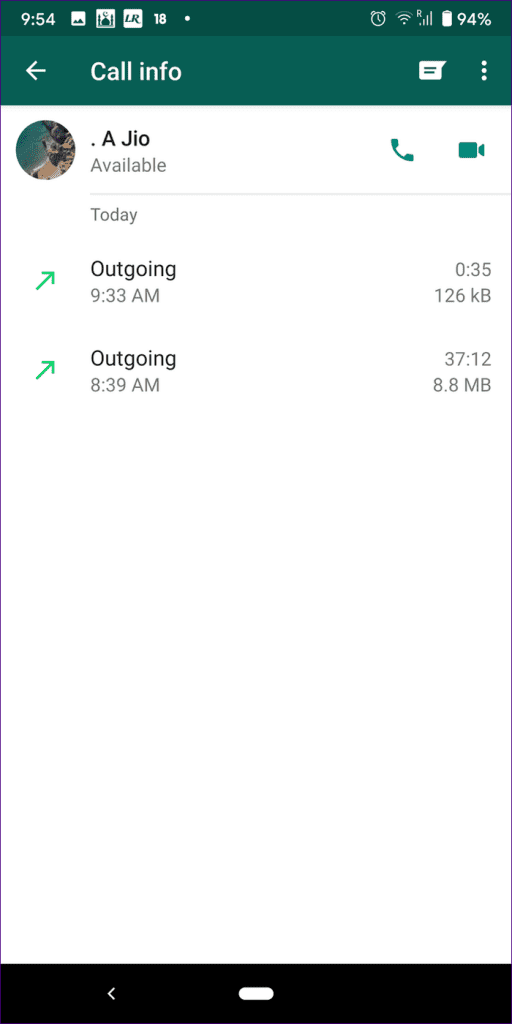
You will find all the details about your previous WhatsApp calls under the Calls tab in WhatsApp. Tap the i icon (iPhone) or the contact name (Android) to check the call duration. You will see a detailed call log with time, duration, and even the data consumed during the call.
How to Delete Calls or Missed Calls on WhatsApp
To delete call(s) from WhatsApp’s call log, go to the Calls tab in WhatsApp.
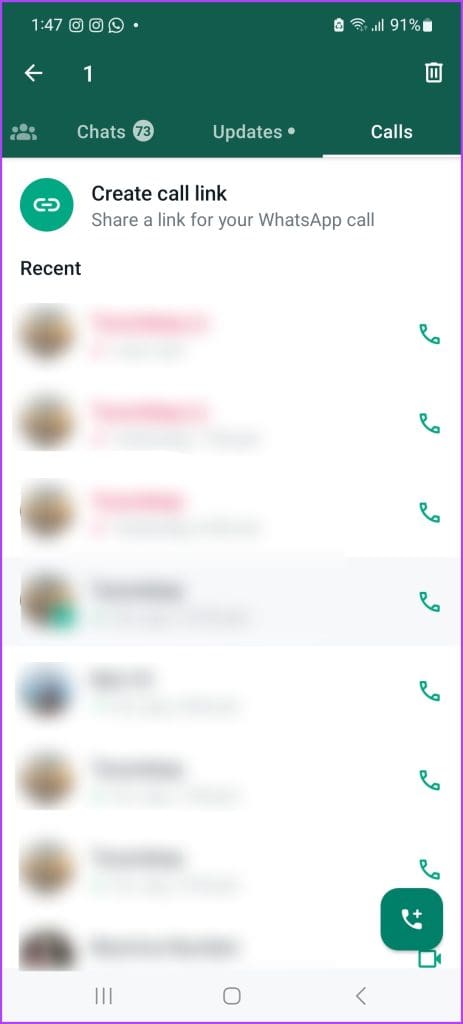
On Android, long-tap the call you want to delete. Select all the calls you want to delete and tap the Delete icon from the top-right corner.


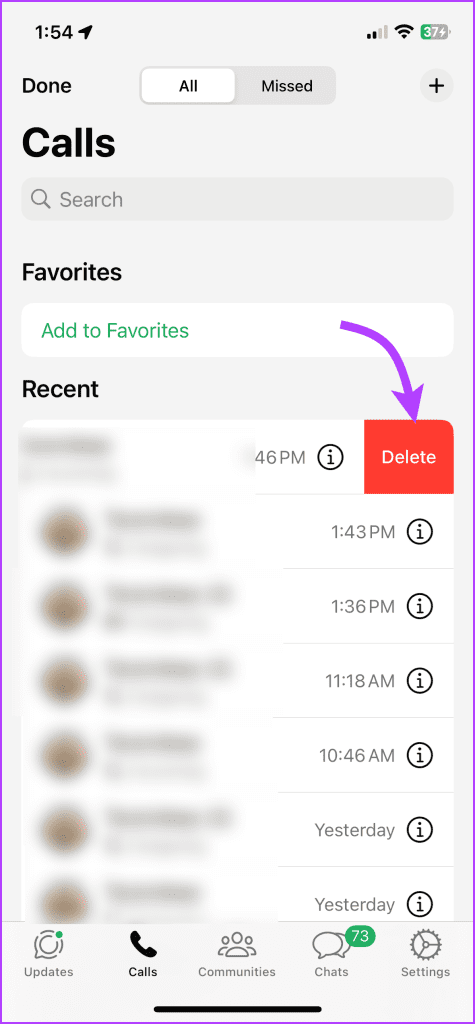
On iPhone, swipe left on the contact name under the Calls tab. Tap Delete. Notably, you can’t bulk delete calls on iPhone, you’ll have to manually delete each call or clear the complete call log (as shown below).

How to Clear WhatsApp Call Log
Instead of deleting calls one by one, you can clear the entire call history in one shot.
On Android, open the Calls tab → tap the three-dot icon from the top-right corner → Clear call log → Ok to confirm.
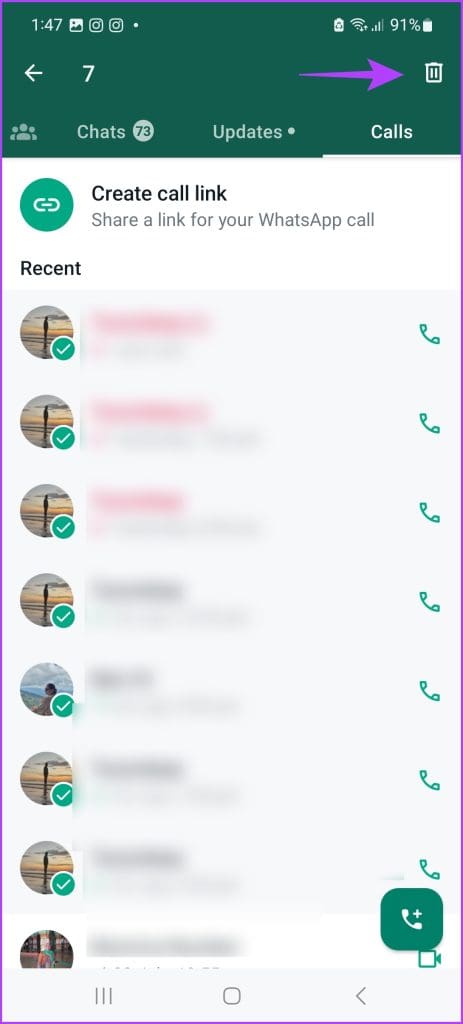
On iPhone, go to the Calls tab → tap the three-dot icon from the top-left corner → Edit. Then, tap Clear → Clear call history to confirm. Here, you can also just delete all the missed calls, go to the Missed tab, and repeat the steps above.


How to Reduce Data Used in Calls
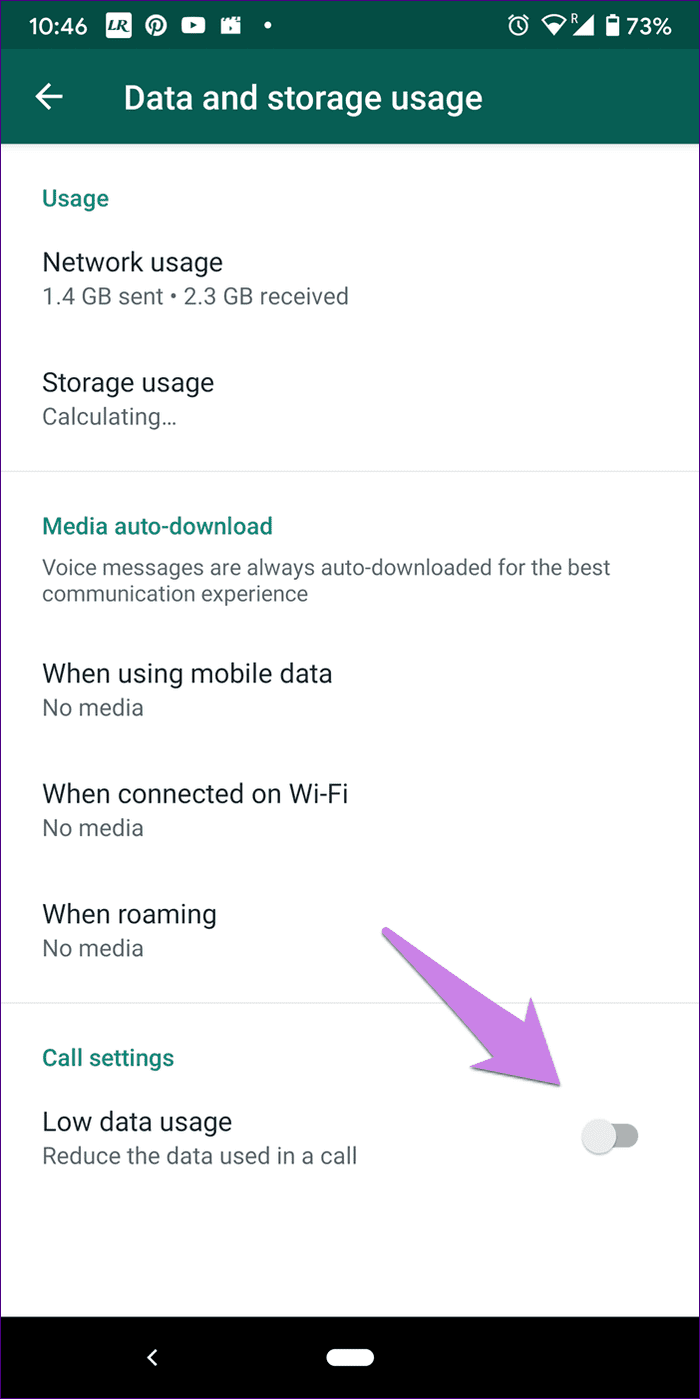
If you feel WhatsApp is consuming a lot of data, you can reduce it using the built-in setting in WhatsApp. For that, go to WhatsApp Settings > Data and Storage usage. Enable the toggle next to Low data usage.
Call Waiting on WhatsApp
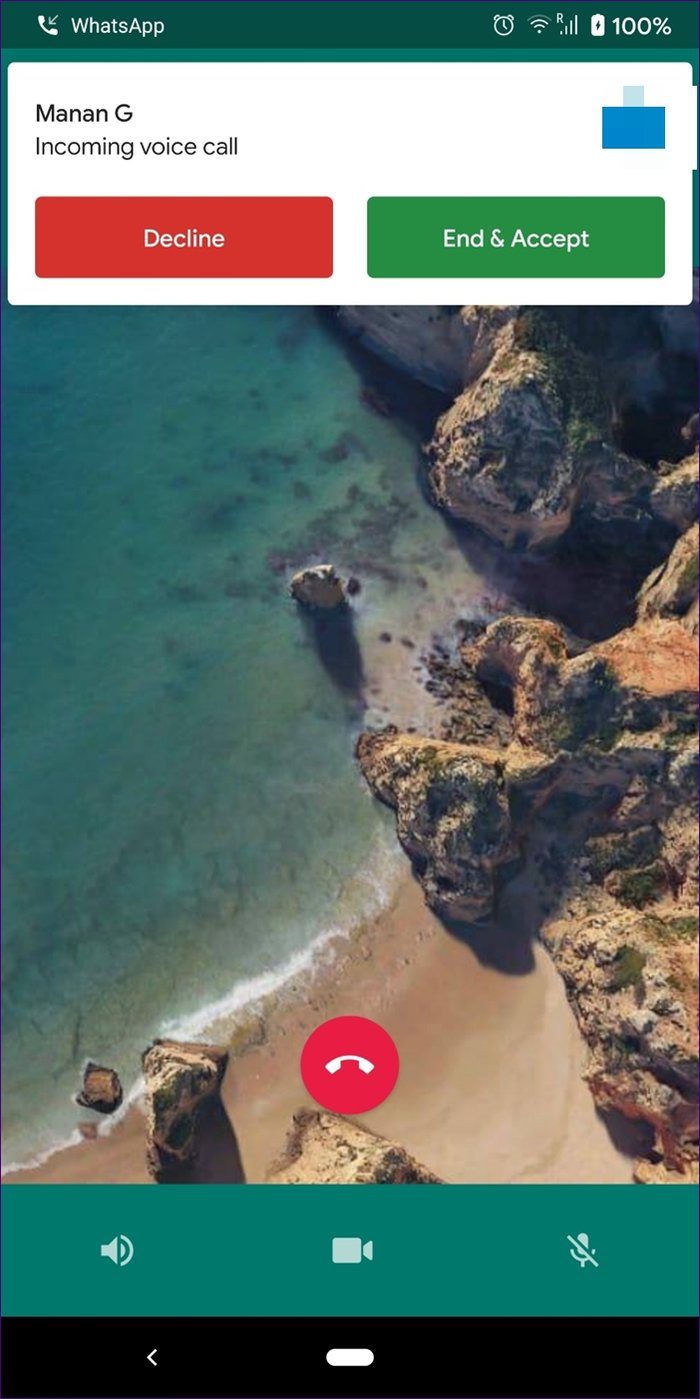
WhatsApp also offers a call waiting functionality, i.e., if you are on a WhatsApp call and someone else calls you on WhatsApp or outside of WhatsApp, you will now be notified about it.
You will see two options (End & Accept and Decline) under call waiting. The former will end the existing call and connect you to the new call. The Decline option will reject the new call and keep you connected to the existing call.
Tip: If your WhatsApp calls aren’t ringing on your iPhone or Android, check out the link for possible solutions.
How to Silence Unkown Callers on WhatsApp
Anyone who has your number can call you on WhatsApp, their number doesn’t need to be saved in your contacts. And while you can’t stop unknown callers from calling, you can change privacy settings to mute their calls.
Go to WhatsApp Settings → Privacy → Calls → toggle on Silence unknown callers.
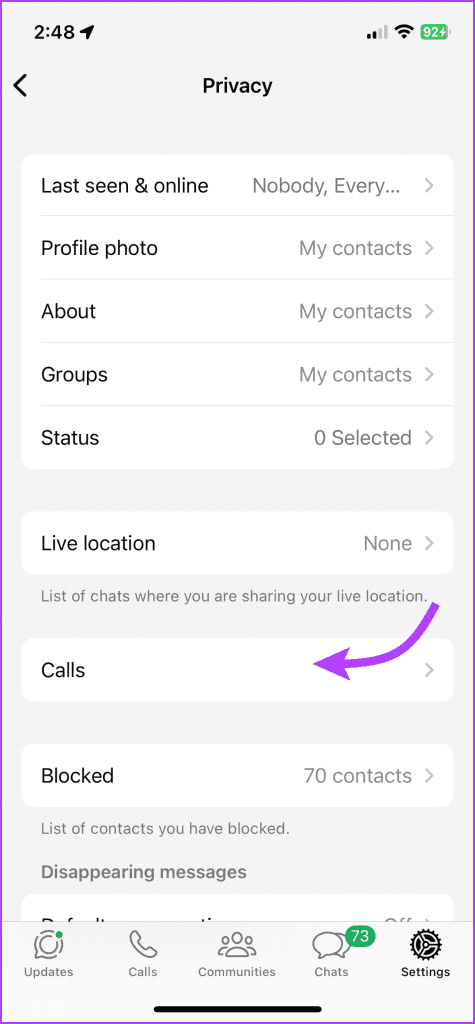
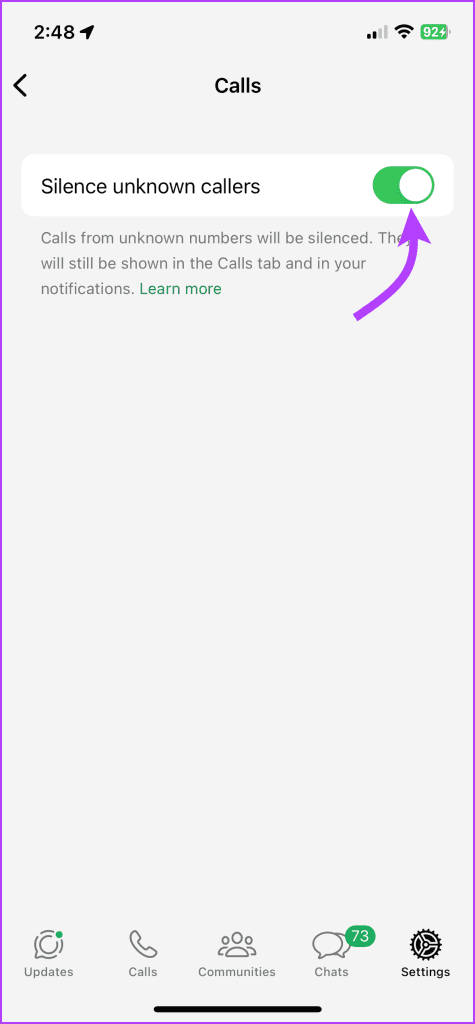
Notably, you’ll see the silenced call in your call logs on WhatsApp’s Calls tab and phone.
Note: If you message or call an unknown number, WhatsApp will not consider them as an unknown caller (whether you save their number or not). So the call will ring as per usual after you’ve contacted them.
How to Protect Your IP Address on WhatsApp Calls
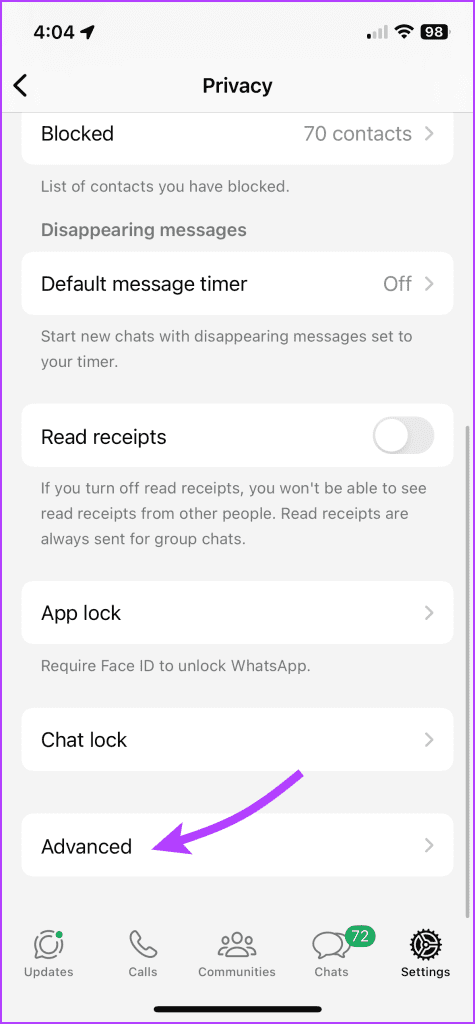
Someone can track your location via your IP address metadata during calls made through the internet (including WhatsApp). WhatsApp allows you to hide the IP address by redirecting calls through their servers.
To do so, go to WhatsApp Settings → Privacy → Advanced → toggle on ‘Protect IP address in calls‘.
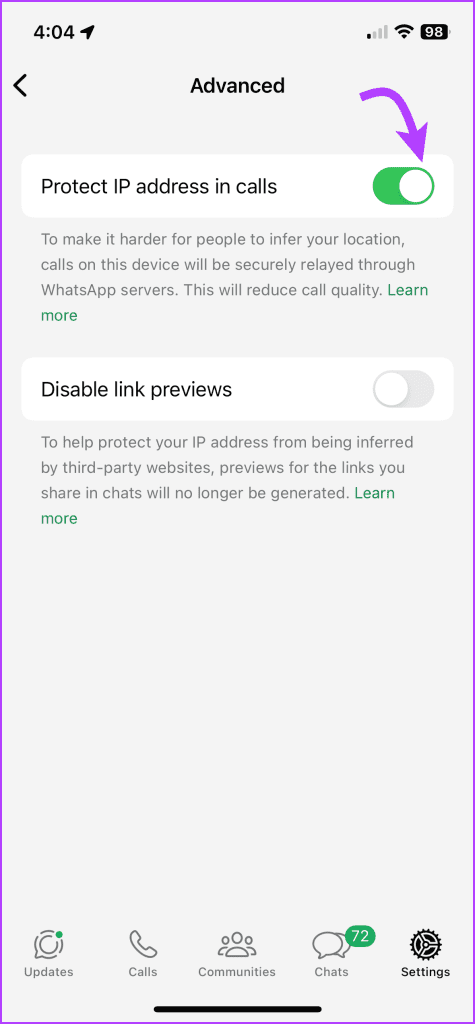
Note: Since the call is redirected through WhatsApp servers, it may reduce the call quality.
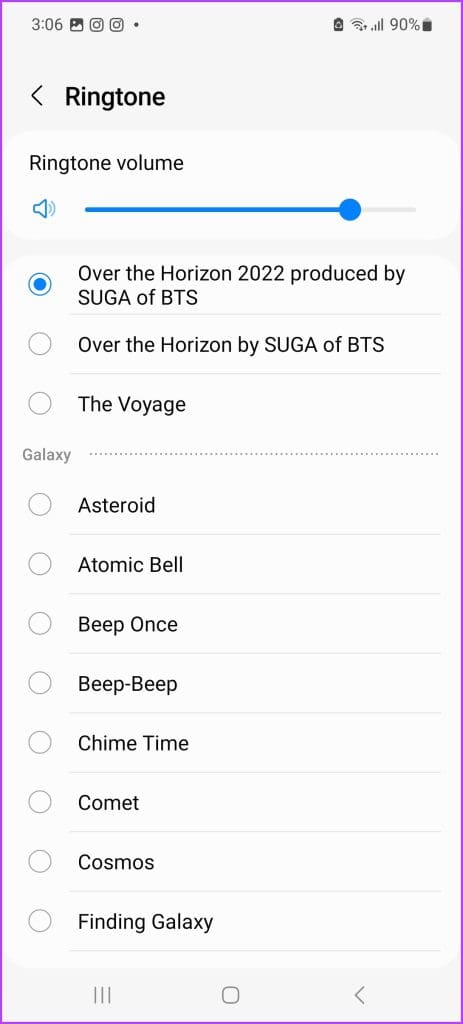
Change WhatsApp call tone(Android)
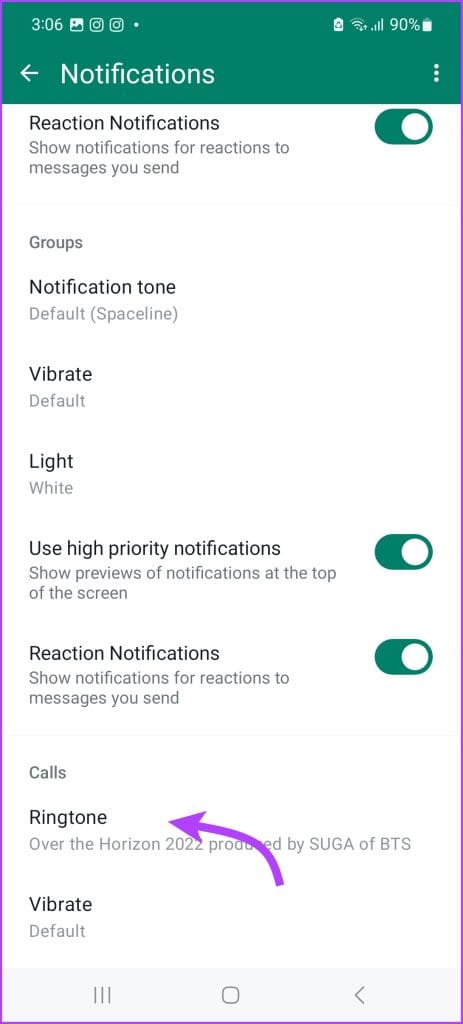
While the iPhone doesn’t allow you to change the ringtone specifically for WhatsApp (it’s the same for all calls), Android has that feature.
Go to WhatsApp Settings → Notifications → tap Ringtone under the Calls section → Select the ringtone of your choice.
FAQs For WhatsApp Calls
As of now, WhatsApp Web doesn’t support voice or video calls. However, You can make WhatsApp calls from your computer by downloading WhatsApp for Windows or WhatsApp for Mac.
Kind of. They won’t be considered under the normal calling plan of your network operator. However, since WhatsApp consumes data, an amount may be charged depending on your internet plan, especially if you exceed the data limit.
Any of the participants can disconnect the WhatsApp call. If there are only two participants, then the call will be disconnected from both sides. In the case of group calls, the call will continue for the rest of the participants even if you disconnect it from your side.
You cannot remove a participant from a group call, even if you are a group admin. The person would need to disconnect the call on their own. Alternatively, all the participants would have to disconnect the call and create a group call again without the said person.
Yes, WhatsApp calls will appear in your phone’s call history (unless you have deleted the call).
No. Being online isn’t a requirement for WhatsApp calls. Your phone will still ring even if you aren’t using WhatsApp.
Yes and no. It will ring from your side, but since the receiver doesn’t have the app, they will not be notified about it.
It will ring from their end, but you’ll obviously get no notification. The same is the case for internet unavailability or Airplane Mode.
Sometimes, when you are talking to someone via WhatsApp chat, and you try calling them, you might get ‘The person is unavailable’ error. That mostly happens if the person is in a country where WhatsApp calling isn’t available such as UAE.
A call not answered means the person didn’t pick up the call. They might be busy or out of reach area. Notably, when you call someone on WhatsApp, and they disconnect the call, then you will get the call declined message.
While a normal call has precedence over a WhatsApp call and the platform offers call-waiting services, the caller will not be notified. The call will ring like usual on their end and the declined message if you decline the call.
While there is no official comment on the topic, a WhatsApp call usually rings as long as your normal phone ringing duration.
When you block a person, you cannot call or message them unless you unblock them. However, from the other end, the message will be sent and the call will ring normally, but you’ll not get the call or message or their notification. That’s done so that it doesn’t become apparent that you have blocked them.
No. WhatsApp calls will not show up in the itemized section of your phone bill.
No, sadly, you cannot disable the calling feature. However, you can disable WhatsApp call notifications, silence unknown callers, or block someone from contacting you. But note that you can’t block WhatsApp video or voice calls only without affecting the messages.
There are many reasons for that, such as network issues, microphone problems, etc. We have done a detailed troubleshooting post on how to fix WhatsApp calls not working. Check it out.
Was this helpful?
Last updated on 30 July, 2024
Read Next
 Speedtest vs Fast: In-Depth Comparison of Two Internet Speed Test Providers
The present decade has seen data rates going down, with increased penetration of the internet.
Speedtest vs Fast: In-Depth Comparison of Two Internet Speed Test Providers
The present decade has seen data rates going down, with increased penetration of the internet.
 45 Best Depth Effect Wallpapers (4K) for iPhone Lock Screen
How to Enable Depth Effect on iPhone Lock Screen Step 1: Open the photo you want to set as the lock screen wallpaper.
45 Best Depth Effect Wallpapers (4K) for iPhone Lock Screen
How to Enable Depth Effect on iPhone Lock Screen Step 1: Open the photo you want to set as the lock screen wallpaper.
 4 Ways to Fix Depth Effect Wallpaper Not Working on iPhone
Which iPhone Models Support the Depth Effect Feature The depth effect feature is only available on iPhones with an A12 Bionic chip or later.
4 Ways to Fix Depth Effect Wallpaper Not Working on iPhone
Which iPhone Models Support the Depth Effect Feature The depth effect feature is only available on iPhones with an A12 Bionic chip or later.
 2 Ways to Fix WhatsApp Calls Not Working on Mac
Basic Fixes Check your internet speed: WhatsApp calls need a stable internet connection.
2 Ways to Fix WhatsApp Calls Not Working on Mac
Basic Fixes Check your internet speed: WhatsApp calls need a stable internet connection.
 How to Blur Background in WhatsApp Video Calls on iPhone and Android
https://youtu.be/QC0vCCGNfsA How to Blur WhatsApp Video Call Background on iPhone You can blur the background of your WhatsApp video call right from the Control Center on your iPhone.
How to Blur Background in WhatsApp Video Calls on iPhone and Android
https://youtu.be/QC0vCCGNfsA How to Blur WhatsApp Video Call Background on iPhone You can blur the background of your WhatsApp video call right from the Control Center on your iPhone.
 5 Fixes for No Sound in WhatsApp Video Calls on iPhone and Android
Basic Fixes Force quit and relaunch WhatsApp: This will reload the app and give it a fresh start on your iPhone or Android phone.
5 Fixes for No Sound in WhatsApp Video Calls on iPhone and Android
Basic Fixes Force quit and relaunch WhatsApp: This will reload the app and give it a fresh start on your iPhone or Android phone.
 4 Ways to Fix WhatsApp Calls Not Ringing When Phone is Locked
Basic Fixes Restart device: Restart your smartphone to fix any temporary bugs and glitches.
4 Ways to Fix WhatsApp Calls Not Ringing When Phone is Locked
Basic Fixes Restart device: Restart your smartphone to fix any temporary bugs and glitches.
 5 Ways to Fix WhatsApp Calls Not Working on Windows 11
Basic Fixes: Check your internet connection: If your current internet connection is not working properly, it can cause WhatsApp calls to fail on your desktop.
5 Ways to Fix WhatsApp Calls Not Working on Windows 11
Basic Fixes: Check your internet connection: If your current internet connection is not working properly, it can cause WhatsApp calls to fail on your desktop.
The article above may contain affiliate links which help support Guiding Tech. The content remains unbiased and authentic and will never affect our editorial integrity.