If you go to Task Manager and click “End task,” but the entry remains, you might have a problem. This is only worse if Task Manager won’t end process threads at all.
However, the reason behind this is that “End task” mostly asks the application to close normally. An app that has stopped processing at all never gets the request, so nothing happens. Some processes can’t even be stopped at all, like protected system utilities or security software. Here’s what you can try if a process won’t end in Task Manager.
Fix 1 – End the Tree if Task Manager Won’t End Process
Modern apps can use multiple processes, which is why you might see a browser with a large number of processes listed under the same app. You can end the process tree to terminate the selected process and its child processes at once.
Step 1. Open Task Manager.
Step 2. Go to the “Details” tab.
Step 3. Find the name of the process or application you want to end, then right-click on it and select “End process tree.”

If you know the app you want to close, right-click it on the “Processes” tab and choose “Go to details” to open the “Details” tab with the associated process selected.
Fix 2 – Use the Command Prompt
The Command Prompt includes commands that can forcefully terminate some processes that may not close through Task Manager.
Step 1. Open the “Details” tab in Task Manager so you can see the names and process IDs (PIDs) of apps you want to close.
Step 2. Open Command Prompt as an Administrator.
Step 3. Run the following command:
taskkill /f /t /pid 1234
Replace the numbers with the PID of the program you want to close.
Note that this closes the process with the specified PID and, because it uses /t, any child processes started by that process. You can also specify multiple PIDs, with each one preceded by /pid, to close multiple processes.
You can also use a filter that sweeps up anything Windows has already marked as hung:
taskkill /f /fi “status eq not responding”
Fix 3 – Use Stop-Process in PowerShell
PowerShell provides a similar solution when Task Manager will not end a process.
Step 1. Open PowerShell as administrator (right-click on the Start icon and select “Terminal (Admin)”).
Step 2. Locate the process with:
Get-Process *chrome*
Step 3. Use the following commands:
Stop-Process -Id 1234 -Force
Stop-Process -Name chrome -Force
Fix 4 – Find What’s Blocking the Process
Sometimes the process is waiting on something else before it can close.
Step 1. In Task Manager, open the “Details” tab.
Step 2. Right-click the stuck executable and choose “Analyze wait chain.”
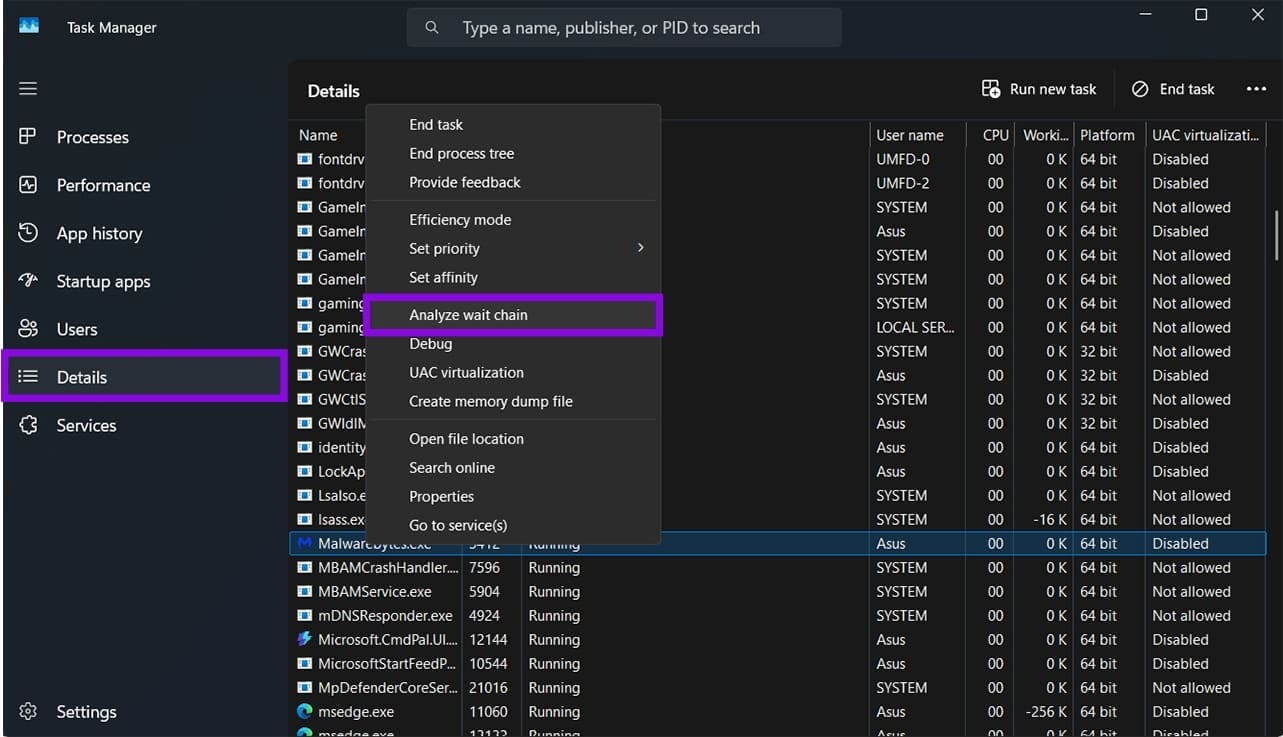
Read the result. If a second process appears beneath it, that one needs to be closed first or have its thread finished. End it, and your app usually unfreezes or closes on its own.
Was this helpful?
Last updated on 06 September, 2026
Read Next
 6 Ways to Fix Task Manager Not Working on Windows 11
Basic Fixes Install Windows updates: Such issues with Task Manager can also arise due to faulty Windows builds.
6 Ways to Fix Task Manager Not Working on Windows 11
Basic Fixes Install Windows updates: Such issues with Task Manager can also arise due to faulty Windows builds.
 9 Ways to Open Task Manager on Windows 10 and Windows 11
Task Manager is one of the most commonly used programs on Windows, regardless of its version.
9 Ways to Open Task Manager on Windows 10 and Windows 11
Task Manager is one of the most commonly used programs on Windows, regardless of its version.
 3 Ways to Disable Task Manager for Specific Users in Windows
Method 1: Using Command Line or Powershell Step 1: Press the Windows key, type PowerShell or Command Prompt, and click on Run as administrator.
3 Ways to Disable Task Manager for Specific Users in Windows
Method 1: Using Command Line or Powershell Step 1: Press the Windows key, type PowerShell or Command Prompt, and click on Run as administrator.
 Task Manager Shows Fewer Cores [Solved]
When you’re using a processor that you bought, you generally expect it to do what it says on the tin, especially how many cores it has.
Task Manager Shows Fewer Cores [Solved]
When you’re using a processor that you bought, you generally expect it to do what it says on the tin, especially how many cores it has.
 Windows 11 Task Manager Shows Duplicates
Windows Task Manager should be the one beacon of light in the darkness, that one utility app that should work when nothing else will.
Windows 11 Task Manager Shows Duplicates
Windows Task Manager should be the one beacon of light in the darkness, that one utility app that should work when nothing else will.
 How to Keep Task Manager on Top
Keeping Task Manager on top of all other windows in Windows 10 or 11 can be really useful, especially when you’re: Dealing with crashed or frozen games or full-screen applications.
How to Keep Task Manager on Top
Keeping Task Manager on top of all other windows in Windows 10 or 11 can be really useful, especially when you’re: Dealing with crashed or frozen games or full-screen applications.
 Quickly Auto-Restart a Windows Process or Program that Crashes
No one’s ever been killed in a Windows crash, so the Microsoft jokes don’t die down.
Quickly Auto-Restart a Windows Process or Program that Crashes
No one’s ever been killed in a Windows crash, so the Microsoft jokes don’t die down.
 Difference Between Process and Service in Windows 10: GT Explains
A few days ago, while I was busy writing a guide Chrome started lagging, and I had to open the Task Manager to kill the associated process.
Difference Between Process and Service in Windows 10: GT Explains
A few days ago, while I was busy writing a guide Chrome started lagging, and I had to open the Task Manager to kill the associated process.
The article above may contain affiliate links which help support Guiding Tech. The content remains unbiased and authentic and will never affect our editorial integrity.