Keeping Task Manager on top of all other windows in Windows 10 or 11 can be really useful, especially when you’re:
- Dealing with crashed or frozen games or full-screen applications.
- Monitoring CPU, GPU, memory, and disk usage while actively using other software.
- Identifying suspicious processes or unusual resource usage that may indicate malware.
Here are three effective ways of how to keep Task Manager on top .
Built-In Settings
The easiest way to keep Task Manager on top is via the built-in settings in the app itself.
Windows 11
Step 1. Open Task Manager (press CTRL + SHIFT + ESC).
Step 2. Click the Settings gear icon in the lower-left corner.
Step 3. Under the “Window management” section, check the “Always on top” box.
Windows 10
Step 1. Open “Task Manager” (press CTRL + SHIFT + ESC).

Step 2. If you don’t see menu options, click the “More details” option in the bottom left corner.
Step 3. Click the “Options” menu item.
Step 4. Check the “Always on top” option.
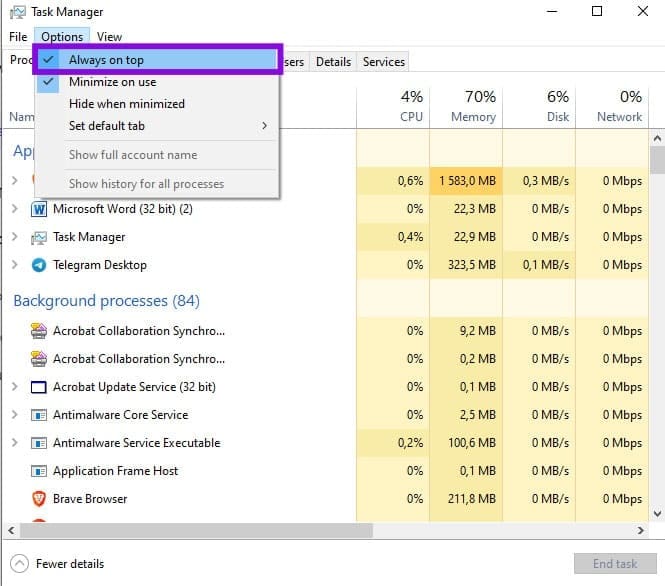
Step 5. Alternatively, right-click the Task Manager icon in the system tray notification area and select “Always on top.”

This setting will keep Task Manager open and above other windows every time you open it from now on. To disable, simply uncheck the option via either the app or the system tray.
Edit the Registry
Another method to keep Task Manager on top is via the Registry. This method is more complicated. However, it might be your only option if the Task Manager menu bar is hidden or the settings gear is unresponsive due to a bug.
Step 1. Open the “Registry Editor” (press the Windows key + R, type “regedit” (without the quotation marks), and then press “Enter.”

Step 2. Navigate to the following path: “HKEY_CURRENT_USER\Software\Microsoft\Windows\CurrentVersion\TaskManager”.
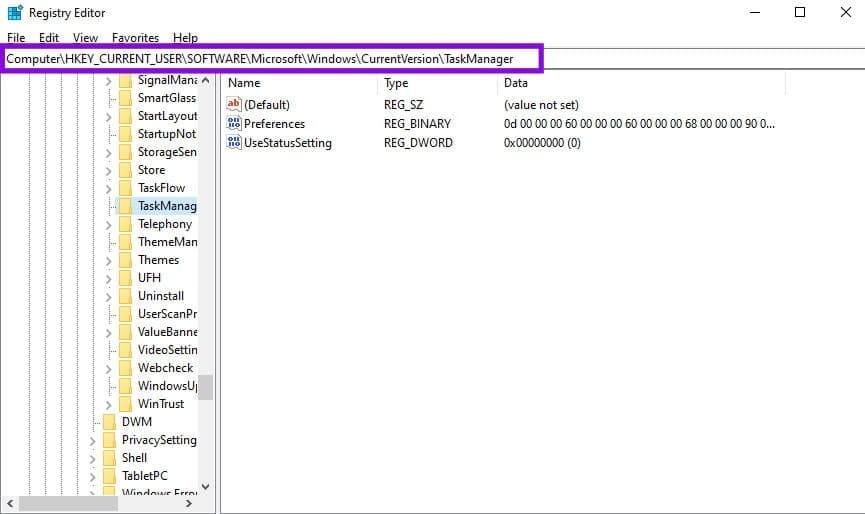
Step 3. Right-click the “TaskManager” key and select “Delete.”
Step 4. Confirm the deletion.
Step 5. Close and restart Task Manager.
Task Manager will recreate its default settings when it opens, and the “Always on top” setting should now be available.
Use Microsoft PowerToys
Microsoft’s PowerToys is another effective way to keep Task Manager on top.
The Always on Top utility is just one of the useful features in this app to improve and customize your Windows experience. It’s especially useful if you also want to pin windows of different apps (not just Task Manager), or you want a keyboard shortcut that allows you to toggle “Always on Top” on or off at will.
Download the app from Microsoft and install it. After installation, simply press Windows + Ctrl + T to make Task Manager (or any active window) always stay on top. Press it again to remove “Always on Top” for the active window.
Was this helpful?
Last updated on 14 July, 2026
Read Next
 6 Ways to Fix Task Manager Not Working on Windows 11
Basic Fixes Install Windows updates: Such issues with Task Manager can also arise due to faulty Windows builds.
6 Ways to Fix Task Manager Not Working on Windows 11
Basic Fixes Install Windows updates: Such issues with Task Manager can also arise due to faulty Windows builds.
 9 Ways to Open Task Manager on Windows 10 and Windows 11
Task Manager is one of the most commonly used programs on Windows, regardless of its version.
9 Ways to Open Task Manager on Windows 10 and Windows 11
Task Manager is one of the most commonly used programs on Windows, regardless of its version.
 3 Ways to Disable Task Manager for Specific Users in Windows
Method 1: Using Command Line or Powershell Step 1: Press the Windows key, type PowerShell or Command Prompt, and click on Run as administrator.
3 Ways to Disable Task Manager for Specific Users in Windows
Method 1: Using Command Line or Powershell Step 1: Press the Windows key, type PowerShell or Command Prompt, and click on Run as administrator.
 Task Manager Shows Fewer Cores [Solved]
When you’re using a processor that you bought, you generally expect it to do what it says on the tin, especially how many cores it has.
Task Manager Shows Fewer Cores [Solved]
When you’re using a processor that you bought, you generally expect it to do what it says on the tin, especially how many cores it has.
 Windows 11 Task Manager Shows Duplicates
Windows Task Manager should be the one beacon of light in the darkness, that one utility app that should work when nothing else will.
Windows 11 Task Manager Shows Duplicates
Windows Task Manager should be the one beacon of light in the darkness, that one utility app that should work when nothing else will.
 7 Best Windows 10 Task View Settings and Tips in 2020
Microsoft continues to pump Windows 10 with exciting new features and elements with each new update.
7 Best Windows 10 Task View Settings and Tips in 2020
Microsoft continues to pump Windows 10 with exciting new features and elements with each new update.
 How to Disable Task View in Windows 10 Completely
The Task View feature in Windows 10 is a boon for power users.
How to Disable Task View in Windows 10 Completely
The Task View feature in Windows 10 is a boon for power users.
 6 Ways to Fix Task Scheduler Not Working on Windows
Fix 1.
6 Ways to Fix Task Scheduler Not Working on Windows
Fix 1.
The article above may contain affiliate links which help support Guiding Tech. The content remains unbiased and authentic and will never affect our editorial integrity.