If you can’t log into services that require a Microsoft account, such as Office using Microsoft 365 or Outlook, chances are there’s something wrong with your account credentials. Here’s what to do if your Microsoft account has been temporarily suspended.
What Determines Whether Your Microsoft Account Has Been Temporarily Suspended?
There are two main account types for Microsoft, which change how accounts behave and what you can do to get them back:
- Personal accounts use the traditional @outlook.com or even a third-party email provider like Gmail. These accounts are managed by you, and sign-in problems may result from suspicious activity, identity-verification requirements, or other account restrictions.
- Work or school accounts are managed by the broader IT administration. If you can’t sign in, the account may be locked, disabled, subject to an organizational access policy, or affected by a password or verification issue.
How to Determine Why Your Microsoft Account Has Been Suspended?
Unfortunately, Microsoft login forms won’t provide a distinct reason for what you will need to do to unblock the account. However, the message will provide a clue as to where to look.
Step 1. Close all apps and browser windows that are using Microsoft services. This includes Office, Xbox sign-ins, and Outlook (on both Windows and in the browser).
Step 2. Wait several minutes.
Step 3. Open Microsoft.com in the browser and try to log in.

If the account you’re trying to log in is personal, you’ll be redirected to account.microsoft.com, where you can manage your credentials, logins, or overview your activity.
If it’s a work or school account, you may need to contact your organization’s IT administrator to unlock the account, reset your password, or resolve an access-policy restriction.
In some cases, the suspension may be temporary, so all you need to do is wait out a day or two before you get back access to the account. But you can also try to change your account settings to bypass this.
Fix 1 – Follow the Account Verification or Recovery Instructions
In the new login form, entering a correct email will usually prompt you to enter an additional login option, including:
- Face, fingerprint, or account PIN (all of which need to have been set up earlier)
- Password
- Code via email
Step 1. If entering the password doesn’t work, go to the “Send a code to email” option. You should receive a one-time code at the associated email address that you can enter.

Step 2. If you’re still getting an account suspended message, you may need to reset the password. Click on “Show more options” on the log-in form, then go to “Update your password instead.” This will prompt you to log in via an email code and should remove the suspension.
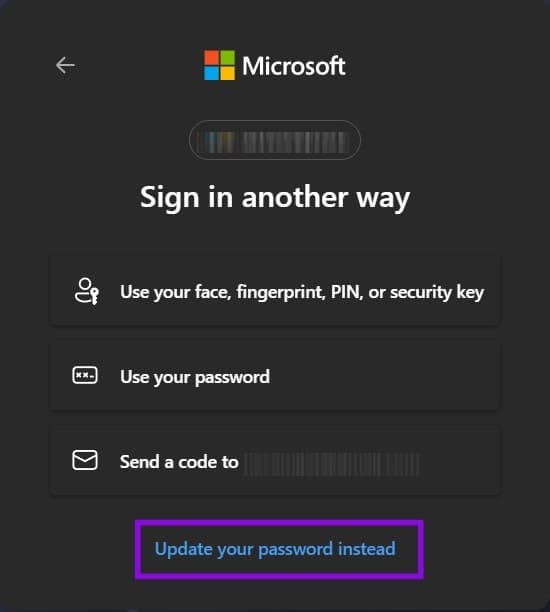
Step 3. Follow the on-screen instructions and reset the password. Then, use that password to log in.
Fix 2 – Strengthen Your Account Security to Help Prevent Future Problems
In most cases, Microsoft may block sign-ins when it detects unusual activity or a potential security risk. However, account locks can have other causes, so check Microsoft’s message and recovery instructions before assuming someone has tried to access your account.
Step 1. Log in to your Microsoft account through the main Microsoft portal.
Step 2. Open the Security page and select “Manage how I sign in.”
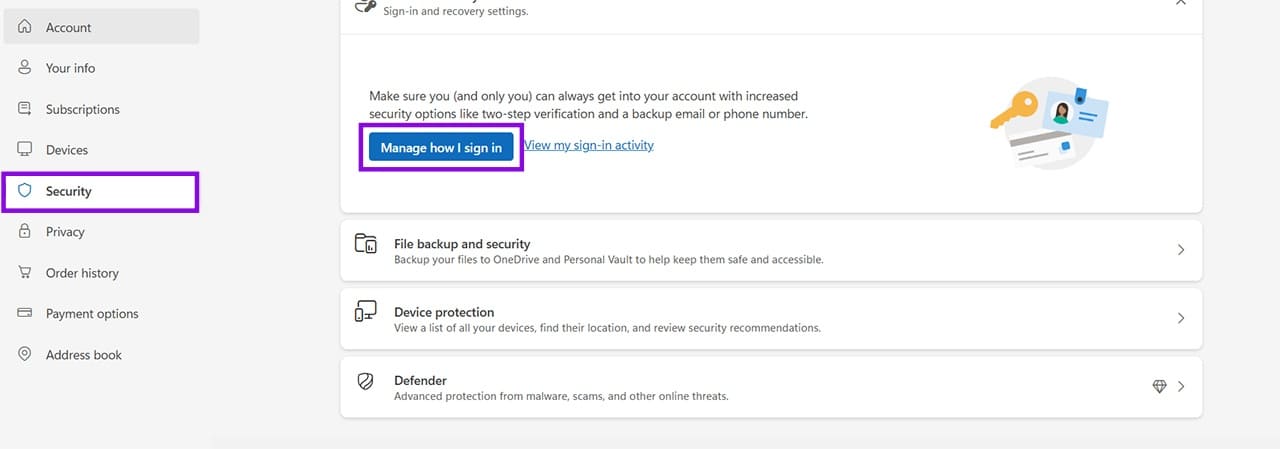
Step 3. Find the two-step verification settings and follow the instructions to turn the feature on.
Step 4. This prompts you to download an Authenticator app to your phone, which will then be used for all login attempts moving forward.

Step 5. Go back to the “Security” tab and select “View sign-in activity.”
Step 6. Review the locations where someone has tried to log into your account. If you can’t recognize some of them, reset your password.
Step 7. If you suspect that someone else has accessed your account, in the Security tab again, click on “Sign out everywhere.”
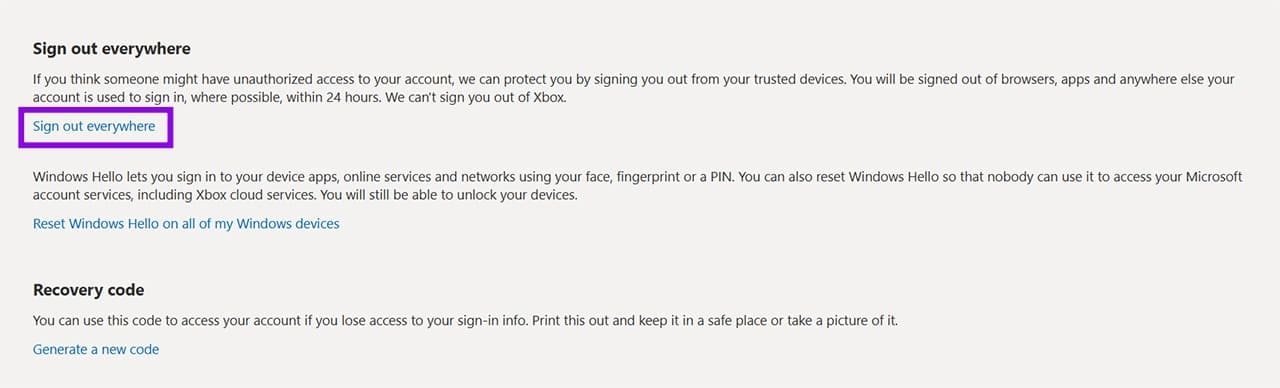
Step 8. You’ll need to manually re-enter your account details for all services, but your account should be updated and no longer suspended.
Fix for Work or School Accounts
If the account you’re using is managed by a school or company, you’ll need to contact your IT or account administration to resolve the issue. Usually, the suspension can be removed by changing the account’s status on the admin page.
Was this helpful?
Last updated on 24 October, 2026
Read Next
 Why Is My TikTok Account Suspended
TikTok has taken the social media market by storm.
Why Is My TikTok Account Suspended
TikTok has taken the social media market by storm.
 Copilot Account Suspended? Here’s How to Get It Back
Have you suddenly found yourself locked out of your Copilot account and don’t even know why?
Copilot Account Suspended? Here’s How to Get It Back
Have you suddenly found yourself locked out of your Copilot account and don’t even know why?
 How to Temporarily Deactivate Your LinkedIn Account
What Happens When You Deactivate Your LinkedIn Account?
How to Temporarily Deactivate Your LinkedIn Account
What Happens When You Deactivate Your LinkedIn Account?
 How to Temporarily Disable Reserved Storage in Windows 11
Windows keeps around 5 to 7GB of “spare storage” from the partition its in to download new updates.
How to Temporarily Disable Reserved Storage in Windows 11
Windows keeps around 5 to 7GB of “spare storage” from the partition its in to download new updates.
 How to Remove a Microsoft Account From Windows 11
With Windows 8 makeover in 2012, the software giant made it quite difficult to use the desktop system without a Microsoft account.
How to Remove a Microsoft Account From Windows 11
With Windows 8 makeover in 2012, the software giant made it quite difficult to use the desktop system without a Microsoft account.
 How to Delete Your Microsoft Account on Desktop and Mobile
A Microsoft account is a single sign-in service that allows you to access various Microsoft products and services, such as Windows, Office, Xbox, Skype, OneDrive, Outlook, and more.
How to Delete Your Microsoft Account on Desktop and Mobile
A Microsoft account is a single sign-in service that allows you to access various Microsoft products and services, such as Windows, Office, Xbox, Skype, OneDrive, Outlook, and more.
 How to Set Up Windows 11 Without a Microsoft Account
When you set up a Windows 11 machine for the first time, it asks you to log in with your Microsoft account.
How to Set Up Windows 11 Without a Microsoft Account
When you set up a Windows 11 machine for the first time, it asks you to log in with your Microsoft account.
 How to Log Into Windows 11 Without a Microsoft Account
When setting up a new Windows 11 computer, you’ll be prompted to create a Microsoft account.
How to Log Into Windows 11 Without a Microsoft Account
When setting up a new Windows 11 computer, you’ll be prompted to create a Microsoft account.
The article above may contain affiliate links which help support Guiding Tech. The content remains unbiased and authentic and will never affect our editorial integrity.