If you’re wondering why you can’t automatically copy conditional formatting from one sheet in your Excel worksheet to other sheets, there’s a simple explanation. In all Excel versions since Excel 2010, it’s not possible to make conditional formatting apply to all sheets.
Instead, you’ll have to set the conditional formatting in one sheet and copy it to the others where you want it applied. So when it comes to conditional formatting Excel, apply to all sheets using one of these methods.
Copy Paste
Step 1. Select the sheet with the conditional formatting you wish to apply in all sheets in your worksheet.
Step 2. Copy a cell that contains the formatting you wish to copy (either by pressing CTRL + C or by right-clicking and selecting “Copy” from the context menu).
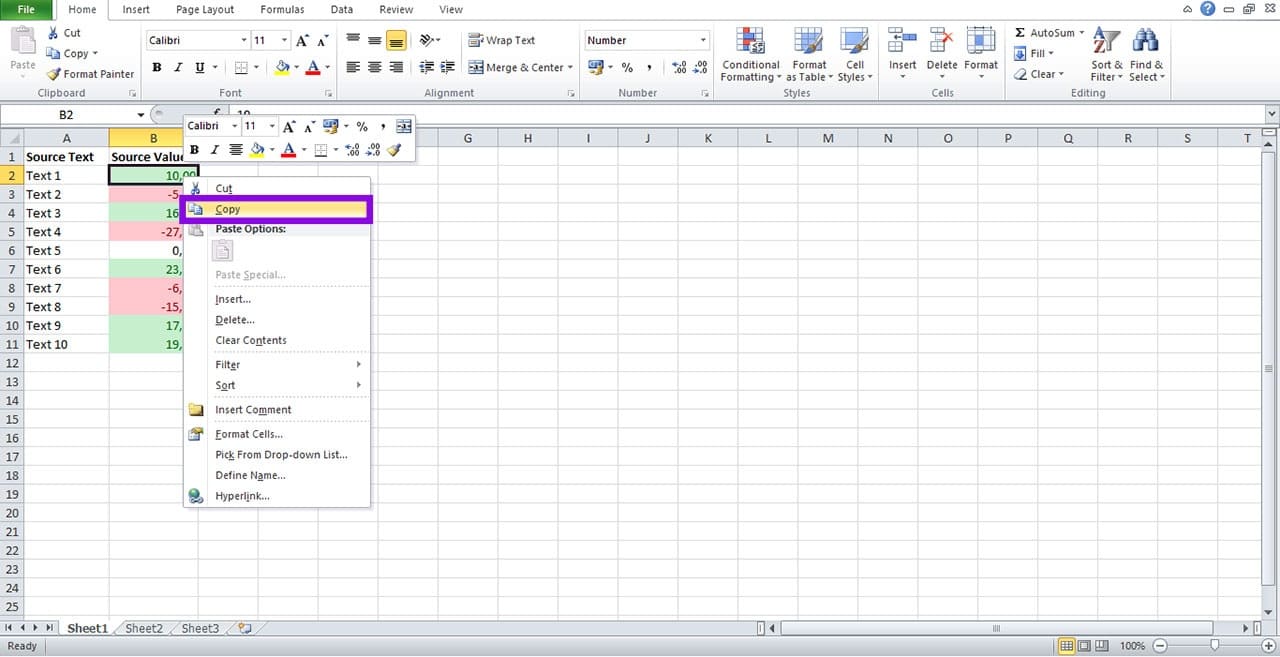
Step 3. Select the destination sheet where you want to paste the formatting.
Step 4. Select the cells to paste the formatting into.
Step 5. Right-click over the highlighted cells and select Paste Special > Paste Format.
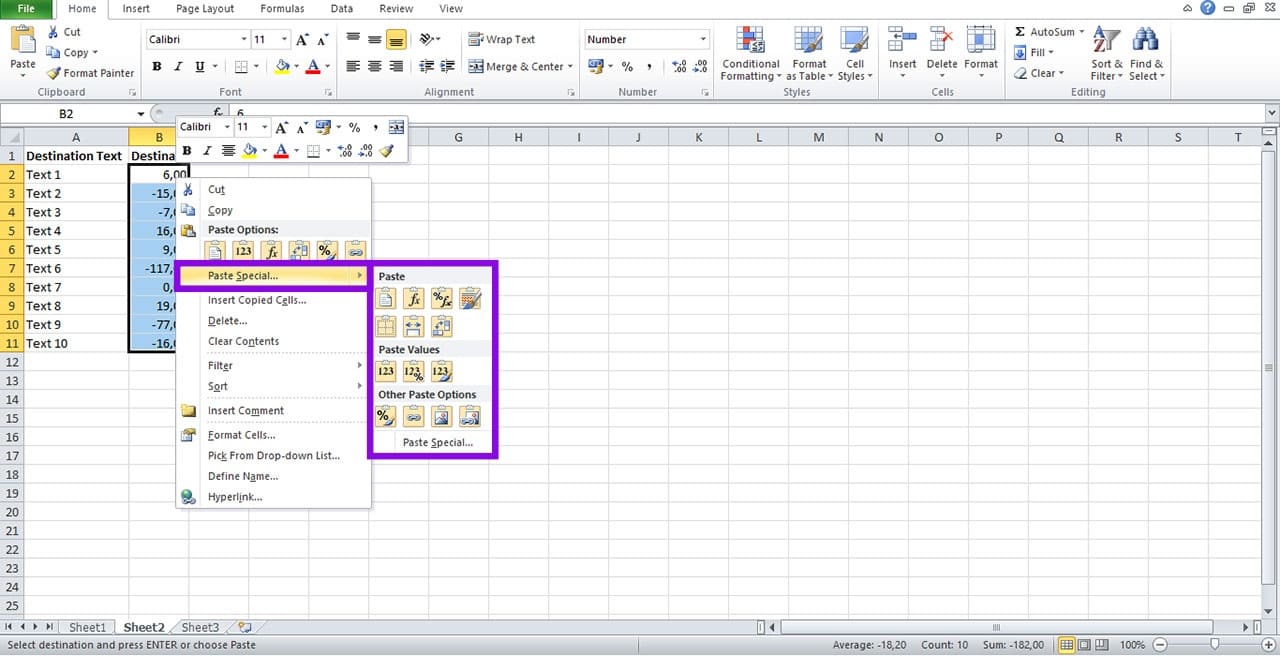
Step 6. Repeat for each additional sheet required.
Using Format Painter
Step 1. Select a cell that contains the conditional formatting you wish to copy to all sheets.
Step 2. On the ribbon, in the “Home” tab, select “Format Painter” in the “Clipboard” section.
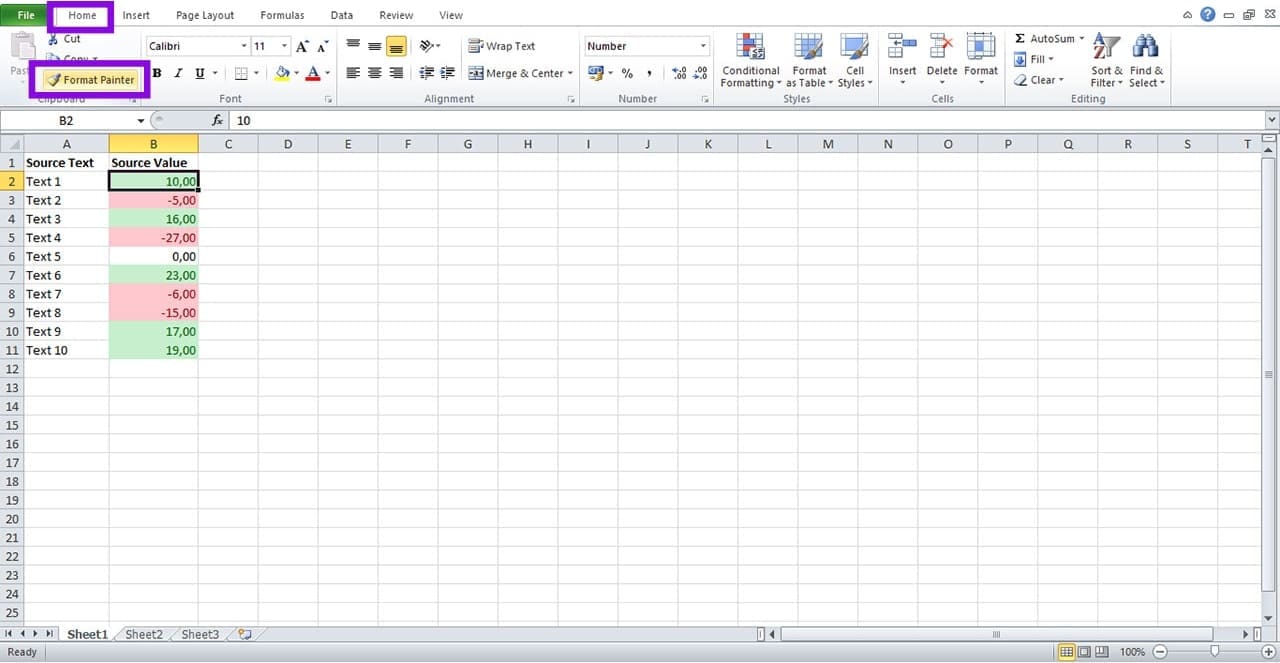
Step 3. Switch to the destination sheet where you want to apply the formatting.
Step 4. Click on the first cell in the range you want to format, and then drag your cursor over the whole range.
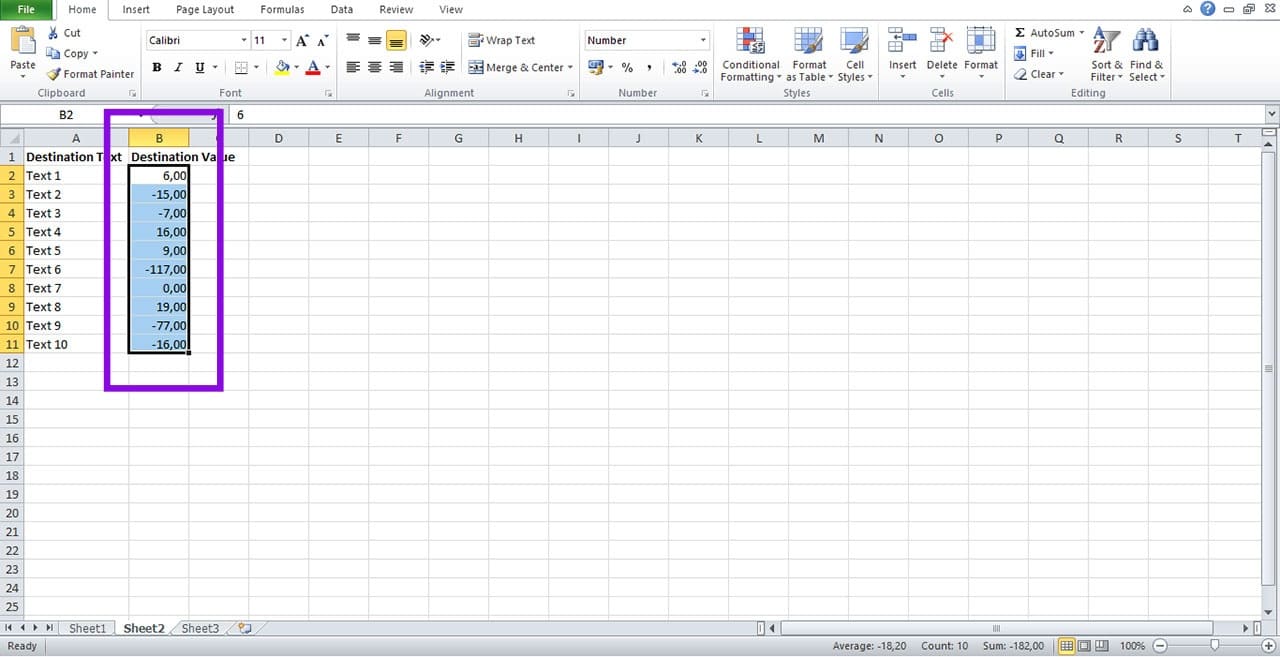
Step 5. The conditional formatting will be automatically applied in the selected cells.

Create a Macro
For a more automated workaround, you can record a macro that mimics the process you used to apply the original conditional formatting. You can then run the macro on each additional sheet where you want the formatting applied.
This method takes longer to set up but can dramatically speed up the process if you need to apply conditional formatting to many sheets. If you have the coding skills, you can write a macro yourself, then save and run it.
Alternatively, you can record a macro manually. Here’s how to do it:
Step 1. In the “View” tab, select “Macros,” then “Record Macro.”
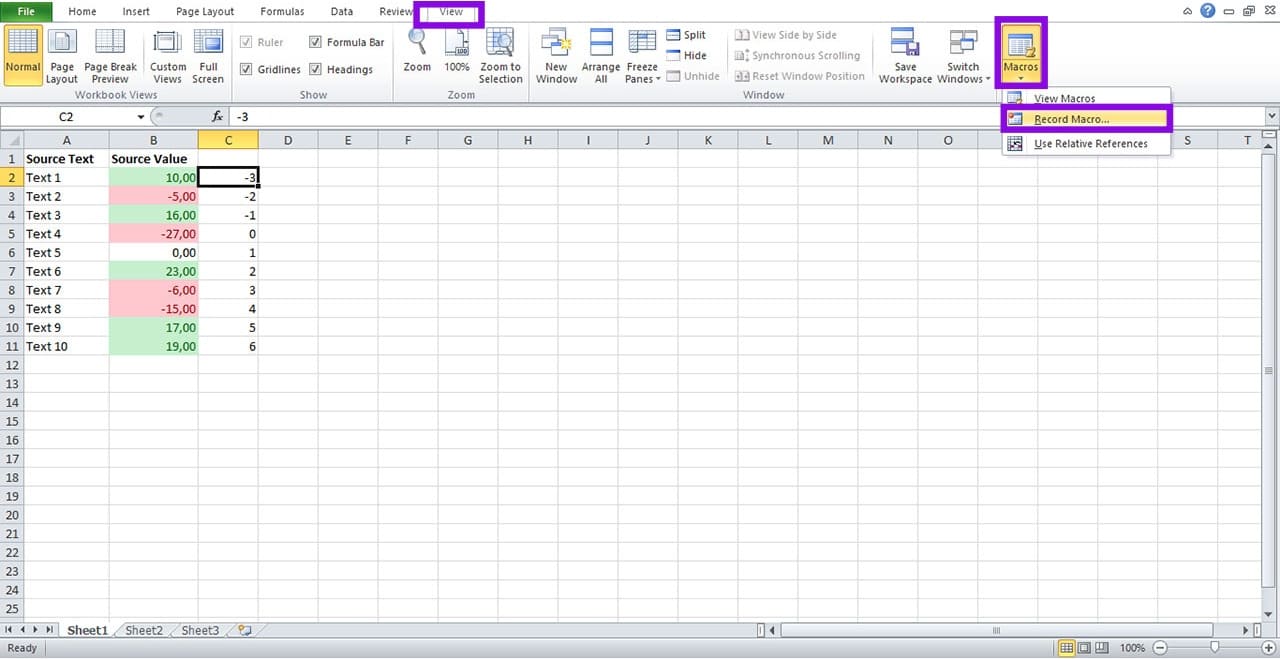
Step 2. In the “Record Macro” dialog box, enter a name for your macro.
Step 3. Select “Personal Macro Workbook” from the drop-down list.
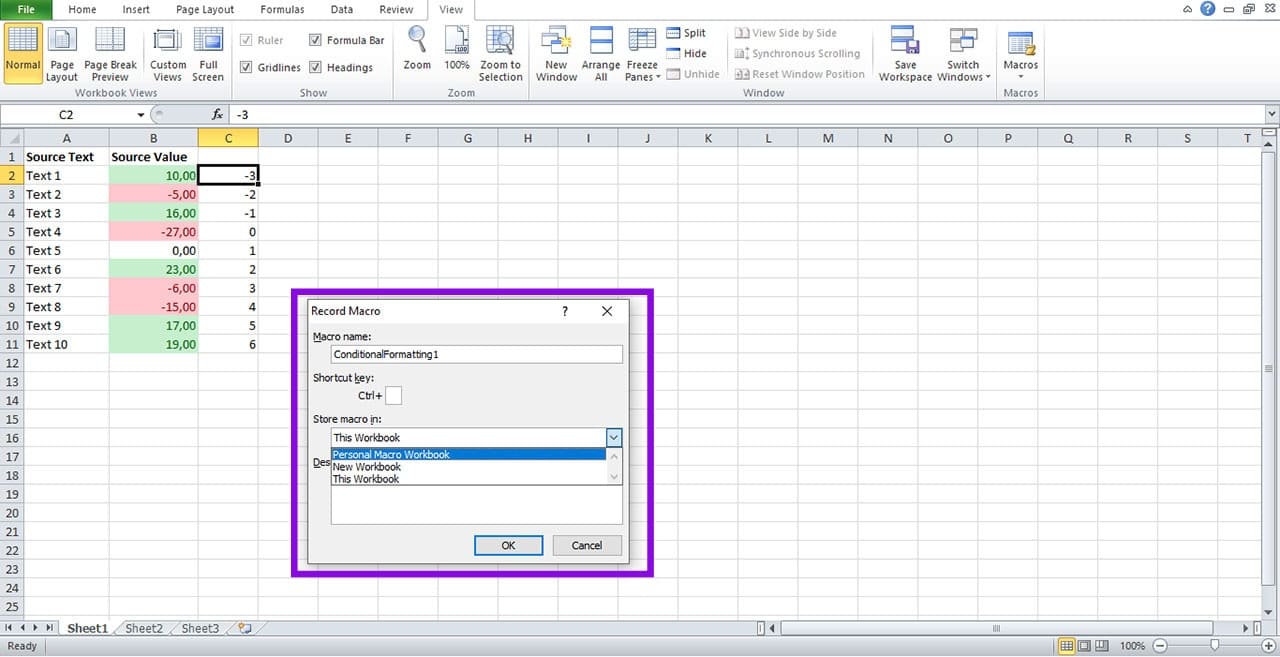
Step 4. Click “OK” to start recording.
Step 5. Follow the steps to create the conditional formatting rule you require.
Step 6. When you’re done, click the stop button at the bottom of the screen to finish recording the macro.
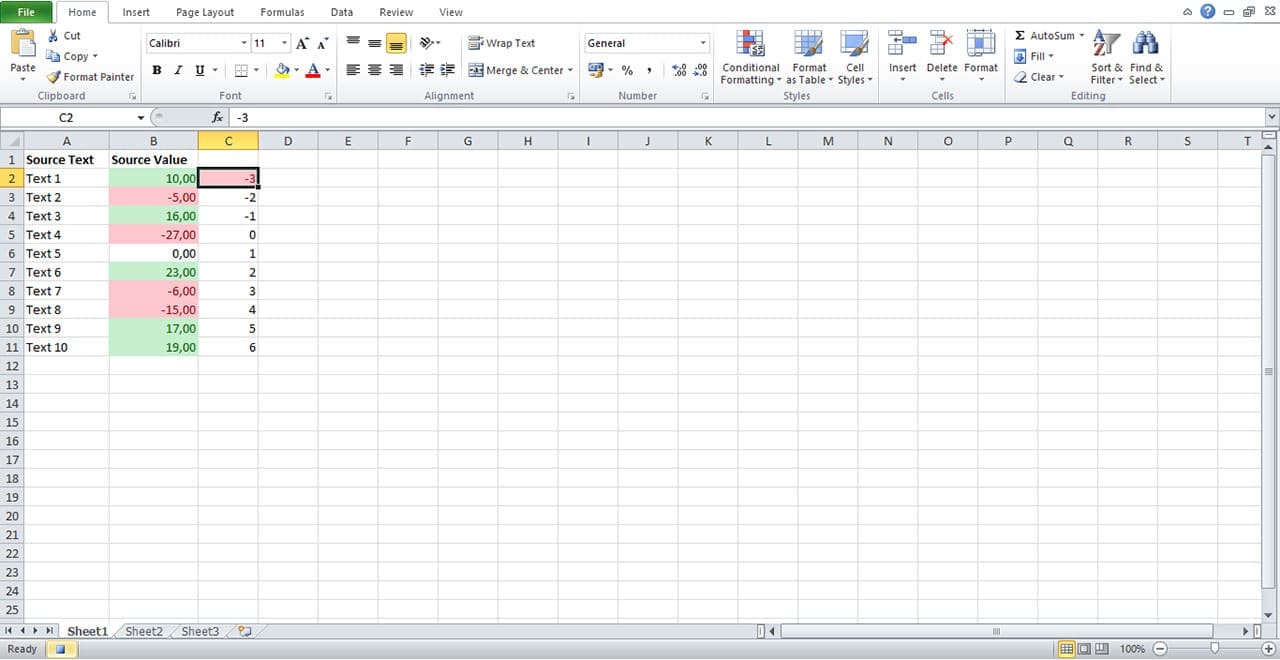
Step 7. Switch to the destination sheet and select the cells to be formatted.
Step 8. In the “View” tab on the ribbon, select “Macros,” then “View Macros.”
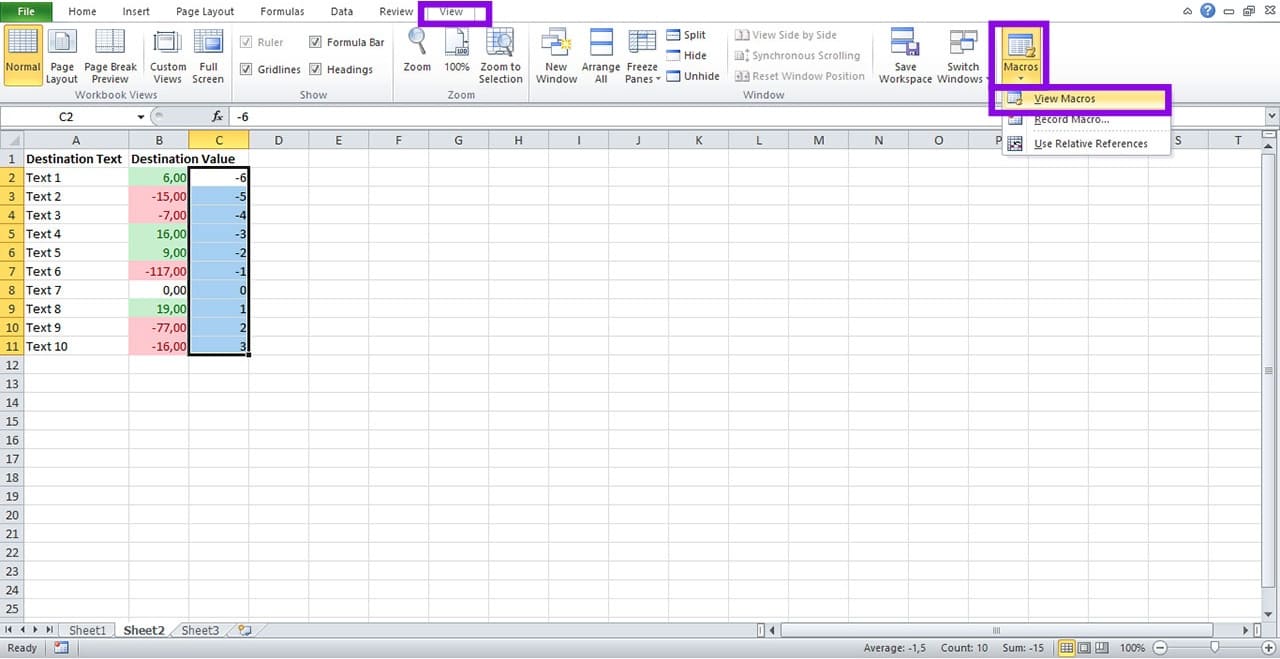
Step 9. Click on the macro you just recorded in the Macro name list and select “Run.”

Step 10. Repeat the process (highlighting the cells to be formatted and then running the macro) on each sheet required.

Was this helpful?
Last updated on 14 July, 2026
Read Next
 How to Use Conditional Formatting on Excel Data Analysis
Excel is a powerful tool for data analysis, but it can be difficult to analyze vast sheets of statistics and figures when every cell looks the same.
How to Use Conditional Formatting on Excel Data Analysis
Excel is a powerful tool for data analysis, but it can be difficult to analyze vast sheets of statistics and figures when every cell looks the same.
 How to Remove Table Formatting in Excel
Method 1: Clear Table Style When working with data tables, Excel often applies predefined styles that include various formatting elements such as colors, borders, and fonts.
How to Remove Table Formatting in Excel
Method 1: Clear Table Style When working with data tables, Excel often applies predefined styles that include various formatting elements such as colors, borders, and fonts.
 Top 8 Ways to Fix Google Sheets Won’t Let Me Type or Edit Error
Google Sheet allows users to collaborate on a single spreadsheet without needing to save anything.
Top 8 Ways to Fix Google Sheets Won’t Let Me Type or Edit Error
Google Sheet allows users to collaborate on a single spreadsheet without needing to save anything.
 5 Ways to Fix Google Sheets Won’t Let Me Scroll Error
Basic Fixes: Check if Scroll Lock is enabled: Some keyboards have a physical Scroll Lock key that blocks scrolling features on your device.
5 Ways to Fix Google Sheets Won’t Let Me Scroll Error
Basic Fixes: Check if Scroll Lock is enabled: Some keyboards have a physical Scroll Lock key that blocks scrolling features on your device.
 How to Add Conditional Logic to Google Forms (And Cool Tricks)
It's true that the attention span of the new-age millennial is getting shorter by the day.
How to Add Conditional Logic to Google Forms (And Cool Tricks)
It's true that the attention span of the new-age millennial is getting shorter by the day.
 Three Clever Formatting Tricks to Try in Microsoft Excel
Spreadsheets shouldn’t be dull and dry — if you want people to read them, that is.
Three Clever Formatting Tricks to Try in Microsoft Excel
Spreadsheets shouldn’t be dull and dry — if you want people to read them, that is.
 Stale Value Formatting in Excel – What Is It and Why Does It Matter
If you’ve just started using Microsoft Excel, you might get used to the program automatically applying any changes and recalculating cell results for all formulas inside a datasheet.
Stale Value Formatting in Excel – What Is It and Why Does It Matter
If you’ve just started using Microsoft Excel, you might get used to the program automatically applying any changes and recalculating cell results for all formulas inside a datasheet.
 4 Ways to Clear All Text Formatting in Microsoft Word
Method 1: Using Keyboard Shortcuts With keyboard shortcuts, you can clear the text formatting within a Microsoft Word document.
4 Ways to Clear All Text Formatting in Microsoft Word
Method 1: Using Keyboard Shortcuts With keyboard shortcuts, you can clear the text formatting within a Microsoft Word document.
The article above may contain affiliate links which help support Guiding Tech. The content remains unbiased and authentic and will never affect our editorial integrity.