


What Is Personal Vault in Windows 11?
As the name suggests, Personal Vault is your private folder in OneDrive, which is password-protected and syncs across devices. You can also keep it open for a few minutes to hours, after which it will be automatically locked. When you set it up for the first time, you must verify your account by logging into your Microsoft account or using the Authenticator app.
How to Open Personal Vault on Windows
Step 1: Press the Windows + E keys shortcut to open File Explorer and select OneDrive from the left navigation panel.

Step 2: Double-click the Personal Vault icon and confirm your identity using the default Windows authentication method. If you have a Windows Hello-compatible laptop, use the face unlock or fingerprint to complete the authentication. If you don’t have a Windows Hello function, enter your computer’s PIN or Microsoft account password to access the Private Vault.

Step 5: File Explorer will open a new window with Private Vault files.
Another way to access Personal Vault is from the Taskbar or system tray.
Step 1: Click the OneDrive icon in the system tray and select the Settings gear at the top right of the fly-out menu.

Step 2: Select Unlock Personal Vault and verify your identity to access it.
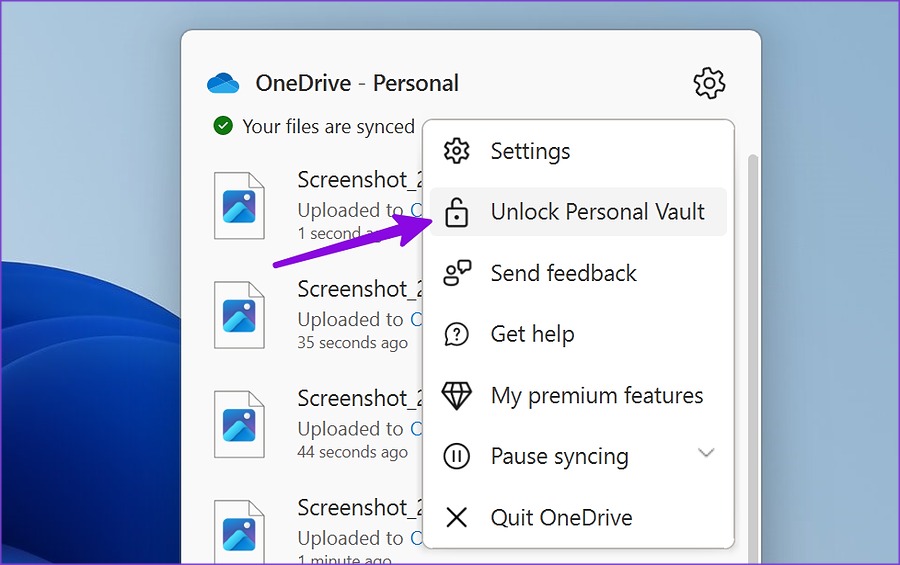
Note: If you don’t see the OneDrive icon in the system tray, enable it from the Settings app.
How to Move Items in Personal Vault
Step 1: Press the Windows + E keys shortcut to open the File Explorer app.
Step 2: Right-click on the file or folder and select copy or cut.
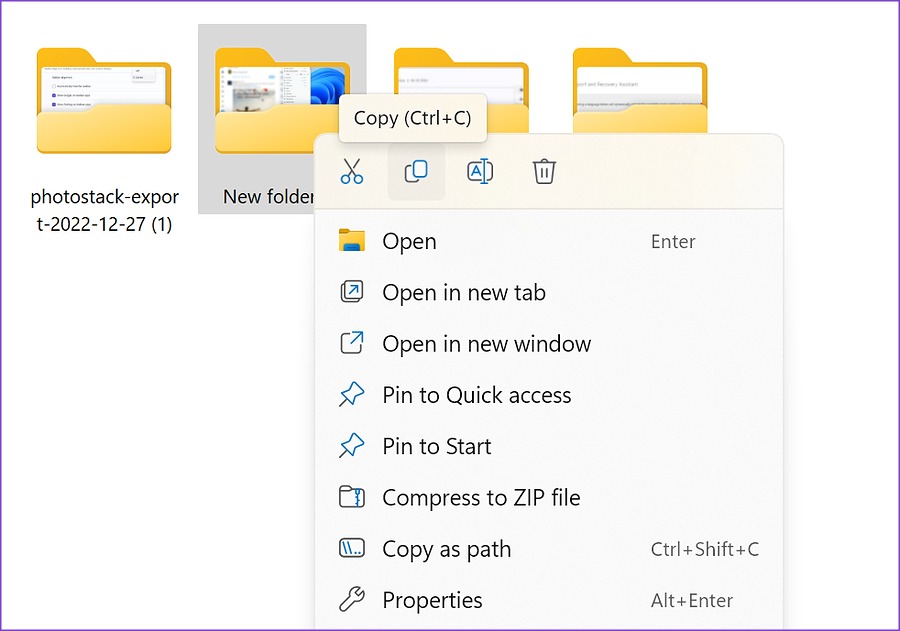
Step 3: Open Private Vault (refer to the steps above) and paste the files.

How to Lock Personal Vault on Windows 11
Step 1: Open OneDrive from the taskbar.
Step 2: Select Lock Personal Vault, and you are ready.

How to Disable Personal Vault on Windows 11/10
Step 1: Visit OneDrive online and sign in with your Microsoft account details.
Step 2: Select the Settings gear at the top right.

Step 3: Click on Options under the OneDrive settings section.
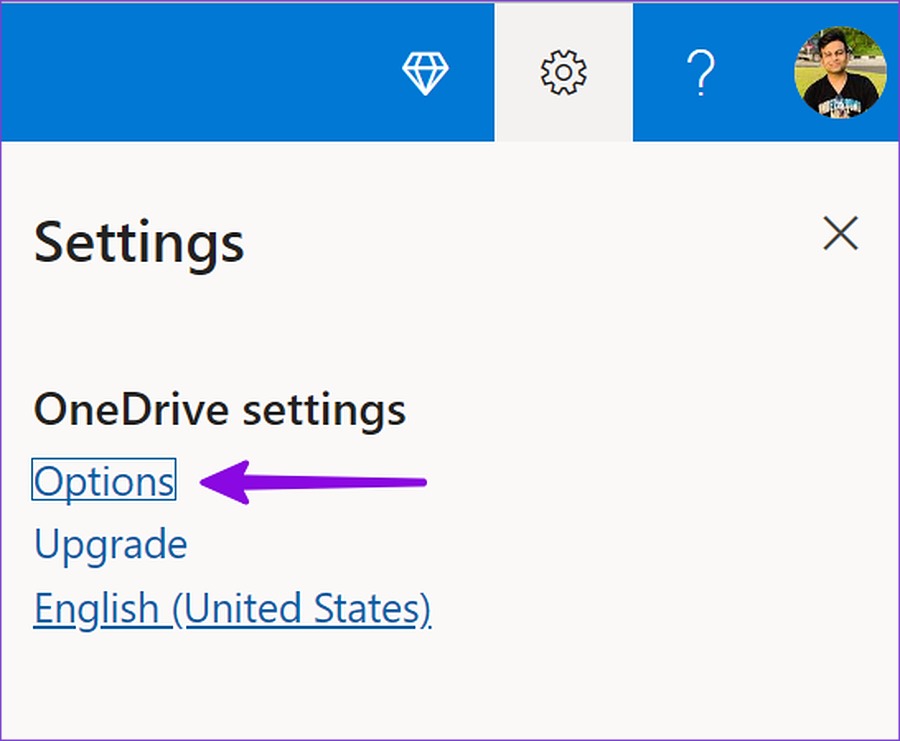
Step 4: Select Personal Vault from the left sidebar, click Disable, and confirm your decision.

Was this helpful?
Last updated on 23 August, 2024
Read Next
 4 Ways to Fix OneDrive Personal Vault Not Showing on Windows Error
Basic Fixes: Access From Another Device: OneDrive works on desktop, mobile, and the web.
4 Ways to Fix OneDrive Personal Vault Not Showing on Windows Error
Basic Fixes: Access From Another Device: OneDrive works on desktop, mobile, and the web.
 20 Best Free Notion Templates for Personal Use
Notion – a personal productivity and team collaboration software has taken the market by storm.
20 Best Free Notion Templates for Personal Use
Notion – a personal productivity and team collaboration software has taken the market by storm.
 5 Best Personal Finance Apps for Mac
People often rely on a spreadsheet to track finance and expenses.
5 Best Personal Finance Apps for Mac
People often rely on a spreadsheet to track finance and expenses.
 How to Stop Gboard From Collecting Your Personal Data on Android and iOS
Method 1: Change Gboard Privacy Settings Google claims to collect your usage data on Gboard to improve the product and user experience.
How to Stop Gboard From Collecting Your Personal Data on Android and iOS
Method 1: Change Gboard Privacy Settings Google claims to collect your usage data on Gboard to improve the product and user experience.
 How to Stop iPhone Personal Hotspot From Turning On Automatically
https://youtu.be/RIBOWbQOnMU Fix 1.
How to Stop iPhone Personal Hotspot From Turning On Automatically
https://youtu.be/RIBOWbQOnMU Fix 1.
 30 Best Free AI Tools Online for Your Business or Personal Use
There has been a meteoric rise in the development of Artificial intelligence and Machine Learning in the last few years.
30 Best Free AI Tools Online for Your Business or Personal Use
There has been a meteoric rise in the development of Artificial intelligence and Machine Learning in the last few years.
 Professional vs. Personal Account on Instagram: Understand the Differences
There are three types of Instagram accounts – Personal, Professional, and Creator.
Professional vs. Personal Account on Instagram: Understand the Differences
There are three types of Instagram accounts – Personal, Professional, and Creator.
 5 Ways to Restore the Missing Personal Hotspot on iPhone
Try Basic Fixes Check with your carrier: It's important to note that not all cellphone carriers or cellular plans support the Personal Hotspot feature on the iPhone.
5 Ways to Restore the Missing Personal Hotspot on iPhone
Try Basic Fixes Check with your carrier: It's important to note that not all cellphone carriers or cellular plans support the Personal Hotspot feature on the iPhone.
The article above may contain affiliate links which help support Guiding Tech. The content remains unbiased and authentic and will never affect our editorial integrity.
