Windows 11 (as well as previous versions) has built-in reporting systems that send user information to Microsoft. This data helps Microsoft create better updates. However, many users feel they don’t really see any long-term benefits from sending this data and would like to opt out of sending optional diagnostic data. Here’s how to get Windows 11 to disable diagnostic data.
What Is Optional Diagnostic Data, and Do You Need It?
It should be noted that Windows systems compile diagnostic data, which is hardware information, crash reports on the system itself, and operating system metrics such as performance. This data is constantly saved and sent to Microsoft, so they can create Windows updates that can improve your experience.
On the other hand, optional diagnostic data includes:
- Which apps are most commonly used on the PC, how long they run, and any crash and error logs they produce.
- Browser activity, particularly for Microsoft Edge. This includes logs on usage, interactions with the browser settings, and the main screen (news and widgets).
- Typing and inking data, usually patterns or autocorrect logs that help programs make “advanced” predictions (such as finishing common phrases or sentences).
- Device health and performance that is not specifically hardware-based, including driver feedback information, memory usage, and processor load for certain programs.
- Media playback information, namely the types of programs you play most often and which default apps you’ve chosen for particular file extensions.
Technically, you don’t really need to send this data back to Microsoft, but the more information they receive, the better the system works. Since diagnostic data is typically turned on, most devices end up inadvertently sending information that Microsoft can use to make patches and improve performance.
Since most people don’t change the default settings and Windows is by far the most prevalent operating system, Microsoft usually has plenty of data to work with. One possible reason why you might want to keep optional diagnostic data is to ensure that it might be useful in the future. If everyone suddenly stopped sending data, Microsoft wouldn’t be able to make accurate patches. But this likely won’t happen, so you should be safe.
Windows 11 Disable Diagnostic Data
You can opt out of sending diagnostics data directly from your device settings. These settings shouldn’t change even if you update the system later. In Windows 11, disable diagnostic data by:
Step 1. Go to “Settings.”
Step 2. Open “Privacy & security,” then go to “Diagnostics & feedback.”
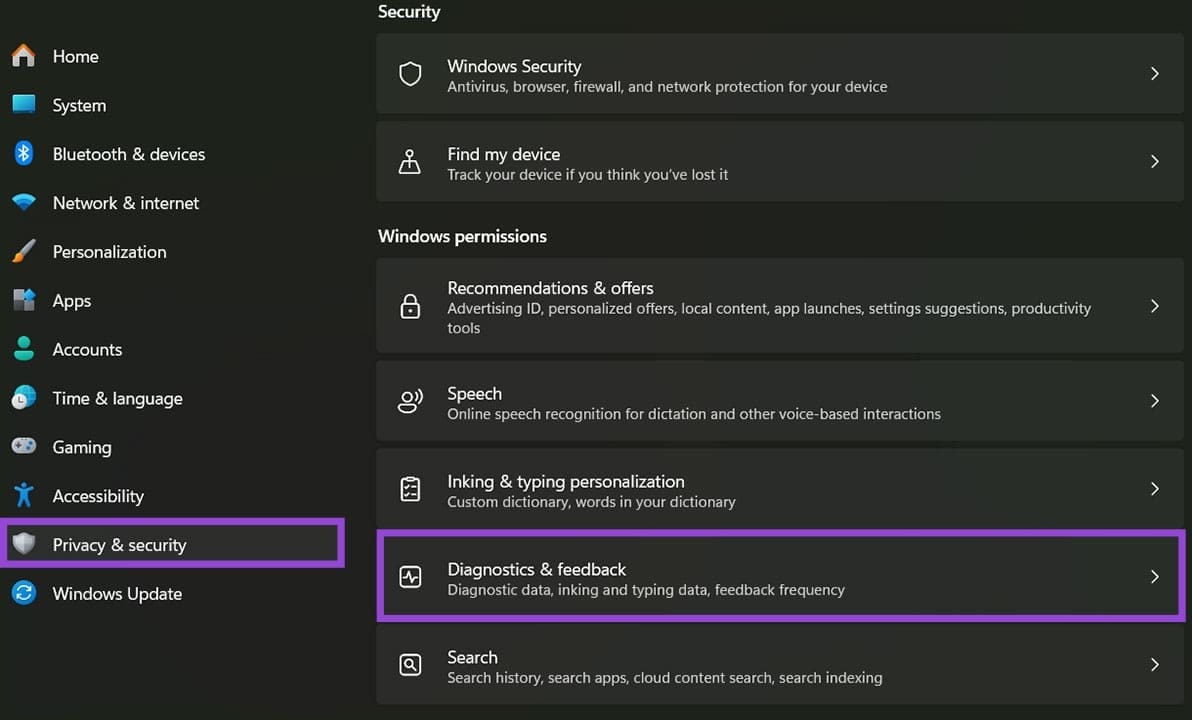
Step 3. Toggle off all the options that are in the menu.
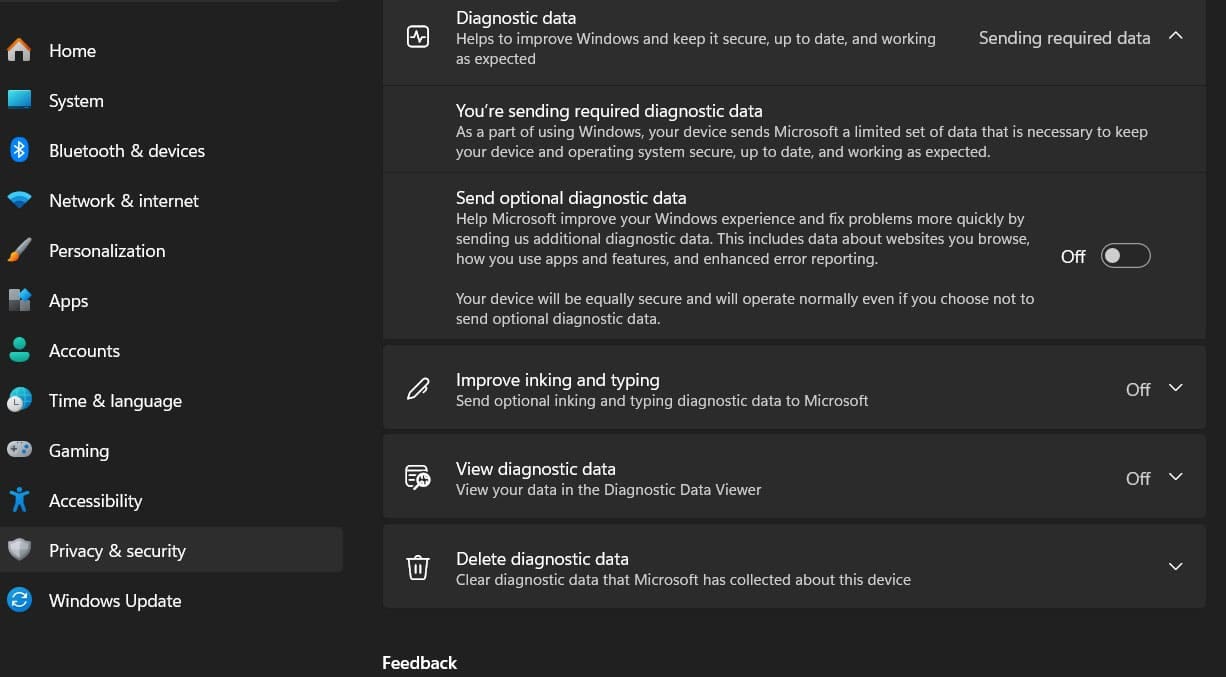
You can also manually delete the data Microsoft has on your device from this menu.
Opting Out of Diagnostic Data via the Registry
An alternative method is to use the Registry Editor, which can disable advanced telemetry and even prevent Microsoft from getting the required diagnostics data.
Step 1. Go to Run (“Win + R”) and enter “regedit”, then run it. Alternatively, search for “Registry Editor” and choose “Run as administrator.”
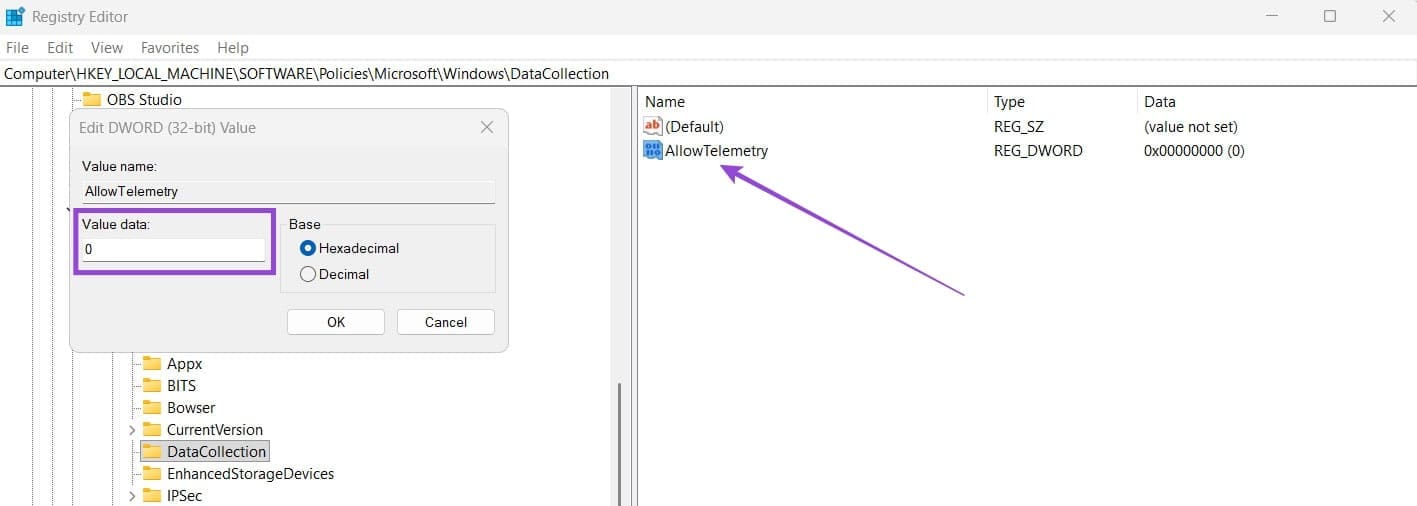
Step 2. In the editor, go to this location:
HKEY_LOCAL_MACHINE\SOFTWARE\Policies\Microsoft\Windows\DataCollection
Step 3. Double-click on “AllowTelemetry” and enter the value 0. You can also use value “1” to send only the required data. If you don’t see it, right-click on the right panel and select “New” then choose “DWORD.” Name it “AllowTelemetry” and add in the value.
Was this helpful?
Last updated on 13 April, 2026
Read Next
 How to Fix Optional Features Missing or Not Installing on Windows 11
Fix 1: Disable Metered Connection Windows has a metered connection feature that reduces data consumption and helps save on internet bills.
How to Fix Optional Features Missing or Not Installing on Windows 11
Fix 1: Disable Metered Connection Windows has a metered connection feature that reduces data consumption and helps save on internet bills.
 How to Use the Windows Memory Diagnostic Tool on Windows 11
How to Use the Windows Memory Diagnostic Tool You can open the diagnostic tool from the search, Command Prompt, Control Panel, and Recovery.
How to Use the Windows Memory Diagnostic Tool on Windows 11
How to Use the Windows Memory Diagnostic Tool You can open the diagnostic tool from the search, Command Prompt, Control Panel, and Recovery.
 5 Ways to Open the DirectX Diagnostic Tool on Windows 11
Method 1: Open the DirectX Diagnostic Tool With the Task Manager The Task Manager app on Windows 11 allows you to monitor and manage all running applications and processes.
5 Ways to Open the DirectX Diagnostic Tool on Windows 11
Method 1: Open the DirectX Diagnostic Tool With the Task Manager The Task Manager app on Windows 11 allows you to monitor and manage all running applications and processes.
 7 Ways to Fix Microsoft Edge Running Slow on Windows 11
Basic Fixes Update or reinstall Microsoft Edge: Open the Microsoft Store, search Microsoft Edge browser, and click Update.
7 Ways to Fix Microsoft Edge Running Slow on Windows 11
Basic Fixes Update or reinstall Microsoft Edge: Open the Microsoft Store, search Microsoft Edge browser, and click Update.
 3 Ways to Fix “Steam Must be Running to Play This Game” Error
Basic Fixes: Ensure Steam is installed on your computer: If you play Steam games, ensure the client is installed on your computer.
3 Ways to Fix “Steam Must be Running to Play This Game” Error
Basic Fixes: Ensure Steam is installed on your computer: If you play Steam games, ensure the client is installed on your computer.
 3 Ways to Fix Microsoft Edge Keeps Running in Background Issue
Basic Fixes: Stop Edge using Task Manager: You can use Task Manager to check Edge's resource usage and stop it from running in the background if it is using too
3 Ways to Fix Microsoft Edge Keeps Running in Background Issue
Basic Fixes: Stop Edge using Task Manager: You can use Task Manager to check Edge's resource usage and stop it from running in the background if it is using too
 How to Fix “Wireless AutoConfig Service Not Running” Issue on Windows 11
Basic Fixes Reboot PC: Press the Windows + X shortcut to open the Power User Menu, select Shut down or sign out, and click Restart.
How to Fix “Wireless AutoConfig Service Not Running” Issue on Windows 11
Basic Fixes Reboot PC: Press the Windows + X shortcut to open the Power User Menu, select Shut down or sign out, and click Restart.
 How to Prevent Users From Running Certain Programs on Windows 11
Method 1: Prevent Users From Running Certain Programs via the Group Policy Editor The Local Group Policy Editor on Windows makes it easy to apply system-wide changes on a computer.
How to Prevent Users From Running Certain Programs on Windows 11
Method 1: Prevent Users From Running Certain Programs via the Group Policy Editor The Local Group Policy Editor on Windows makes it easy to apply system-wide changes on a computer.
The article above may contain affiliate links which help support Guiding Tech. The content remains unbiased and authentic and will never affect our editorial integrity.