A password doesn’t simply have to remain a series of numbers and letters entered via your keyboard. In fact, tech is getting creative in how it protects your devices. From Face ID login to biometric fingerprint confirmation, there are a lot of unique and robust choices for security. Today, we’re looking at the Windows 11 picture password, how it works, and how you can enable it.
How Does the Windows Picture Password Work?
So what is the picture password, and how does it differ from normal passwords? As the name implies, a picture is used in the creation of a password. The user creates the password using three gestures (taps, circles, or lines) on specific areas of a picture, in place of typing letters and numbers on the keyboard.
When the user signs in, they’ll be required to repeat these gestures in the correct sequence to unlock their machine.
Does It Hold Up to Normal Passwords?
The picture password doesn’t rely on traditional keyboard input and can be easier to remember than a complex password. The wide 2D space of a picture can be host to any number of gestures, in any direction and order. What’s more, gestures are more natural to a user and easier to remember than a long 16-character password that’s a mix of capital letters, numbers, and symbols.
How to Enable Your Own Picture Password
Whether using a touch-screen device or a normal PC setup, you’ll be able to enable a picture password quickly and easily. If you want to make your security more intuitive, here’s what you need to do:
Step 1. Open Settings (Win + I) and click on “Accounts” in the sidebar.
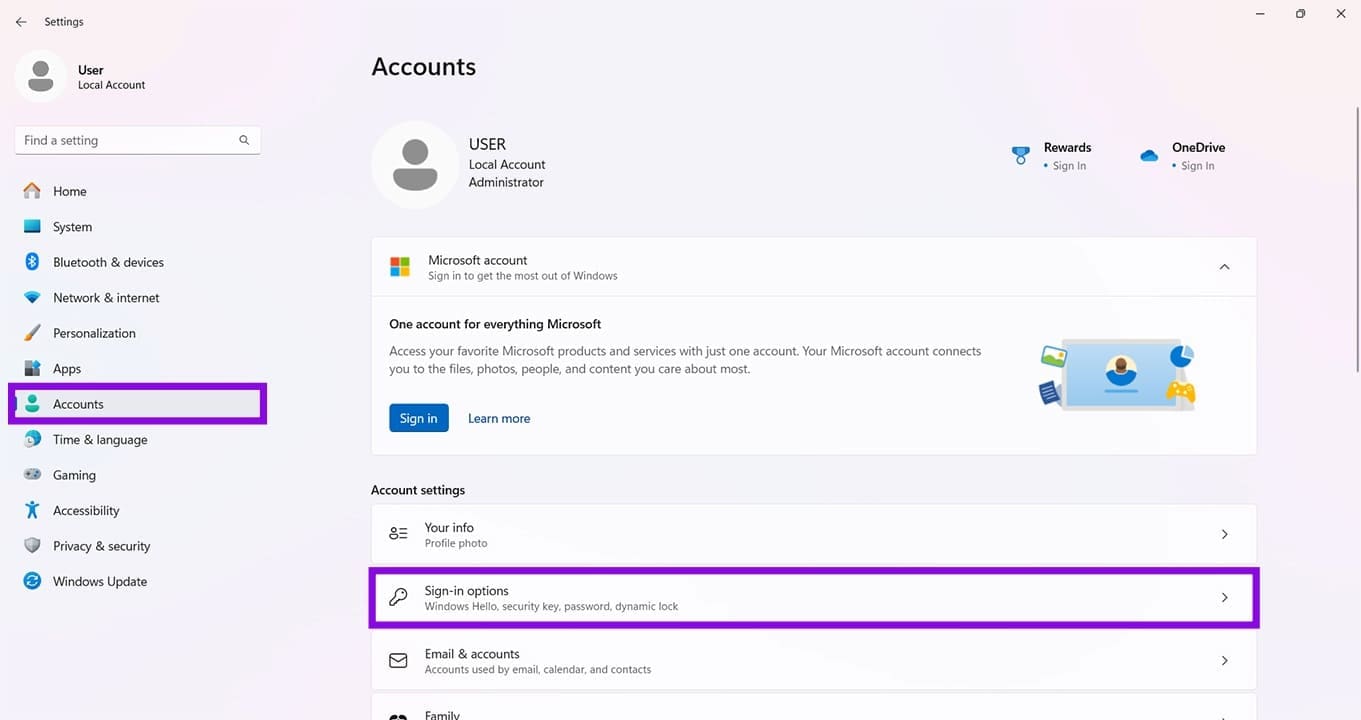
Step 2. Choose “Sign-in options.”
Step 3. Under the “Ways to sign in” section, click “Picture password.” Note that you’ll need to already have a standard password set up to create one.
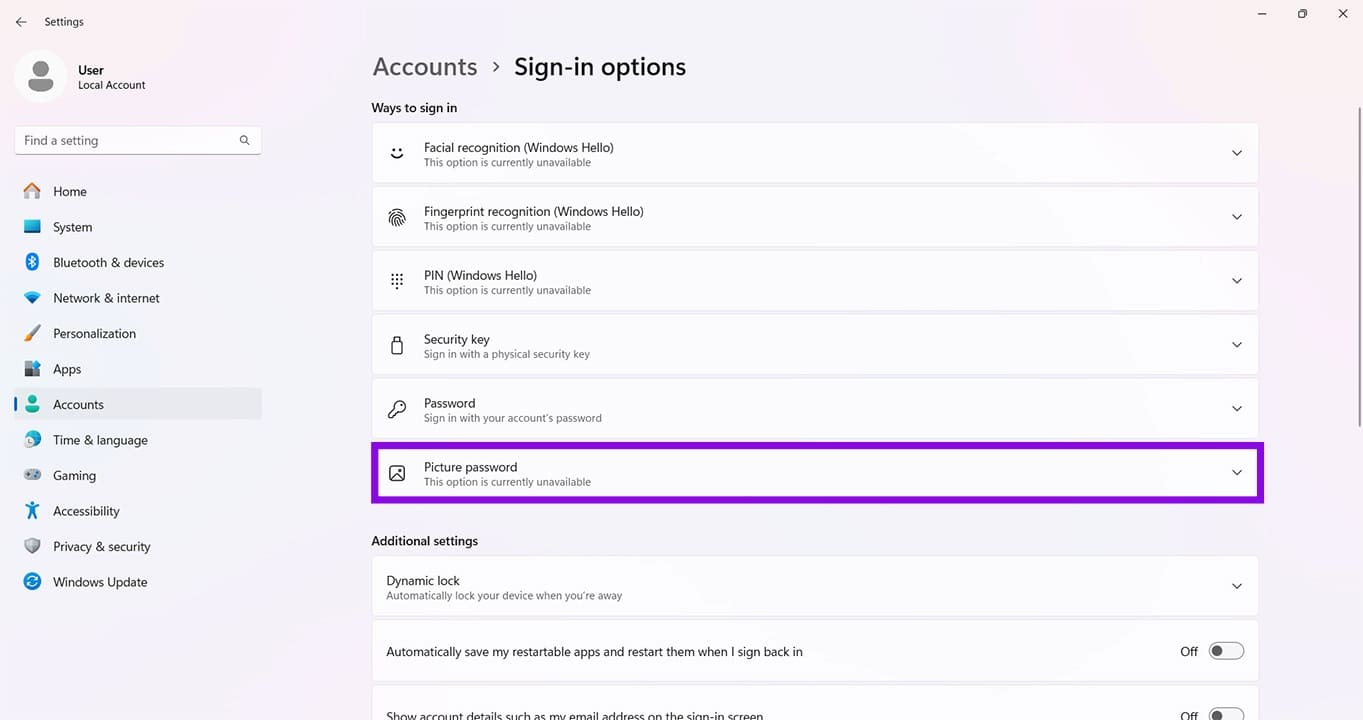
Step 4. Click the “Add” button that appears below “Picture password.”
Step 5. You’ll be taken to the picture password screen. Enter your current password in the box provided and click “OK.”
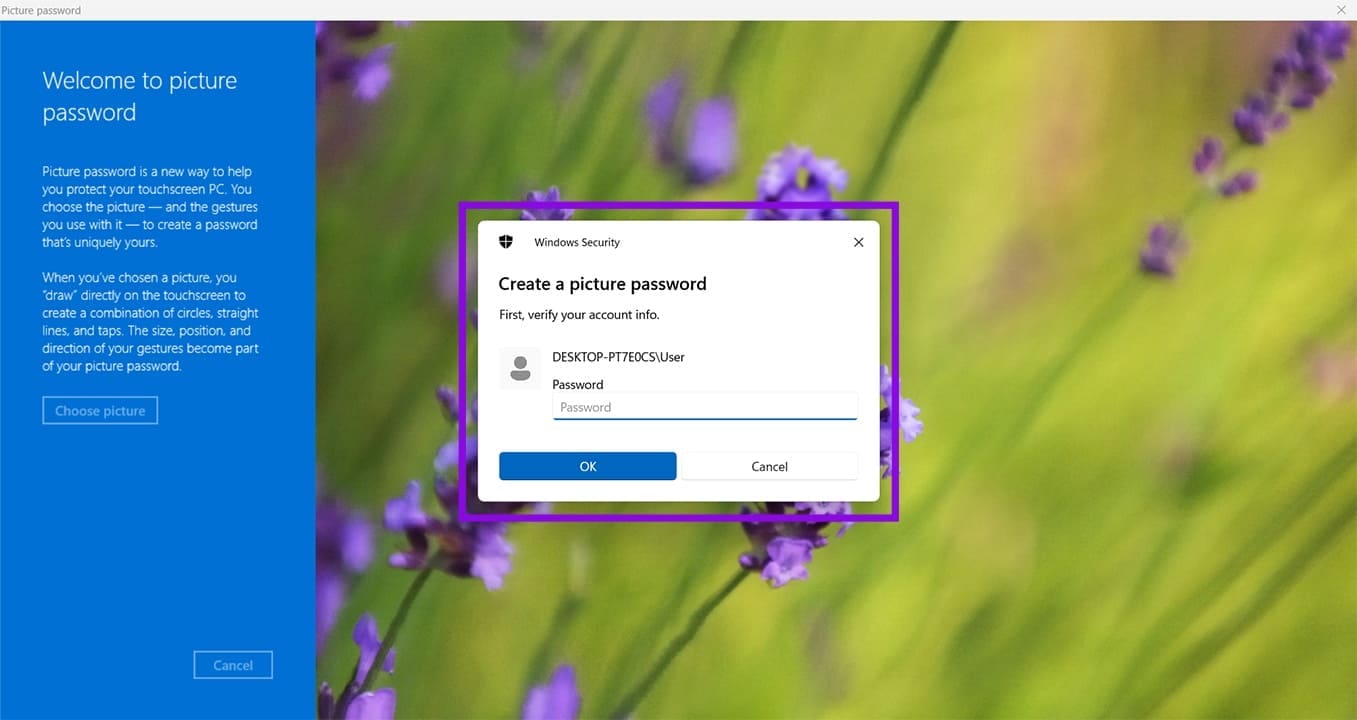
Step 6. You’ll see a brief visual demonstration of how the password works. Once happy, click the “Choose picture” button in the side panel.
Step 7. An Explorer window will open. Choose a picture from somewhere on your PC. Any will do, as long as it works for you. Click “Open” once selected.
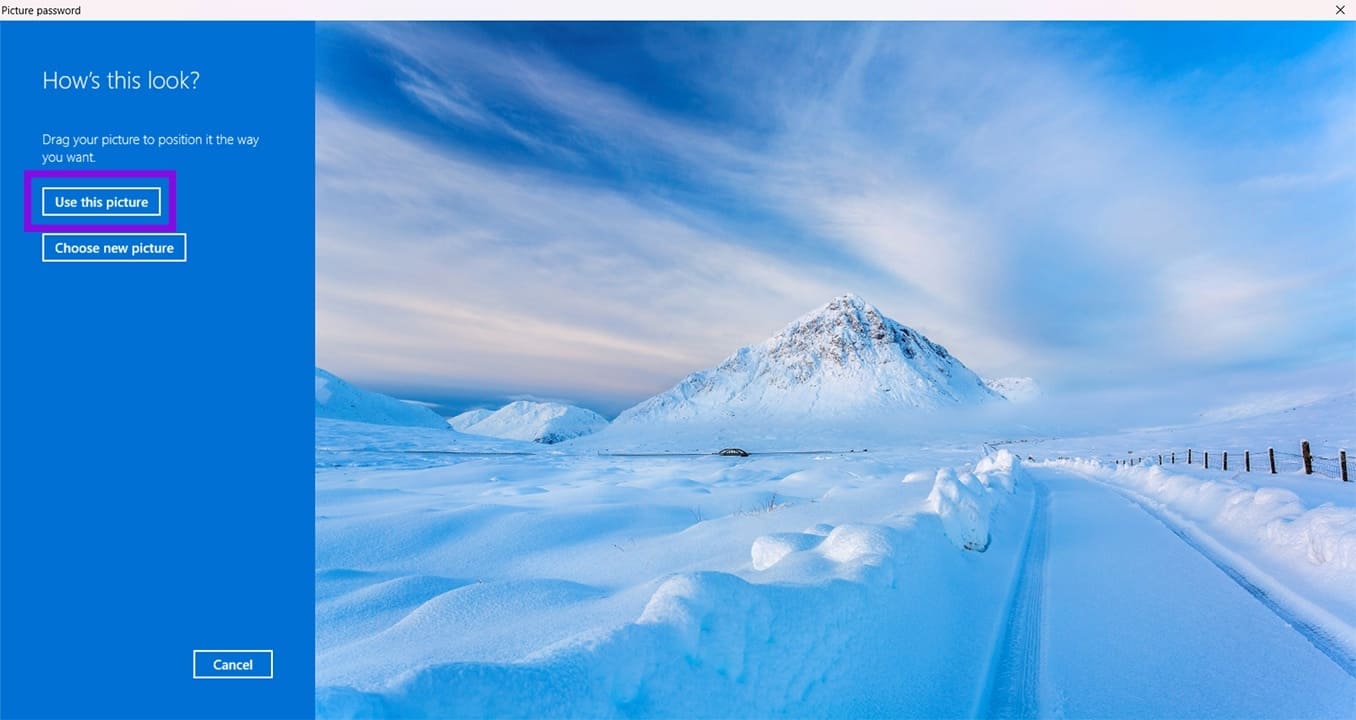
Step 8. Click “Use this picture” if you’re satisfied with it.
Step 9. Draw three gestures anywhere on your picture (line, circle, or tap)
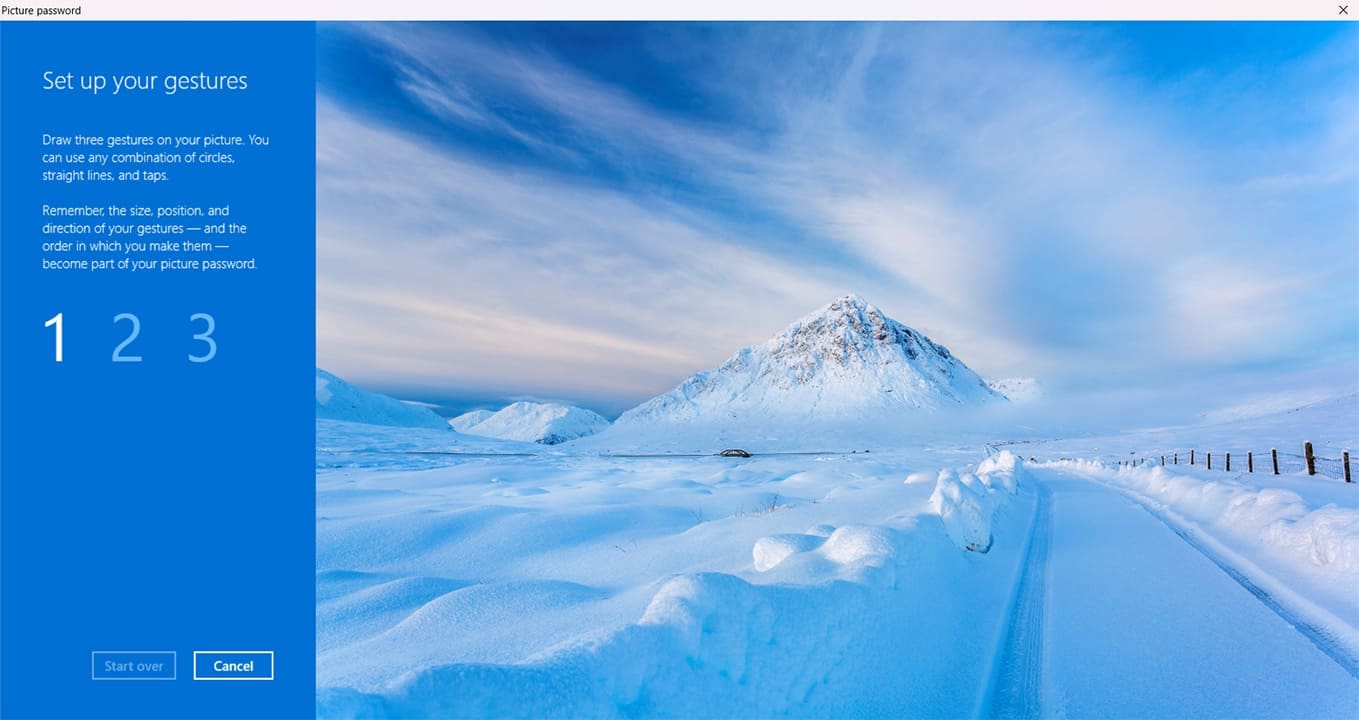
Step 10. Repeat the process to confirm your gestures. If all match, then click “Finish” to finalize the password setup.
Now, when you log in on booting up or after logging in, you can easily use your chosen picture to unlock your account.
Was this helpful?
Last updated on 10 June, 2026
Read Next
 How to Enable or Disable Picture-in-Picture Mode on iPhone and iPad
Enable Automatic Picture-in-Picture Mode on iPhone and iPad If your iPhone or iPad doesn't automatically open videos in Picture-in-Picture mode when quitting to the Home screen, it's likely that your
How to Enable or Disable Picture-in-Picture Mode on iPhone and iPad
Enable Automatic Picture-in-Picture Mode on iPhone and iPad If your iPhone or iPad doesn't automatically open videos in Picture-in-Picture mode when quitting to the Home screen, it's likely that your
 Top 6 Fixes for Facetime Picture-in-Picture Not Working on iPhone & iPad
With the Picture-in-Picture (PiP) mode, multitasking is easy on iPhone and iPad.
Top 6 Fixes for Facetime Picture-in-Picture Not Working on iPhone & iPad
With the Picture-in-Picture (PiP) mode, multitasking is easy on iPhone and iPad.
 4 Ways to Fix the iPhone Picture-in-Picture Not Working
Before you begin, try restarting your iPhone, and update the app you are trying to use picture-in-picture with, to the latest version.
3 Ways to Fix Prime Video Picture-in-Picture Not Working on Android and iPhone
Basic Fixes Restart Prime Video: Restart the Prime Video app and your smartphone to eliminate bugs and glitches.
4 Ways to Fix the iPhone Picture-in-Picture Not Working
Before you begin, try restarting your iPhone, and update the app you are trying to use picture-in-picture with, to the latest version.
3 Ways to Fix Prime Video Picture-in-Picture Not Working on Android and iPhone
Basic Fixes Restart Prime Video: Restart the Prime Video app and your smartphone to eliminate bugs and glitches.
 4 Ways to Fix Picture-In-Picture Mode Not Working on Android
Try Basic Fixes Update the problematic app: If the picture-in-picture mode is not working due to a buggy app build, you should be able to fix it by updating the
4 Ways to Fix Picture-In-Picture Mode Not Working on Android
Try Basic Fixes Update the problematic app: If the picture-in-picture mode is not working due to a buggy app build, you should be able to fix it by updating the
 3 Fixes for Picture-in-Picture Not Working in Telegram
Basic Fixes Force quit and relaunch Telegram: This will give the app a fresh start on your iPhone or Android phone.
3 Fixes for Picture-in-Picture Not Working in Telegram
Basic Fixes Force quit and relaunch Telegram: This will give the app a fresh start on your iPhone or Android phone.
 What Is WhatsApp Profile Picture Size and How to Add Any Picture to It
What’s the Best Size for a WhatsApp profile Picture While WhatsApp has opened up to many new features, from sharing HD photos to screen sharing, it remains stringent on its
What Is WhatsApp Profile Picture Size and How to Add Any Picture to It
What’s the Best Size for a WhatsApp profile Picture While WhatsApp has opened up to many new features, from sharing HD photos to screen sharing, it remains stringent on its
 3 Ways to Fix Picture-In-Picture Not Working in Facebook Messenger
Common Fixes Restart device - Long-press the physical Power button and tap Reboot to restart Android.
3 Ways to Fix Picture-In-Picture Not Working in Facebook Messenger
Common Fixes Restart device - Long-press the physical Power button and tap Reboot to restart Android.
The article above may contain affiliate links which help support Guiding Tech. The content remains unbiased and authentic and will never affect our editorial integrity.