

Microsoft came under the spotlight in 2026 as users realized their data was being continuously collected via a Global Device Identifier (GDID) to associate online activity with a particular Windows installation. This identifier is nothing new, but most users didn’t realize that their device usage, telemetry, and even location are logged and sent to Microsoft periodically.
While you can’t fully disable the GDID, there are ways to limit it and have tighter control over what data you send to Microsoft.
What Is the Global Device Identifier in Windows?
Microsoft uses a persistent identifier for Windows installations called the GDID, or Global Device Identifier. This Windows device identifier is called the GDID, Global Device ID, or Global Device Identifier. Instead, it is tied to a specific Windows installation and can be used to recognize that installation across certain Microsoft services and scenarios. The identifier remains consistent across Windows updates, but reinstalling Windows generates a new GDID.
The GDID collects data on how the device is used, what accounts are used on it, and where it connects to the internet. Microsoft can share this data with authorities, when necessary, to help manage instances of cybercrime.
In July 2026, the Department of Justice announced that a 19-year-old alleged member of Scattered Spider had been extradited from Finland to the United States to face federal charges. The DOJ says the group has been involved in more than 100 network intrusions, resulting in over $100 million in ransom payments and millions more in damages. Microsoft records associated with a GDID helped investigators link a Windows installation to online activity and IP addresses connected to the suspect. This information was one part of a wider investigation that also involved records from other online services and accounts.
Can I Disable GDID on Windows?
If you’re concerned about Microsoft gathering your usage data, you may be wondering how to disable the Global Device Identifier. There’s currently no way to disable the GDID directly from Windows, which is deliberate, as Microsoft needs the diagnostic and usage data from these identifiers. However, you can effectively limit what data is sent to Microsoft.
Step 1. Go to Settings. You can search for this in the Start menu or use the quick function: WIN + I.
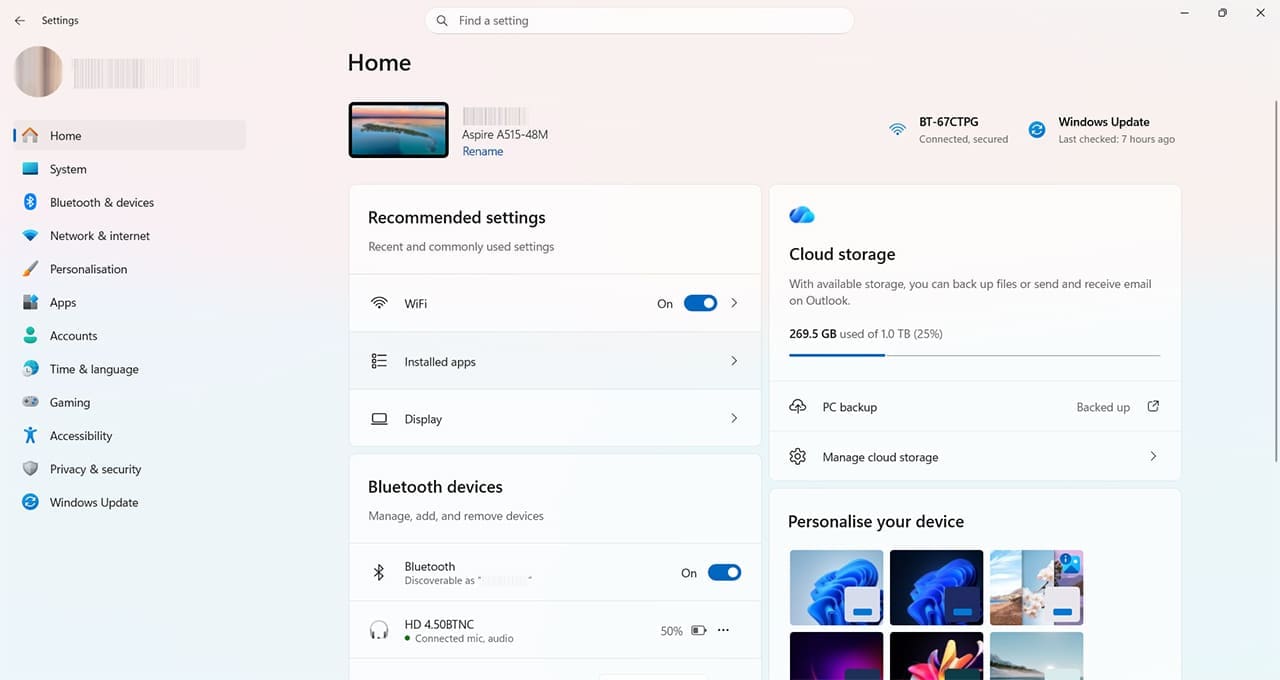
Step 2. Select Privacy & security from the left-hand menu.
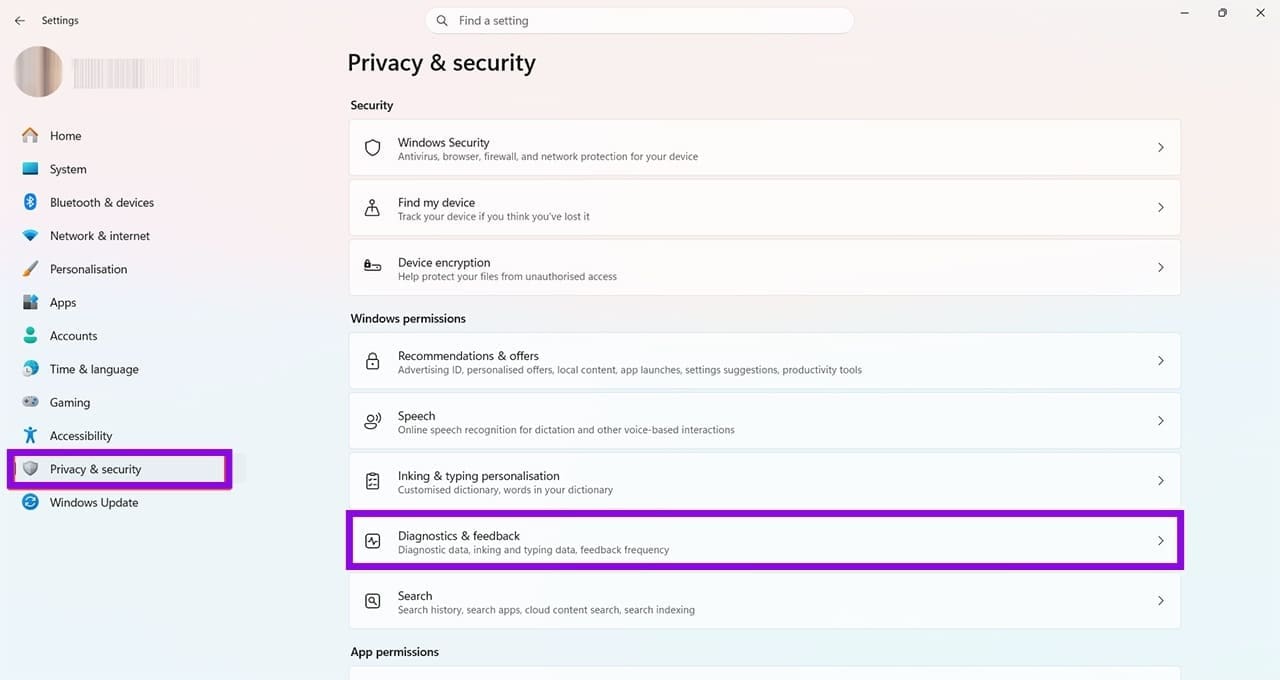
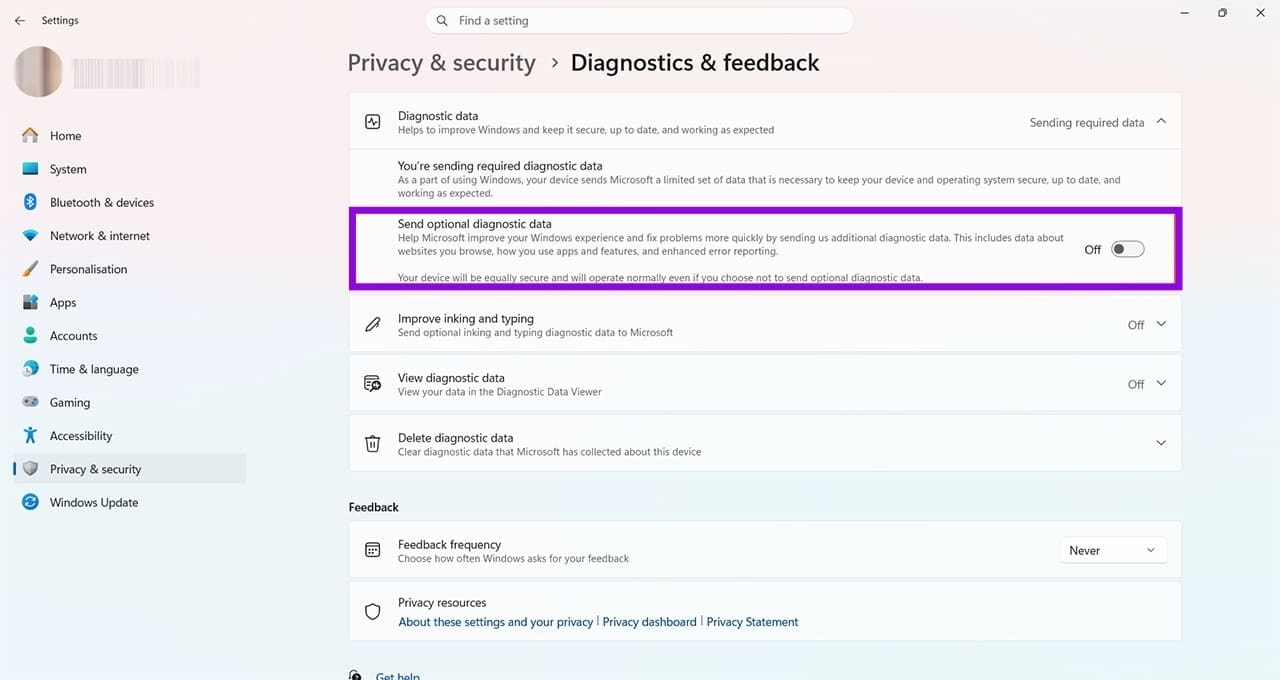
Step 3. Click Diagnostics & feedback and look for the option Send optional diagnostic data. If this setting is enabled, Windows sends additional diagnostic information to Microsoft. Click the toggle to turn it off and limit the amount of optional data you send.
Some users have resorted to third-party apps to limit or block the GDID. However, it’s worth noting that third-party apps not licensed by Microsoft may damage your computer. Similarly, it is possible to make short-term changes to the GUID in the Windows registry. There is still no permanent way to disable the identifier by doing this, though, and you may impact other critical Windows features.
Was this helpful?
Last updated on 05 November, 2026
Read Next
 5 Best Object Identifier Apps for Android and iOS
Have you ever come across a weird object, like a cute little plant or a cool wine bottle, and wondered which brand or species it is from?
 How to Fix Bluetooth Missing from Device Manager in Windows 10
Bluetooth is present today in every household, so we no longer think of it as something awesome or advanced.
 3 Ways to Fix “The Local Device Name Is Already in Use” Error on Windows 11/10
Fix 1: Assign or Change Drive Letter Step 1: Right-click the Windows Start button, locate Disk management, and click to open.
 4 Ways to Fix Device Manager Not Opening on Windows
Fix 1: Open Device Manager With Admin Rights To start, you can try opening Device Manager with admin rights on Windows and see if it works.
 4 Ways to Fix Bluetooth Device Is Paired but Not Connected on Windows 11
Try Basic Fixes Toggle the airplane mode: Enabling and disabling the airplane mode is a quick way to refresh all wireless radios on your computer and resolve minor Wi-Fi, Bluetooth,
 5 Ways to Fix No Audio Device Is Installed Error on Windows 11
Fix 1: Enable Your Audio Device on Windows The first thing to do is ensure that you haven’t accidentally disabled the audio device on Windows.
 How to Fix “Try Connecting Your Device” Bluetooth Error on Windows 11
Using Bluetooth to connect any device to your Windows PC frees you from the constraints of wires.
 Cross Device Experience Host Won’t Install on Windows 11 – 5 Fixes to Try
The Cross Device Experience Host is a Microsoft feature that supports Windows' cross-device and mobile-device connectivity.
The article above may contain affiliate links which help support Guiding Tech. The content remains unbiased and authentic and will never affect our editorial integrity.