

You’re busy copying a file (or two) when suddenly it happens – nothing. Yes, the process seems to have frozen halfway, and you’re not sure what to do. Cancelling the transfer always takes forever, and resetting your machine runs the risk of corrupting the data or the drive it’s being sent to.
The key, apart from not panicking, is to troubleshoot the different causes and try the appropriate fix. This article is here to help you.
What Causes This Error?
A pause or freeze when transferring files has a number of potential causes, not always linked to storage. The major reasons include:
- A part of a file is missing (especially in the case of multi-part ZIP or RAR files)
- Not enough space on the target drive (external or internal)
- The file or files are corrupt or damaged
- Another program is using a file being transferred
- An antivirus has flagged a file as dangerous
- The copy load is quite heavy
- The Copy Utility itself is experiencing errors
- There is a problem with the target drive
Let’s look at some fixes to try now to resolve your particular problem.
What to Do When Windows Stops Copying Files
Give these troubleshooting tips below a try until your files can transfer without issue:
Clear Space
A major reason file transfers stop is the lack of space on the target drive. Check the storage on your USB, hard drive, or memory card before attempting anything else. This can be done by looking in “This PC” or by right-clicking the storage icon and clicking “Properties.”
Nearly full devices also tend to operate more slowly, so this may also explain the delay.
Optimize Your Drive
The Optimize utility is a good way to prime your storage device for better transfer. If you’re getting repeated copying errors on just one storage device, then this might be your answer. Here’s what to do:
Step 1. Type “Defragment and Optimize Drives” into the search bar and click the option.
Step 2. In the new window, choose the problematic drive and click the “Optimize” button. You’ll need admin privileges to continue.
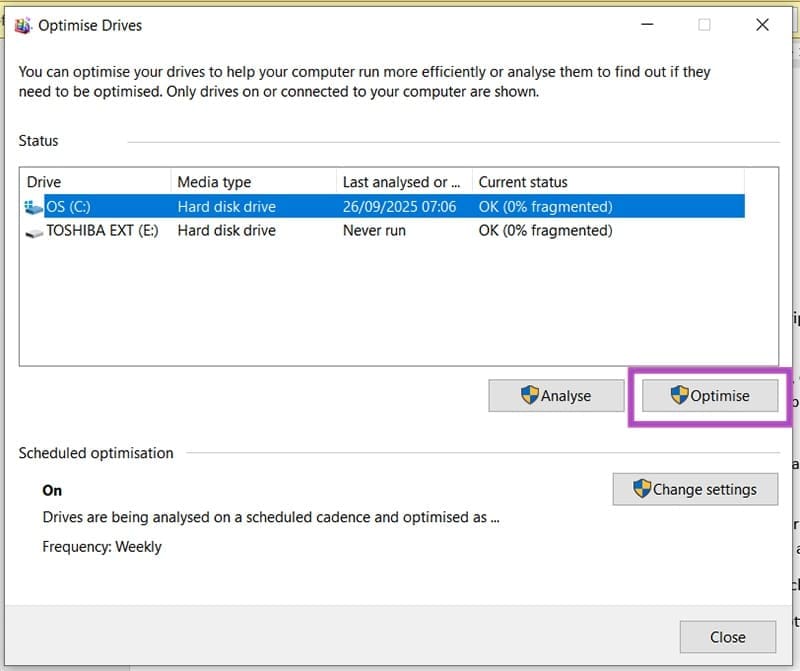
Step 3. Allow the process to run. This may take a while.
Step 4. Once done, try to copy again.
Disable Your Antivirus
If you suspect that a certain file might be triggering your antivirus, then try disabling it before copying the file once again. You should be sure that you trust the file before doing this. If it works, you’ve found your problem.
Clean Boot
The problem may lie with the PC itself and the many processes clogging the memory. Performing a clean boot can give your machine a fresh start and may make the copying process easier. Here’s how:
Step 1. Open the Run Dialog (Win + R) and type “msconfig” before pressing “Enter.”
Step 2. In the “General” tab, select “Selective startup” and ensure the “Load system services” option is checked.
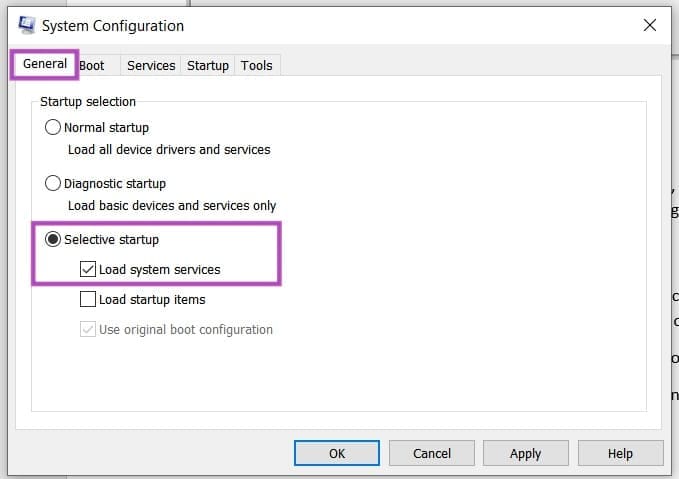
Step 3. In the “Services” tab, check “Hide all Microsoft services” before clicking the “Disable all” button.

Step 4. Press “OK” and see if this solves things.
Format Your Drive
Certain drives come with different formats, which can cause clashes when copying files. NTFS, for example, won’t work with Macs. If you want to reformat your storage device, clear it first, then do the following:
Step 1. Right-click the icon of your storage device in Windows Explorer and click “Format.”
Step 2. In the Formatting dialog box, choose your preferred File system (exFAT is compatible with both Windows and Mac), enter a Volume label (the name of the drive), and select Quick format, then “Start.”
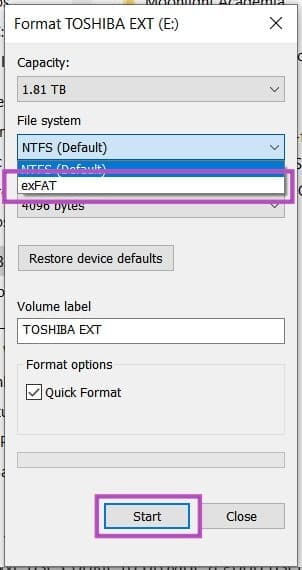
Step 3. Wait for your drive to format, then try copying again.
Was this helpful?
Last updated on 01 October, 2025
Read Next
 How to Find Halfway Point on Google Maps
Can You Find Halfway Point Between Two Places on Google Maps While Google Maps is a pretty deft app, it doesn’t automatically calculate the midpoint between two different addresses.
How to Find Halfway Point on Google Maps
Can You Find Halfway Point Between Two Places on Google Maps While Google Maps is a pretty deft app, it doesn’t automatically calculate the midpoint between two different addresses.
 5 Fixes for “Unspecified Error” When Copying Files or Folders in Windows
Fix 1: Check the Destination Drive Format Are you attempting to copy a file to an external drive that uses a non-NTFS format?
5 Fixes for “Unspecified Error” When Copying Files or Folders in Windows
Fix 1: Check the Destination Drive Format Are you attempting to copy a file to an external drive that uses a non-NTFS format?
 4 Ways to Fix ‘Copying Is Not Allowed on This Webpage’
We advise against copying text from websites that restrict copying content to avoid plagiarism.
4 Ways to Fix ‘Copying Is Not Allowed on This Webpage’
We advise against copying text from websites that restrict copying content to avoid plagiarism.
 How to Fix Wi-Fi Stops Working on Windows When an External Monitor Is Connected
Basic Fixes: Check Monitor Cable: Bad connection cables can cause your Wi-Fi to stop working when an external monitor is connected on Windows.
How to Fix Wi-Fi Stops Working on Windows When an External Monitor Is Connected
Basic Fixes: Check Monitor Cable: Bad connection cables can cause your Wi-Fi to stop working when an external monitor is connected on Windows.
 4 Fixes if Samsung Phone Stops Playing Music When Screen Turns Off
Basic Fixes: Restart your phone: Restarting your phone can help solve temporary system glitches.
4 Fixes if Samsung Phone Stops Playing Music When Screen Turns Off
Basic Fixes: Restart your phone: Restarting your phone can help solve temporary system glitches.
 2 Ways to Fix Spotify Stops Playing When Screen Is Off Issue
Basic Fixes: Check your internet connection: If you've been facing issues with Spotify, it may be time to check your internet speed.
2 Ways to Fix Spotify Stops Playing When Screen Is Off Issue
Basic Fixes: Check your internet connection: If you've been facing issues with Spotify, it may be time to check your internet speed.
 What Happens When You Reset Network Settings on Windows 10
Windows 10 often suffers from numerous network connection issues.
What Happens When You Reset Network Settings on Windows 10
Windows 10 often suffers from numerous network connection issues.
 What Happens When You Uninstall Graphics Drivers on Windows
Consequence of Uninstalling Graphics Drivers on Windows Uninstalling graphics drivers can result in washed-out colors and incorrect resolution if the system relies on native graphics drivers.
What Happens When You Uninstall Graphics Drivers on Windows
Consequence of Uninstalling Graphics Drivers on Windows Uninstalling graphics drivers can result in washed-out colors and incorrect resolution if the system relies on native graphics drivers.
The article above may contain affiliate links which help support Guiding Tech. The content remains unbiased and authentic and will never affect our editorial integrity.

