What Happens to Emails After Deleting Gmail App?
- When you uninstall the Gmail app, nothing will happen to your existing emails.
- If you log in from Gmail’s mobile website or a PC (or another phone), you can still access your emails (received, sent, and drafts).
- Uninstalling or deleting the Gmail app will not delete your emails since the emails or messages are associated with account data, which is stored on Google servers, not your phone.
- You are removing a tool to display emails on your mobile phone
Note: Your archived emails will remain archived even after uninstalling the Gmail app.
What Happens to Downloaded Attachments From Gmail?
Any existing attachments (PDF, images, etc.) that you downloaded from the Gmail app on your phone will remain intact. That is, nothing will happen to them when you uninstall the Gmail app. You can still access them without the Gmail app.
What Happens to Other Google Services?
- Uninstalling the Gmail app will not affect other Google services on your phone, such as YouTube, Google Drive, Contacts, etc. They will continue to function normally.
- Gmail is just another service linked to the Google account. Removing the Gmail app will not hamper others.
- If you remove your Google account from your phone, it will have serious repercussions. Refer to our in-depth explanation of what happens when you remove your Google account from Android or iPhone.
Does Deleting Gmail App Delete Your Gmail or Google Account?
No, not at all. Removing the Gmail app from your phone will not delete your Gmail or Google account. Your email ID will remain active.
Can People Email You After Removing Gmail App?
Yes, they can, as your email address is active. However, you won’t be notified about the new incoming emails on your phone as you no longer have the app installed. However, if you log in to your Gmail account from a browser or on a different phone, you can view the new emails.
What Happens to App Settings?
App Settings is the major thing that gets impacted when uninstalling the Gmail app. Basically, all settings in the Gmail app will reset to their default values on Android phones. Those include settings like Gmail’s theme (light or dark mode), custom notification settings, swipe actions, etc.
If you reinstall/enable the Gmail app again, you must set the settings again according to your preferences.
How to Uninstall Gmail From Phone
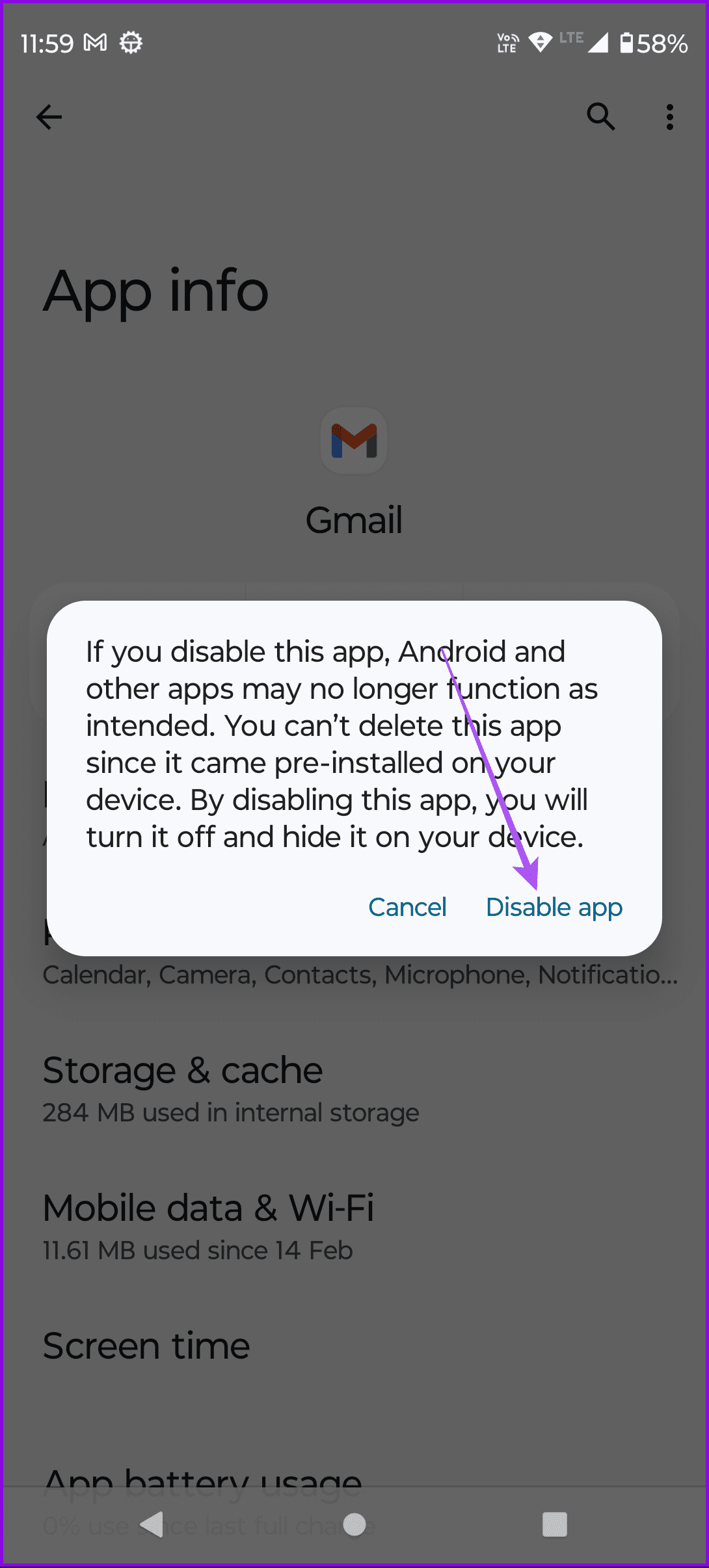
While you can completely remove the app on an iPhone, you can’t do the same on an Android device. You can disable the Gmail app on your Android.
On iPhone
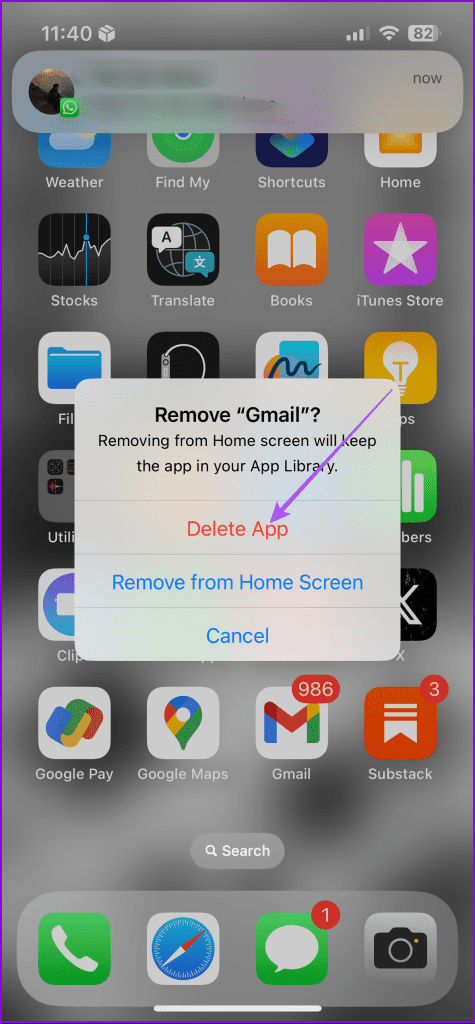
Touch and hold the Gmail app icon > tap the X icon when it starts jiggling > tap on Delete to confirm.

On Android
Open Gmail App Info > tap on disable.

How to Reinstall Gmail App on Android and iOS/iPadOS
To reinstall the Gmail app on iPhone or iPad, open App Store > search for Gmail > tap on Install. On Android phones, open Google Play Store > search for Gmail > tap on Enable.
Was this helpful?
Last updated on 29 July, 2024
Read Next
 How to Block Someone on Gmail and What Happens When You Do
How to Block Someone on Gmail Before we show you what happens, here are the steps to block someone on Gmail.
How to Block Someone on Gmail and What Happens When You Do
How to Block Someone on Gmail Before we show you what happens, here are the steps to block someone on Gmail.
 What Happens When You Force Stop an App on Your Phone
What Does It Mean to Force Stop an App?
What Happens When You Force Stop an App on Your Phone
What Does It Mean to Force Stop an App?
 What Happens When You Delete WhatsApp Account
What Happens to Existing Message History and Backup Deleting WhatsApp will clear all the chat records on your phone.
What Happens When You Delete WhatsApp Account
What Happens to Existing Message History and Backup Deleting WhatsApp will clear all the chat records on your phone.
 What Happens When You Delete Photos from Google Photos
If you use the gallery app on your phone without the cloud storage service, things are pretty easy.
What Happens When You Delete Photos from Google Photos
If you use the gallery app on your phone without the cloud storage service, things are pretty easy.
 What Happens When You Delete a File From Google Drive
All You Need to Know About Deleting Files From Google Drive Only the file owner can delete the file.
What Happens When You Delete a File From Google Drive
All You Need to Know About Deleting Files From Google Drive Only the file owner can delete the file.
 What Happens When You Remove a Google Account from Your Phone
1.
What Happens When You Remove a Google Account from Your Phone
1.
 What Happens to WhatsApp When You Change Phone or SIM Card
What Happens to WhatsApp When You Remove SIM Card?
What Happens to WhatsApp When You Change Phone or SIM Card
What Happens to WhatsApp When You Remove SIM Card?
 What Happens When You Uninstall Instagram From Your Phone
Your posts, stories, highlights, and reels will not be deleted from your account.
What Happens When You Uninstall Instagram From Your Phone
Your posts, stories, highlights, and reels will not be deleted from your account.
The article above may contain affiliate links which help support Guiding Tech. The content remains unbiased and authentic and will never affect our editorial integrity.