Method 1: Run the Disk Cleanup Utility From the Control Panel
The Control Panel app houses a majority of crucial system tools and Windows settings. Consequently, you can open it to run the Disk Cleanup utility.
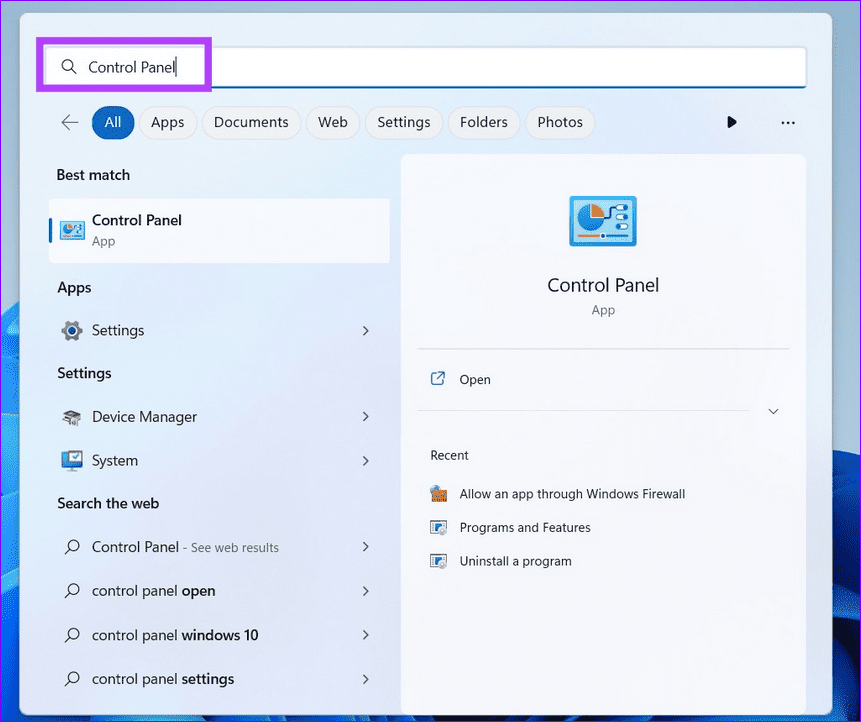
Step 1: Press the Windows key, search Control Panel, and click to open it.
Step 2: Switch View by to Category and select System and Security.
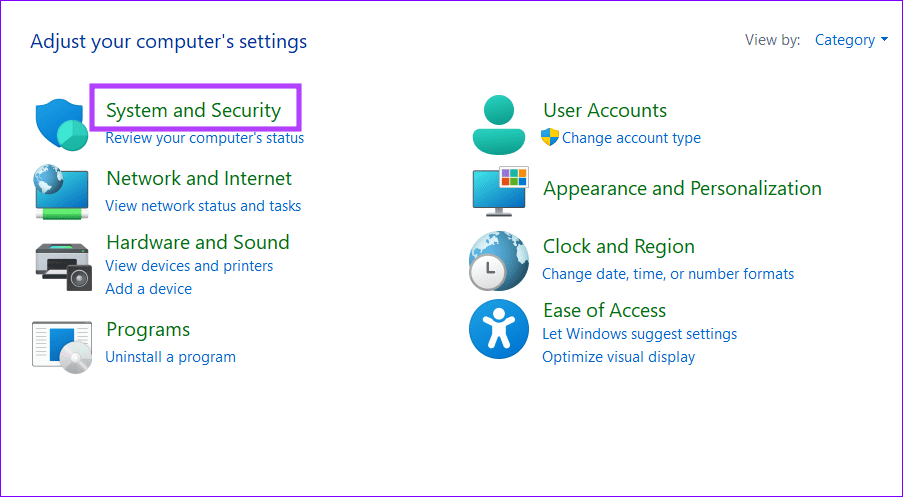
Step 3: Locate Windows Tools and click on Free up disk space to run Disk Cleanup on Windows 11.

Method 2: Use Command Line Tools to Run Disk Cleanup
If you prefer launching apps from the command line, use Command Prompt to run the Disk Cleanup utility tool.
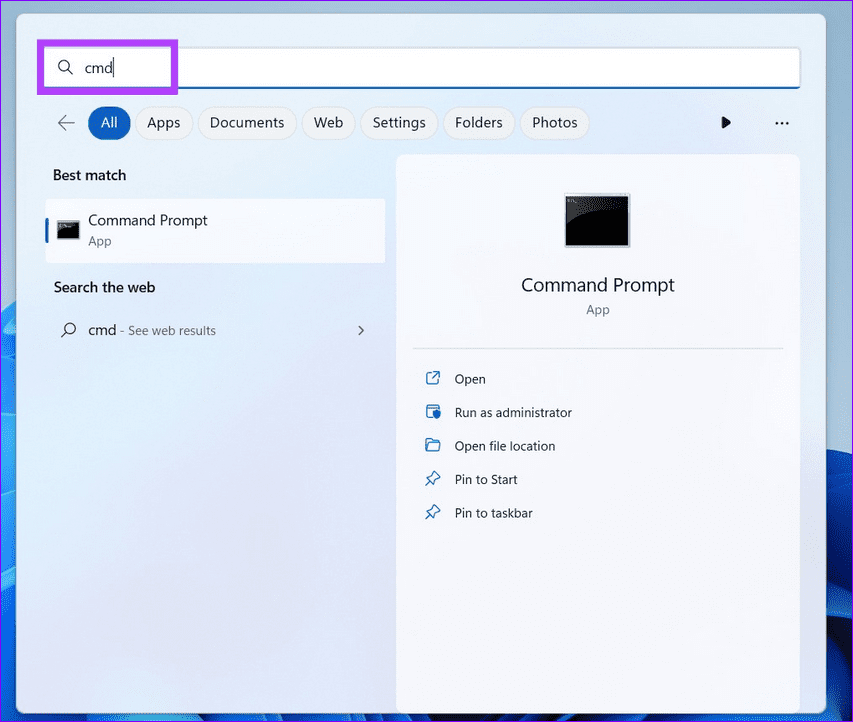
Step 1: Press the Windows key > search CMD > select Run as administrator.
Step 2: Type cleanmgr in the console window and press Enter to run Disk Cleanup.

Method 3: Open Disk Cleanup From the File Explorer
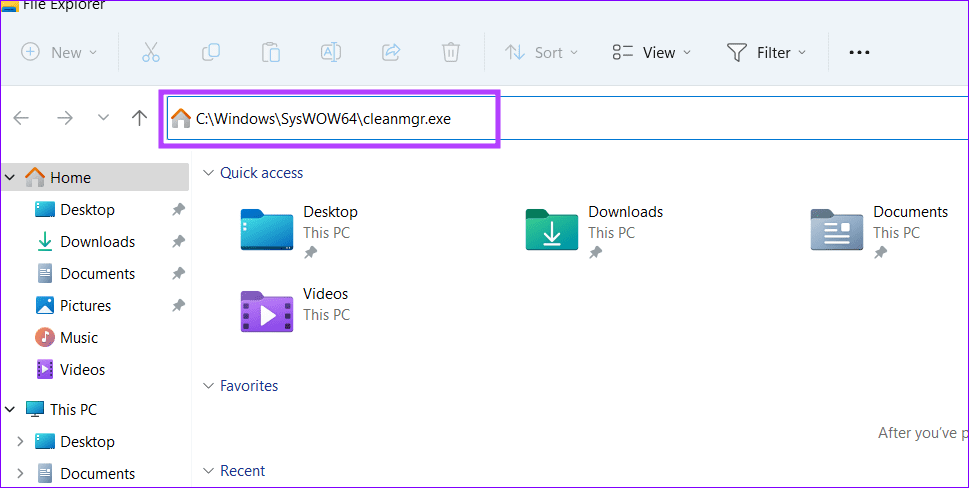
The Disk Cleanup application resides in the SysWOW64 folder of your Windows 11 system drive. You can access it using the File Explorer app and run it using its executable file.
Press the Windows + E shortcut to open File Explorer > paste the following path in the address bar > press Enter to run Disk Cleanup.
C:\Windows\SysWOW64\cleanmgr.exe
Method 4: Use Task Manager to Run Disk Cleanup
Besides managing system processes and disabling the startup apps, Task Manager can help you run the Disk Cleanup utility.
Step 1: Open Task Manager using the Ctrl + Shift + Esc shortcut > select Processes from the left sidebar > click on Run new task.

Step 2: Type cleanmgr.exe in the text input and press Enter.

Method 5: Access Windows Tools to Run Disk Cleanup
Windows Tools contains all the important tools to deal with the core parts of the operating system. You can directly launch Disk Cleanup using it on Windows 11.
Step 1: Press the Windows key > search Windows Tools > and click to open it.

Step 2: Locate Disk Cleanup in the list, right-click its icon, and select Open to launch it.

Method 6: Create a Shortcut to Run Disk Cleanup
If you frequently use Disk Cleanup, you can create a desktop shortcut to access it conveniently.
Step 1: Right-click anywhere in the empty desktop area and select New > Shortcut.
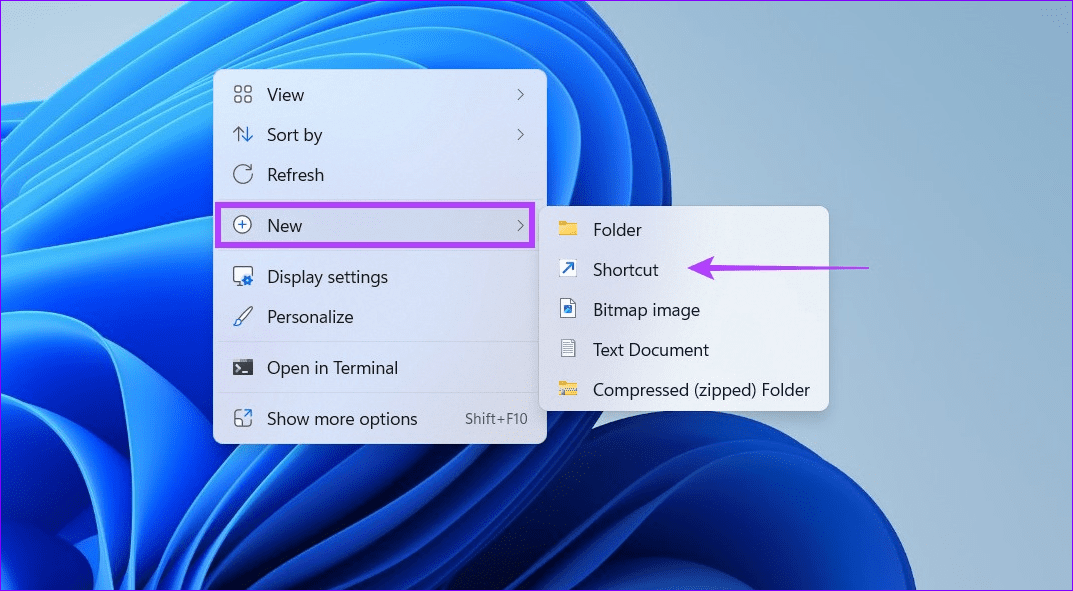
Step 2: Copy-paste the following path in the textbox and click on Next.
C:\WINDOWS\system32\cleanmgr.exe

Step 3: Type Disk Cleanup as the shortcut name and select Finish. Double-click the created shortcut to run Disk Cleanup on Windows 11.

Was this helpful?
Last updated on 11 July, 2024
Read Next
 5 Ways to Fix Disk Cleanup Stuck on Calculating in Windows 11
Basic Fixes Clean boot Windows and relaunch Disk Cleanup: An installed software may conflict with the Disk Cleanup utility.
5 Ways to Fix Disk Cleanup Stuck on Calculating in Windows 11
Basic Fixes Clean boot Windows and relaunch Disk Cleanup: An installed software may conflict with the Disk Cleanup utility.
 3 Ways to Run CHKDSK Utility to Repair Disk Errors on Windows 11
Method 1: Run Check Disk Utility From File Explorer File Explorer provides an easy way to run the Check Disk Utility on your selected system drive to repair its errors.
3 Ways to Run CHKDSK Utility to Repair Disk Errors on Windows 11
Method 1: Run Check Disk Utility From File Explorer File Explorer provides an easy way to run the Check Disk Utility on your selected system drive to repair its errors.
 9 Ways to Solve 100% Disk Usage Error in Windows 10
You know why you are here, right?
9 Ways to Solve 100% Disk Usage Error in Windows 10
You know why you are here, right?
 Top 5 Ways to Fix Disk Structure Is Corrupted and Unreadable Error on Windows 10
Windows 10 gives you alerts whenever the external storage disk goes corrupt.
Top 5 Ways to Fix Disk Structure Is Corrupted and Unreadable Error on Windows 10
Windows 10 gives you alerts whenever the external storage disk goes corrupt.
 5 Ways to Fix Google Chrome High Disk Usage on Windows
Basic Fixes Restart Chrome: Open Task Manager, end the process for Google Chrome, and reopen the browser.
5 Ways to Fix Google Chrome High Disk Usage on Windows
Basic Fixes Restart Chrome: Open Task Manager, end the process for Google Chrome, and reopen the browser.
 4 Ways to Open Disk Management on Windows 11
Method 1: Use the Run Dialog to Open Disk Management Disk Management comes in handy to perform advanced storage tasks like managing existing drives or initializing a new one.
4 Ways to Open Disk Management on Windows 11
Method 1: Use the Run Dialog to Open Disk Management Disk Management comes in handy to perform advanced storage tasks like managing existing drives or initializing a new one.
 8 Ways to Fix Windows Stuck on Repairing Disk Errors
If your Windows PC is stuck on repairing disk errors and shows that 'this might take an hour to complete,’ we are here to fix this issue without you having
8 Ways to Fix Windows Stuck on Repairing Disk Errors
If your Windows PC is stuck on repairing disk errors and shows that 'this might take an hour to complete,’ we are here to fix this issue without you having
 Top 8 Ways to Fix External Drive Not Showing Up in Disk Management on Windows
Disk Management is a built-in utility on Windows to manage your hard drivers, SSDs, and other external drives.
Top 8 Ways to Fix External Drive Not Showing Up in Disk Management on Windows
Disk Management is a built-in utility on Windows to manage your hard drivers, SSDs, and other external drives.
The article above may contain affiliate links which help support Guiding Tech. The content remains unbiased and authentic and will never affect our editorial integrity.