


Method 1: Make Sure to Download the Full Video
Step 1: Open Telegram on Android and go to the Telegram group or channel. Find the video you want to download and check the video file size from the thumbnail. Once you start the download process, you will see the live progress from the same thumbnail.
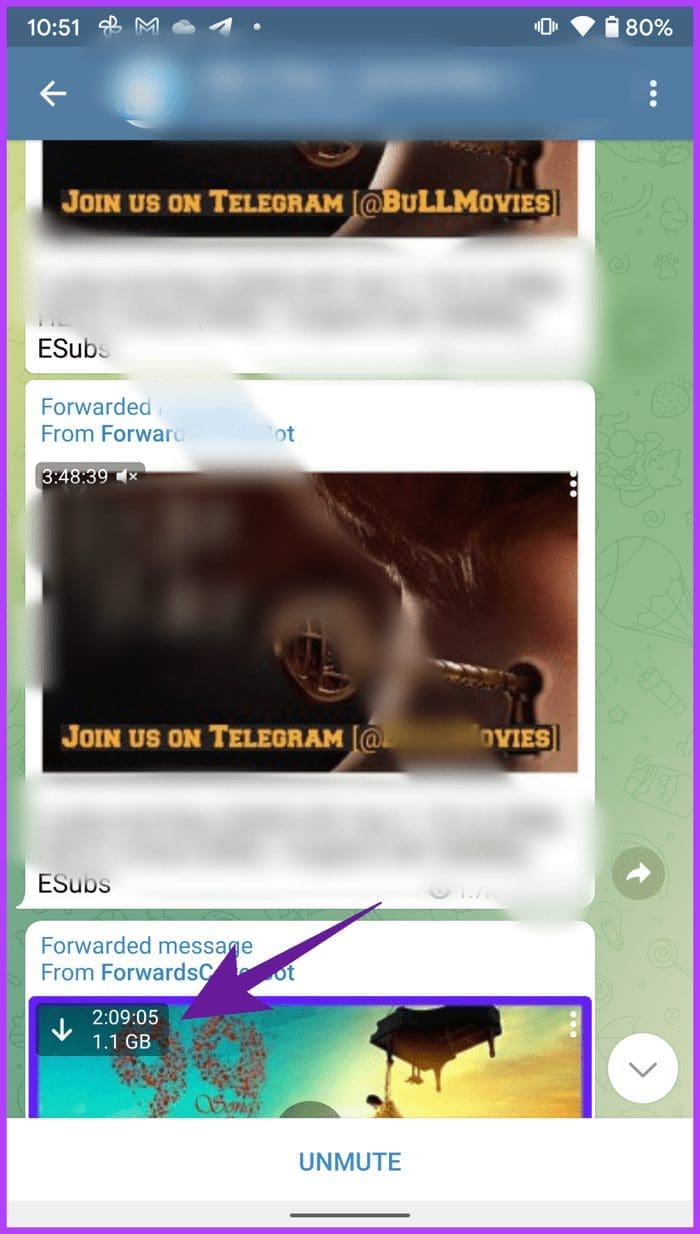

Step 2: If you use an Android phone with more than 4GB RAM, you can minimize the Telegram app and continue using your phone. If you notice the OS pausing the video download process in the background, you should keep Telegram open until it finishes the download process.
After the download process is over, you can tap on the three-dot menu on the video thumbnail and save it to your device’s storage.
Method 2: Play Videos in Google Photos
All the downloaded videos land in a separate Telegram folder in the Google Photos app on Android. Google Photos supports widely recognized video formats such as MP4 on Android and will play those videos without any issue.
Step 1: Open the Google Photos app on Android and navigate to Library. Find the Telegram folder and open it to start playing the video.


Step 2: If Google Photos supports the downloaded Telegram video, you will see the video thumbnail as shown in the screenshots above.
However, if you notice a black screen as a video thumbnail, it means that Google Photos cannot play the Telegram video, and you must get a helping hand from a third-party video player on Android.
Method 3: Use VLC Media Player
Most Android phones come with Google Photos as the default media player. While Google Photos nails the sharing, editing, and collaboration tricks, the video player leaves much to be desired. For instance, you won’t be able to play certain video files like MKV or FLV. Let us show you how to use a VLC media player and play any Telegram video on it.
Step 1: Download and install VLC Player on your Android phone, and give it the necessary permissions to scan the phone storage.
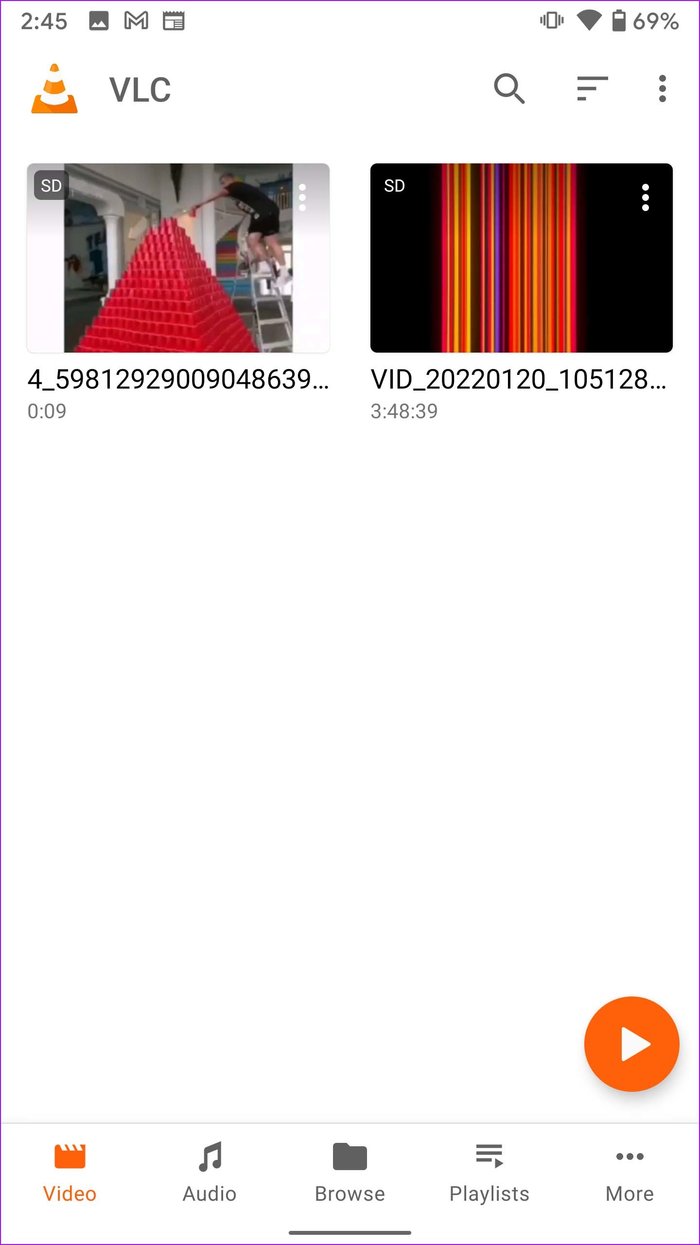
Step 2: VLC will find all the videos from the device storage and show them in the Video tab. If you still don’t see Telegram videos in the VLC home, you can move to the Browse tab and select video files from device folders.

Method 4: Use the Default Files App

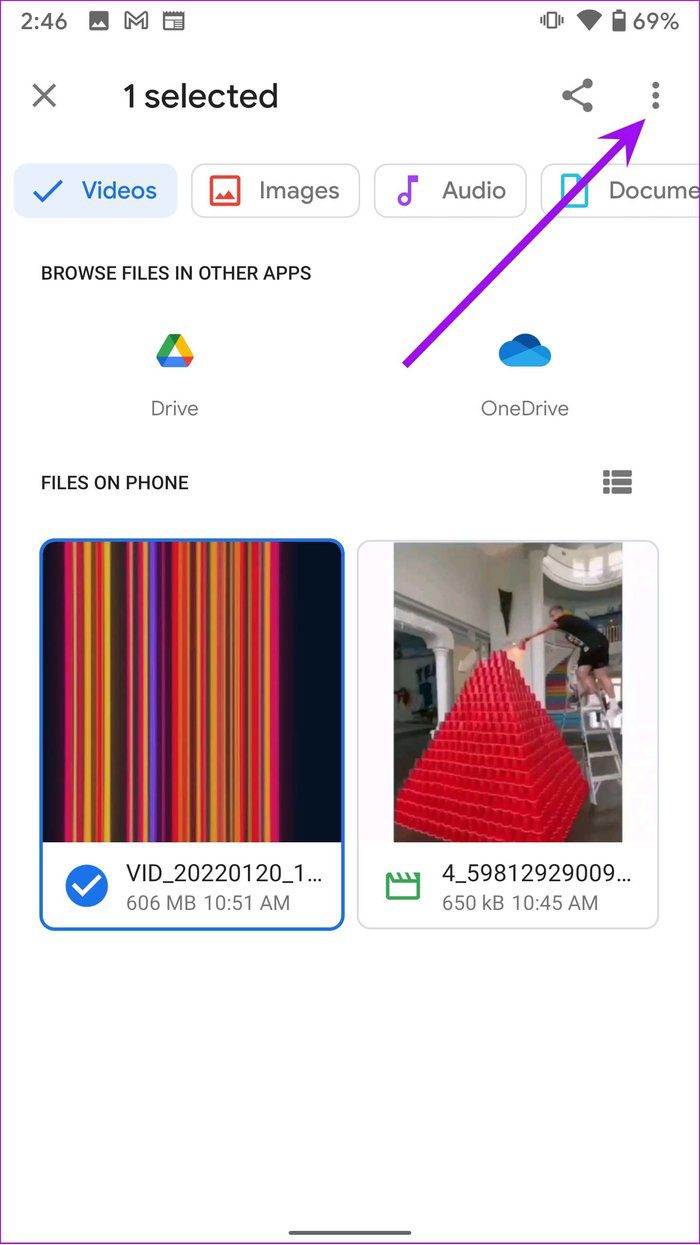
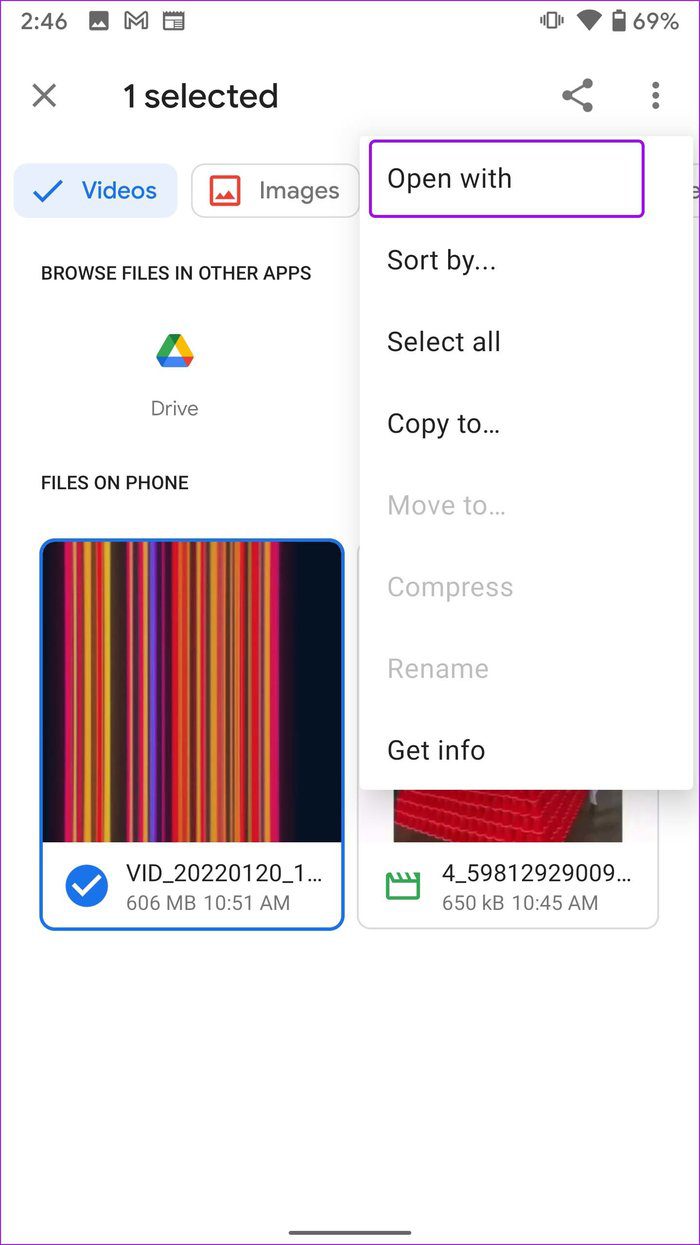
Step 3: Now, select VLC (or any other media app) from the ribbon at the bottom to start playing the video without any issues.
Was this helpful?
Last updated on 28 August, 2024
1 Comment
Leave a Reply
Read Next
 3 Ways to Fix Telegram Videos Not Playing on Windows 11
Fix 1: Download Telegram Videos Without Glitches First, here's how to download Telegram videos without problems on your PC.
3 Ways to Fix Telegram Videos Not Playing on Windows 11
Fix 1: Download Telegram Videos Without Glitches First, here's how to download Telegram videos without problems on your PC.
 How to Fix WhatsApp Videos Not Playing on iPhone or Android
Basic Fixes Check your network connection: Ensure your phone has a robust internet connection.
How to Fix WhatsApp Videos Not Playing on iPhone or Android
Basic Fixes Check your network connection: Ensure your phone has a robust internet connection.
 Top 5 Ways to Fix Google Photos Not Playing Videos
Basic Fixes Check Network Connection: If you're trying to stream content backed up to the cloud, then you’ll need to use high-speed internet to sync and stream it.
Top 5 Ways to Fix Google Photos Not Playing Videos
Basic Fixes Check Network Connection: If you're trying to stream content backed up to the cloud, then you’ll need to use high-speed internet to sync and stream it.
 5 Ways to Fix Videos Not Playing on Android TV
Common Fixes Restart the Android TV: Long-press the power button on your Android TV remote and select Restart in the pop-up menu.
5 Ways to Fix Videos Not Playing on Android TV
Common Fixes Restart the Android TV: Long-press the power button on your Android TV remote and select Restart in the pop-up menu.
 3 Ways to Fix Snapchat Not Playing Videos on Android and iPhone
Try Basic Fixes Check if Snapchat is down: At times, server congestion or other related issues can impact Snapchat’s performance and trigger various errors.
3 Ways to Fix Snapchat Not Playing Videos on Android and iPhone
Try Basic Fixes Check if Snapchat is down: At times, server congestion or other related issues can impact Snapchat’s performance and trigger various errors.
 3 Ways to Fix Videos Not Playing in iPhone Photos App
Basic Fixes: Cool down your phone: Your iPhone might get warm during graphics-intensive gaming, video streaming, or video recording.
3 Ways to Fix Videos Not Playing in iPhone Photos App
Basic Fixes: Cool down your phone: Your iPhone might get warm during graphics-intensive gaming, video streaming, or video recording.
 3 Ways to Fix Videos Not Playing on Windows 11
Fix 1: Run Video Playback Troubleshooter If you also face playback issues on other media players, turn to Windows troubleshooters for help.
3 Ways to Fix Videos Not Playing on Windows 11
Fix 1: Run Video Playback Troubleshooter If you also face playback issues on other media players, turn to Windows troubleshooters for help.
 3 Ways to Fix Safari Not Playing Videos on Mac
Preliminary Fixes Check the Streaming Service status: Can't play videos from Netflix, Prime Video, Disney+, or YouTube on Safari?
3 Ways to Fix Safari Not Playing Videos on Mac
Preliminary Fixes Check the Streaming Service status: Can't play videos from Netflix, Prime Video, Disney+, or YouTube on Safari?
The article above may contain affiliate links which help support Guiding Tech. The content remains unbiased and authentic and will never affect our editorial integrity.

That was really helpfull thank you????????????