Common Fixes
- Check Telegram server status – Access Downdetector to check Telegram’s server outage in real time.
- Launch Telegram as administrator – Right-click the Telegram Desktop app and select Run as administrator.
- Force-close Telegram Desktop and reopen – Press Ctrl + Shift + Esc to open Task Manager, right-click Telegram Desktop, and select End Task. Re-open the app.
- Update the app – Open the Windows Store, search Telegram Desktop, and click Update.
Fix 1: Launch Windows Store Apps Troubleshooter
Running the Windows Store Apps troubleshooter effectively solves issues with Telegram Desktop and other installed applications.
Step 1: Press the Windows + I keys simultaneously to open Windows Settings, click System in the sidebar, and select Troubleshoot.
Step 2: Select Other troubleshooters.

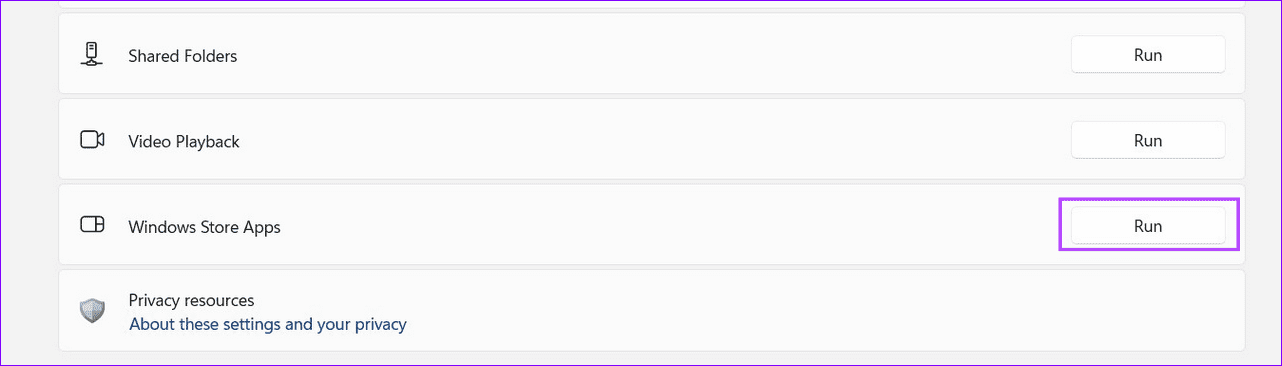
Step 3: Scroll down, click Run beside the Windows Store Apps troubleshooter, and wait a few seconds to let it resolve the problem.
Fix 2: Enable Background Permissions for Telegram Desktop
By default, Windows 11 power optimizes all installed applications which might restrict the Telegram Desktop app from refreshing. Adjusting the background permissions for the app should resolve the issue.
Step 1: Press the Windows key, search Installed Apps, and open the associated system setting.

Step 2: Locate Telegram Desktop, right-click the three-dot menu icon, and select Advanced options.

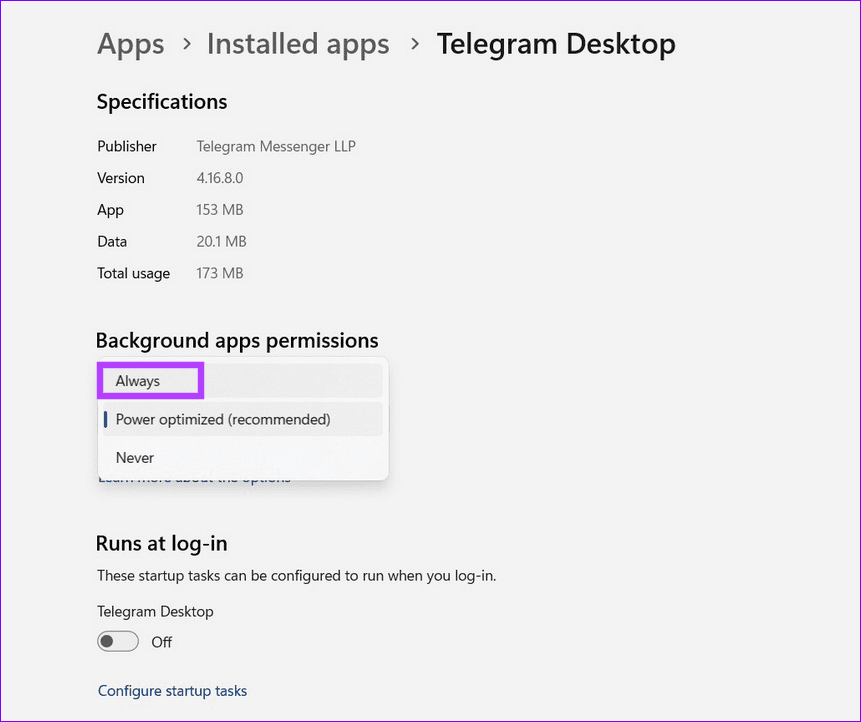
Step 3: Finally, set Background apps permissions to Always.
Fix 3: Permit Telegram Desktop in Windows Defender Firewall
If the Windows Defender Firewall restricts Telegram Desktop, the app won’t connect to Telegram servers. Configure the firewall settings manually to permit the app and resolve its not opening issue on Windows 11.
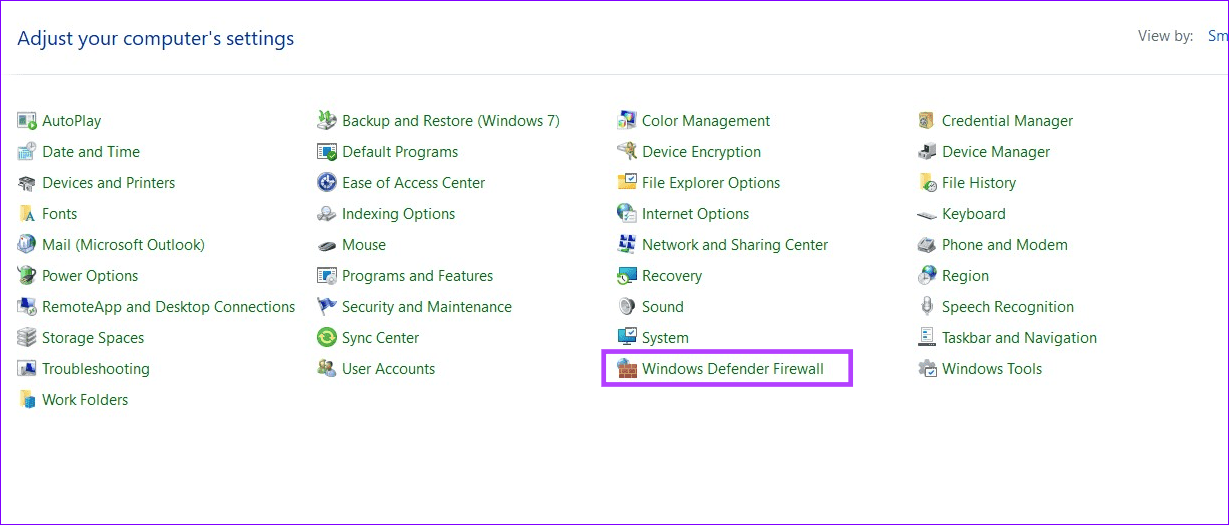
Step 1: Press the Windows key, open Control Panel, and click Windows Defender Firewall.
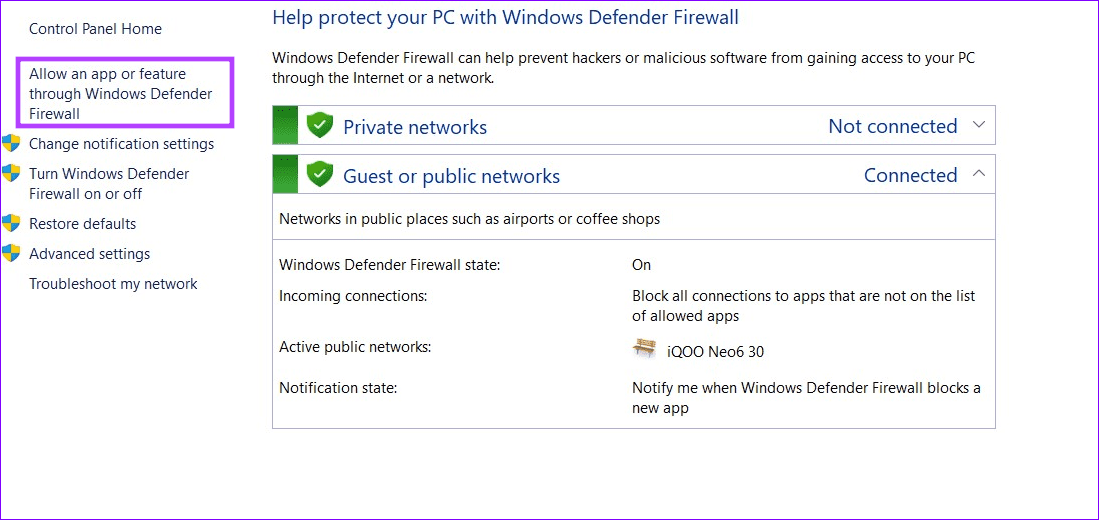
Step 2: Click Allow an app or feature through Windows Defender Firewall in the left sidebar.
Step 3: Click Change Settings at the top, enable Telegram Desktop, and select OK.

Tip: If you can’t find Telegram Desktop in the list, click Allow another app and select the Telegram Desktop shortcut.
Fix 4: Repair or Reset Telegram Desktop
If nothing works, repair or reset the Telegram Desktop app to fix existing issues and restore normalcy.
Step 1: Search Installed apps in the Windows search menu and click the associated system setting.
Step 2: Locate Telegram Desktop, click its three-dot menu, and select Advanced options.
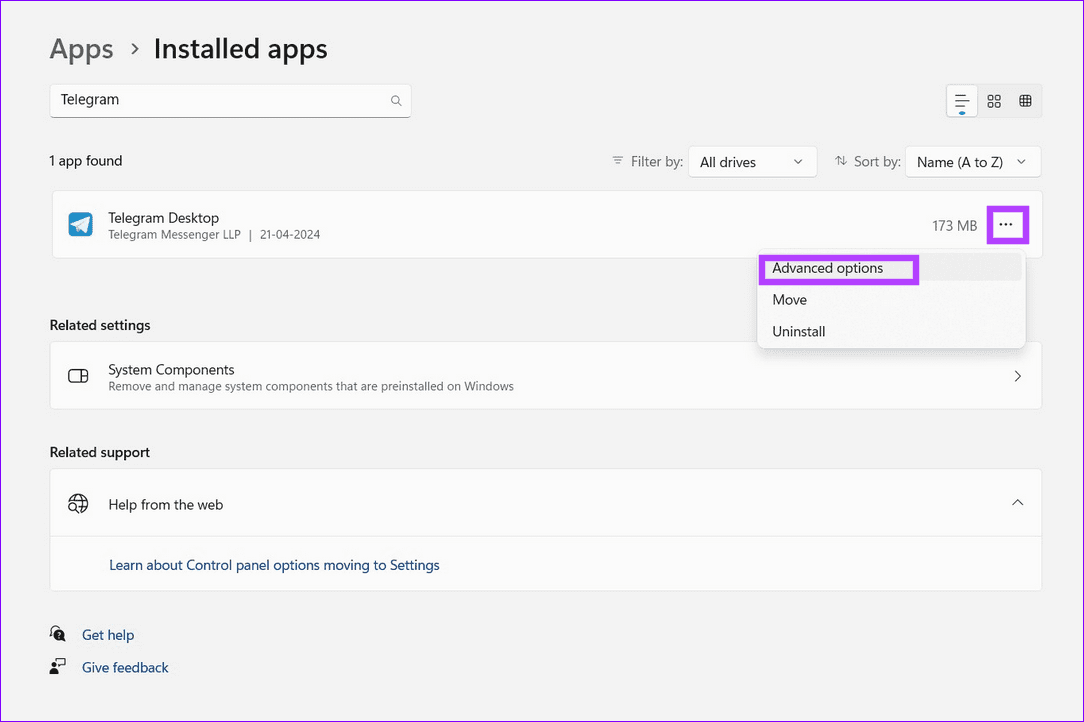
Step 3: Scroll down and click Repair. If repairing doesn’t solve the issue, click Reset and follow the on-screen instructions.
Note: Resetting the Telegram Desktop app will clear all its data.

Alternative: Switch to Telegram Web
If the above-listed methods didn’t solve the Telegram Desktop app not opening issue, switch to its lighter web version for an error-free browsing experience.
Was this helpful?
Last updated on 02 May, 2024
Read Next
 4 Ways to Fix Links Not Opening in Telegram for Android and iPhone
Try Basic Fixes Check if Telegram is down: Telegram links may stop working if there’s an issue with its servers.
4 Ways to Fix Links Not Opening in Telegram for Android and iPhone
Try Basic Fixes Check if Telegram is down: Telegram links may stop working if there’s an issue with its servers.
 2 Ways to Fix Discord Not Opening on Windows 10 and Windows 11
Try Basic Fixes End Discord processes: Press Ctrl + Shift + Esc to launch the Task Manager.
2 Ways to Fix Discord Not Opening on Windows 10 and Windows 11
Try Basic Fixes End Discord processes: Press Ctrl + Shift + Esc to launch the Task Manager.
 6 Ways to Fix Windows Security Not Opening or Working on Windows 11
Try Basic Fixes Uninstall any third-party antivirus program: Third-party antivirus programs can sometimes interfere with the Windows Security app and prevent it from opening on your Windows 11 PC.
6 Ways to Fix Windows Security Not Opening or Working on Windows 11
Try Basic Fixes Uninstall any third-party antivirus program: Third-party antivirus programs can sometimes interfere with the Windows Security app and prevent it from opening on your Windows 11 PC.
 4 Ways to Fix Firefox Not Opening on Windows 10 and Windows 11
Fix 1: Force Close Firefox Processes Sometimes, Firefox processes may become unresponsive on your PC, resulting in such issues.
4 Ways to Fix Firefox Not Opening on Windows 10 and Windows 11
Fix 1: Force Close Firefox Processes Sometimes, Firefox processes may become unresponsive on your PC, resulting in such issues.
 4 Ways to Fix Windows Terminal Not Opening on Windows 11
Fix 1: Ensure Windows Terminal Is Not Disabled If you cannot launch Windows Terminal via the Start menu or Run dialog box, ensure the app is not disabled on your
4 Ways to Fix Windows Terminal Not Opening on Windows 11
Fix 1: Ensure Windows Terminal Is Not Disabled If you cannot launch Windows Terminal via the Start menu or Run dialog box, ensure the app is not disabled on your
 5 Ways to Fix Telegram Desktop Video Calls Not Working
Basic Fixes Switch to 5GHz Wi-Fi: If you have a dual-band router, try switching to a 5GHz frequency band to get faster internet speeds.
5 Ways to Fix Telegram Desktop Video Calls Not Working
Basic Fixes Switch to 5GHz Wi-Fi: If you have a dual-band router, try switching to a 5GHz frequency band to get faster internet speeds.
 3 Ways to Fix OneNote Not Opening on Windows 11/10
Preliminary Fixes Close and reopen OneNote: Microsoft offers a quick-note feature on OneNote and keeps running the app in the background.
3 Ways to Fix OneNote Not Opening on Windows 11/10
Preliminary Fixes Close and reopen OneNote: Microsoft offers a quick-note feature on OneNote and keeps running the app in the background.
 3 Ways to Fix Control Panel Not Opening on Windows 11
Common Fixes Update Windows 11: Press the Windows + I shortcut to open the Settings app, select Windows Update from the left sidebar, and install available system updates.
3 Ways to Fix Control Panel Not Opening on Windows 11
Common Fixes Update Windows 11: Press the Windows + I shortcut to open the Settings app, select Windows Update from the left sidebar, and install available system updates.
The article above may contain affiliate links which help support Guiding Tech. The content remains unbiased and authentic and will never affect our editorial integrity.