

Method 1: Use a Keyboard Shortcut
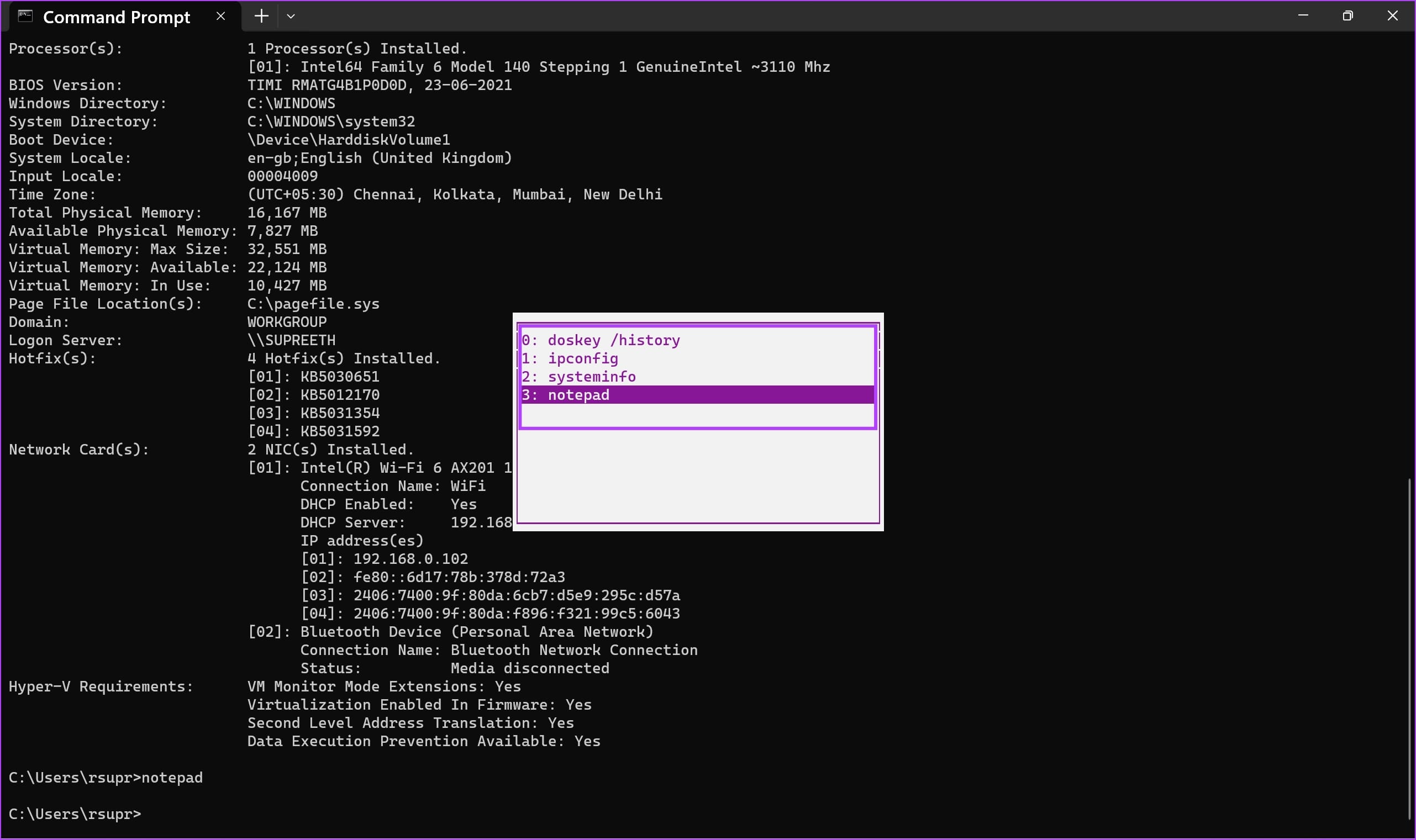
There is a keyboard shortcut to view the history on CMD quickly. You can hold the F7 key or hold the ‘Fn’ key with F7 to access the history of your commands. It will appear in the form of a dialog box.
You can use the up and down arrow keys to navigate through your commands. Hit the enter key to execute the highlighted command.
Method 2: Use a Command to Access the CMD History
Alternatively, you can use a command to view the history of your CMD session. After executing a series of commands in your session, use the command below and hit the enter key to access your history.
doskey /history

If there are many commands in your history, it is much more convenient to export them to a text file – more on that as we move on to the next section of the article.
How to Export the Command Prompt History to a Text File
Command Prompt also allows you to export the history of commands executed in a session onto a text file. You can also specify the desired destination to save the text file.
Step 1: Once you access the history, type cd to change the directory, and enter the folder path you want to save the text file. Enter the following command below and hit enter.
cd "filepath"
Ensure that you enter the path in double quotes. To find the path of a folder, right-click on the folder, and select ‘Copy as Path’.
Step 2: Then enter the following command.
/HISTORY > history.text

Step 2: There you go. You can now open the folder where you saved the history and access the ‘history.text’ file.

How to Increase Command Prompt History Size
You can increase the size of the command history page by adjusting the properties of the Command Prompt window.
By default, Command Prompt stores a limited number of previously entered commands in its history. The default size is set to 50 commands.
Open a CMD window and enter the following command.
doskey /listsize=150
We’ve changed the size from 50 to 150. You can enter any desired value to increase the history.

Also Read: How to create a folder or file from Command Prompt.
Was this helpful?
Last updated on 11 July, 2024
1 Comment
Leave a Reply
Read Next
 15 Brilliant Command Prompt – CMD Tricks You Might Not Know About
Before we get started, here are a few things you need to keep in mind.
15 Brilliant Command Prompt – CMD Tricks You Might Not Know About
Before we get started, here are a few things you need to keep in mind.
 5 Ways to Fix Command Prompt Not Working on Windows 11
Fix 1: Run SFC and DISM Scans Corrupted or missing system files can malfunction Command Prompt on Windows.
5 Ways to Fix Command Prompt Not Working on Windows 11
Fix 1: Run SFC and DISM Scans Corrupted or missing system files can malfunction Command Prompt on Windows.
 4 Ways to Fix Command Prompt Keeps Popping Up in Windows 11
Try Basic Fixes Scan for malware: Command Prompt's unusual behavior could be due to a malware or virus infection.
4 Ways to Fix Command Prompt Keeps Popping Up in Windows 11
Try Basic Fixes Scan for malware: Command Prompt's unusual behavior could be due to a malware or virus infection.
 How to Create a Folder or File from Windows Command Prompt
How to Create Folders From CMD in Windows Create a Single Folder Step 1: Press the Windows key on your keyboard, type Command Prompt, and click Open.
How to Create a Folder or File from Windows Command Prompt
How to Create Folders From CMD in Windows Create a Single Folder Step 1: Press the Windows key on your keyboard, type Command Prompt, and click Open.
 5 Best Ways To View Windows Update History In Windows 11
By constantly updating your Windows 11 operating system, you get access to new or improved features to deliver a better user experience.
5 Best Ways To View Windows Update History In Windows 11
By constantly updating your Windows 11 operating system, you get access to new or improved features to deliver a better user experience.
 How to Open Files and Folders in CMD on Windows
How to Open a File Using Command Prompt on Windows Here's how you can easily open Command Prompt on your PC and use it to access a file.
How to Open Files and Folders in CMD on Windows
How to Open a File Using Command Prompt on Windows Here's how you can easily open Command Prompt on your PC and use it to access a file.
 Can’t Type in CMD? Here Are 5 Ways to Solve It
A couple of days ago, I was trying to troubleshoot the 100% disk usage error on my Windows 10 PC.
Can’t Type in CMD? Here Are 5 Ways to Solve It
A couple of days ago, I was trying to troubleshoot the 100% disk usage error on my Windows 10 PC.
 How to View and Reset Netflix Watch History
How to Delete Watch History on Netflix On Mobile and Desktop Step 1: Open the Accounts page on Netflix.
How to View and Reset Netflix Watch History
How to Delete Watch History on Netflix On Mobile and Desktop Step 1: Open the Accounts page on Netflix.
The article above may contain affiliate links which help support Guiding Tech. The content remains unbiased and authentic and will never affect our editorial integrity.


useful.
it would be nice to automatically have the command history in a new cmd window also.
Also after a reboot.
Is this possible?
one note: you missed the command “doskey” in Step 2. In the screenshot it is ok.