Turn off Call Forwarding
Before we set up voicemail on your iPhone, let’s first turn off call forwarding. When call forwarding is on, if you are unavailable to take calls, the call will be forwarded to the number you’ve set instead of going to voicemail.
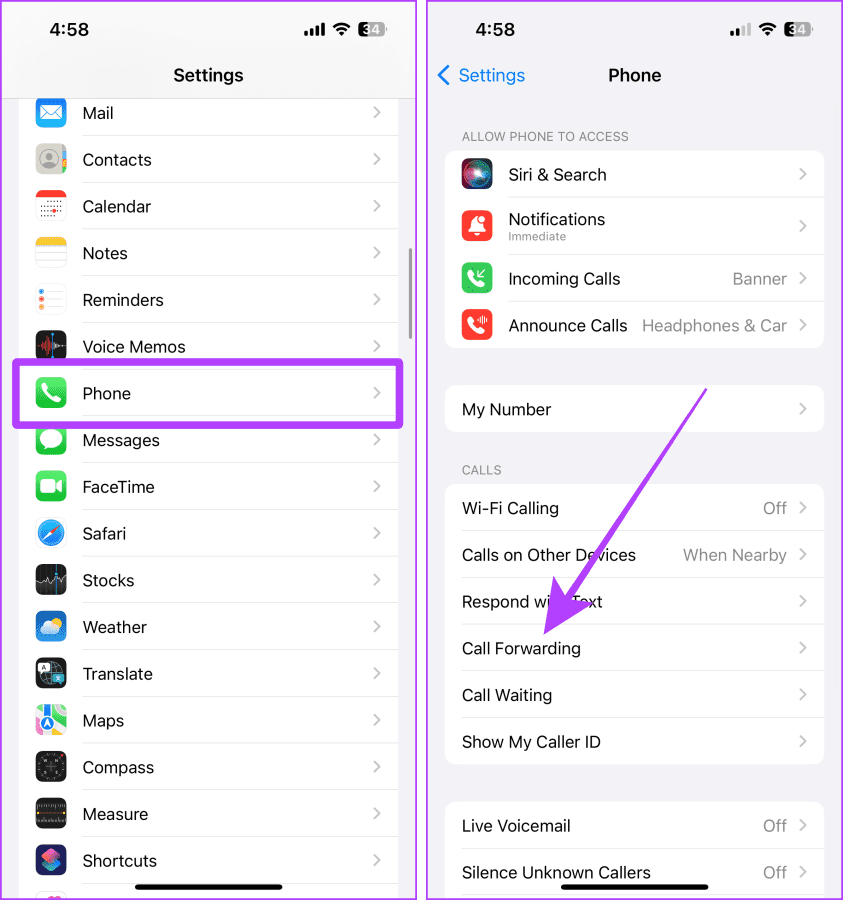
Step 1: Launch the Settings app on your iPhone and select Phone. Tap Call Forwarding.
Step 2: Turn off the toggle inside the menu.
How to Set Up Carrier Voicemail on iPhone
If you choose to go the carrier route, here’s how to get the voicemail feature.
1. Enter Your Carrier’s Voicemail Number
To activate carrier voicemail, call the number provided by your network provider. Let’s look at the steps.
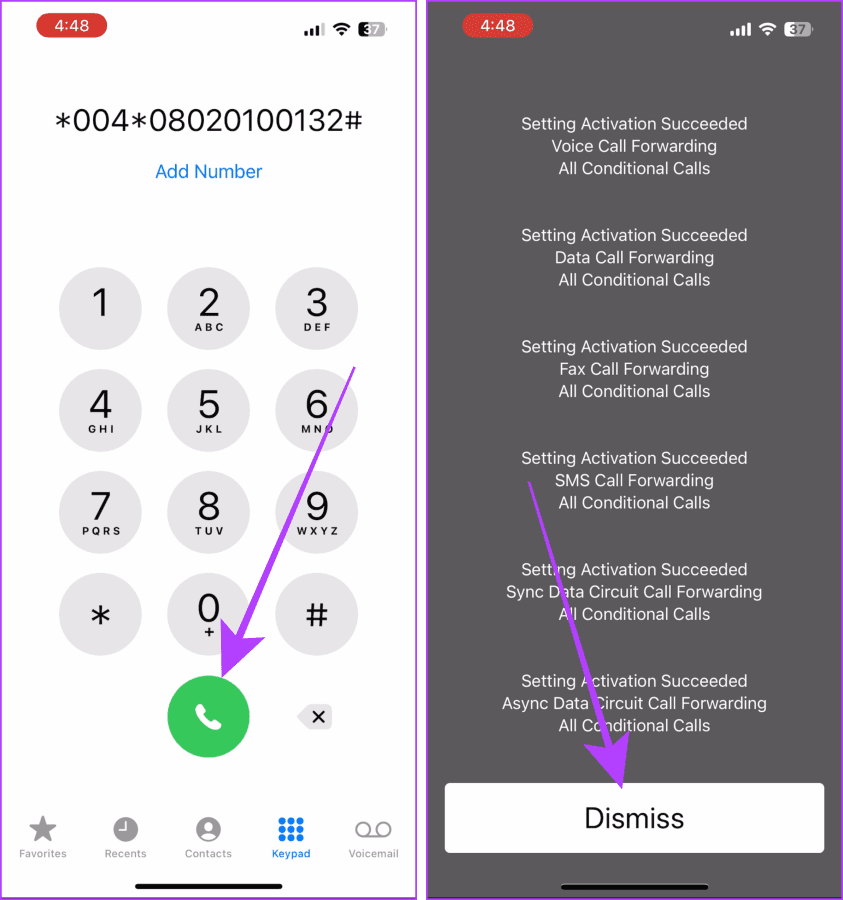
Step 1: Open the Phone app and go to the dialer.
Step 2: Type the number provided by your carrier and tap call.
Tip: The voicemail activation number differs from provider to provider; you can find out by contacting your carrier. And the voicemail activation number provided by a carrier usually starts with * and ends with #.
Step 3: Upon successful activation, you will receive a message on your screen; tap Dismiss.
2. Using Voicemail in the Phone App
Some carriers support visual voicemail. Visual voicemail is a simplified way of accessing voicemails straight from the Voicemail tab of the Phone app. You can set up voicemail by following the above-mentioned method; however, if your carrier supports Visual Voicemail, you can also set it up by following these steps.
Step 1: Open the Phone app on your iPhone and tap Voicemail.

Step 2: Tap Set Up Now.

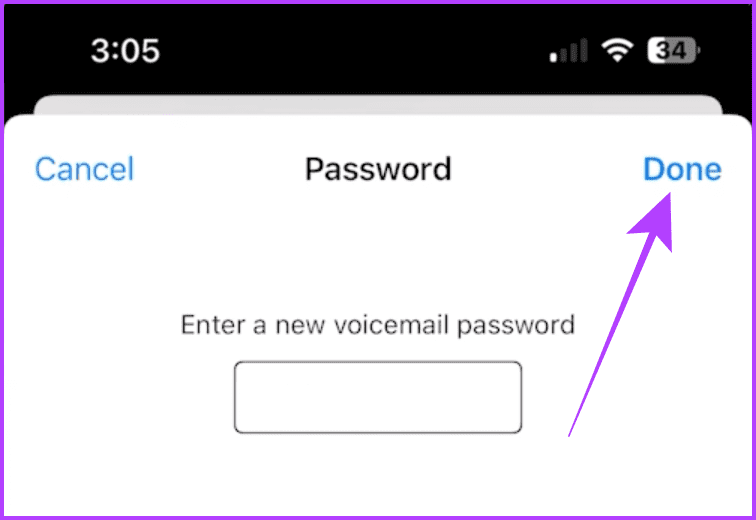
Step 3: Now, enter a password of your choice and tap Done. And that’s it; now your voicemail is ready.
How to Set Up Live Voicemail
Whether or not your carrier supports voicemail services, you can still use Apple’s Live Voicemail feature on your iPhone for free.
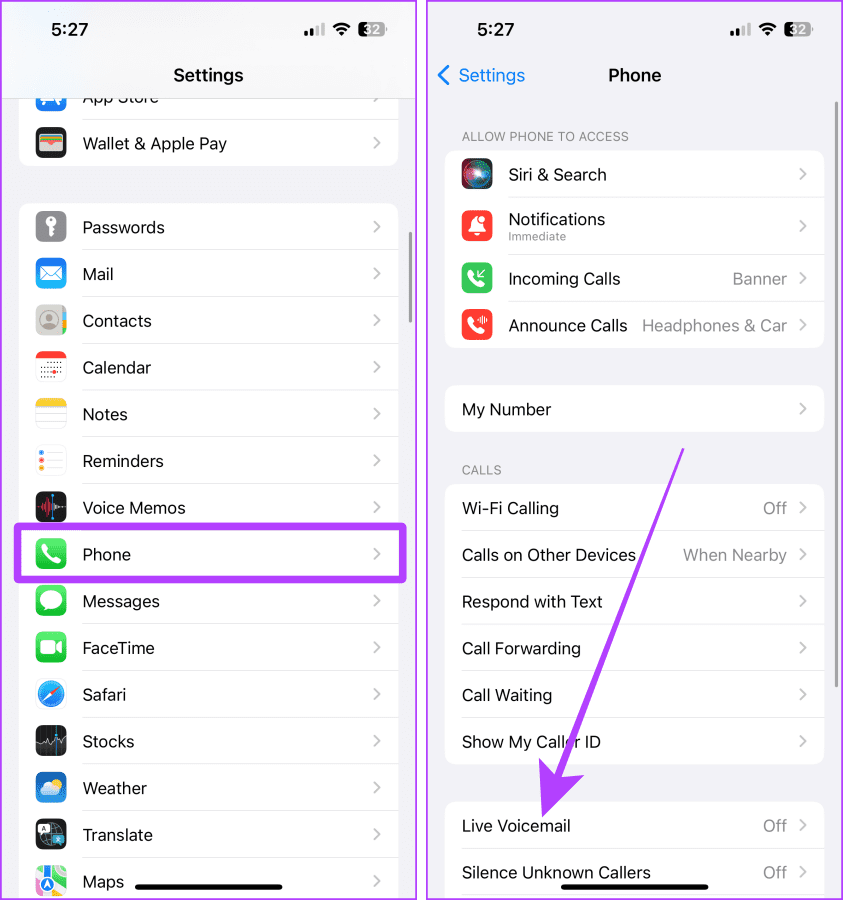
Step 1: Open the Settings app on your iPhone; scroll down and tap Phone. Select Live Voicemail.
Step 2: Enable the resulting toggle.
Listen to Voicemail on iPhone
Accessing and listening to voicemails is simple on your iPhone and keeps you updated with missed calls and important messages. There are two ways to listen to a voicemail on your iPhone. Here are the steps to follow.
Method 1: Call Voicemail by Pressing 1
Step 1: Open the Phone app on your iPhone and go to the dialer.
Step 2: Tap and hold 1 to call the voicemail. Now, follow the instructions to listen to your voicemails.

Method 2: Play From the Voicemail Tab (For Visual Voicemail/Live Voicemail)
If your carrier supports visual voicemail, you can access or listen to voicemail from the Voicemail tab on your iPhone. Here’s how to listen to your Visual voicemail or Live Voicemail.
Step 1: Launch the Phone app on your iPhone and go to the Voicemail tab.
Step 2: Tap on the voicemail you want to hear. Then, hit the play button to listen to it.
Note: The voicemail is played by default through your iPhone’s earpiece; tap the speaker button to listen to it hands-free.

Clear or Delete Voicemail on iPhone
Every voicemail (except Live Voicemail) you receive gets stored on the carrier’s server. Some carriers allow the storage of 40 messages, and others up to 40 messages for 30 days. So, it’s better to delete them after listening, or the people calling you can’t leave a message; instead, they will hear a voicemail full message. Follow these steps to delete voicemails from your iPhone.
Method 1: Call Voicemail and Delete It (For Carrier Voicemail)
Step 1: Open the Phone app on your iPhone and go to the dialer.
Step 2: Tap and hold 1 to call the voicemail. Now, follow the instructions and delete the voicemail accordingly.

Method 2: Delete From the Voicemail Tab (For Visual/Live Voicemail)
Unlike normal voicemails, Visual voicemails or Live Voicemails you receive are stored in your iPhone’s local storage. They can take up storage space. Follow these steps to delete them.
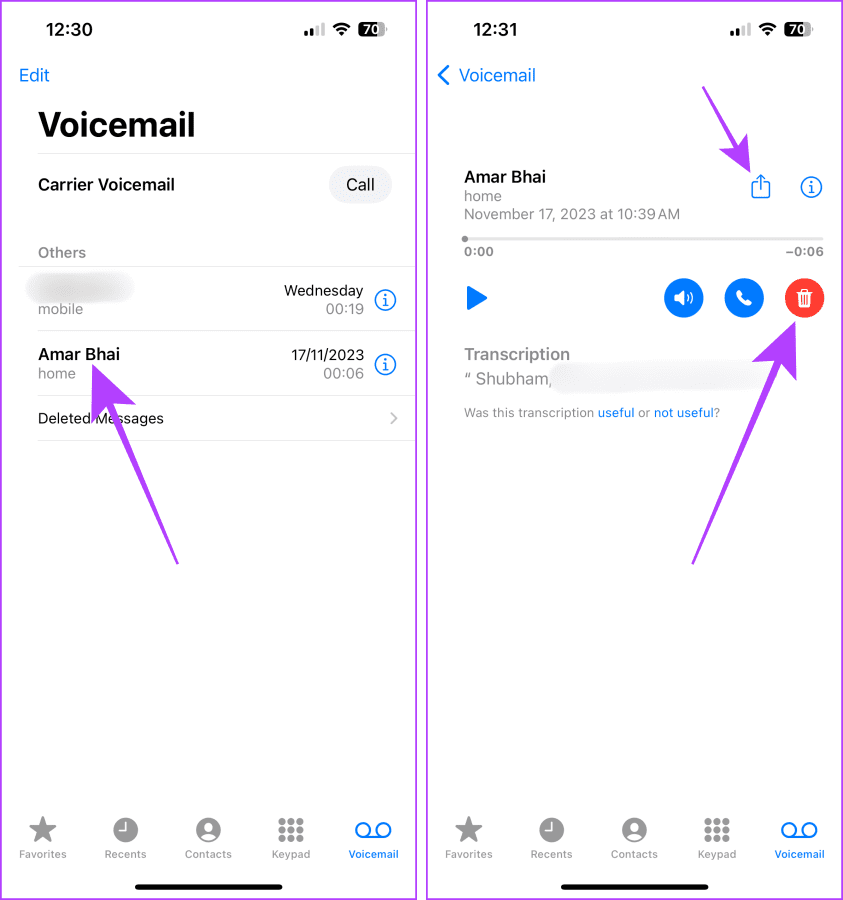
Step 1: Launch the Phone app on your iPhone and go to the Voicemail tab.
Step 2: Tap on the voicemail you wish to delete.
Step 3: Tap the bin icon to delete the voicemail.
Tip: You can also share a voicemail with other messaging apps by tapping on the Share button.
Must Read: Top fixes for voicemail not working on iPhone
How to Fix Voicemail Not Working
If you are struggling using the voicemail (Carrier and Live Voicemail) feature on your iPhone, contact your carrier or Apple support for additional help. However, here are some fixes to try and save your time. Let’s look at them.
- Toggle flight mode: Enabling and disabling flight mode can help restore the network and facilitate voicemails.
- Reset network settings: Resetting network settings on your iPhone can eliminate any issues with the cellular network on your end.
- Change language and region: The iPhone’s Live Voicemail feature is available in the US and Canada only. If you have trouble using It, change your region to either of these from Settings > General > Language & Region.
Was this helpful?
Last updated on 09 May, 2024
Read Next
 6 Ways to Fix Voicemail Not Working on iPhone
Try Basic Fixes Check if voicemail is enabled: The first thing to do is ensure that voicemail is enabled on your iPhone, especially if you've switched carriers or cell plans
6 Ways to Fix Voicemail Not Working on iPhone
Try Basic Fixes Check if voicemail is enabled: The first thing to do is ensure that voicemail is enabled on your iPhone, especially if you've switched carriers or cell plans
 5 Ways to Fix Voicemail Not Working on Android
Try Basic Fixes Check voicemail manually: Open the Phone app on your device, then press and hold 1 to dial your voicemail.
5 Ways to Fix Voicemail Not Working on Android
Try Basic Fixes Check voicemail manually: Open the Phone app on your device, then press and hold 1 to dial your voicemail.
 6 Ways to Fix Incoming Calls Go Straight to Voicemail on Android
Try Basic Fixes Toggle the airplane mode: Turning the airplane mode on and off can help refresh your phone’s network connection.
6 Ways to Fix Incoming Calls Go Straight to Voicemail on Android
Try Basic Fixes Toggle the airplane mode: Turning the airplane mode on and off can help refresh your phone’s network connection.
 5 Ways to Fix Live Location Not Updating on Android and iPhone
Fix 1: Ensure Location Services Are Enabled Enabling location services on your phone is the most basic step before you can share your live location.
5 Ways to Fix Live Location Not Updating on Android and iPhone
Fix 1: Ensure Location Services Are Enabled Enabling location services on your phone is the most basic step before you can share your live location.
 How to Fix Live Activities Not Working on iPhone (iOS 16 Updated)
Live Activities was introduced with iOS 16 to display the most current data of apps on the Lock Screen of your iPhone.
How to Fix Live Activities Not Working on iPhone (iOS 16 Updated)
Live Activities was introduced with iOS 16 to display the most current data of apps on the Lock Screen of your iPhone.
 4 Fixes for Telegram Live Location Not Updating on iPhone and Android
Basic Fixes: Check internet access: For apps to access your location, you require internet access on your mobile.
4 Fixes for Telegram Live Location Not Updating on iPhone and Android
Basic Fixes: Check internet access: For apps to access your location, you require internet access on your mobile.
 How to Set Live Wallpaper on iPhone (iOS 17 and Later)
Set Live Wallpaper on iPhone (iOS 17 and Lat) Apple removed the ability to set Live Photos as a wallpaper in iOS 16.
How to Set Live Wallpaper on iPhone (iOS 17 and Later)
Set Live Wallpaper on iPhone (iOS 17 and Lat) Apple removed the ability to set Live Photos as a wallpaper in iOS 16.
 4 Ways to Fix iPhone Live Photos Not Working
Basic Fixes Restart your iPhone: A quick restart can fix temporary bugs responsible for such issues.
4 Ways to Fix iPhone Live Photos Not Working
Basic Fixes Restart your iPhone: A quick restart can fix temporary bugs responsible for such issues.
The article above may contain affiliate links which help support Guiding Tech. The content remains unbiased and authentic and will never affect our editorial integrity.