


WO Mic is free software that connects to and uses your phone’s microphone using a PC client on your Windows computer. You can use Android and iOS devices as a microphone source, but the PC client is only available for Windows.
Download and Install the WO App and Software
First, download and install the WO Mic desktop client on your Windows computer using the link below.
Once done, install the WO Mic app on your iPhone or Android device.
Now, let’s connect your phone to your computer to use its microphone. Note that there are two ways to connect the devices wirelessly. Let’s look at both of them below.
Method 1: Use the Phone as a Bluetooth Mic
Step 1: Go to Windows Settings (Win + I) > Bluetooth & devices.
Step 2: Click the Add device option, click on Bluetooth, and Windows will search for nearby Bluetooth devices.

Step 3: Enable Bluetooth on your smartphone and pair your phone with your PC using Bluetooth. Keep them connected.

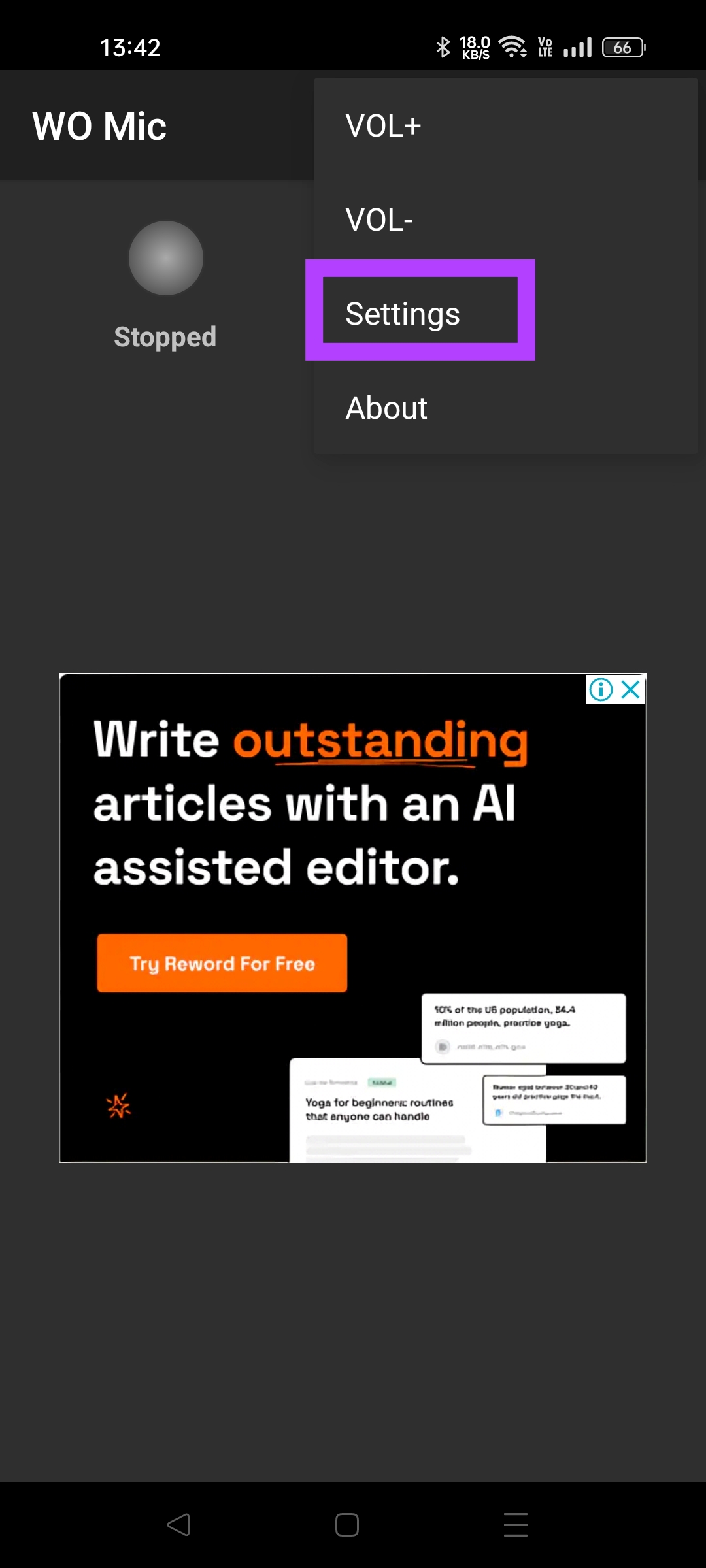
Step 4: Open the WO Mic app on your phone. Tap on three dots and select Settings. Click on Transport and select Bluetooth.


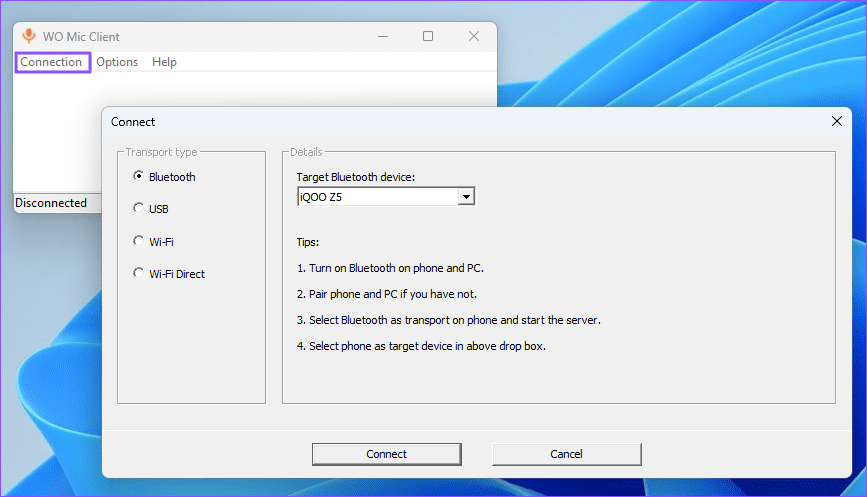
Step 5: Go back to the WO Mic app’s home page. Tap the Play button.

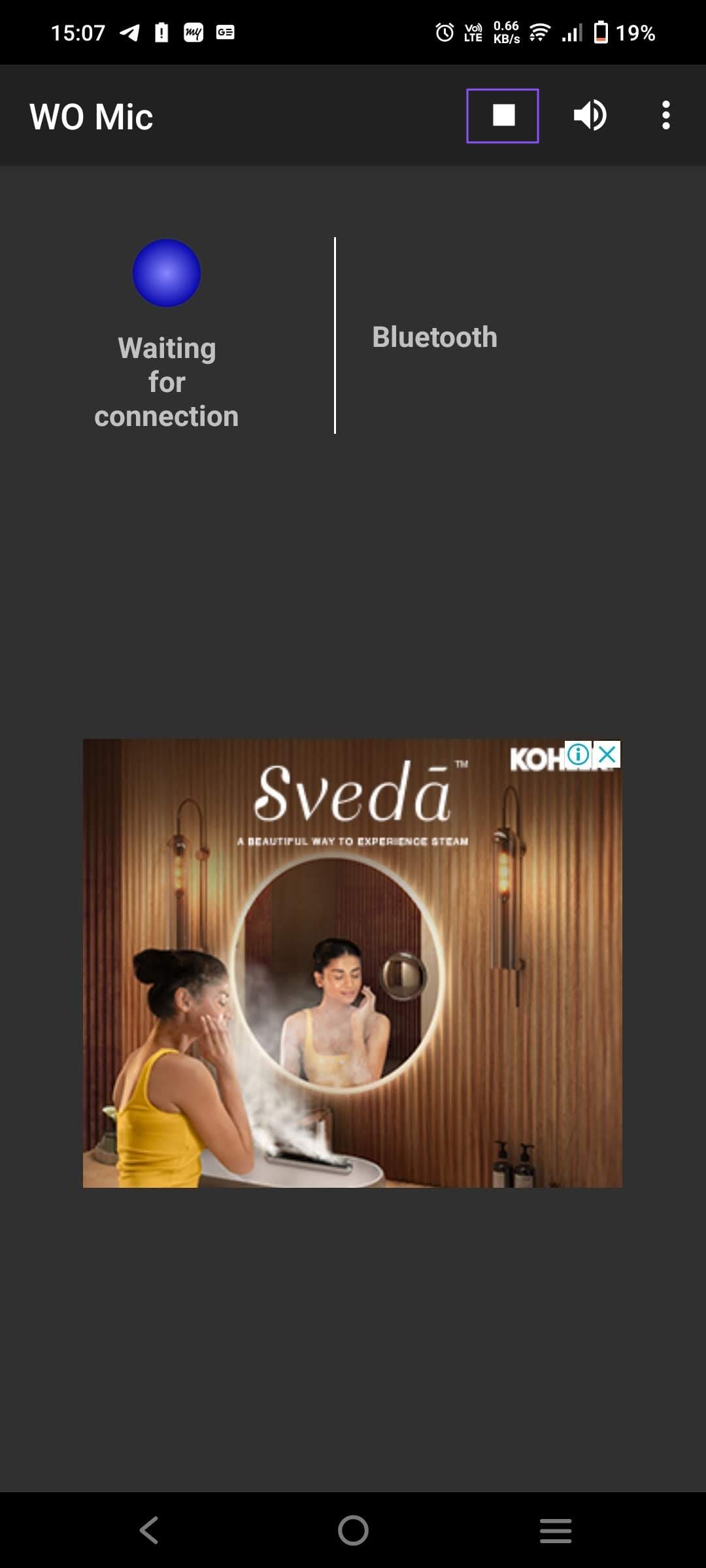
Step 6: Open the WO Mic client on your computer. Click on Connection and select Connect. From the Bluetooth section, select your phone. Then click Connect. Your PC will now use your phone’s mic via Bluetooth.
Method 2. Connect Phone Mic to PC Using Wi-Fi
Step 1: Open the WO Mic app on your phone. Tap on three dots and open Settings. In the Transport menu, select Wi-Fi.

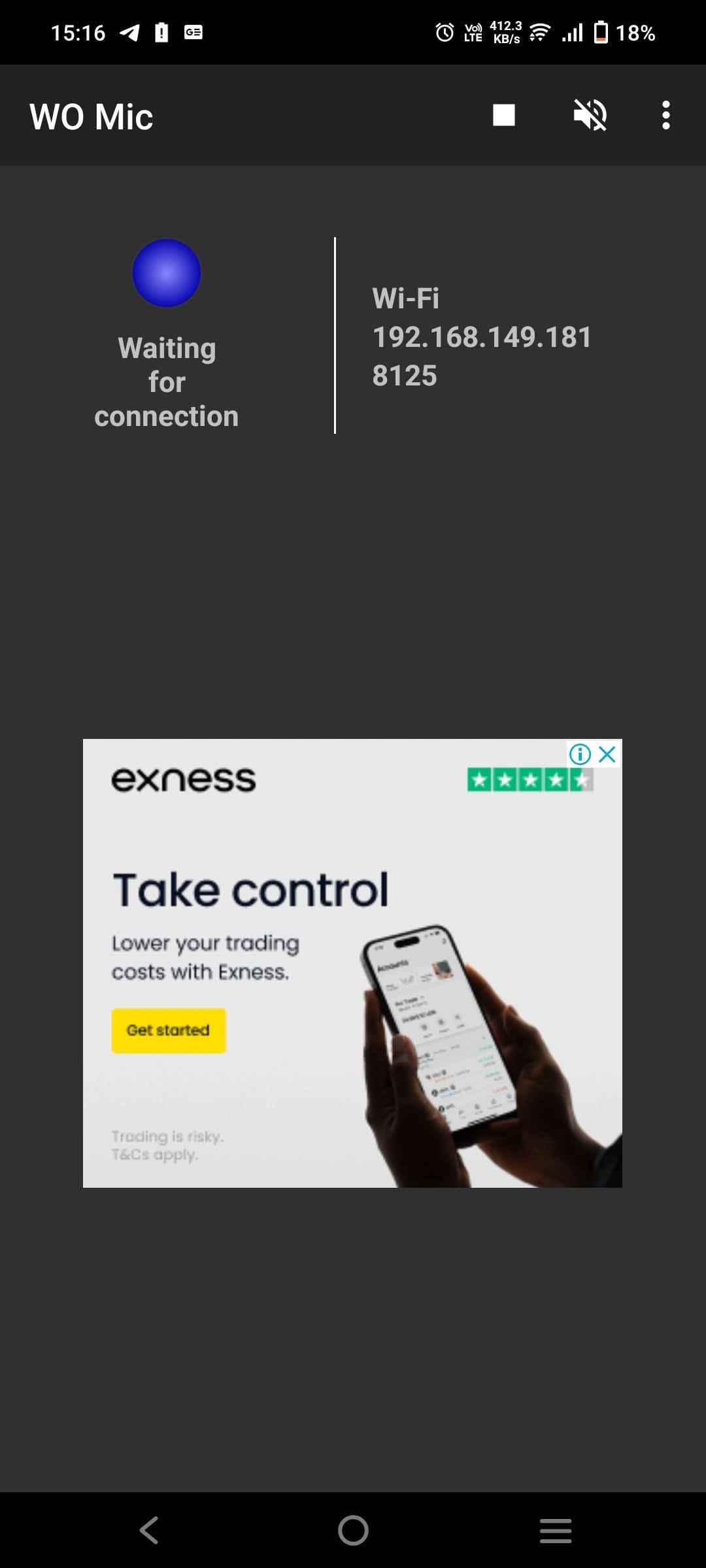
Step 2: Now tap on the play button. Keep your phone screen awake. Note the Wi-Fi address mentioned on the screen.
Step 3: Open the WO Mic client on your Windows PC. Click on Connection and select Connect. Select Wi-Fi and enter the IP address shown on your phone. Once done, click Connect.

You can now use your phone’s mic on your PC if they are connected to the same Wi-Fi network.
Note: You can also use the Wi-Fi Direct option (hotspot). This is faster than WiFi and handy when you do not have a shared network.
Method 3: Make the Phone a Microphone for PC via Cable Using WO Mic
Although wireless connectivity provides a seamless experience, it introduces a slight latency, which can sometimes be annoying for video calls. Using a cable for a wired connection eliminates this problem. Here’s how you can do that.
Note: The wired connectivity feature is exclusive to Android and unavailable on iPhones.
Step 1: Open the Settings app of your Android phone. Go to Developer Options and enable USB debugging.


If you can’t find Developer Options on your phone, go to the About section of your phone and tap on ‘Build Number’ seven times to unlock this setting.
Step 2: Connect your phone to your PC using a USB cable. Open the WO Mic app on your phone. Go to Settings. From the Transport menu, select USB from this list.

Step 3: Tap the play button on the mobile app and launch the app on your PC. This time, select USB
Step 4: Like above, open the WO Mic client on your computer. Go to Connection and select Connect. Select USB from the menu. Click on Connect. Your Windows PC will start using your phone’s mic, which is connected by the cable.
FAQs
Is It Safe to Use Third-Party Apps as a Mic on a PC?
Apps like WO Mic and Droidcam use a local client connection to use your phone as a mic for your PC. Hence, it is safe to use them as the data is transmitted locally, without any external internet server.
Can I Use Multiple Phones as a Microphone on the Same PC?
You can use two or more phones as different microphones on your PC by using two different apps simultaneously. For example, you can simultaneously use WO Mic and Droidcam as two different microphone sources. Note that you cannot use a single app to connect to multiple phones; you must use different apps.
Was this helpful?
Last updated on 25 July, 2024
Read Next
 Top 8 Ways to Fix WhatsApp Microphone Not Working on iPhone and Android
Thanks to group calls, the ability to share and create call links, and desktop support, WhatsApp voice and video calls are gaining traction among users.
Top 8 Ways to Fix WhatsApp Microphone Not Working on iPhone and Android
Thanks to group calls, the ability to share and create call links, and desktop support, WhatsApp voice and video calls are gaining traction among users.
 2 Ways to Fix Microphone Not Working on Instagram
Basic Fixes: Force close all background apps: If other apps use the microphone in the background, you may have issues accessing it on Instagram. You can close such apps on your
2 Ways to Fix Microphone Not Working on Instagram
Basic Fixes: Force close all background apps: If other apps use the microphone in the background, you may have issues accessing it on Instagram. You can close such apps on your
 How to Fix Microphone Not Working on Facebook Messenger
Basic Troubleshoot Remove the phone case: If your phone case blocks the microphone, you may notice muffled audio during video recording and calls.
How to Fix Microphone Not Working on Facebook Messenger
Basic Troubleshoot Remove the phone case: If your phone case blocks the microphone, you may notice muffled audio during video recording and calls.
 Top 10 Ways to Fix Google Meet Microphone Not Working on Windows and Mac
For the most part, Google Meet offers a seamless browser-based video conferencing experience on both Windows and macOS.
Top 10 Ways to Fix Google Meet Microphone Not Working on Windows and Mac
For the most part, Google Meet offers a seamless browser-based video conferencing experience on both Windows and macOS.
 7 Ways to Fix Microphone Not Working Issue on Windows 11
Try Basic Fixes Check the microphone connection: If you’re using an external microphone on your PC, check its physical connection to see if it's connected properly.
7 Ways to Fix Microphone Not Working Issue on Windows 11
Try Basic Fixes Check the microphone connection: If you’re using an external microphone on your PC, check its physical connection to see if it's connected properly.
 4 Fixes for Microphone Not Working in WhatsApp on Windows 11
Basic Fixes Check if WhatsApp is down: Go to DownDetector and check the status of WhatsApp servers.
4 Fixes for Microphone Not Working in WhatsApp on Windows 11
Basic Fixes Check if WhatsApp is down: Go to DownDetector and check the status of WhatsApp servers.
 8 Fixes for Microphone Not Working in Xbox Game Bar on Windows 11
Basic Fixes Reconnect the external microphone: Plug out the external connected microphone, wait a few seconds, and reconnect it.
8 Fixes for Microphone Not Working in Xbox Game Bar on Windows 11
Basic Fixes Reconnect the external microphone: Plug out the external connected microphone, wait a few seconds, and reconnect it.
 6 Ways to Fix Microphone Not Working on Apple Watch
Basic Fixes Restart Apple Watch: Restart your Apple Watch to fix temporary bugs and glitches.
6 Ways to Fix Microphone Not Working on Apple Watch
Basic Fixes Restart Apple Watch: Restart your Apple Watch to fix temporary bugs and glitches.
The article above may contain affiliate links which help support Guiding Tech. The content remains unbiased and authentic and will never affect our editorial integrity.

