How to Take Handwritten Notes in OneNote
Step 1: On the OneNote app, click the Draw option > select your preferred pen or highlighter tool. The cursor changes shape when you select the tool.

Step 2: Start writing on the canvas.
Each pen/highlighter tool also offers different settings to change size and color. You can access these by clicking on the tool again to open a drop-down menu.

Once you’ve completed a page, you can switch to the next one by clicking on the Add page button at the bottom of the second column.

Convert Handwriting to Text
After taking down your notes, you can convert them into a text file, and OneNote does a pretty good job. To convert your handwritten notes into text, follow these steps:
Step 1: Click on the Draw menu > select the Lasso Select tool in the top toolbar. This tool will help you select the handwriting you wish to convert into text.
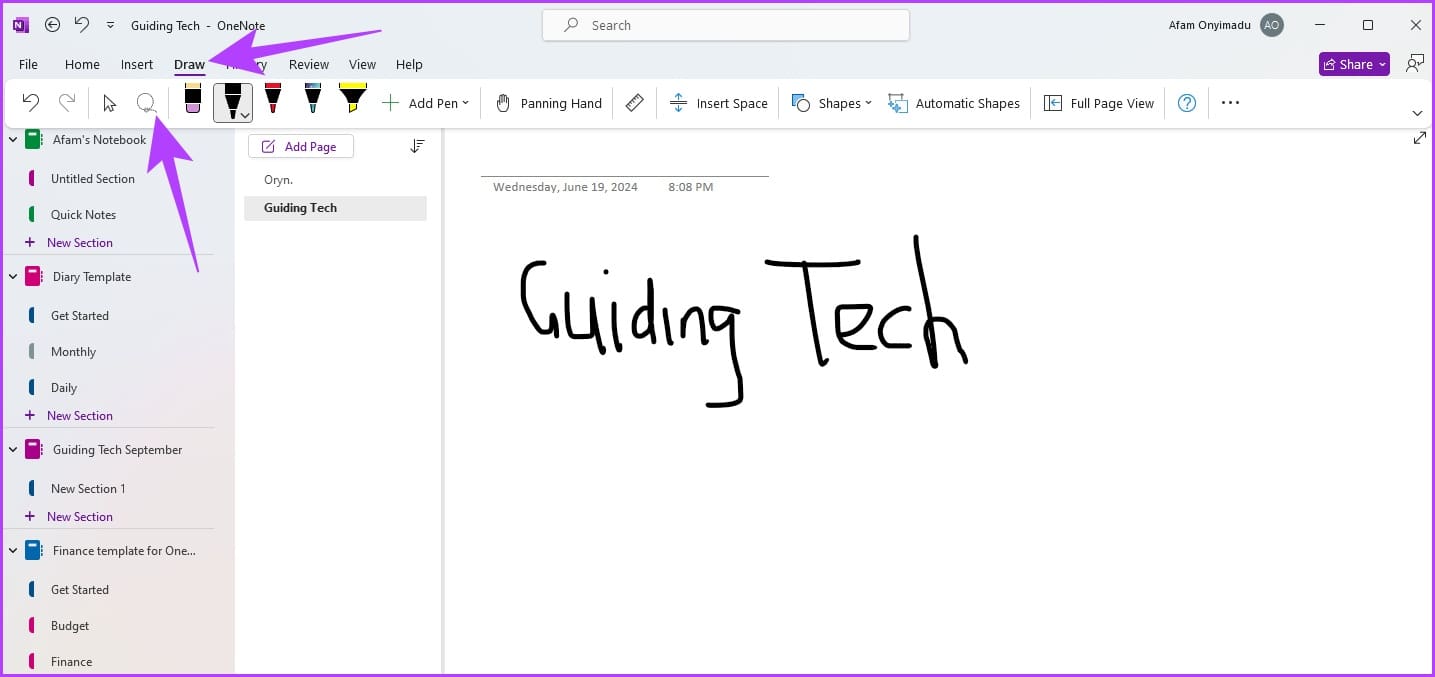
Step 2: Draw a selection around your handwritten notes that you wish to convert into text.

Step 3: Now, click the more icon and select the Ink to Text option to instantly convert your selected handwriting into text.

You should now see your handwritten text looking like it was typed with your keyboard.

Convert Ink to Math
Besides converting handwritten words to text, OneNote allows you to convert handwritten mathematical writings or formulas as well. Follow these steps.
Step 1: On the OneNote app, click the Draw option > select your preferred pen or highlighter tool. The cursor changes shape when a tool is selected.
Step 2: Start writing any mathematical text, formulas, or equations.
Step 3: Click on the Draw menu > select the Lasso Select tool in the top toolbar.

Step 4: Draw a selection around your handwritten notes.
Step 5: Now, click the more icon > select Ink to Math to instantly convert your selected handwriting into math.

Step 6: Edit the writing as you please using the Write, Erase, Select and Correct, and Clear options > click Insert.

Note: You could follow some basic fixes if OneNote is not opening.
Was this helpful?
Last updated on 08 August, 2024
Read Next
 How to Improve Facial Recognition in Google Photos
Method 1: Fix Results in the Google Photos App Google Photos app on mobile lets you remove inaccurate results, making it more intelligent to figure out the next time it
How to Improve Facial Recognition in Google Photos
Method 1: Fix Results in the Google Photos App Google Photos app on mobile lets you remove inaccurate results, making it more intelligent to figure out the next time it
 4 Ways to Fix Face Recognition Not Working on Samsung Galaxy Devices
Basic Fixes: Ensure facial recognition data is added properly: When capturing your face data, ensure you're in a well-lit room.
4 Ways to Fix Face Recognition Not Working on Samsung Galaxy Devices
Basic Fixes: Ensure facial recognition data is added properly: When capturing your face data, ensure you're in a well-lit room.
 5 Ways to Fix Google Photos Face Recognition Not Working on Android and iPhone
https://youtu.be/UbhXaGftf4s Try Basic Fixes Update the app: Such issues with the facial recognition feature can occur due to a bug within the Photos app.
5 Ways to Fix Google Photos Face Recognition Not Working on Android and iPhone
https://youtu.be/UbhXaGftf4s Try Basic Fixes Update the app: Such issues with the facial recognition feature can occur due to a bug within the Photos app.
 6 Best Windows Hello Webcams for Face Recognition on Your PC
Entering a long password to log in to your PC can be cumbersome.
6 Best Windows Hello Webcams for Face Recognition on Your PC
Entering a long password to log in to your PC can be cumbersome.
 A Complete Guide to Using and Managing Tags in Microsoft OneNote
OneNote offers many ways to organize your notes.
A Complete Guide to Using and Managing Tags in Microsoft OneNote
OneNote offers many ways to organize your notes.
 Microsoft Whiteboard vs OneNote: Which One to Use for Note Taking
Availability First, both platforms require a Microsoft account to function regardless of the platform you use.
Microsoft Whiteboard vs OneNote: Which One to Use for Note Taking
Availability First, both platforms require a Microsoft account to function regardless of the platform you use.
 3 Ways to Fix Unable to Sign in to Microsoft OneNote on Windows
Fix 1: Remove OneNote Credentials From Credential Manager The Credential Manager in Windows stores login details for all your apps.
3 Ways to Fix Unable to Sign in to Microsoft OneNote on Windows
Fix 1: Remove OneNote Credentials From Credential Manager The Credential Manager in Windows stores login details for all your apps.
 4 Best Free Microsoft OneNote Templates You Must Try
Microsoft OneNote is a robust information-gathering and note-taking app available on Windows, Mac, Android, and iOS.
4 Best Free Microsoft OneNote Templates You Must Try
Microsoft OneNote is a robust information-gathering and note-taking app available on Windows, Mac, Android, and iOS.
The article above may contain affiliate links which help support Guiding Tech. The content remains unbiased and authentic and will never affect our editorial integrity.