Use Google Photos to Make a Video
You can use the iOS or Android Google Photos app to make a video. The steps are practically the same. You will be using the media stored on your phone storage. Let us show you how to.
Step 1: Open the Google Photos app on iPhone or Android.
Step 2: Go to Photos or Library and open a relevant folder. Then, select the photos or videos from which you want to create a video.


Step 3: Tap the + icon at the bottom > select Movie from the bottom menu.
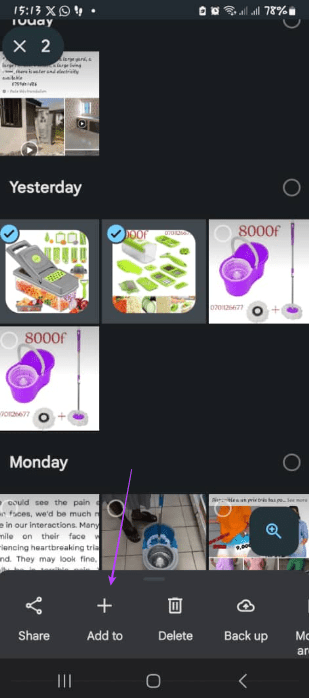

Give it some time. If the selected media is stored on Google Photos cloud, Google will first download it and then allow you to use it in movie making. Google Photos will treat you with a mobile-friendly movie-making interface to make changes. Let’s understand the functions on offer.
Using Video Creation Functions in Google Photos
Once you have made your video with Google Photos, you may use some app features to improve the videos. Below, we explore some features worth trying.
1. Change Aspect Ratio
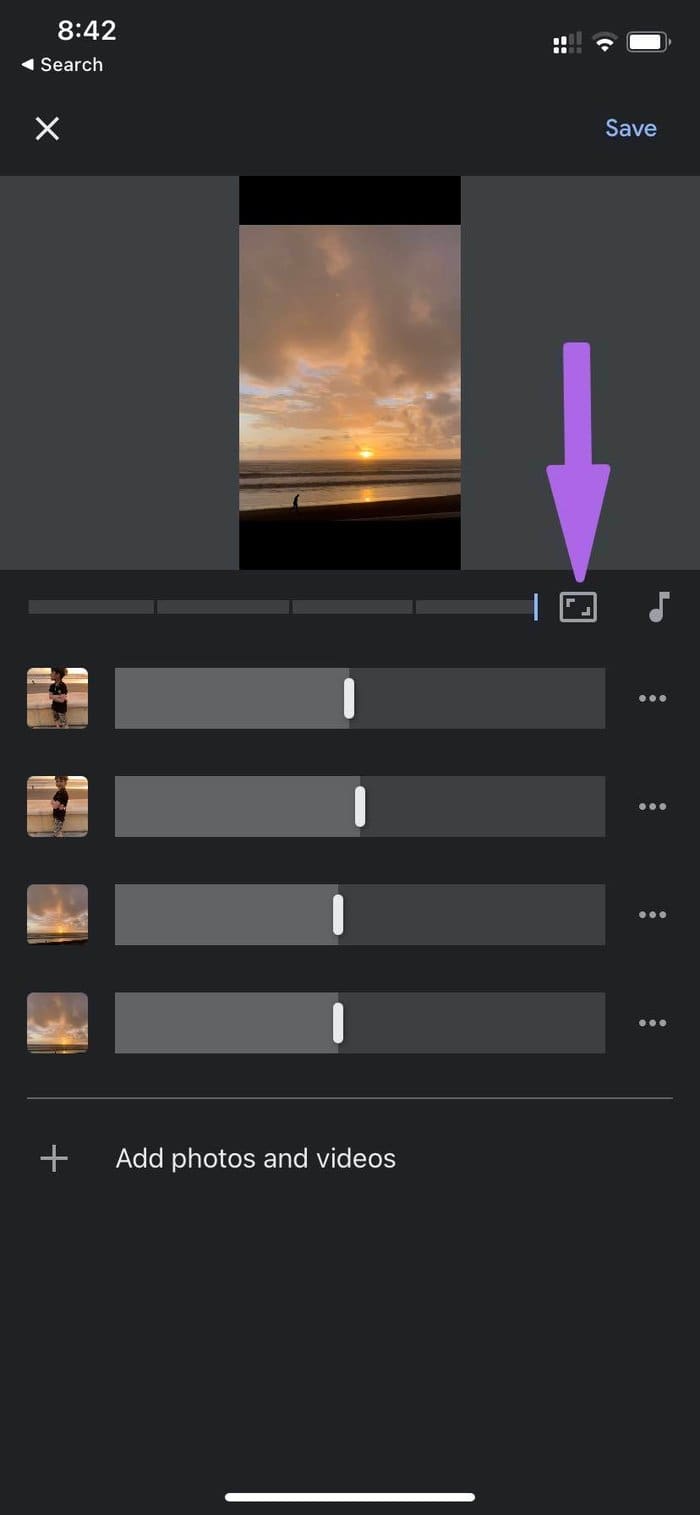
By default, you will create a video in 16:9 or landscape mode. However, the rise of TikTok and YouTube Shorts has led to a new generation of creators of portrait videos. You may change the aspect ratio by clicking Aspect ratio > selecting Portrait.

2. Add Music
A video is lifeless without relevant music to back it up. Tap on the music button > select My music or Theme music to add music.


We like how the Theme Music section offers Electronic, Reflective, Rocking, and Upbeat categories. It makes it easy for users to find a proper tune for a video.
If you use an iPhone, you can use Apple Music with the Photos Memories function. However, Google Photos doesn’t integrate or allow anything from the YouTube Music app.
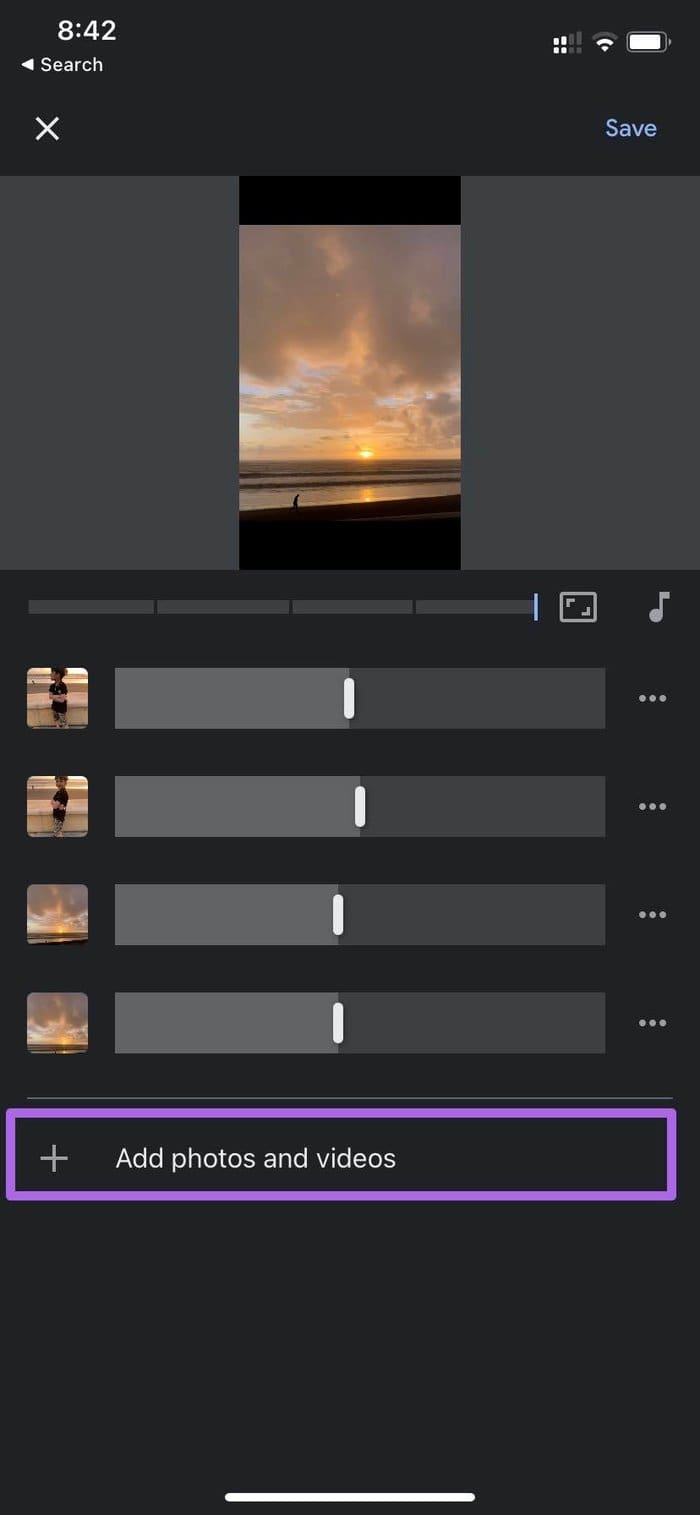
3. Change Image Duration in Video
If you want to pay more attention to a specific photo in the video, you can increase its length using the slider in Google Photos. At any point, you can add more photos and videos to the Google Photos movie by tapping Add photos and videos.

Was this helpful?
Last updated on 05 August, 2024
Read Next
 How to Use Burst Mode on iPhone to Take Multiple Pictures
Ever clicked your cute little kid running around the house only to end up with a blurred photo?
How to Use Burst Mode on iPhone to Take Multiple Pictures
Ever clicked your cute little kid running around the house only to end up with a blurred photo?
 How to Search Pictures by Faces in Google Photos
Note: We've written instructions for the Google Photos app on iPhone, however, they remain the same for the Android and the web apps as well.
How to Search Pictures by Faces in Google Photos
Note: We've written instructions for the Google Photos app on iPhone, however, they remain the same for the Android and the web apps as well.
 How to Make a Video with Pictures and Music in Windows 10
Sometimes, simple photos seem boring.
How to Make a Video with Pictures and Music in Windows 10
Sometimes, simple photos seem boring.
 How to Add Photos and Pictures to Amazon Echo Spot
The Amazon Echo Spot beautifully balances both looks and performance.
How to Add Photos and Pictures to Amazon Echo Spot
The Amazon Echo Spot beautifully balances both looks and performance.
 How to Save Pictures or Videos From Files to Photos App on iPhone and iPad
Option 1: How to Move a Single Picture or Video Present in an iPhone or iPad Folder From Files to Photos App Step 1: Launch the Files app on your
How to Save Pictures or Videos From Files to Photos App on iPhone and iPad
Option 1: How to Move a Single Picture or Video Present in an iPhone or iPad Folder From Files to Photos App Step 1: Launch the Files app on your
 3 Ways to Send Multiple Photos From Samsung Galaxy Phones
Method 1: Use Quick Share Samsung’s Quick Share, inspired by AirDrop on Apple devices, provides a fast way to share media files between nearby Android and Windows devices.
3 Ways to Send Multiple Photos From Samsung Galaxy Phones
Method 1: Use Quick Share Samsung’s Quick Share, inspired by AirDrop on Apple devices, provides a fast way to share media files between nearby Android and Windows devices.
 4 Ways to Send Multiple Photos From iPhone to Android
Method 1: Use Instant Messaging Apps There are several ways to send multiple photos from iPhone and Android.
4 Ways to Send Multiple Photos From iPhone to Android
Method 1: Use Instant Messaging Apps There are several ways to send multiple photos from iPhone and Android.
 How to Delete Multiple (Or All) Photos on Facebook
Method 1: Remove All Your Pictures From Facebook Facebook allows users to delete up to 50 photos uploaded by them.
How to Delete Multiple (Or All) Photos on Facebook
Method 1: Remove All Your Pictures From Facebook Facebook allows users to delete up to 50 photos uploaded by them.
The article above may contain affiliate links which help support Guiding Tech. The content remains unbiased and authentic and will never affect our editorial integrity.