How to Add a Google Calendar to iPhone
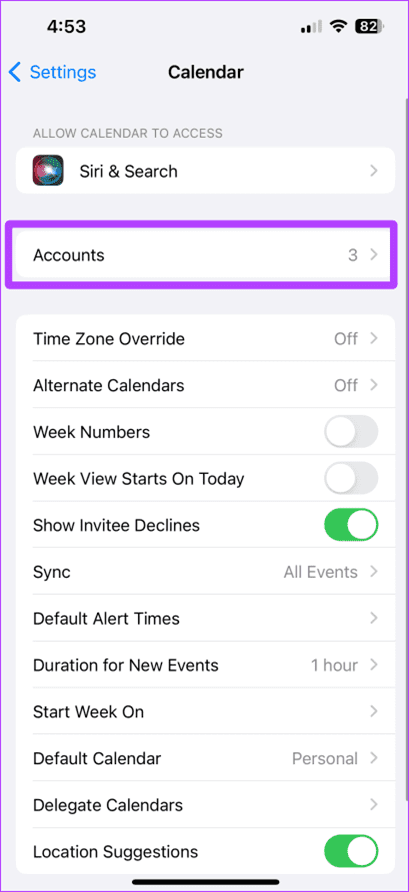
Step 1: Launch the Settings app on your iPhone and tap Calendar.
Step 2: Tap Accounts.

Step 3: Tap Add Account.
Step 4: Now, tap Google.


Step 5: Enter your credentials and tap Next.
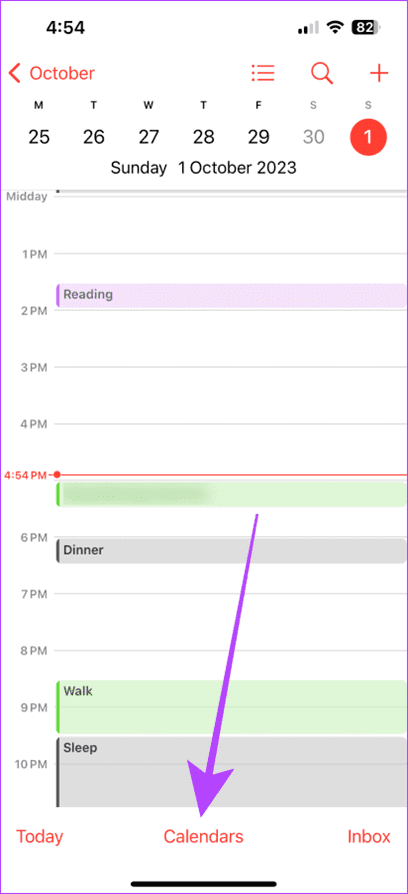
Step 6: Once signed in, open the Calendar app on your iPhone and tap Calendars at the bottom.
Step 7: To view your Google Calendars, tap and check all the calendars under the GMAIL section, then select Done.

Must Read: How to remove or delete a calendar from an iPhone
Sync Google Calendar With iPhone
Google Calendar syncs automatically once you’ve added it to your iPhone. However, if you want to sync manually, here are the steps to follow:
Step 1: Launch the Calendar app and tap Calendars.
Step 2: Do a PTR (pull-to-refresh), and your calendars will be synced.


How to Share a Google Calendar on iPhone
Sharing a Google Calendar is trickier than adding and syncing, as it requires opening your calendar on a computer. But the process is effortless. Here’s how to add a shared Google Calendar to your iPhone:
Step 1: Open the Google Calendar web in your Mac or PC browser and click the three dots next to the calendar you wish to share.
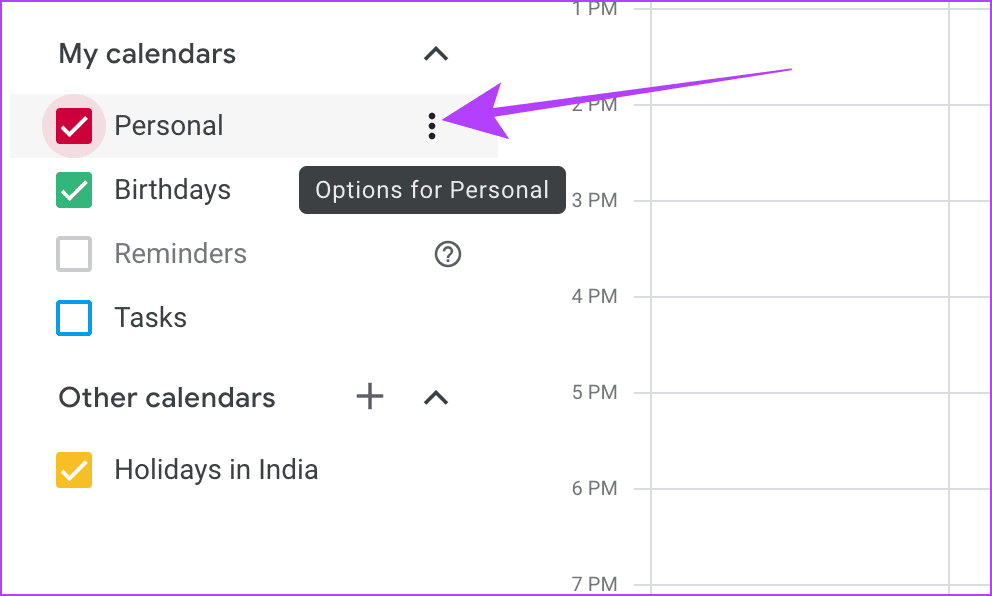
Step 2: Click Settings and sharing.

Step 3: Click Integrate calendar from the left menu.
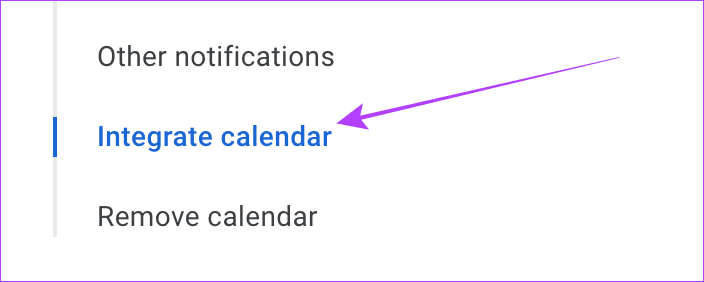
Step 4: Scroll down to the Secret address in iCal format and click the copy icon.

Step 5: Now, open the Calendar app on your iPhone and tap Calendars at the bottom.
Step 6: Tap Add Calendar at the bottom left.


Step 7: Tap Add Subscription Calendar.
Step 8: Now, paste the copied link from the Google Calendar web and tap Subscribe.


Step 9: Tap Add to confirm the addition of the calendar.
Also Read: How to change colors on Google Calendar
Duplicate or Remove Duplicate Calendar Events
Step 1: Open the Apple Calendar app on your iPhone and press and hold the event you wish to duplicate.
Step 2: Tap Duplicate from the options.


If you have duplicated a wrong event on your calendar, the Calendar app lets you undo it. To undo or redo the actions inside the Apple Calendar app, you must enable Shake to Undo on your iPhone. Once you have done this, follow these steps.
Step 3: Shake your iPhone with the Calendar app open.
Step 4: A pop-up will appear on the screen, tap Undo. And that’s it.
FAQs
Yes, you can. You can add as many calendars as you like on your iPhone.
Ensure the shared Calendar address is in iCal format so it shows on your iPhone. You can also open the Calendar app, tap Calendars, and then tap and check the shared calendar so it shows on your iPhone.
Was this helpful?
Last updated on 23 August, 2024
Read Next
 How to Add Zoom Meetings to Outlook Calendar and Google Calendar
How to Add Zoom Meetings to Google Calendar The easiest way is using the Zoom for Google Workspace Google calendar add-on.
How to Add Zoom Meetings to Outlook Calendar and Google Calendar
How to Add Zoom Meetings to Google Calendar The easiest way is using the Zoom for Google Workspace Google calendar add-on.
 How to Connect Outlook Calendar With Google Calendar: 4 Best Ways
Note: The methods recommended in the article allow two-way syncs in the calendar.
How to Connect Outlook Calendar With Google Calendar: 4 Best Ways
Note: The methods recommended in the article allow two-way syncs in the calendar.
 How to Add and Remove Holidays Calendar in Apple Calendar App
How to Use Holidays Calendar on iPhone The Apple Calendar app offers a built-in regional calendar, displaying the common holidays (occasions and festivals) from that area.
How to Add and Remove Holidays Calendar in Apple Calendar App
How to Use Holidays Calendar on iPhone The Apple Calendar app offers a built-in regional calendar, displaying the common holidays (occasions and festivals) from that area.
 How to Share Your Outlook Calendar and Manage Permissions
How to Share Your Microsoft Outlook Calendar Note: To share your Microsoft Outlook calendar, you must have a Microsoft 365 or Exchange account.
How to Share Your Outlook Calendar and Manage Permissions
How to Share Your Microsoft Outlook Calendar Note: To share your Microsoft Outlook calendar, you must have a Microsoft 365 or Exchange account.
 3 Ways to Fix Google Calendar Not Syncing on iPhone
Basic Fixes Switch to Wi-Fi: If you are using mobile data, we suggest switching to Wi-Fi on your iPhone.
3 Ways to Fix Google Calendar Not Syncing on iPhone
Basic Fixes Switch to Wi-Fi: If you are using mobile data, we suggest switching to Wi-Fi on your iPhone.
 How to Share Your Screen in Google Meet on iPhone and iPad
How to Share Screen on Google Meet You can begin sharing your screen before you enter the meeting - use the Share screen option.
How to Share Your Screen in Google Meet on iPhone and iPad
How to Share Screen on Google Meet You can begin sharing your screen before you enter the meeting - use the Share screen option.
 How to Fix Birthdays Not Showing up in iPhone Calendar
Basic Fixes Force quit and relaunch the app: This will give the app a fresh start and reload it entirely on your iPhone.
How to Fix Birthdays Not Showing up in iPhone Calendar
Basic Fixes Force quit and relaunch the app: This will give the app a fresh start and reload it entirely on your iPhone.
 6 Ways to Hide or Delete a Calendar on iPhone
Method 1: Delete an iCloud Calendar The fewer number of calendars means the least distraction.
6 Ways to Hide or Delete a Calendar on iPhone
Method 1: Delete an iCloud Calendar The fewer number of calendars means the least distraction.
The article above may contain affiliate links which help support Guiding Tech. The content remains unbiased and authentic and will never affect our editorial integrity.