What Is Downtime on the iPhone and Apple Watch
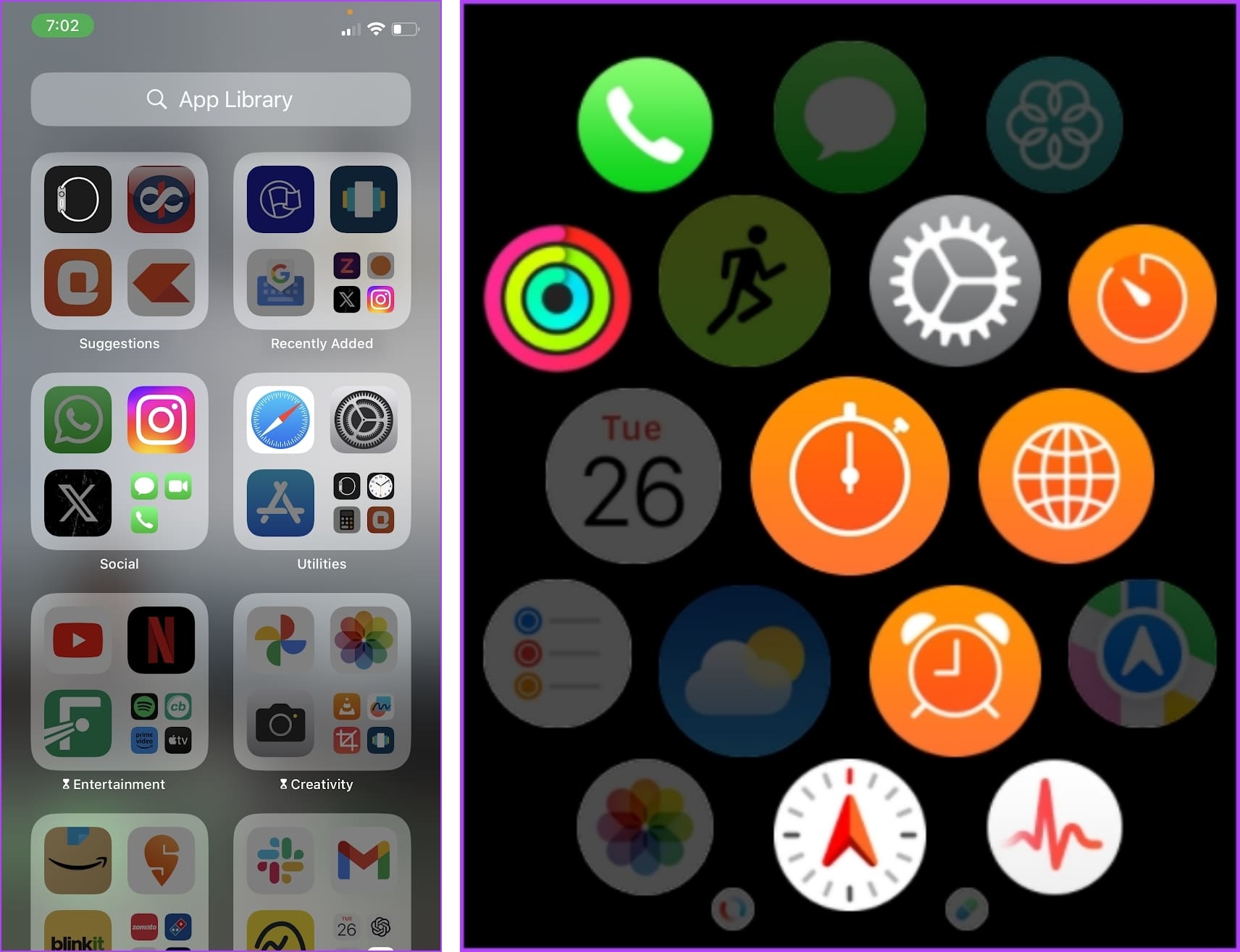
Downtime is a screen time restriction for your Apple devices, disabling all applications when enabled. Additionally, you can also set a Downtime schedule – for example, during the hours you sleep and it will be enabled automatically for the set timings.
Method 1: Turn Off Sync Across All Devices
As we mentioned earlier, you’d want Downtime enabled on your iPhone, not your Apple Watch. Here’s how to turn off the ‘Share Across Devices’ toggle and prevent the Downtime setting from enabling on your Apple Watch.
However, disabling this toggle will disable any Screen Time setting from syncing to your Apple Watch or any other device with the same Apple ID.
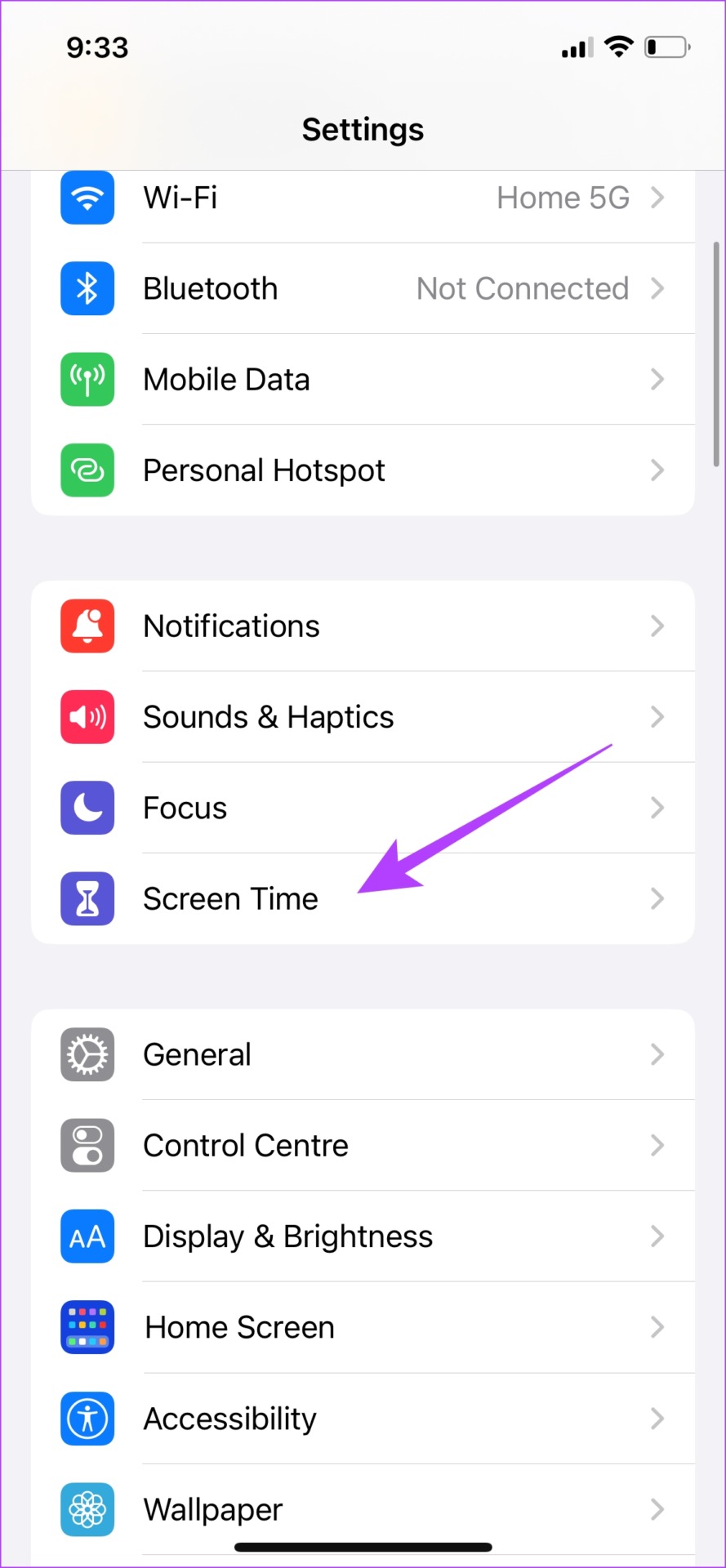
Step 1: Open the Settings app on your iPhone. Tap on Screen Time.
Step 2: Scroll down and turn off the toggle for Share Across Devices.

Also Read: How to set up parental controls on Mac
Method 2: Disable Downtime on Your iPhone Screen Time Settings
Additionally, you can also turn off Downtime entirely on your iPhone, and it will reflect the same on your Apple Watch by all means – even if the ‘Share Across Devices’ toggle is turned on. Here’s how to do it.
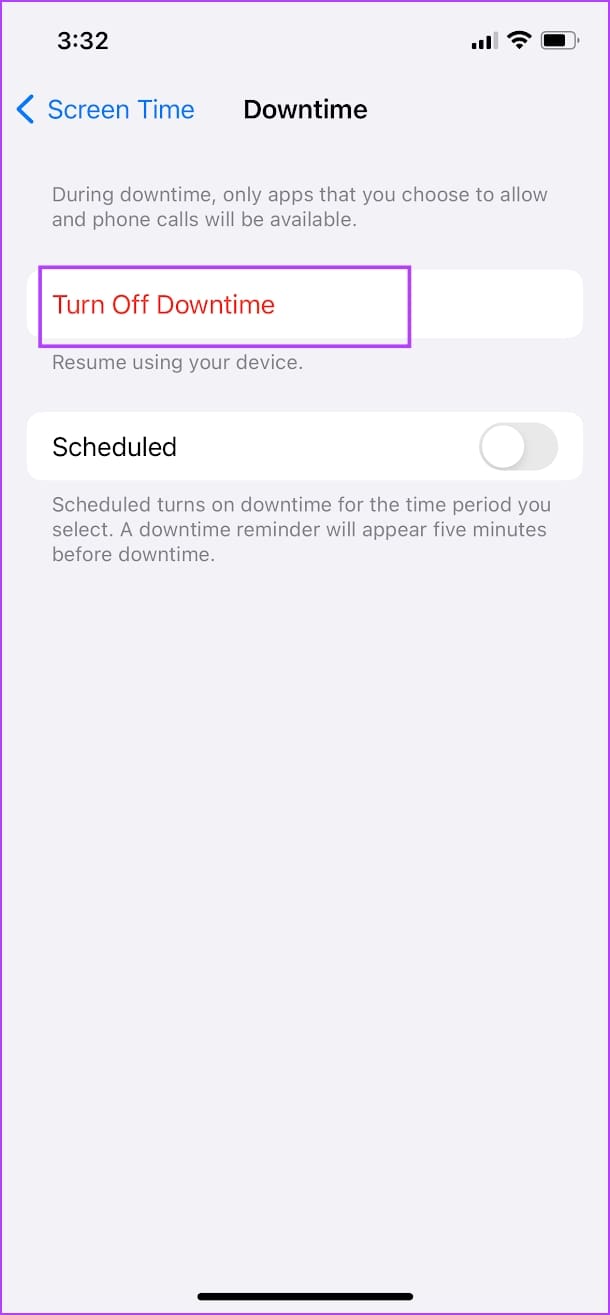
Step 1: Open Settings > Screen Time > Downtime.
Step 2: Tap on Turn Off Downtime or Ignore Downtime Until Schedule if you have enabled a Downtime schedule.
Step 3: Turn off the toggle for Schedule so that Downtime does not automatically start again.
Further, you can customize the Downtime schedule on your iPhone and modify the time interval. The changes will also be applied to your Apple Watch.


Method 3: Ask the Family Group Organizer to Change Downtime Settings
If your Screen Time settings are being controlled by a parent or another family member – you can ask them to modify the Downtime settings for your devices. They can disable Downtime, and you can use your Apple devices without a problem.
Was this helpful?
Last updated on 21 June, 2024
Read Next
 How to Change Apple Watch Face from iPhone or Watch
Traditional watches had the problem that you couldn't change their clock face.
How to Change Apple Watch Face from iPhone or Watch
Traditional watches had the problem that you couldn't change their clock face.
 How to Turn Off Read Receipts for Apple Watch Only
How Does Apple Watch Mark Texts as Read?
How to Turn Off Read Receipts for Apple Watch Only
How Does Apple Watch Mark Texts as Read?
 3 Ways to Fix Apple Watch Not Charging
Basic Fixes: Clean the rear surface of the Watch and charging puck: Dust and sweat can accumulate on your Apple Watch if worn daily.
3 Ways to Fix Apple Watch Not Charging
Basic Fixes: Clean the rear surface of the Watch and charging puck: Dust and sweat can accumulate on your Apple Watch if worn daily.
 4 Ways to Fix Apple Watch Not Showing or Getting Notifications
Basic Fixes Ensure the Apple Watch is connected to the iPhone: The Apple Watch uses Bluetooth, so it must be connected to your iPhone to receive notifications.
4 Ways to Fix Apple Watch Not Showing or Getting Notifications
Basic Fixes Ensure the Apple Watch is connected to the iPhone: The Apple Watch uses Bluetooth, so it must be connected to your iPhone to receive notifications.
 3 Ways to Make Your Apple Watch Vibrate for Notifications
Method 1: Set Apple Watch to Vibrate Only for Alarm and Notifications Here's how to make your Apple Watch vibrate to alert you of all the notifications.
3 Ways to Make Your Apple Watch Vibrate for Notifications
Method 1: Set Apple Watch to Vibrate Only for Alarm and Notifications Here's how to make your Apple Watch vibrate to alert you of all the notifications.
 3 Ways to Fix Apple Watch Crown Not Working
Before you begin, restart your Apple Watch and update it to the latest version of watchOS.
3 Ways to Fix Apple Watch Crown Not Working
Before you begin, restart your Apple Watch and update it to the latest version of watchOS.
 5 Ways to Fix Apple Watch Not Ringing for Incoming Calls
Basic Fixes Restart Apple Watch: Restarting your Apple Watch can get rid of any temporary bugs and glitches.
5 Ways to Fix Apple Watch Not Ringing for Incoming Calls
Basic Fixes Restart Apple Watch: Restarting your Apple Watch can get rid of any temporary bugs and glitches.
 3 Ways to Fix Alarm Not Going Off on Apple Watch
Basic Fixes Restart Apple Watch: Your watch may be experiencing a software issue, which might trigger the alarm, but there may not be any sound.
3 Ways to Fix Alarm Not Going Off on Apple Watch
Basic Fixes Restart Apple Watch: Your watch may be experiencing a software issue, which might trigger the alarm, but there may not be any sound.
The article above may contain affiliate links which help support Guiding Tech. The content remains unbiased and authentic and will never affect our editorial integrity.