Method 1: Upload to Google Keep Manually
This step is the simplest of all and you can easily transfer your notes to Google Keep. I hope you already have Google Keep installed on iPhone.
Step 1: Open Apple Notes > Tap the note you want to transfer > Share.
Step 2: Scroll a little to the left to find the Google Keep option.
As you would share a note with any other app, tapping on Google Keep here will create a Keep note with the exact title and description as your Apple Notes.
Step 3: Google Keep will ask you to choose an account (if you have more than one Google ID), change title or description, and most importantly, add a label so you can find the note later using the search feature. When you are done, tap on Post to save the note in Google Keep.
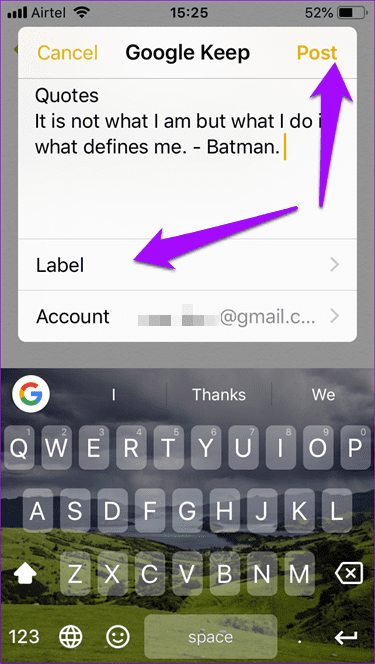

Do note that you cannot create new labels here and can only choose from existing options. Make sure to create new appropriate labels for your Apple Notes before you begin the transfer.
Method 2: Transfer to Google Keep via Gmail
At times, you just want to sync data between iPhone and Android, but neither Google nor Apple offers a nifty option for specific apps. Even the iPhone to Android switch app doesn’t copy those Notes to Keep. In this situation, if you have hundreds of thousands of Apple Notes, it can be difficult to share them all to Keep individually. That is where Gmail comes in.
Step 1: Open Settings > Notes.
Step 2: Tap on Accounts > Add Account > Choose Google and then enter your credentials.
Step 3: Once done, go back, and then tap on Gmail.
Step 4: Enable Notes to sync your data.


Step 5: Go back and then tap on Default Account > Choose Gmail.


Note that Apple Notes that are synced to Gmail, and not iCloud, will not appear here. It is also one-way sync so you can’t edit notes in Gmail and expect the changes to reflect in the Notes app on your iPhone. You can only view it. However, if you delete notes in Gmail, it will be deleted on your Phone too. That’s rather odd, isn’t it?
Tip: Check out our post if Google Keep keeps asking you fill image captcha.
Method 3: Manually Transfer From iCloud to Google Keep
The last method in the list is the iCloud method. Open Chrome or any browser on your PC and launch iCloud and Keep in two separate tabs or windows. You will now have to manually open each note in iCloud, copy its contents, and then create a new note in Keep to paste the same. You can then add labels, color code them, and add additional info if you want.
Tip: Refer to our post if Google Keep is not syncing on iPhone.
Was this helpful?
Last updated on 13 August, 2024
Read Next
 How to Transfer Google Keep Notes to Another Account
Method 1: Send to Another Google Account On Google Keep's mobile apps, you get the option to share individual notes across different apps.
How to Transfer Google Keep Notes to Another Account
Method 1: Send to Another Google Account On Google Keep's mobile apps, you get the option to share individual notes across different apps.
 How to Transfer Samsung Notes to Google Keep
There’s a constant battle going on between Samsung and Google apps.
How to Transfer Samsung Notes to Google Keep
There’s a constant battle going on between Samsung and Google apps.
 2 Best Ways to Transfer Samsung Notes to iPhone
It’s quite easy to transfer data such as photos, contacts, music, documents, etc., from Android phones, including Samsung Galaxy phones, to iPhone.
2 Best Ways to Transfer Samsung Notes to iPhone
It’s quite easy to transfer data such as photos, contacts, music, documents, etc., from Android phones, including Samsung Galaxy phones, to iPhone.
 Moving from Evernote to Google Keep Notes and Docs: My Experience
Last month, I wrote a detailed post explaining why I moved all my data and files from Dropbox to Google Drive.
Moving from Evernote to Google Keep Notes and Docs: My Experience
Last month, I wrote a detailed post explaining why I moved all my data and files from Dropbox to Google Drive.
 3 Ways to Access Google Keep Notes on Windows 11
Method 1: Access Google Keep Notes on the Web Google Keep lets you create, sync, and access notes across multiple devices.
3 Ways to Access Google Keep Notes on Windows 11
Method 1: Access Google Keep Notes on the Web Google Keep lets you create, sync, and access notes across multiple devices.
 How to Organize Your Notes in Google Keep
Method 1: Use Labels to Group Notes Google Keep lacks hierarchy, as it doesn’t support folders and subfolders.
How to Organize Your Notes in Google Keep
Method 1: Use Labels to Group Notes Google Keep lacks hierarchy, as it doesn’t support folders and subfolders.
 How to Transfer Notes to a New Phone
Transferring notes from an Android phone to another Android phone depends on the note-taking app you are using.
How to Transfer Notes to a New Phone
Transferring notes from an Android phone to another Android phone depends on the note-taking app you are using.
 How to Transfer Notes From Mac to Mac
Method 1.
How to Transfer Notes From Mac to Mac
Method 1.
The article above may contain affiliate links which help support Guiding Tech. The content remains unbiased and authentic and will never affect our editorial integrity.