Touchpads are a convenient and vital replacement for the mouse on laptops and notebooks. If, however, you’ve got your touchpad left and right clicks acting the same, then your whole way of interacting is severely hampered. In this article, we’ll be taking a look at how to fix this issue.
One Touchpad, Different Functions
A touchpad can register different actions depending on where and how you interact with it. While it may not have physical left and right buttons to click, tapping on either side of the touchpad registers as either a left click, right click, or gesture, depending on the action and number of fingers involved.
If this isn’t working properly, then you have a problem with touchpad settings, mapping, or driver issues. Let’s take a look at some fixes.
Solutions for Touchpad Left and Right Clicks Acting the Same
If you’re not getting the right result from your taps, then try the troubleshooters below:
Disable Two-Finger Tapping
On many laptops, right-click is also activated by a two-finger tap anywhere on the touchpad. Sometimes, a sensitive touchpad makes a mistake: a light brush of a second finger for that tap, giving you a right-click instead of your intended left-click. Try disabling this setting and see if it helps:
Step 1. Open “Settings” (Win + I) and click “Bluetooth & devices” from the side panel.
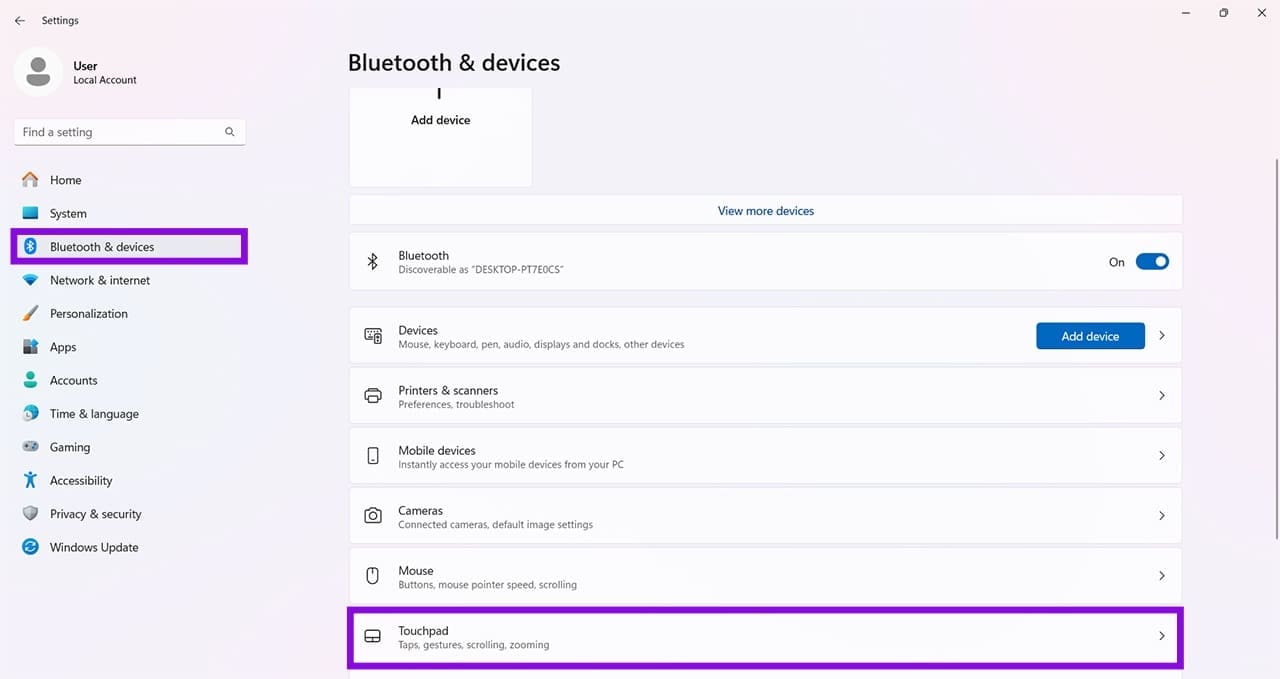
Step 2. In the main window, click “Touchpad.”
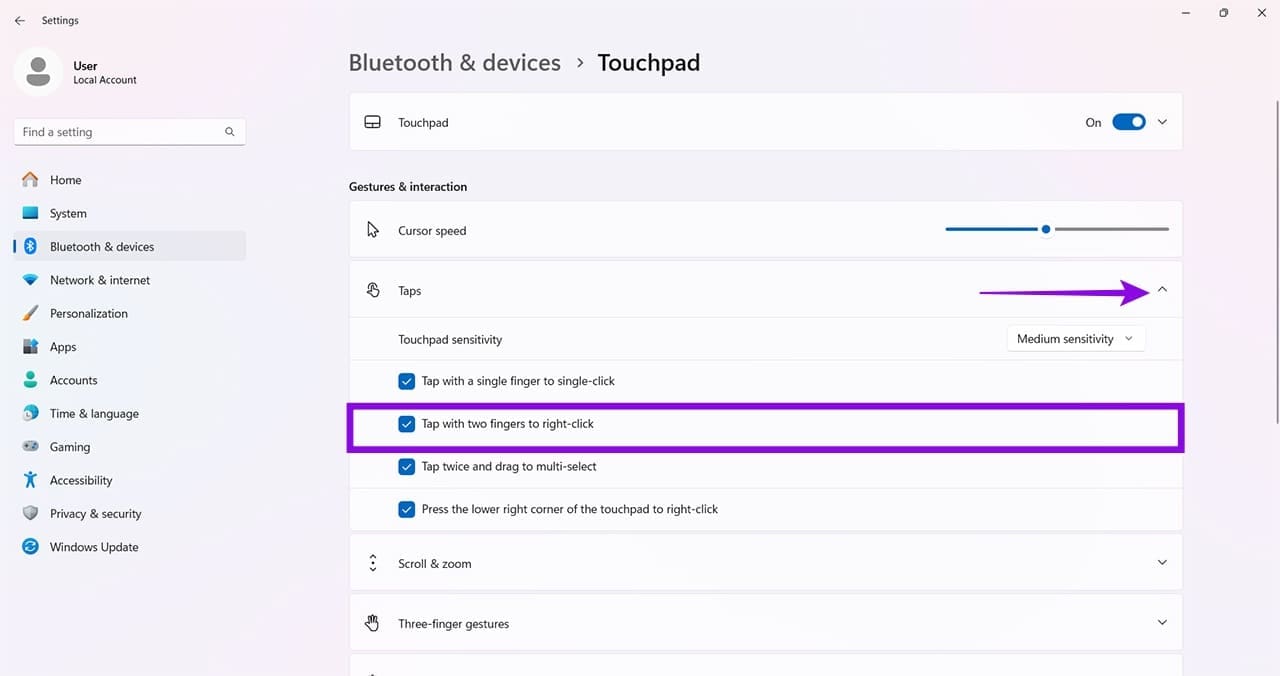
Step 3. Select “Taps” and, in the options that appear below, uncheck “Tap with two fingers to right-click.”
Increase the Size of the Right-Click Zone
If you’ve got your laptop touchpad right-click not working, it might be that your touchpad has such a small right-click zone that it hardly registers when you tap it. You can edit this through Windows Settings, provided you have Windows update KB5095093 installed. Here’s how:
Step 1. Open “Settings” (Win + I) and click “Bluetooth & devices.”
Step 2. Click “Touchpad.”
Step 3. Select “Taps” to expand it and then, next to “Right-click zone size,” choose “Default,” “Small,” “Medium,” or “Large.”
Step 4. Try your left and right-clicks again.
Change Zone Size via the Registry
If you’re feeling adventurous, you can also change the size via the Registry. Just be careful not to change anything else, as it might cause system instability:
Step 1. Open the Run dialog (Win + R) and type “regedit.msc” before hitting (Ctrl + Shift + Enter) to run as Admin.
Step 2. In the Registry, navigate to “HKEY_CURRENT_USER\Software\Microsoft\Windows\CurrentVersion\PrecisionTouchPad” in the Address Bar.
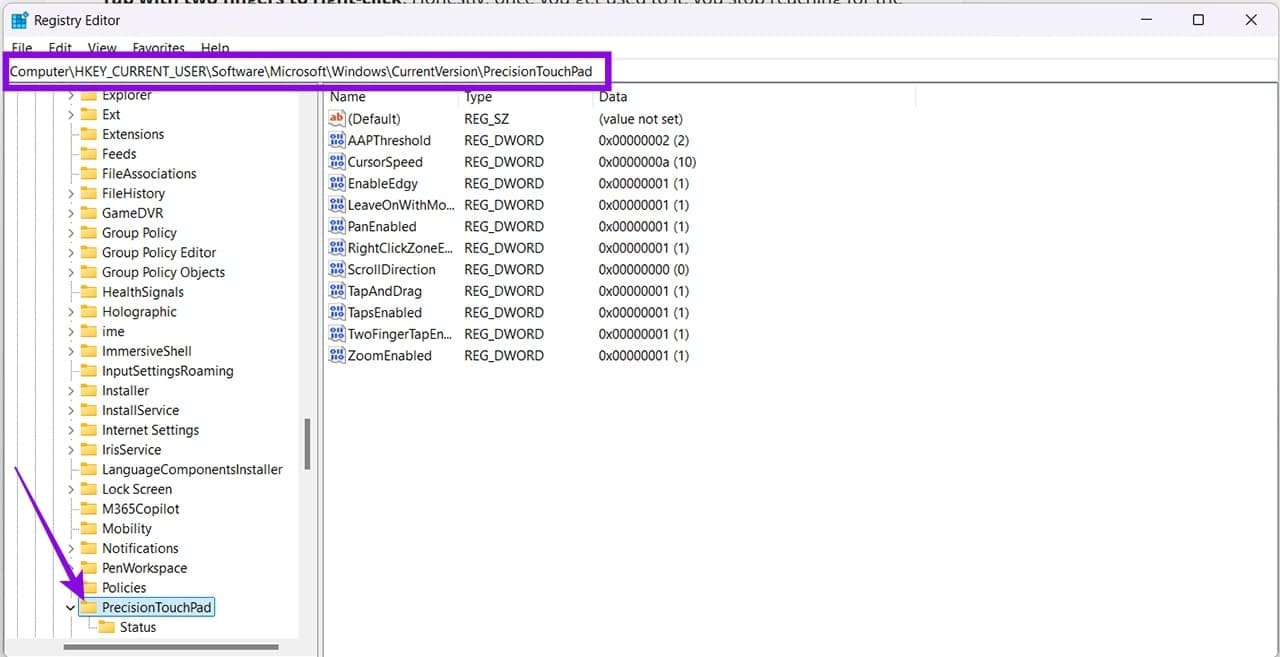
Step 3. Right-click the main window and select “New” and “DWORD (32-bit) Value.”
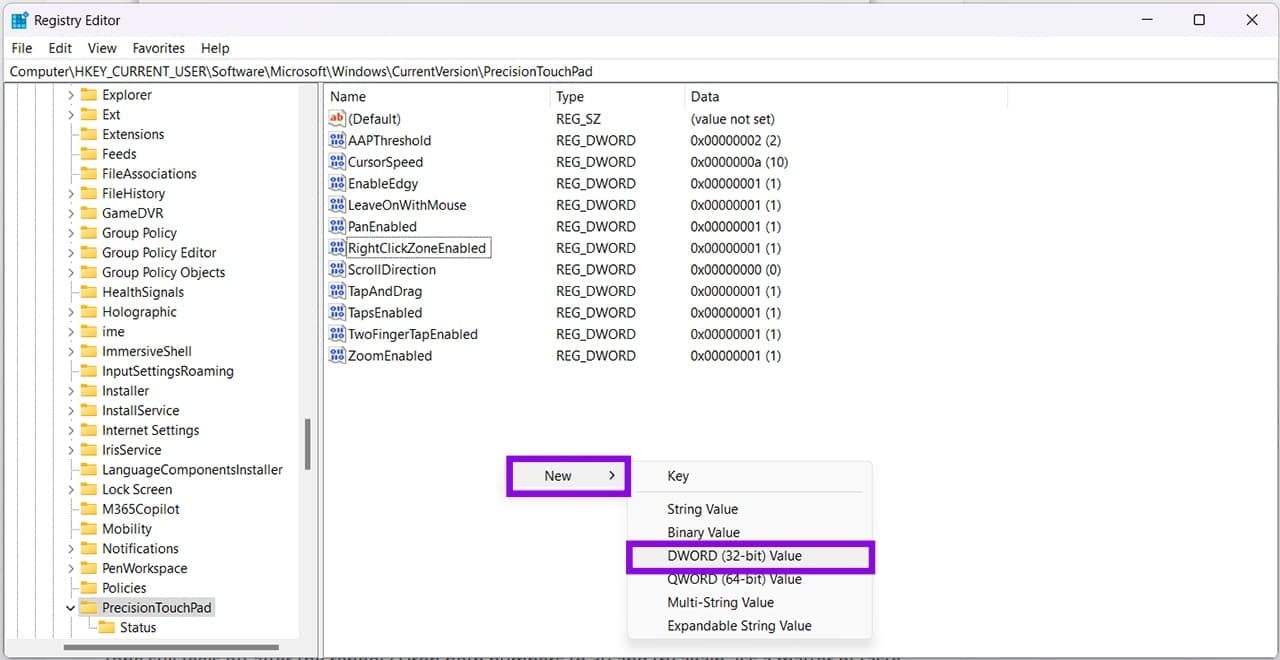
Step 4. Name the new entry “RightClickZoneWidth” and create a second named “RightClickZoneHeight.”
Step 5. Double-click each entry, set the “Base” to “Decimal,” and enter a value between 0 and 100, which represents the percentage of the touchpad you want to dedicate to the right-click zone.
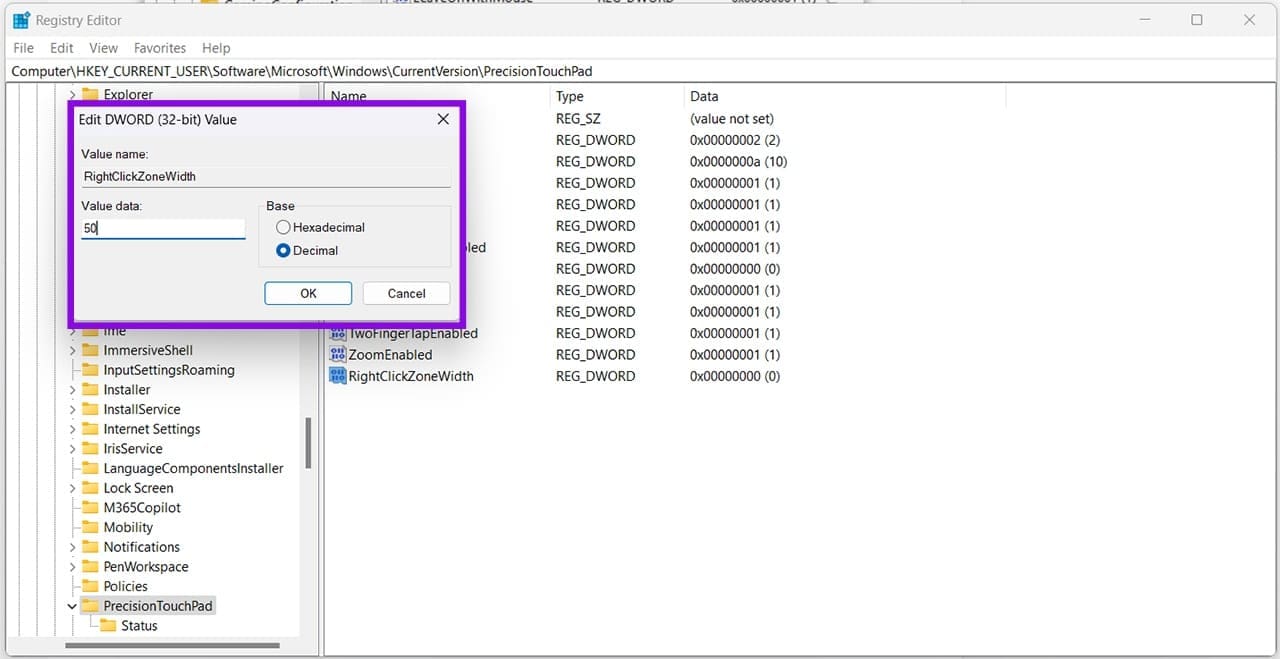
Step 6. Click “OK” and restart Windows before testing the new setting.
Reset the Touchpad Driver
If you’re still not having luck, you can try resetting the touchpad driver itself. Here’s how:
Step 1. Open the Run dialog (Win + R) and type “devmgmt.msc” before hitting “Enter.”
Step 2. Navigate to “Human Interface Devices” and look for your touchpad.

Step 3. Right-click the touchpad and choose “Uninstall device.”
Step 4. Once the driver is uninstalled, click “Action” and “Scan for hardware changes.”
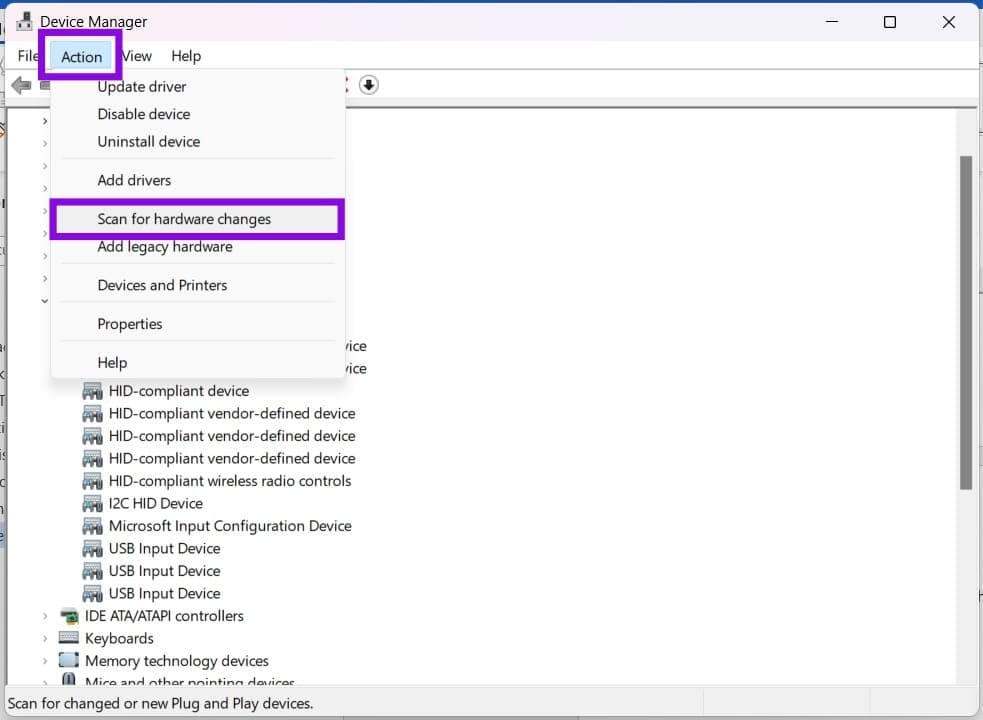
Step 5. Restart your PC, and the driver should reinstall.
Was this helpful?
Last updated on 20 August, 2026
Read Next
 7 Best Fixes for Game Controller Acting Like a Mouse on Windows 11
Fix 1.
7 Best Fixes for Game Controller Acting Like a Mouse on Windows 11
Fix 1.
 How to Fix Synaptics TouchPad Settings Missing in Windows
If you use a Windows-based laptop, there’s a good chance your laptop uses Synaptics TouchPad — the reason you are here too.
How to Fix Synaptics TouchPad Settings Missing in Windows
If you use a Windows-based laptop, there’s a good chance your laptop uses Synaptics TouchPad — the reason you are here too.
 Top 9 Ways to Fix Touchpad Gestures Not Working in Windows 10
Windows 10 supports various touchpad (trackpad) gestures.
Top 9 Ways to Fix Touchpad Gestures Not Working in Windows 10
Windows 10 supports various touchpad (trackpad) gestures.
 4 Ways to Fix Touchpad Not Working on Windows 11
Fix 1: Run the Hardware and Devices Troubleshooter Windows offers several troubleshooters for diagnosing and fixing common issues with your system.
4 Ways to Fix Touchpad Not Working on Windows 11
Fix 1: Run the Hardware and Devices Troubleshooter Windows offers several troubleshooters for diagnosing and fixing common issues with your system.
 5 Ways to Fix Touchpad Gestures Not Working on Windows 11
Fix 1: Enable Touchpad Gestures The first thing you need to do is review the touchpad settings on your PC and ensure that gesture controls are enabled.
5 Ways to Fix Touchpad Gestures Not Working on Windows 11
Fix 1: Enable Touchpad Gestures The first thing you need to do is review the touchpad settings on your PC and ensure that gesture controls are enabled.
 4 Ways to Disable Touchpad on Windows 11 Laptops
Method 1: Disable Touchpad From Settings The Windows 11 Settings app offers nifty features for modifying touchpad gestures, sensitivity, cursor, and more.
4 Ways to Disable Touchpad on Windows 11 Laptops
Method 1: Disable Touchpad From Settings The Windows 11 Settings app offers nifty features for modifying touchpad gestures, sensitivity, cursor, and more.
 3 Ways to Increase or Decrease Touchpad Sensitivity on Windows 11 Laptops
Method 1: Increase or Decrease Touchpad Sensitivity via the Settings App The Settings app in Windows makes it simple to adjust touchpad-related settings on your laptop.
3 Ways to Increase or Decrease Touchpad Sensitivity on Windows 11 Laptops
Method 1: Increase or Decrease Touchpad Sensitivity via the Settings App The Settings app in Windows makes it simple to adjust touchpad-related settings on your laptop.
 4 Ways to Fix Device Manager Not Opening on Windows
Fix 1: Open Device Manager With Admin Rights To start, you can try opening Device Manager with admin rights on Windows and see if it works.
4 Ways to Fix Device Manager Not Opening on Windows
Fix 1: Open Device Manager With Admin Rights To start, you can try opening Device Manager with admin rights on Windows and see if it works.
The article above may contain affiliate links which help support Guiding Tech. The content remains unbiased and authentic and will never affect our editorial integrity.