


Method 1: Add Contact to Favorites
Your Android phone lets you create and manage a list of your favorite contacts so that you can contact them quickly without shuffling through the address book. You can add contacts to this list and call them directly.
Note: While the screenshots have been taken from a Samsung phone, the features of the contact book or address book remain nearly the same on all Android phones with custom skins.
Step 1: Open the Phone app > navigate to the Contacts tab. Locate the contact you wish to add as a favorite using the search tool. Once located, just tap on the contact name to view its info.


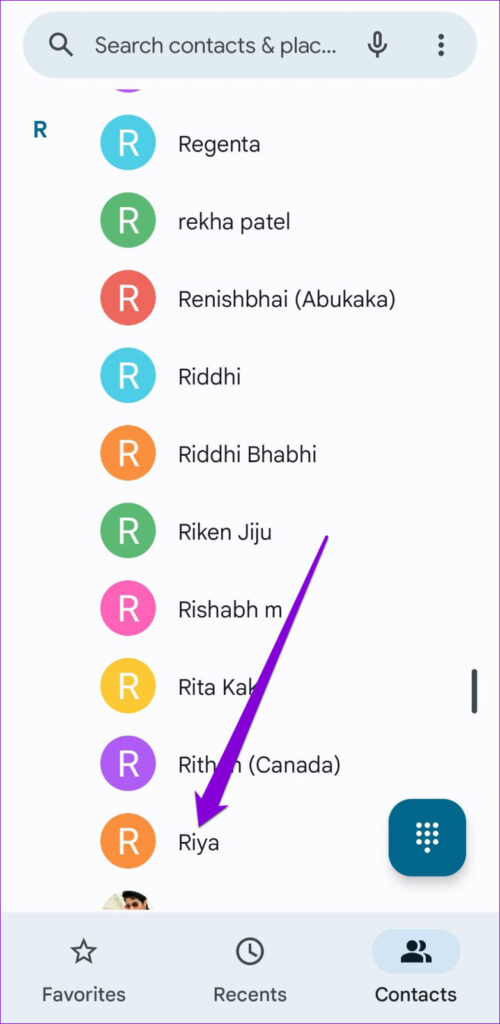
Step 2: Now, tap on the star icon at the bottom left corner to add the contact to Favorites.
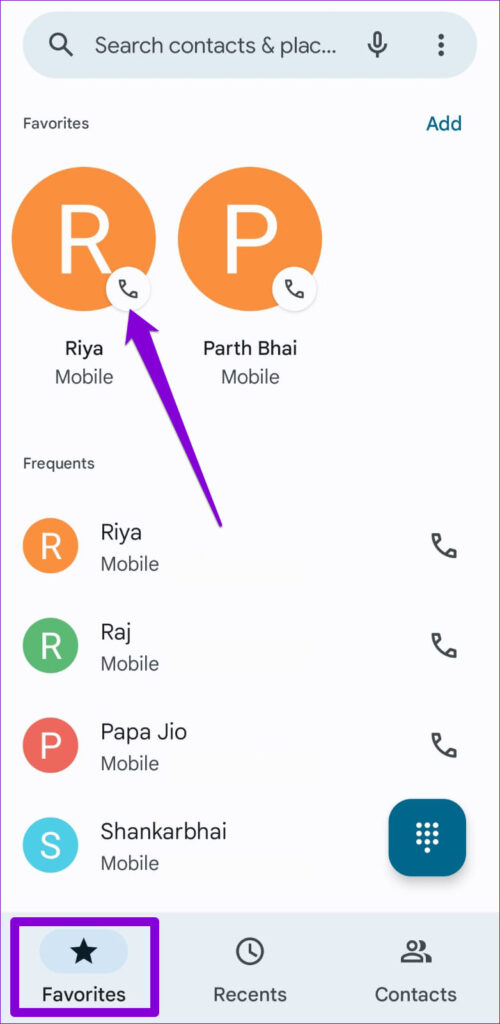
Once added, your contact will show up in the Favorites tab in the Phone app. You can now tap on the contact’s name to place a call directly.

Method 2: Add Contact Widget to Home Screen
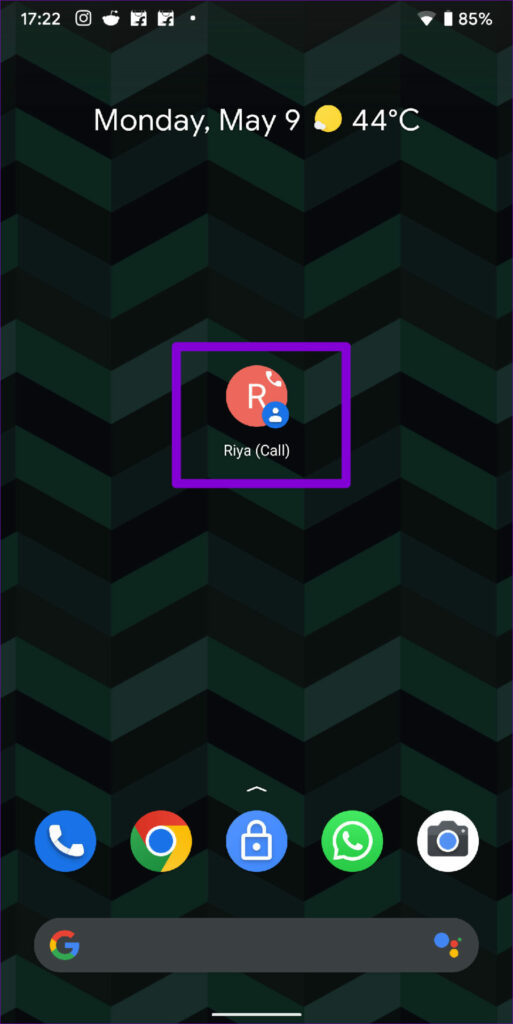
If you set up the speed dial for someone who isn’t comfortable with smartphones or an elderly grandparent, you might want to add contacts directly on the phone’s Home Screen. For this, use the Direct dial widget on Android and add the favorite person’s contact to the Home Screen. Here’s how.
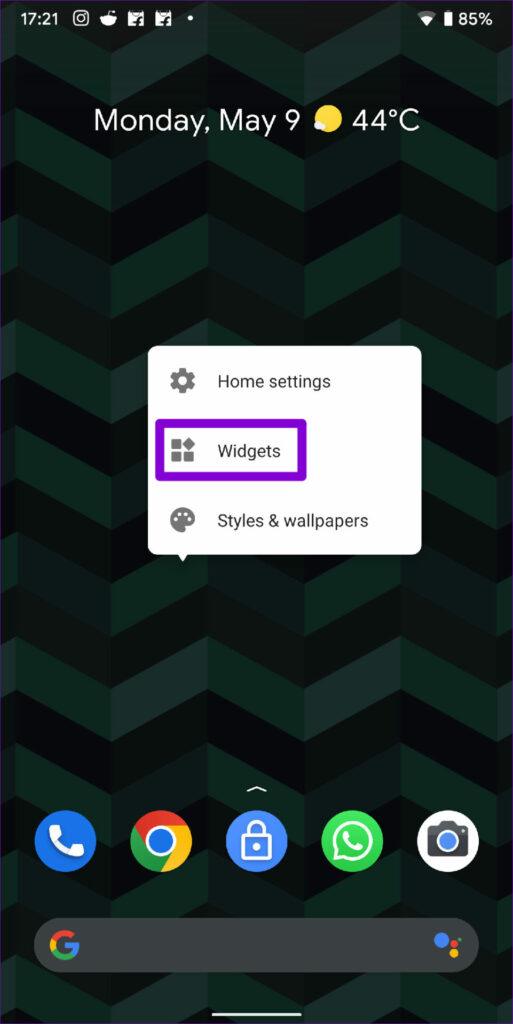
Step 1: Tap and hold anywhere on a space on the Home Screen and select Widgets from the menu.
Step 2: Scroll through the list to find the Direct dial widget under Contacts. Tap and hold the widget to place it on the Home Screen.


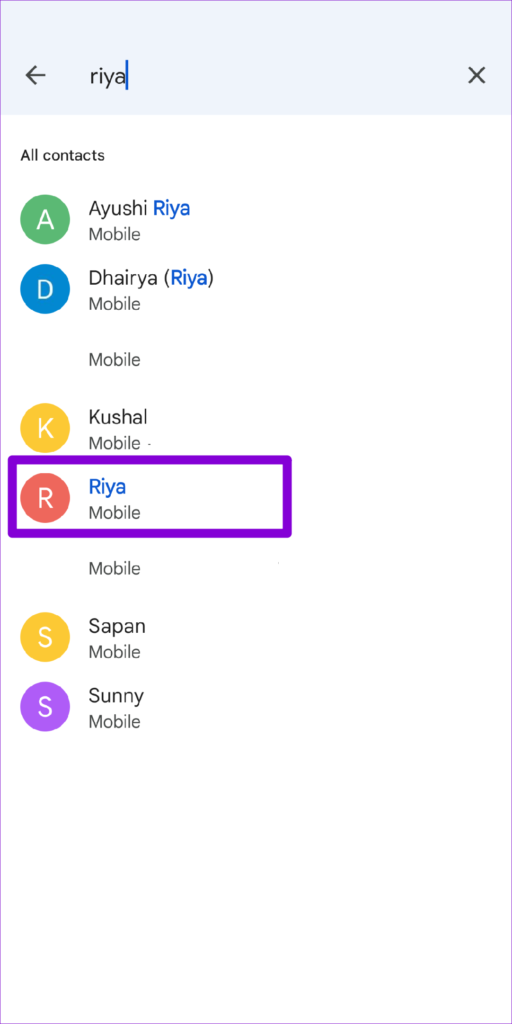
Step 2: Now, the widget will ask you to pick a contact for the direct dial widget. Scroll through the list and select the contact.
Step 3: The selected contact should reflect in the widget. You can now tap the widget to call the person.
Similarly, you can follow the steps above to set up a direct dial widget for other contacts.

Method 3: Set Speed Dial Number in the Phone App (Samsung Galaxy Phones)
Unlike other Android smartphones, the Phone app on the Samsung Galaxy phone carries a handy speed dial feature. Here’s how to use it to set up speed dial for your favorite contacts.
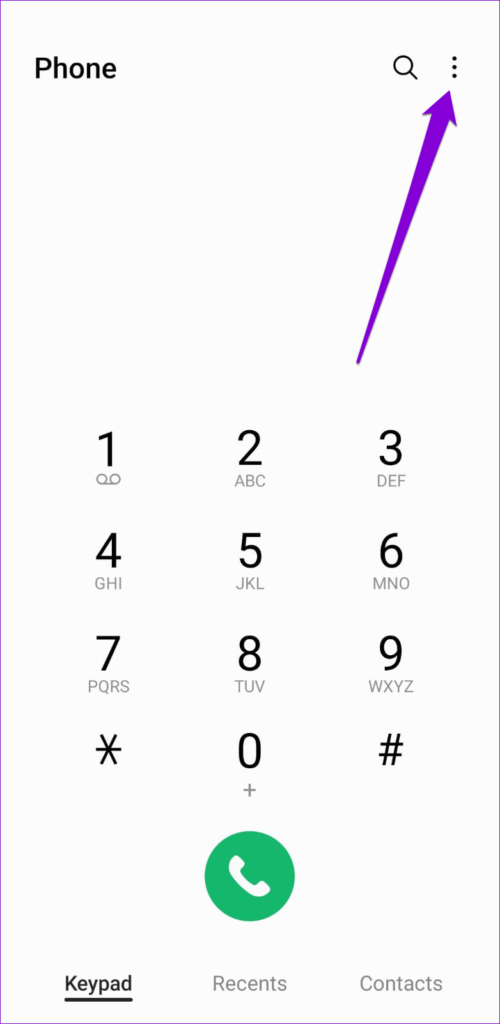
Step 1: Open the Phone app on your Samsung Galaxy phone and tap the three-dot menu icon at the top right corner.
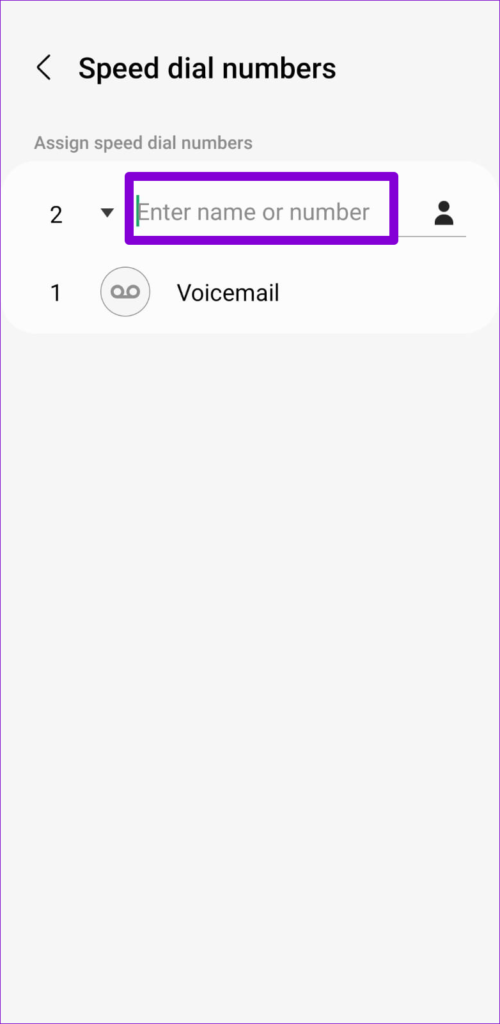
Step 2: Select Speed dial numbers. Now, use the drop-down menu to select a number for the contact.


Step 3: Next, type the name or phone number of the contact you wish to set up speed dial for.
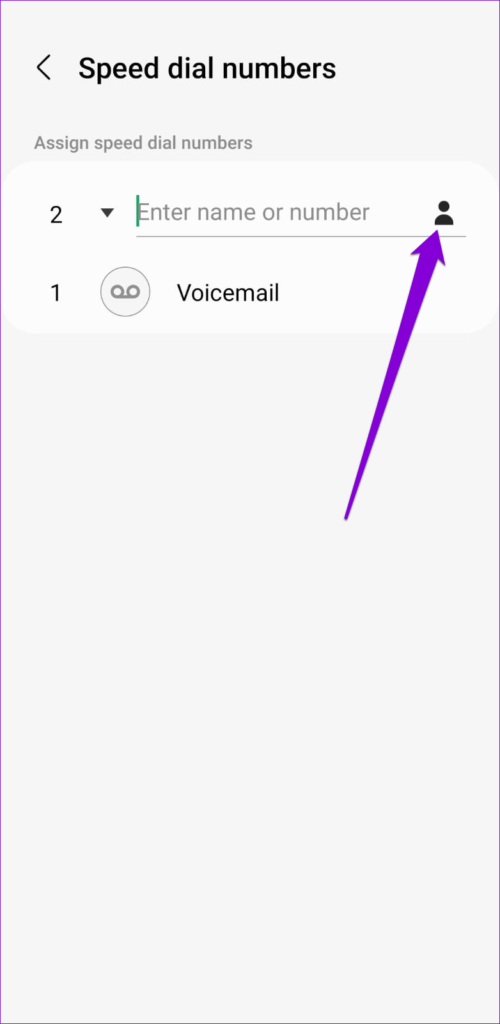
Alternatively, tap the contacts icon > select a number from your contact list.

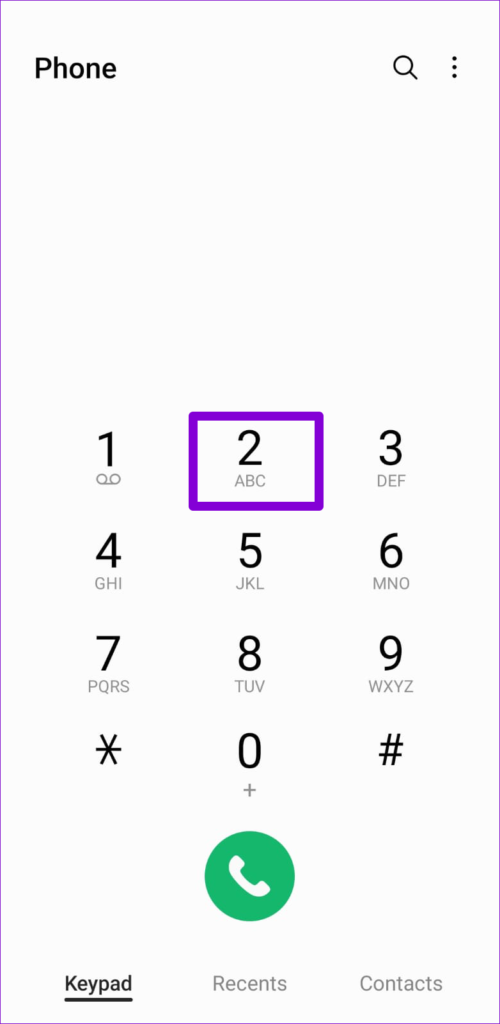
Step 4: After selecting it, the app will add the contact to the speed dial numbers. Long-press the assigned speed dial number on the keypad to place a call quickly.

Method 4: Use Google Assistant
The virtual assistant on your Android phone can also help you dial a number quickly. And the best part is that you don’t need to set up speed dial for each contact.
However, to place a call by voice command, you must ensure that you’ve enabled Google Assistant on your phone.
Enable Google Assitant
Step 1: Open the Google app on your phone > tap on your profile picture at the top right corner > select Settings.
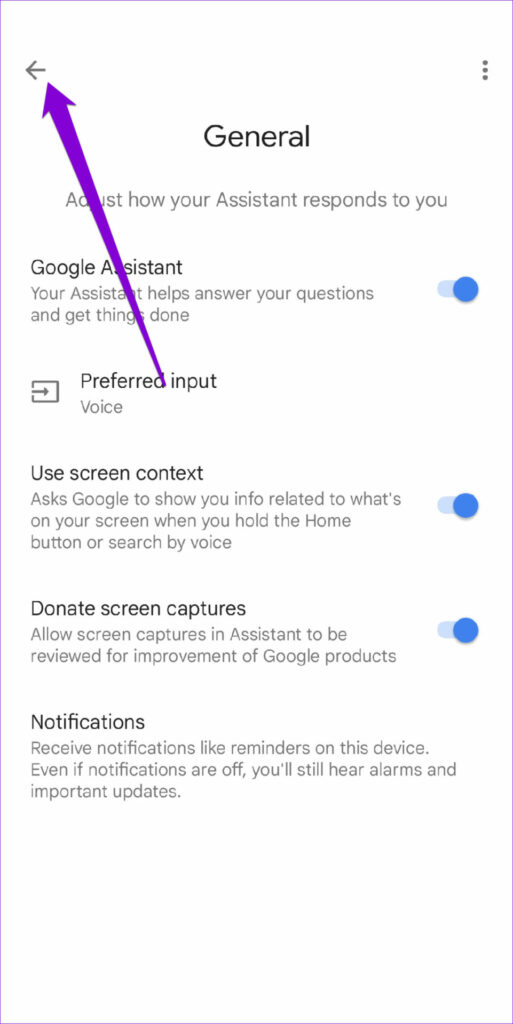
Step 2: Here, tap on Google Assistant > scroll down and tap on General > enable the toggle for Google Assistant.


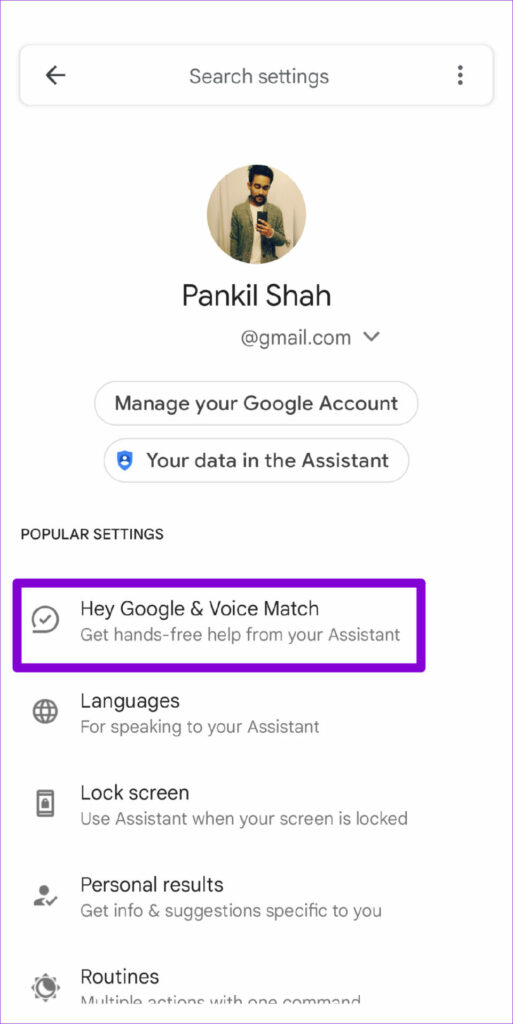
Step 3: Once done, return to the Google Assistant settings page and tap on Hey Google & Voice Match.
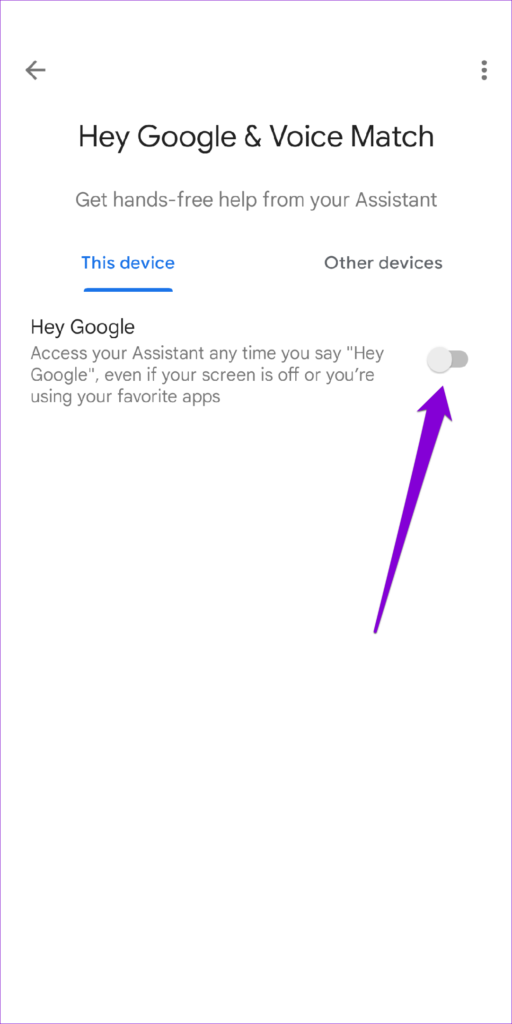
Step 4: Here, enable the toggle for Hey Google. And you’re all set. You can ask Google Assistant to call someone for you.
Use Google Assistant to Make a Phone Call
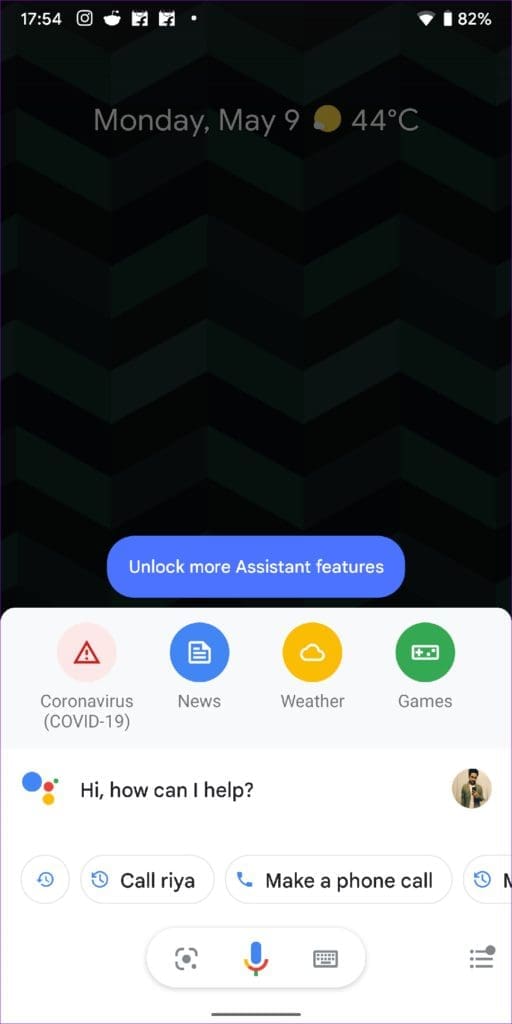
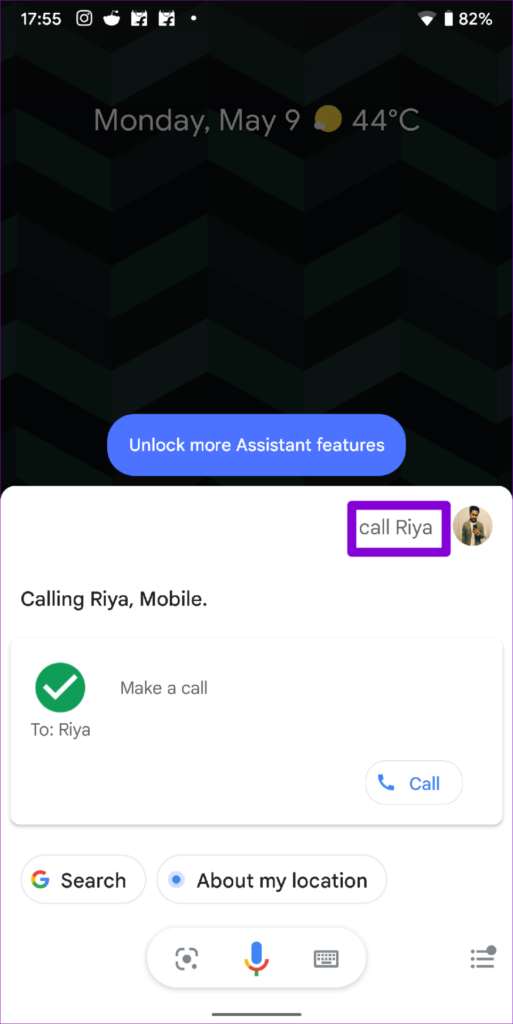
You can summon the Google Assistant with ‘Hey Google’ or ‘OK Google’ wake words. When Google Assistant shows up, speak to it like ‘Call [contant name].’ Google Assistant will call the number associated with the contact name.
Was this helpful?
Last updated on 03 June, 2024
1 Comment
Leave a Reply
Read Next
 4 Ways to Fix Android Phone Hangs up as Soon as I Dial
Basic Fixes: Enable and disable Airplane mode: You can reset your Android phone's network connection using the Airplane mode.
4 Ways to Fix Android Phone Hangs up as Soon as I Dial
Basic Fixes: Enable and disable Airplane mode: You can reset your Android phone's network connection using the Airplane mode.
 How to Dial an Extension on iPhone and Android
How to Call With an Extension on iPhone Directly If you have an iPhone, here's how to call with an extension before you dial a number.
How to Dial an Extension on iPhone and Android
How to Call With an Extension on iPhone Directly If you have an iPhone, here's how to call with an extension before you dial a number.
 How to Setup and Use FTP Server on Android
There are many ways to transfer data from your Android device to PC.
How to Setup and Use FTP Server on Android
There are many ways to transfer data from your Android device to PC.
 How to Change Speed of Audio Playback on Android Devices
The default audio players on Android smartphones cannot change the audio speed or playback.
How to Change Speed of Audio Playback on Android Devices
The default audio players on Android smartphones cannot change the audio speed or playback.
 4 Fixes for Speedometer or Speed Limits Not Showing in Google Maps on Android
Common Fixes Check feature availability - Speedometer or Speed limits may be unavailable in your region.
4 Fixes for Speedometer or Speed Limits Not Showing in Google Maps on Android
Common Fixes Check feature availability - Speedometer or Speed limits may be unavailable in your region.
 9 Ways to Speed up Your Samsung Galaxy Device
https://youtu.be/6sHcGR01Qgo Basic Ways: Install the latest software updates: Outdated software can slow phones over time.
9 Ways to Speed up Your Samsung Galaxy Device
https://youtu.be/6sHcGR01Qgo Basic Ways: Install the latest software updates: Outdated software can slow phones over time.
 Top 15 Ways to Fix Amazon Echo and Alexa Setup Problems
If you've landed on this page, it means that the Amazon Echo setup process is giving you a hard time too.
Top 15 Ways to Fix Amazon Echo and Alexa Setup Problems
If you've landed on this page, it means that the Amazon Echo setup process is giving you a hard time too.
 2 Ways to Access the Page Setup Dialog Box in Microsoft Word
Method 1: Using the Microsoft Word Ruler The Microsoft Word ruler has several uses, including quickly accessing the Page Setup dialog box. Here's how: Step 1: Click the Start button
2 Ways to Access the Page Setup Dialog Box in Microsoft Word
Method 1: Using the Microsoft Word Ruler The Microsoft Word ruler has several uses, including quickly accessing the Page Setup dialog box. Here's how: Step 1: Click the Start button
The article above may contain affiliate links which help support Guiding Tech. The content remains unbiased and authentic and will never affect our editorial integrity.

Thank you for your tips on real speed-dial alternatives for Android phones. Three-button pushes (using favorites) is better than nothing. Single-digit speed dials (like Samsung Galaxy LG and Huawei Mate X phones have had for years) can be very important for some phone users (elderly, recovering from a stroke, etc) The feature really should become part of Android’s standard dialer. So I continue to seek an alternative to the entire phone dialer app that Google provides in Android as I need this “one-button” speed-dial capability for a disabled sibling.