


Method 1: Use Shortcuts to Create Collage Photos
Step 1: Open the Shortcuts app on your iPhone. Go to the Gallery tab and search for the Photo Grid shortcut.
Step 2: Tap the + icon to add it to the Shortcuts menu. Open the Shortcuts tab at the bottom and select Photo Grid.


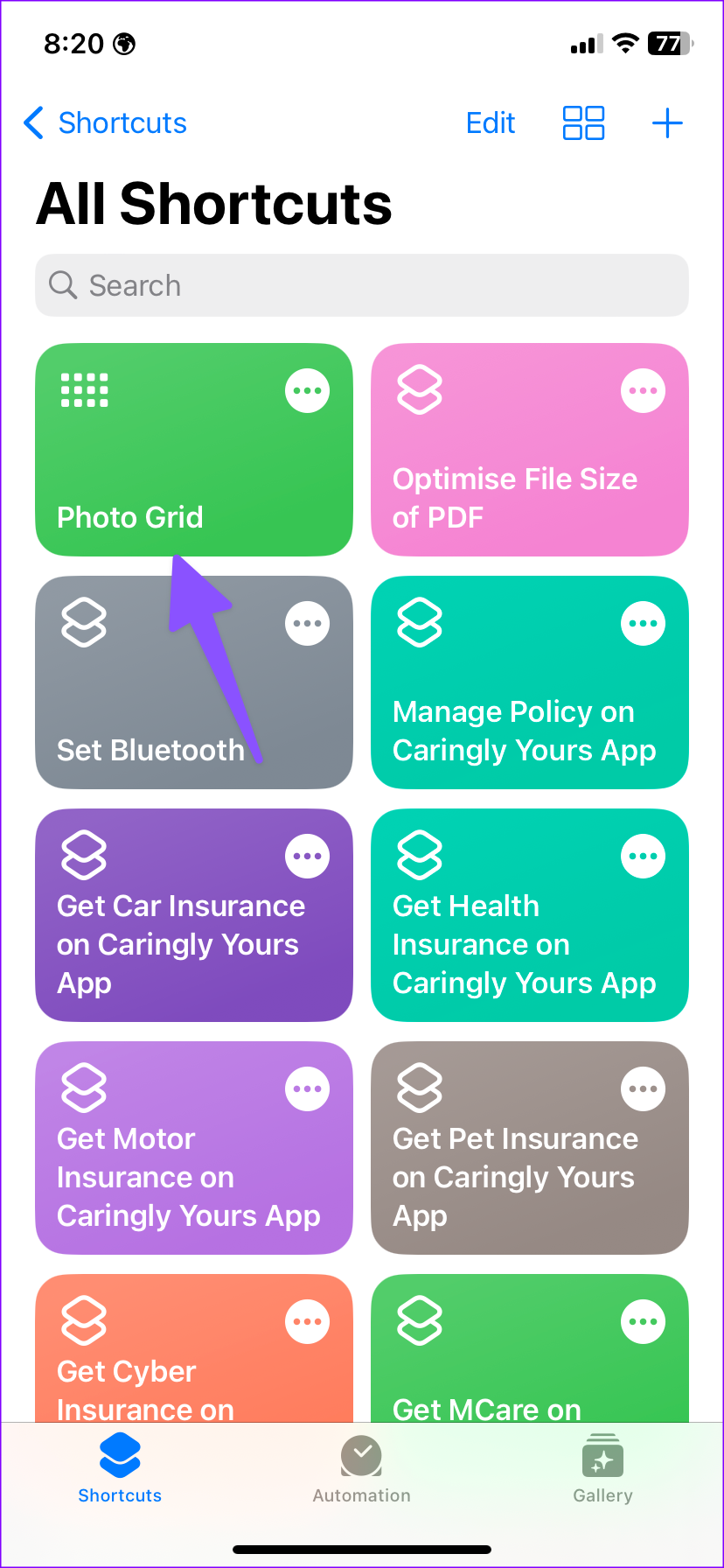
Step 3: Select photos from the following menu and tap on Add.
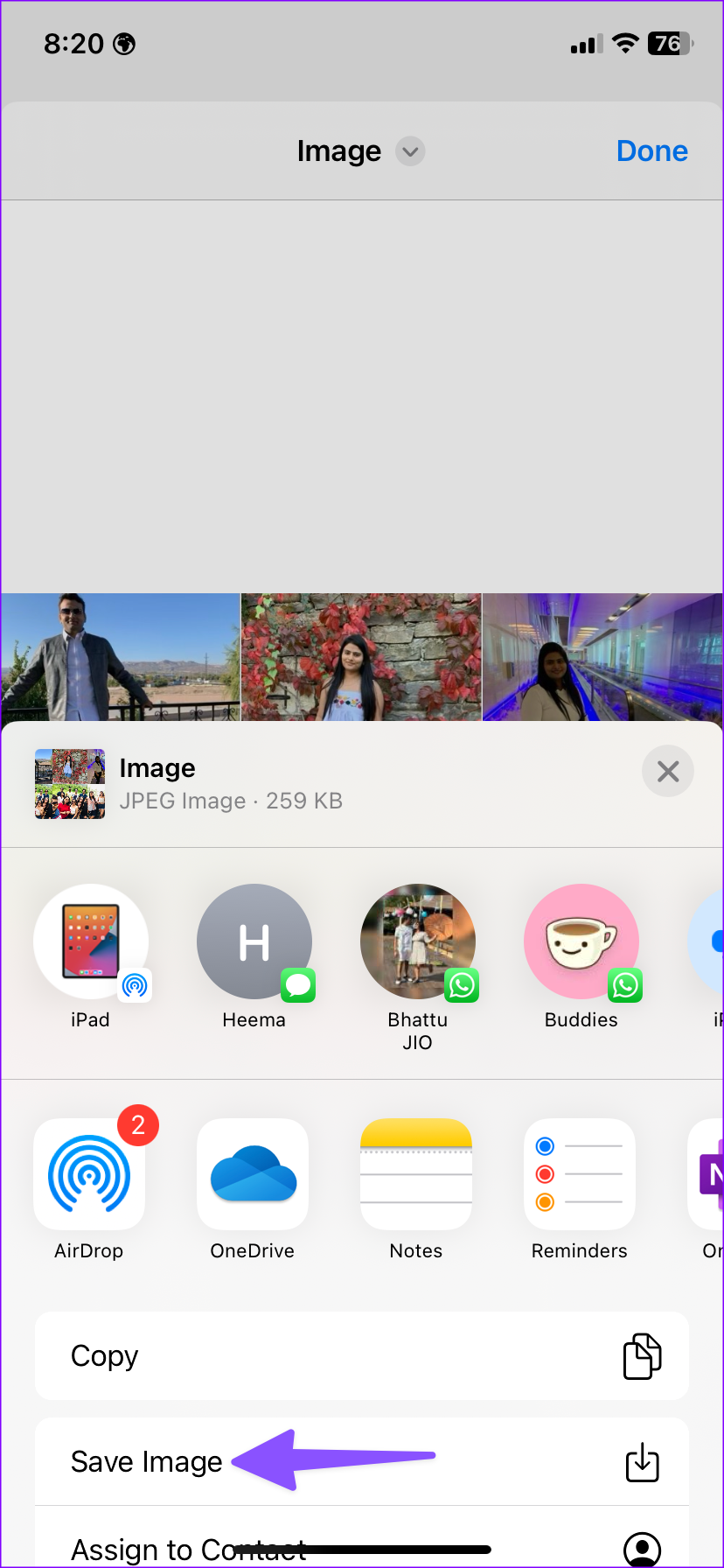
Step 4: Shortcuts will create a collage. Tap Done. Select the share menu at the bottom left corner and select Save Image.


Also Read: How to put two photos side by side on iPhone
Method 2: Use Google Photos
Google has massively improved the collage maker in the Google Photos app. Follow the steps below to make a trendy photo collage quickly.
Step 1: Download the Google Photos app from the App Store.
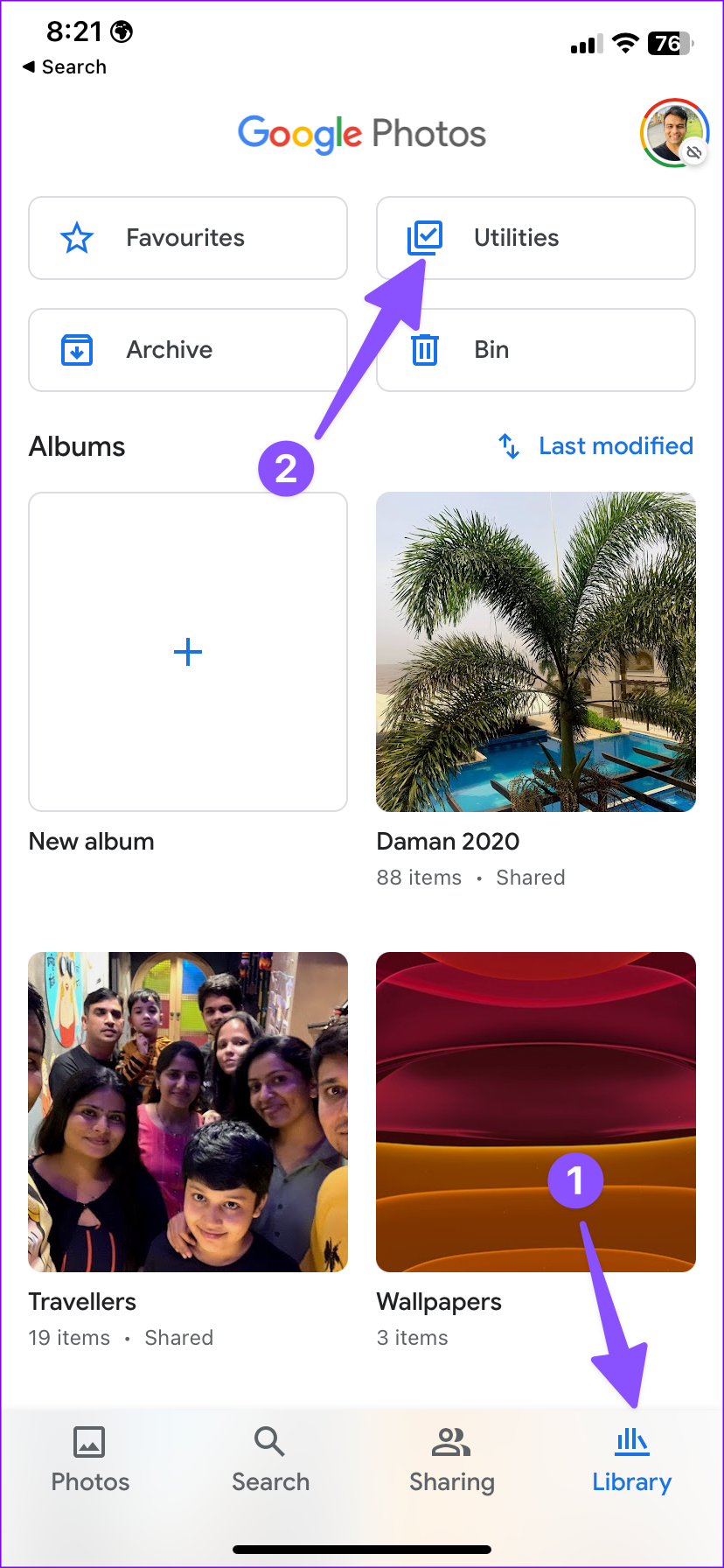
Step 2: Go to the Library menu. Select Utilities at the top. Scroll down and tap on Collage.
Step 3: You can select a minimum of two or a maximum of nine images. Tap on Save once done.
In Google Photos, you can choose from several layouts and ready-to-use collage styles. Some styles require a Google One subscription.


Method 3: Use Canva
Canva offers thousands of templates, a feature-rich editor, and cross-platform availability.
Step 1: Install Canva from the App Store, open the app, and sign in or sign up with your credentials.
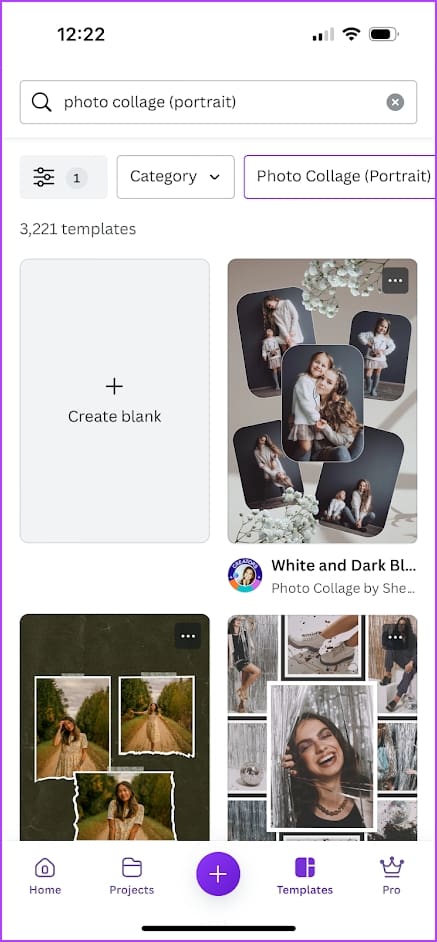
Step 2: From the top menu, scroll horizontally and tap on More. From the Try Something New menu, select Photo Collage.
Step 3: You can create a blank collage, or select and customize a template. If you pick the latter, you can replace the images in the template, re-arrange them, and add other effects and features.
Tap on the Download icon at the top right once the collage is complete.


Method 4: Use Layout From Instagram
Do you frequently share your photo collages on Instagram? Look no further; use the Layout app to create mesmerizing collages on your iPhone.
Step 1: Download the Layout app from the App Store.
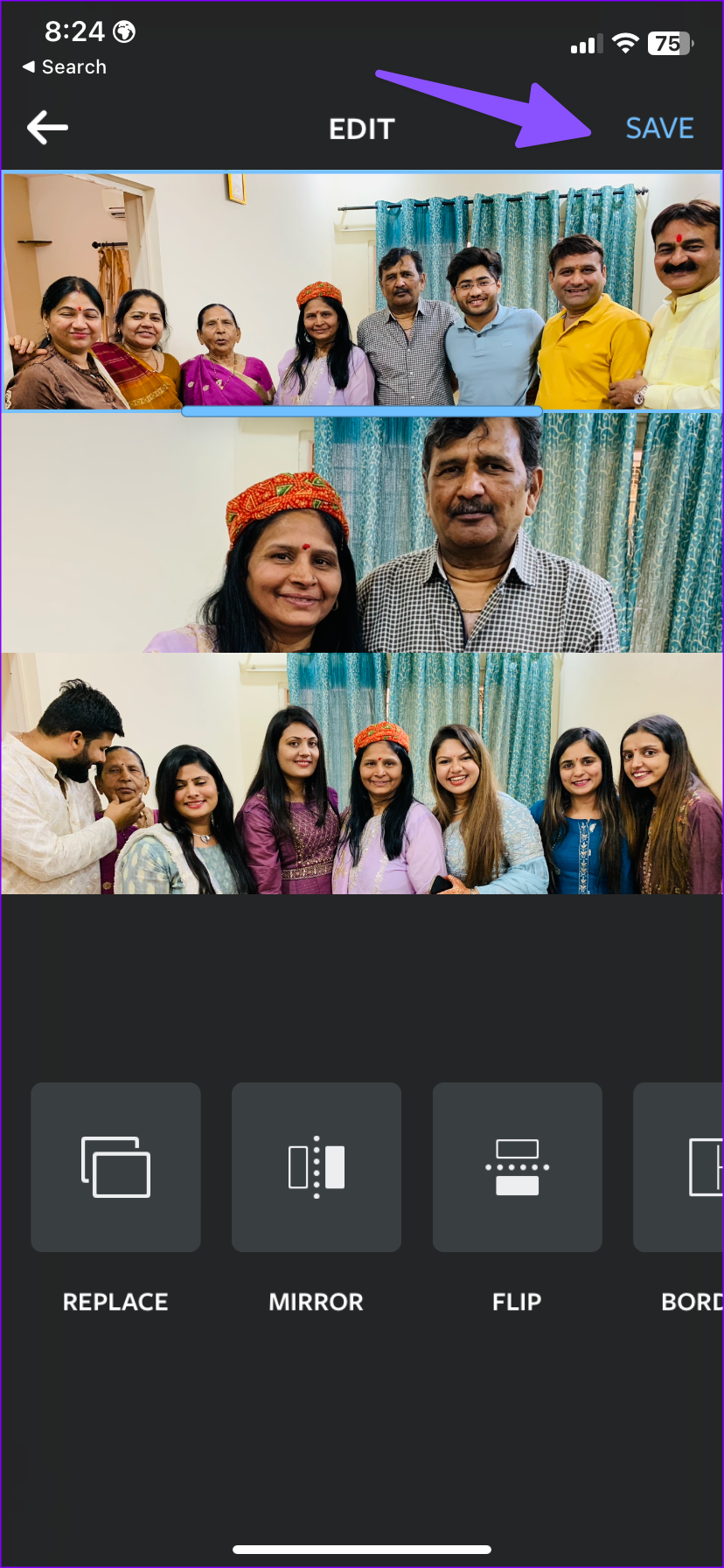
Step 2: Allow access to all photos and select pictures. Choose a relevant layout from the top.
Step 3: You can mirror, flip, or add a border to an image. Tap Save at the top.

Method 5: Use InShot
InShot is another feature-rich, third-party app that lets you create a collage on your iPhone.
Step 1: Download and open InShot from the App Store.
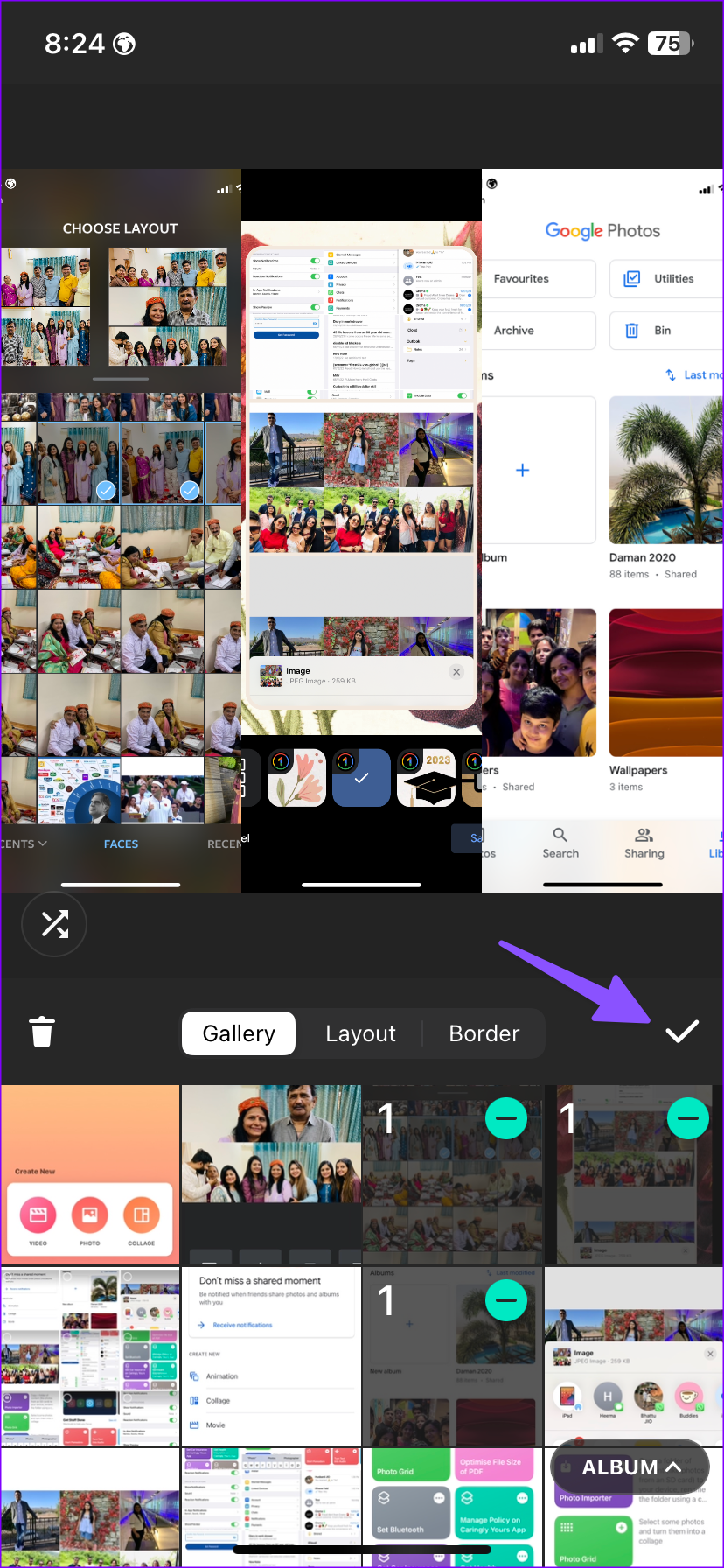
Step 2: Select Collage. Select photos, check built-in layouts, and add borders if you want. Tap on the checkmark to save the image.
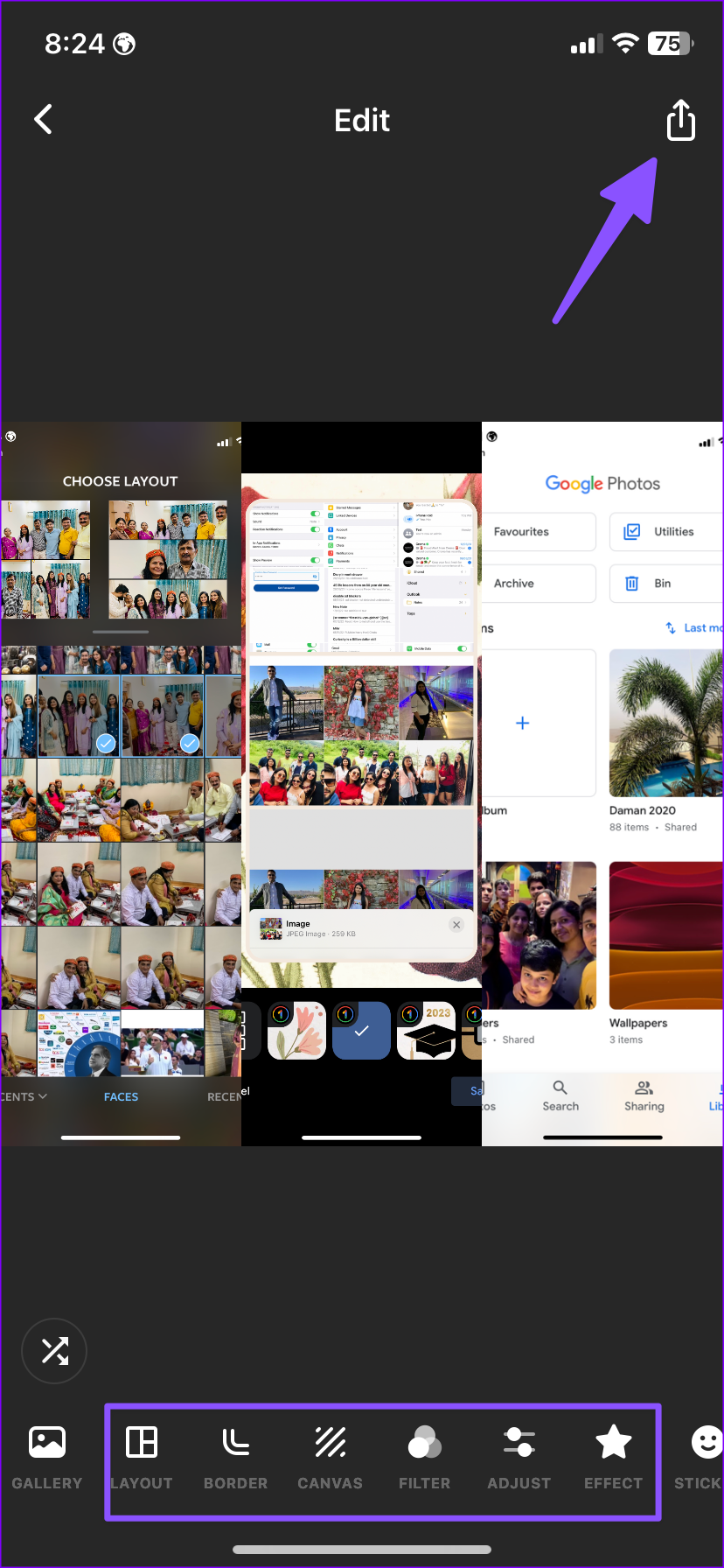
You can use filters and add effects, stickers, doodles, and text to your collage. Tap the share button and save the image to the Photos app.

Was this helpful?
Last updated on 05 July, 2024
Read Next
 3 Ways to Create a Collage in Google Docs
Method 1: Create a Collage in Google Docs Using Google Drawings Step 1: Open the Google Docs document in which you want to add a collage.
3 Ways to Create a Collage in Google Docs
Method 1: Create a Collage in Google Docs Using Google Drawings Step 1: Open the Google Docs document in which you want to add a collage.
 How to Make a Collage on Snapchat on iPhone and Android
How to Make a Collage on a Snapchat Story or Message You can use this lens called 'Collage Maker Lens' on Snapchat.
How to Make a Collage on Snapchat on iPhone and Android
How to Make a Collage on a Snapchat Story or Message You can use this lens called 'Collage Maker Lens' on Snapchat.
 6 Best Free Photo Collage Software for Windows 10
We capture a lot of pictures these days, all thanks to smartphones.
6 Best Free Photo Collage Software for Windows 10
We capture a lot of pictures these days, all thanks to smartphones.
 How to Transfer Contacts from iPhone to iPhone: 5 Easy Ways
Method 1: Transfer Contacts From iPhone to iPhone With iCloud Sync Using iCloud backup is the simplest way to keep your iPhone contacts synchronized across all your devices.
How to Transfer Contacts from iPhone to iPhone: 5 Easy Ways
Method 1: Transfer Contacts From iPhone to iPhone With iCloud Sync Using iCloud backup is the simplest way to keep your iPhone contacts synchronized across all your devices.
 7 Ways to Unsync iPhone from iPad or Another iPhone
Method 1.
7 Ways to Unsync iPhone from iPad or Another iPhone
Method 1.
 3 Ways to Fix Flickering Screen on iPhone
Basic Fixes: Increase brightness on iPhone: Increasing brightness may help fix the flickering screen issue on iPhone.
3 Ways to Fix Flickering Screen on iPhone
Basic Fixes: Increase brightness on iPhone: Increasing brightness may help fix the flickering screen issue on iPhone.
 8 Ways to Add an App Back to Home Screen on iPhone and Android
Method 1: Look for the App Inside the Folders If an app has gone missing from your iPhone or Android phone, start by looking in the folders on your phone’s
8 Ways to Add an App Back to Home Screen on iPhone and Android
Method 1: Look for the App Inside the Folders If an app has gone missing from your iPhone or Android phone, start by looking in the folders on your phone’s
 4 Ways to Fix AssistiveTouch Not Working on iPhone
Common Fixes Check screen protector - Thick screen protectors can restrict touch inputs, leading to an unresponsive touchscreen.
4 Ways to Fix AssistiveTouch Not Working on iPhone
Common Fixes Check screen protector - Thick screen protectors can restrict touch inputs, leading to an unresponsive touchscreen.
The article above may contain affiliate links which help support Guiding Tech. The content remains unbiased and authentic and will never affect our editorial integrity.

