Fix 1. Check Xbox Servers
This is the first thing you should do. If Xbox servers have a rough day, you will face issues with the Xbox app on Windows 11. Xbox offers a dedicated page to check the status of all the services.

Visit the Xbox Status page on the web and see if all the Xbox services are up and running. A green check indicator confirms an active status. If Xbox faces an outage, you will notice a red block icon beside each service. Wait for Microsoft to resolve issues and try again.
Fix 2. Check the Date and Time on Your Computer
If the date and time on your PC are incorrect, the apps will not work, as they will not be validated with the online servers.
Step 1: Open the Windows Settings app (use the Windows + I keys).
Step 2: Go to Time & language and open the Date & time menu.
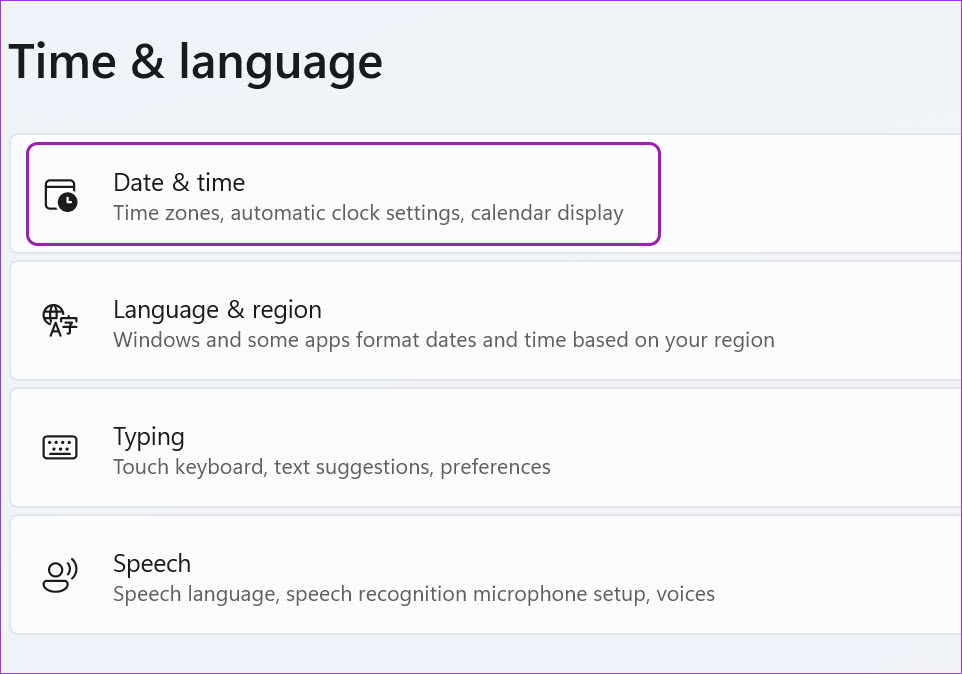
Step 3: Toggle on Set time automatically. If it’s not detecting the time zone correctly, disable the toggle and manually select the correct time zone.

Fix 3. Restart the Xbox Services
Often, the services that ensure the smooth running of the apps stop working or become inactive. It usually happens when your PC has been running for an extended number of days. Restating the service can help fix the problem.
Step 1: Press Win + S and type services. When the Services app appears in the search result, click to open it.
Step 2: Scroll down and right-click on Gaming Services > select Restart from the context menu.

Step 3: Scroll down and find Xbox Accessory Management and Xbox Live Auth Manager. Right-click on each item and restart them.

Fix 4. Disable VPN on PC
Xbox services like Xbox Game Pass, PC Game Pass, and Cloud Gaming are limited to a few regions. You can check the details of Xbox availability on Microsoft’s official website.
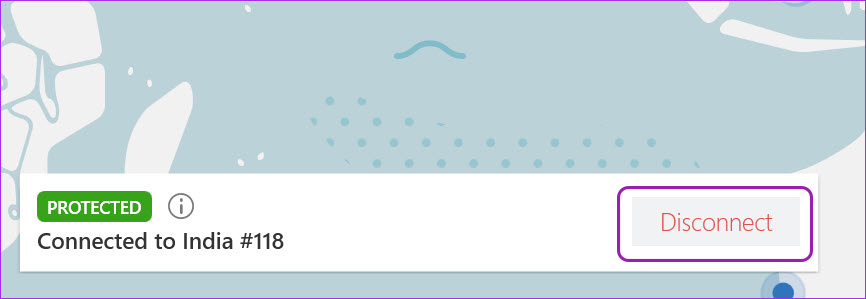
If you are using a VPN and connected to one of the region servers where Xbox isn’t available, the Windows app will have issues. Open the VPN app on your computer and disable the connection.
Fix 5. Repair or Reset the Xbox App
If Xbox is still malfunctioning, you can try to repair it. The app’s data will not be affected.
Step 1: Launch Windows 11 Settings and go to Apps.
Step 2: Select Apps & features and scroll down to Xbox.

Step 3: Click on the three-dot menu beside Xbox and open Advanced options.
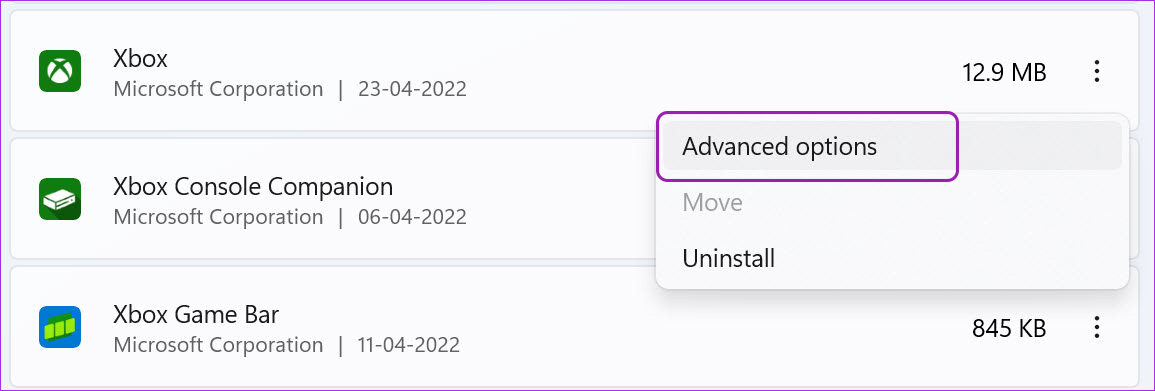
Step 4: Click Repair from the Reset menu.
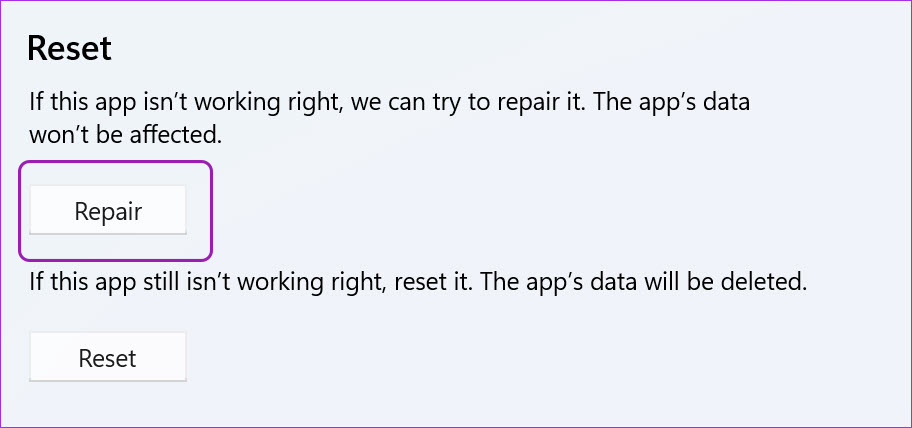
Step 5: Windows 11 will run the repair tool and troubleshoot the Xbox app to fix the issue. If that doesn’t work, use the Reset option.

Fix 6. Run Xbox Services at Login
The Xbox app allows you to configure and run the Xbox services as soon as you log in to the PC. This ensures that everything is ready when you are about to get gaming.
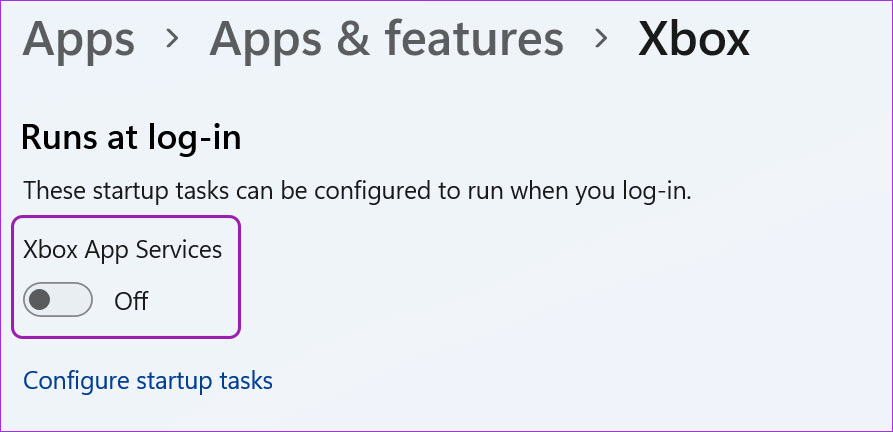
Step 1: Open the Advanced options menu of the Xbox app in the Windows Settings.
Step 2: Enable the Xbox App Services toggle under the Runs at Log-in menu.
Was this helpful?
Last updated on 23 August, 2024
Read Next
 5 Ways to Fix Xbox App Won’t Let Me Log in on Windows 11
Fix 1: Ensure Xbox Services Are Running The Xbox app for Windows relies on certain background services to work on your computer.
5 Ways to Fix Xbox App Won’t Let Me Log in on Windows 11
Fix 1: Ensure Xbox Services Are Running The Xbox app for Windows relies on certain background services to work on your computer.
 How to Fix Xbox App Not Downloading Games on Windows 11
Basic Fixes Check your network connection: Ensure your PC has a good internet connection to download games in the Xbox app.
How to Fix Xbox App Not Downloading Games on Windows 11
Basic Fixes Check your network connection: Ensure your PC has a good internet connection to download games in the Xbox app.
 How to Increase Downloading Speed in Xbox App for Windows 11
Try These Things First Restart the Xbox app: At times, the Xbox app might misbehave and cause issues like slow downloading speed due to a temporary glitch or bug.
How to Increase Downloading Speed in Xbox App for Windows 11
Try These Things First Restart the Xbox app: At times, the Xbox app might misbehave and cause issues like slow downloading speed due to a temporary glitch or bug.
 5 Fixes When Xbox App Is Not Showing Installed Games on Windows
Fix 1: Flush DNS and Reset TCP/IP Several users on the Microsoft forums reported fixing this specific issue by flushing the DNS cache and resetting the TCP/IP (Transmission Control Protocol/Internet
5 Fixes When Xbox App Is Not Showing Installed Games on Windows
Fix 1: Flush DNS and Reset TCP/IP Several users on the Microsoft forums reported fixing this specific issue by flushing the DNS cache and resetting the TCP/IP (Transmission Control Protocol/Internet
 5 Fixes for Cloud Gaming Not Working in Xbox App for Windows
Fix 1.
5 Fixes for Cloud Gaming Not Working in Xbox App for Windows
Fix 1.
 5 Ways to Fix Xbox Game Bar Not Working on Windows 11
Fix 1: Enable Xbox Game Bar in Windows Settings If you can't launch the Xbox Game Bar from your connected game controller on Windows 11, head to Windows Settings to
5 Ways to Fix Xbox Game Bar Not Working on Windows 11
Fix 1: Enable Xbox Game Bar in Windows Settings If you can't launch the Xbox Game Bar from your connected game controller on Windows 11, head to Windows Settings to
 6 Ways to Fix Xbox Games Installation Stuck on Windows
Try These Fixes First Restart the Xbox app: You can close the Xbox app and try installing the apps again.
6 Ways to Fix Xbox Games Installation Stuck on Windows
Try These Fixes First Restart the Xbox app: You can close the Xbox app and try installing the apps again.
 3 Ways to Disable Xbox Game Bar on Windows 11
Method 1: Using PowerShell Step 1: Press the Windows key, type PowerShell, and click Run as Administrator.
3 Ways to Disable Xbox Game Bar on Windows 11
Method 1: Using PowerShell Step 1: Press the Windows key, type PowerShell, and click Run as Administrator.
The article above may contain affiliate links which help support Guiding Tech. The content remains unbiased and authentic and will never affect our editorial integrity.