1. Enable Widgets
If you can’t locate the widgets panel on the taskbar, it’s likely that you have disabled it. Here’s how to enable it.
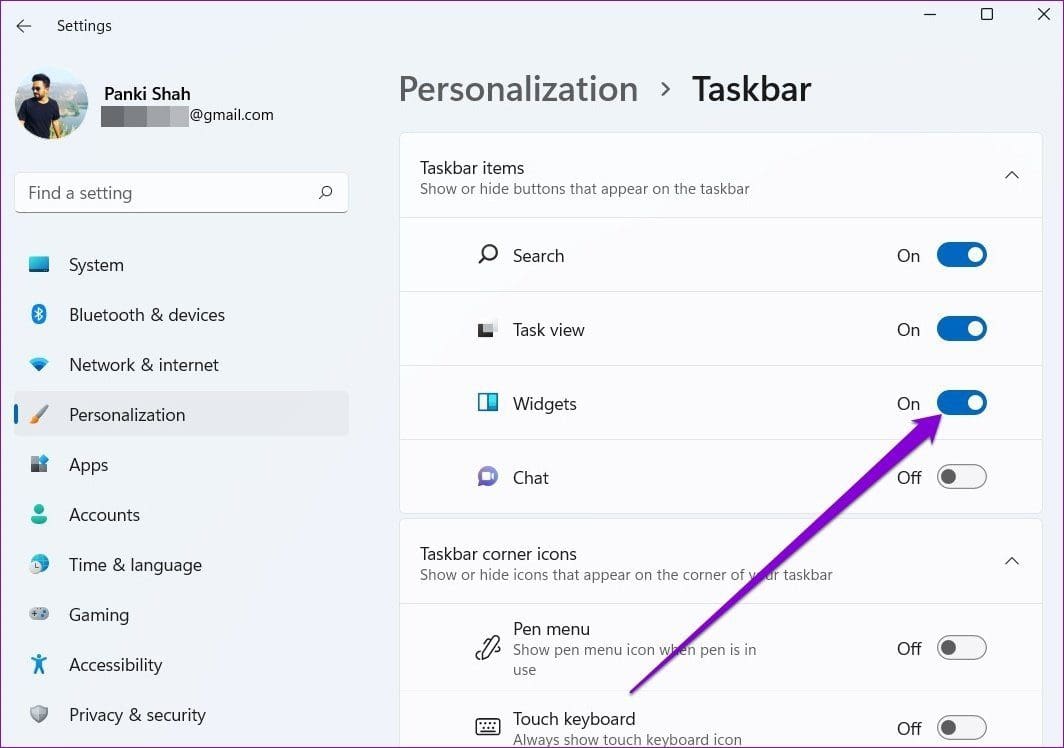
Step 1: Right-click on the Taskbar > select Taskbar settings.

Step 2: Under Taskbar items, turn on the Widgets button.
Once you see the widgets icon on the taskbar, click it or press the Windows key + W to open the widgets panel.
Fix 2: Restart Widgets
If the widgets panel on Windows 11 is showing blank or not loading properly, try restarting the “Windows Widgets” process using Task Manager. Here’s how.
Step 1: Press Ctrl + Shift + Esc to launch the Task Manager.
Step 2: In the Processes tab, find and select Windows Widgets. Then, click the End task button to close it.

Try opening the Widgets panel after this and see if they work.
Fix 3: Login With a Microsoft Account
Since the widgets panel uses your Microsoft account to display your calendar, weather, relevant news, and more, it will not work if you’re logged in with a local account on your PC.
To switch to a Microsoft account, follow these steps:
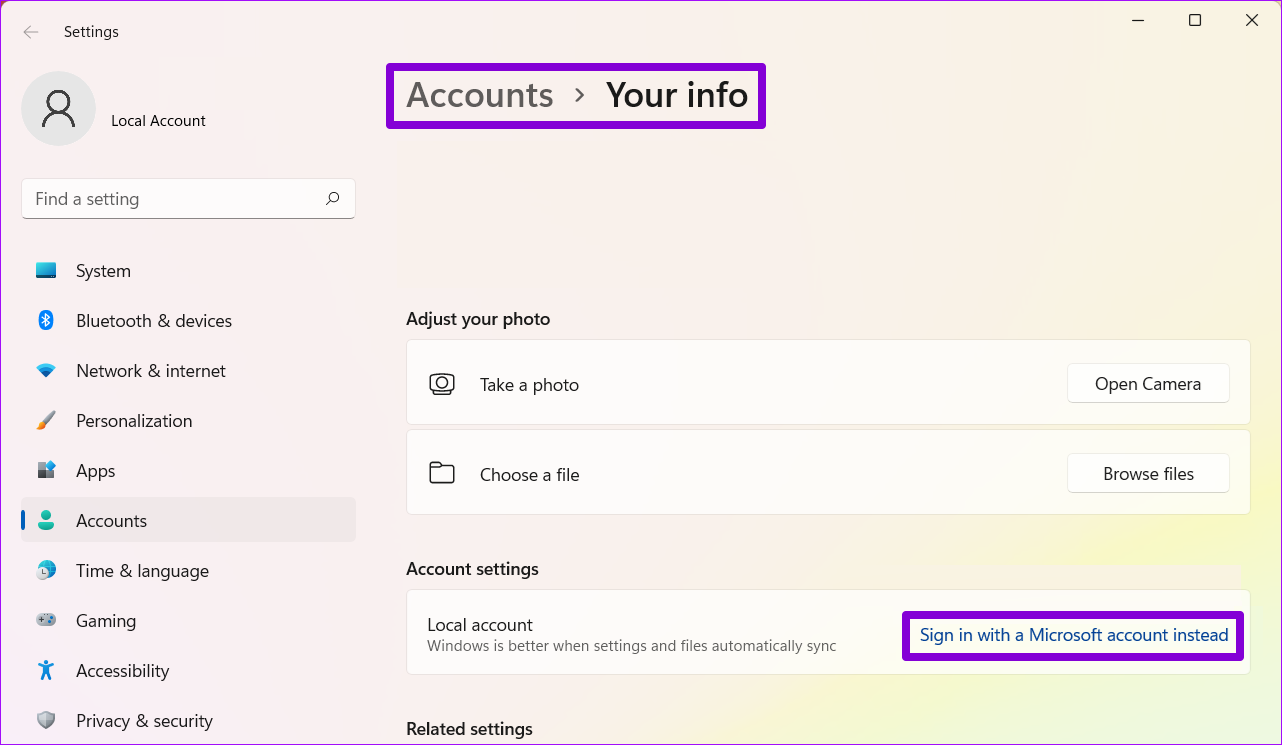
Step 1: Press the Windows key + I to launch the Settings app and go to Accounts > Your info.
Step 2: Under Account settings, click Sign in with a Microsoft account instead and enter your login credentials to proceed.
Fix 4: Install Microsoft Edge WebView2
Microsoft Edge WebView2 is a component on Windows 11 that is responsible for embedding web content in native apps on your PC, including widgets. So, go ahead and install Microsoft Edge WebView2 on your PC. Once installed, reboot your PC and try using widgets again.
Was this helpful?
Last updated on 16 August, 2024
Read Next
 5 Ways to Fix MIUI Widgets Not Working Issue
Basic Fixes Restart device: Restart your MIUI device to fix temporary bugs and glitches.
5 Ways to Fix MIUI Widgets Not Working Issue
Basic Fixes Restart device: Restart your MIUI device to fix temporary bugs and glitches.
 6 Ways to Fix Widgets Not Working or Loading on Mac
Basic Fixes Restart Your Mac: Start with a simple restart.
6 Ways to Fix Widgets Not Working or Loading on Mac
Basic Fixes Restart Your Mac: Start with a simple restart.
 4 Ways to Fix Widgets Not Updating on Android
Fix 1: Re-Add the Widget Removing and re-adding the widget on Android has seemed to work well while fixing widget-related issues.
3 Ways to Fix iPhone Widgets Not Updating
Common Fixes Open the widget's app - This will refresh the widget to fetch new data from its app.
4 Ways to Fix Widgets Not Updating on Android
Fix 1: Re-Add the Widget Removing and re-adding the widget on Android has seemed to work well while fixing widget-related issues.
3 Ways to Fix iPhone Widgets Not Updating
Common Fixes Open the widget's app - This will refresh the widget to fetch new data from its app.
 How to Add or Edit the Smart Stack of Widgets on iPhone
What Is a Smart Stack of Widgets on iPhone?
How to Add or Edit the Smart Stack of Widgets on iPhone
What Is a Smart Stack of Widgets on iPhone?
 How to Use KWGT to Make Stunning Home Screen Widgets
Widgets on Android are a great way for you to access key app features right on your home screen.
How to Use KWGT to Make Stunning Home Screen Widgets
Widgets on Android are a great way for you to access key app features right on your home screen.
 2 Fixes for iPhone Lock Screen Widgets Not Showing Up
Basic Fixes Restart iPhone: Restart your iPhone to fix any temporary bugs and glitches.
2 Fixes for iPhone Lock Screen Widgets Not Showing Up
Basic Fixes Restart iPhone: Restart your iPhone to fix any temporary bugs and glitches.
 How to Remove Widgets From iPhone Lock Screen
Your lock screen widgets help you see all the latest app information at a glance and add extra functionality to your iPhone.
How to Remove Widgets From iPhone Lock Screen
Your lock screen widgets help you see all the latest app information at a glance and add extra functionality to your iPhone.
The article above may contain affiliate links which help support Guiding Tech. The content remains unbiased and authentic and will never affect our editorial integrity.