


Basic Fixes
- Restart iPhone – Sometimes all it needs to fix an issue like Wi-Fi greyed-out is to restart your iPhone. So, try doing so before anything else and see if it works.
- Enable and disable Airplane Mode – The Airplane mode turns off all the radios and that can be helpful. For starters, the iPhone will set a fresh connection after you use the Airplane mode.
- Check for physical damage – Your iPhone’s Wi-Fi performance might get corrupted due to accidental physical damage. If so, book an appointment at the nearest Apple service center and get it inspected by experts.
- Disable VPN – While rarely, a VPN app running in the background could interfere with the initial Wi-Fi connection. So, turn off the VPN, connect to Wi-Fi, and reconnect to the VPN.
- Update iOS – Update your iPhone to the latest version to fix network issues. Since Wi-Fi is greyed out on the iPhone, connect it to a Windows PC or Mac to update the software.
Fix 1. Reset Network Settings
A network glitch on your iPhone might lead to the Wi-Fi greyed-out issue. You can reset the network settings on your iPhone and try again.
Note: Resetting network settings will delete all saved Wi-Fi networks, Bluetooth devices, VPN profiles, and mobile network preferences.
Step 1: Launch Settings on iPhone. Open General.
Step 2: Scroll to ‘Transfer or Reset iPhone.’
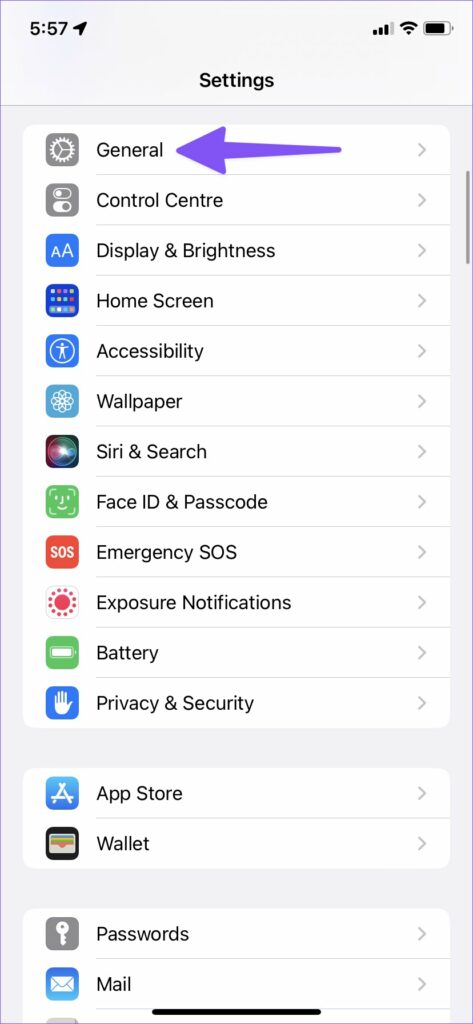

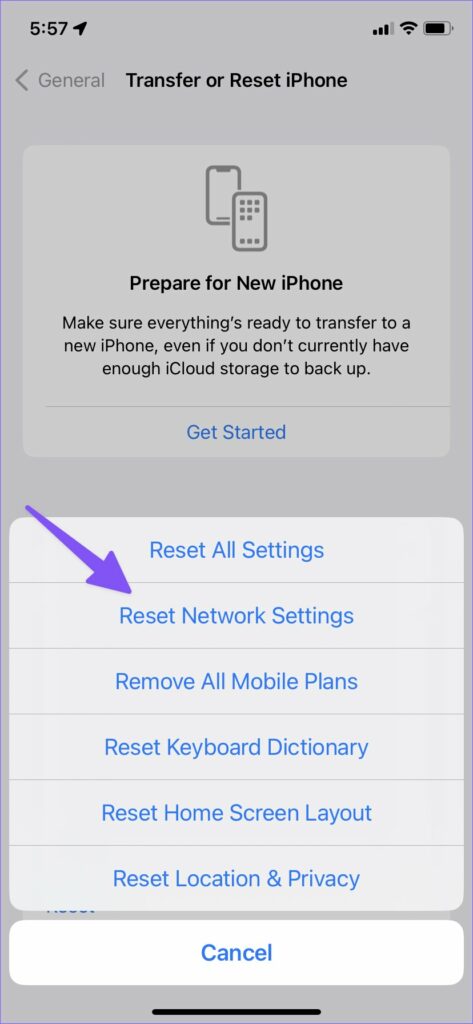
Step 3: Tap Reset and select Reset Network Settings. Enter your device password and confirm the action.

Fix 2. Reset All Settings
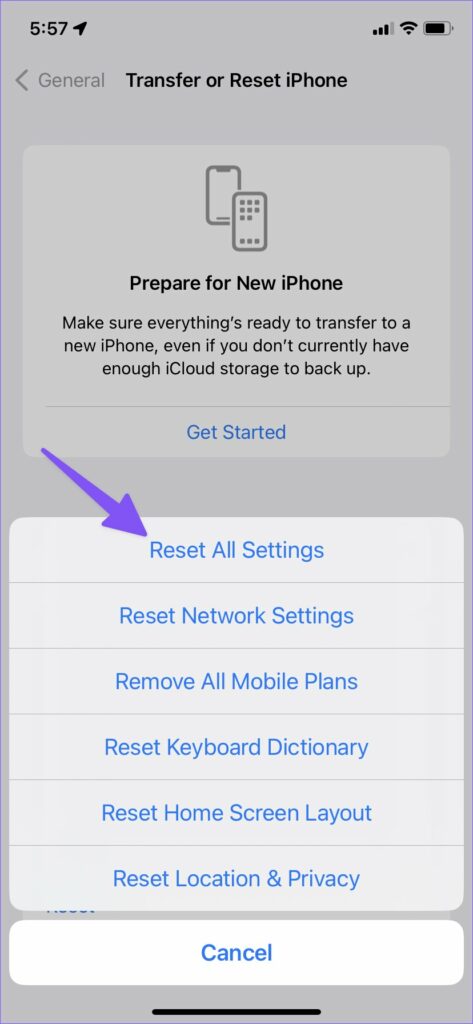
If you still face Wi-Fi greyed-out issues, you should consider resetting all settings on your iPhone. The option will reset all settings, including network settings, the keyboard dictionary, privacy settings, location settings, and Apple Pay cards.
Your installed apps on iPhone and other data remain unchanged. If you want to save your iPhone settings, back up the phone before returning it to its defaults. You can always restore your previous settings from a backup.
Step 1: Open the ‘Transfer or Reset iPhone’ menu in iPhone Settings (refer to the steps above).
Step 2: Select Reset and tap Reset All Settings. Enter your device password and confirm the action.
Fix 3. Factory Reset iPhone to Fix Greyed Out Wi-Fi
If resetting network settings or all settings isn’t doing the deed, a factory reset is the last resort. Notably, it will wipe out all the apps and data from the iPhone.
So, before proceeding, ensure your phone is backed up on the cloud or computer.
Step 1: Go to Settings → General → ‘Transfer or Reset iPhone‘.
Step 2: Select Erase all Content and Settings → Continue. Enter your device passcode when prompted.
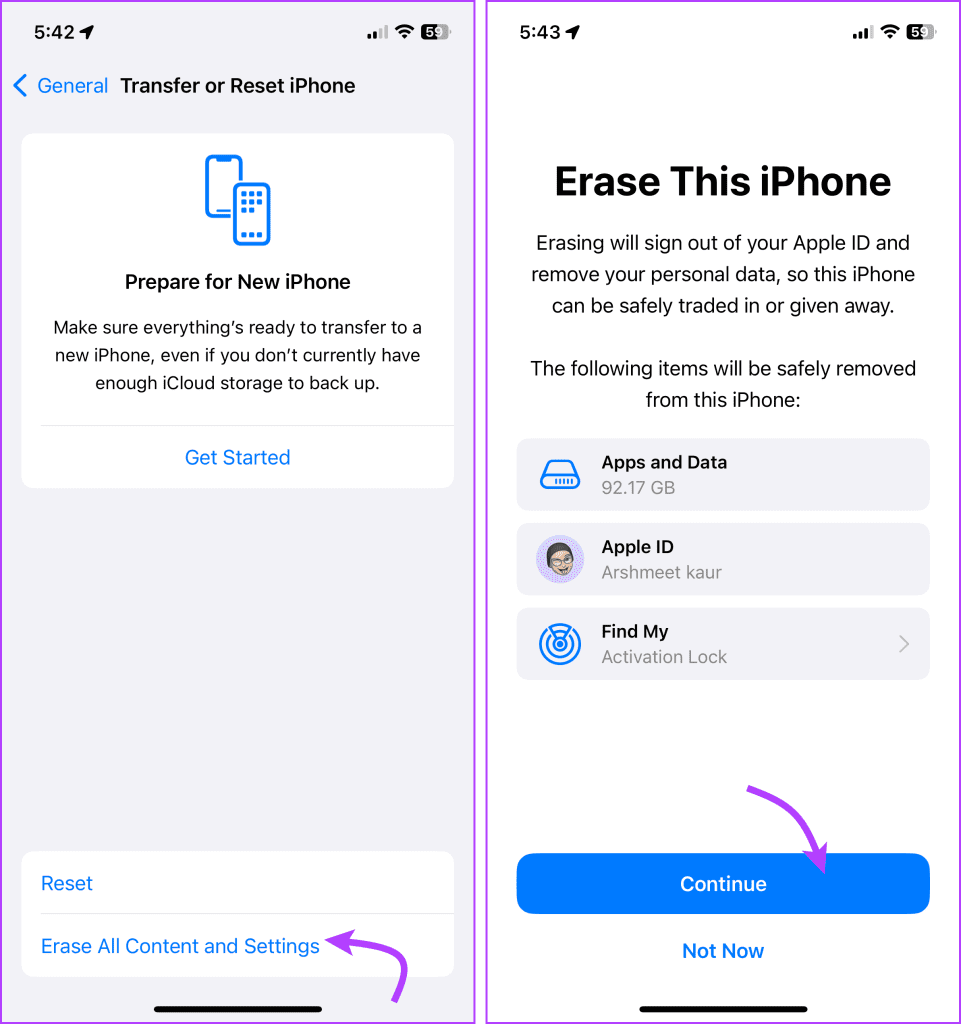
Once the reset is complete, set up your phone as fresh or from the backup. Hopefully, the Wi-Fi icon will not be greyed-out this time around.
Was this helpful?
Last updated on 29 July, 2024
3 Comments
Leave a Reply
Read Next
 4 Fixes for ‘Set Automatically’ for Date and Time Greyed Out on iPhone
Basic Fixes Remove configuration profile: Configuration profiles define settings for using iPhones with corporate or school networks or accounts.
4 Fixes for ‘Set Automatically’ for Date and Time Greyed Out on iPhone
Basic Fixes Remove configuration profile: Configuration profiles define settings for using iPhones with corporate or school networks or accounts.
 2 Fixes for Apple ID Grayed Out on iPhone
Basic Fixes Switch from mobile data to Wi-Fi: This will provide much faster internet speeds on your iPhone and stable connectivity to your Apple account.
2 Fixes for Apple ID Grayed Out on iPhone
Basic Fixes Switch from mobile data to Wi-Fi: This will provide much faster internet speeds on your iPhone and stable connectivity to your Apple account.
 4 Ways to Fix Wi-Fi Grayed Out on Android
Basic Fixes Restart your phone: Sometimes, a simple reboot fixes connectivity issues on Android phones.
4 Ways to Fix Wi-Fi Grayed Out on Android
Basic Fixes Restart your phone: Sometimes, a simple reboot fixes connectivity issues on Android phones.
 7 Ways to Fix Wi-Fi Greyed Out on Mac
Let's check the solutions to fix the Wi-Fi greyed out issue on your Mac. Fix 1: Restart Mac and Enable Wi-Fi Restarting your Mac is an effective way to fix
7 Ways to Fix Wi-Fi Greyed Out on Mac
Let's check the solutions to fix the Wi-Fi greyed out issue on your Mac. Fix 1: Restart Mac and Enable Wi-Fi Restarting your Mac is an effective way to fix
 How to Fix Display Resolution Greyed out on Windows 11
Basic Fixes: Restart the computer: Rebooting is effective because minor bugs may trigger the problem, and a reboot often kills the problematic services or processes.
How to Fix Display Resolution Greyed out on Windows 11
Basic Fixes: Restart the computer: Rebooting is effective because minor bugs may trigger the problem, and a reboot often kills the problematic services or processes.
 3 Fixes When the Windows 11 Screen Saver Settings Is Greyed Out
Fix 1: Delete the ScreenSaveActive Registry Key If screen saver options are greyed out in Windows, incorrect registry edits are likely causing the issue.
3 Fixes When the Windows 11 Screen Saver Settings Is Greyed Out
Fix 1: Delete the ScreenSaveActive Registry Key If screen saver options are greyed out in Windows, incorrect registry edits are likely causing the issue.
 7 Ways to Unsync iPhone from iPad or Another iPhone
Method 1.
7 Ways to Unsync iPhone from iPad or Another iPhone
Method 1.
 Download iPhone 15 and iPhone 15 Pro Series Wallpapers (4K)
Apple unveiled the next iteration of its iconic iPhone 15 lineup at its highly anticipated Wonderlust event in September 2023.
Download iPhone 15 and iPhone 15 Pro Series Wallpapers (4K)
Apple unveiled the next iteration of its iconic iPhone 15 lineup at its highly anticipated Wonderlust event in September 2023.
The article above may contain affiliate links which help support Guiding Tech. The content remains unbiased and authentic and will never affect our editorial integrity.

My wifi I stopped working!
Wow, resetting your phone does make the wifi not gray out. Thanks for the advice!
Thanks for helping me to switch on my wifi button. I was really stress about that considering the high cost of mobile data,