


Basic Fixes:
- Check your internet connection: If your current internet connection is not working properly, it can cause WhatsApp calls to fail on your desktop. So, either connect to a 5GHz frequency or move close to your router and try again.
- Check WhatsApp server status: If WhatsApp servers face an outage, none of the app’s functionality will work on the desktop. To check, visit Downdetector on any web browser and search for WhatsApp to confirm the issue.
- Turn off Bluetooth: If your device accidentally connects to a Bluetooth device mid-call, the WhatsApp call audio might be rerouted or disappear entirely. To ensure this does not happen, turn off Bluetooth on your Windows device.
- Make sure you aren’t blocked: If the recipient has blocked you on WhatsApp, your calls will show the connecting status and won’t ring. So, check and ensure you haven’t been blocked by the other person on WhatsApp.
- Update or reinstall WhatsApp desktop app: App bugs can also cause WhatsApp calls to not go through. When this happens, check and ensure the WhatsApp desktop app is up-to-date. Or, you can uninstall and reinstall WhatsApp on your laptop. Then, try making a call to check.
Fix 1: Check Microphone and Camera Permissions for WhatsApp
If your camera is showing as blank or if the other person can’t hear you on WhatsApp calls, you have most probably disabled camera and microphone permission for WhatsApp on Windows 11. In this case, follow the below steps to enable it.
Step 1: Use the Windows + I key to open Settings and click on Privacy & security. Click on Camera.

Step 2: Turn on the Camera access toggle.
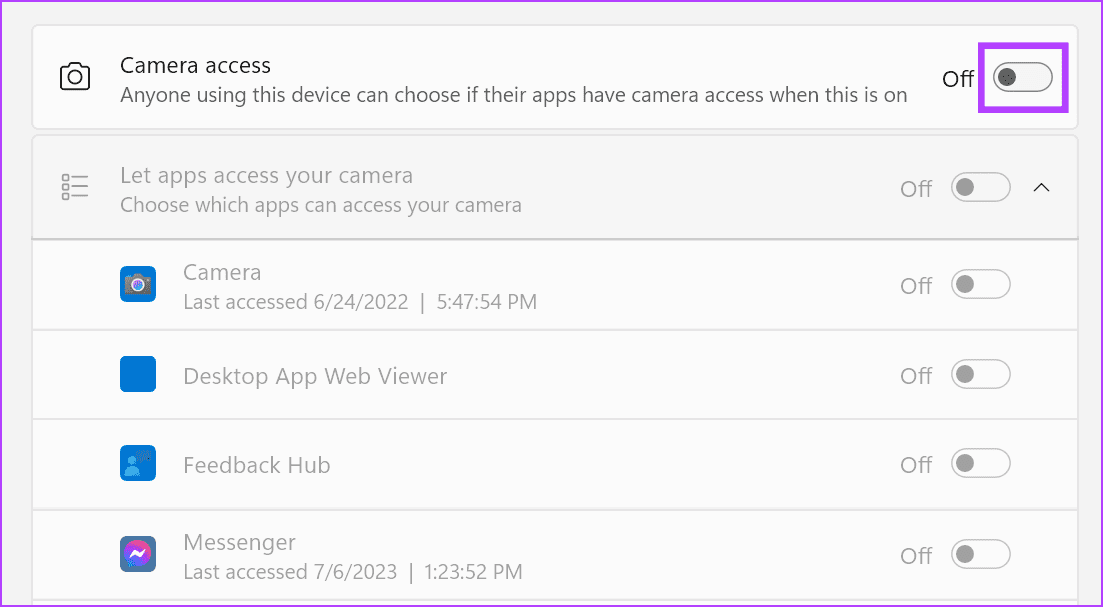
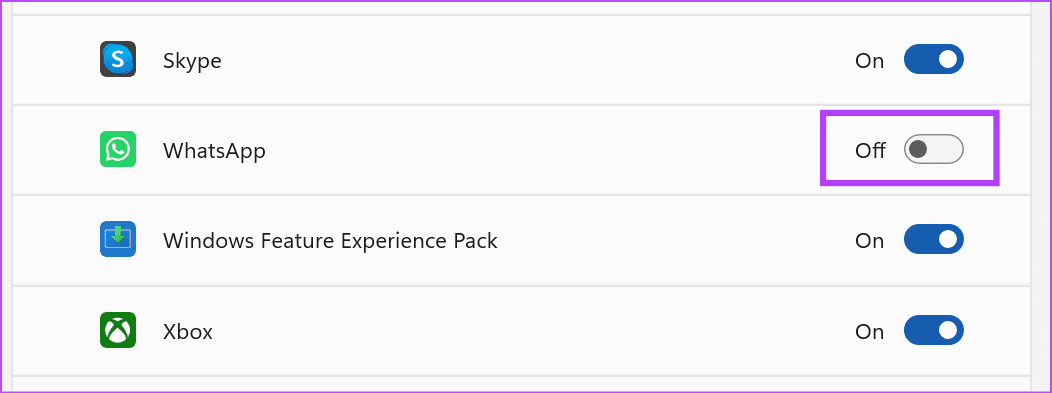
Step 3: Scroll down and turn on the toggle for WhatsApp. Then, go back to the Privacy & security page.
Step 4: Here, click on Microphone.

Step 5: Turn on the Microphone access toggle.
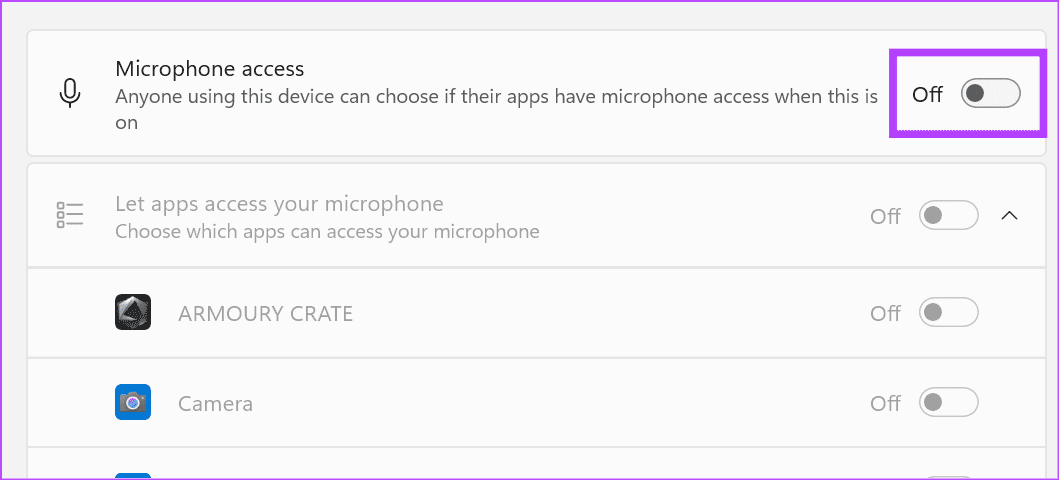
Step 6: Scroll down and ensure the toggle for WhatsApp is enabled.

Fix 2: Enable Desktop Call Notifications
If you have muted incoming WhatsApp call notifications on your desktop, incoming WhatsApp calls might fail or not appear at all. This might cause you to miss out on important calls. To ensure this does not happen, enable WhatsApp call notifications using the below steps.
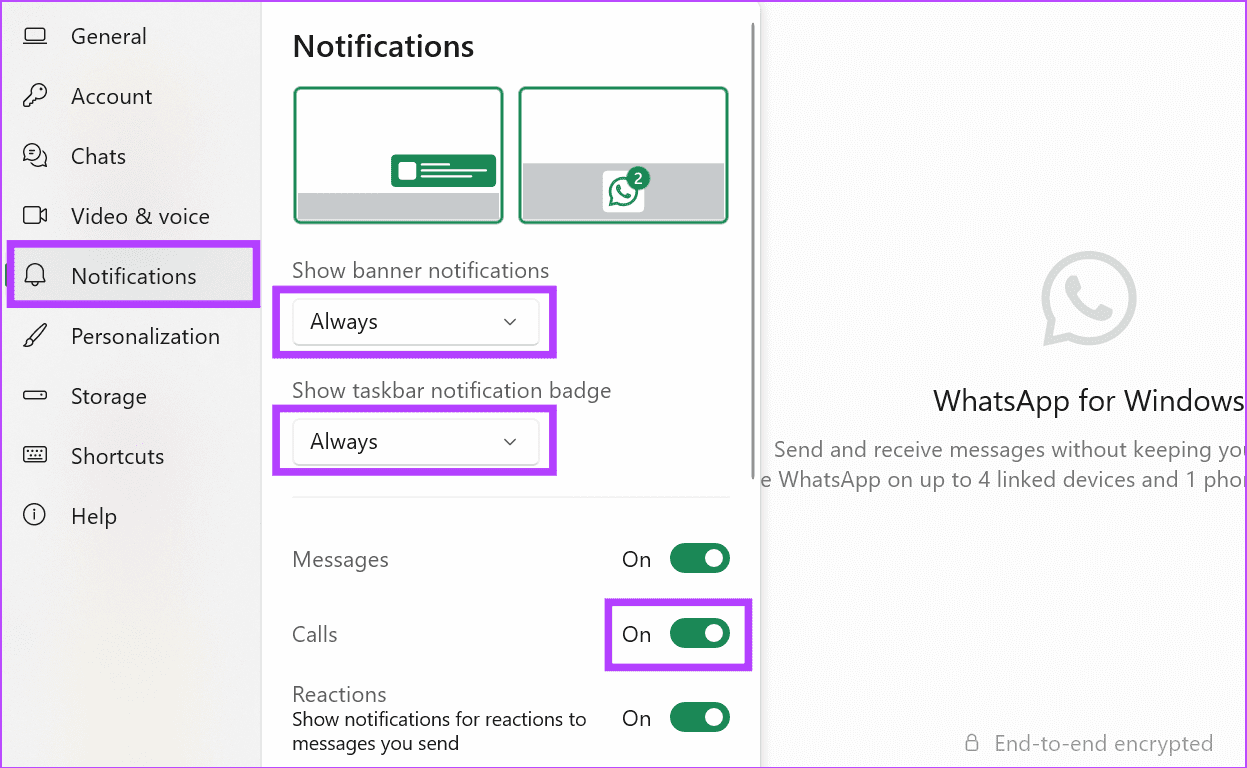
Step 1: Open the WhatsApp desktop app and click the cogwheel icon.

Step 2: Click on Notifications and turn on the toggle for Calls. Ensure WhatsApp notifications are enabled.
Fix 3: Select Relevant Microphone and Camera for WhatsApp Calls
An external microphone or webcam might not work properly for your WhatsApp calls if the correct device is not selected. To prevent this from happening, open WhatsApp settings and select the correct input/output devices. Here’s what you need to do.
Step 1: Open the WhatsApp desktop app and click the cogwheel icon.
Step 2: Click on Voice & video. Use the Video and Microphone drop-downs to select the relevant device.

Also Read: How to fix WhatsApp desktop keeps logging me out on Windows
Fix 4: Allow WhatsApp to Run in Background
If WhatsApp doesn’t have permission to run in the background on your Windows device, WhatsApp calls might not ring if the desktop app is not open. To fix this, allow WhatsApp to always run in the background using the below steps.
Step 1: Open Settings and click on Apps. Click on Installed apps.
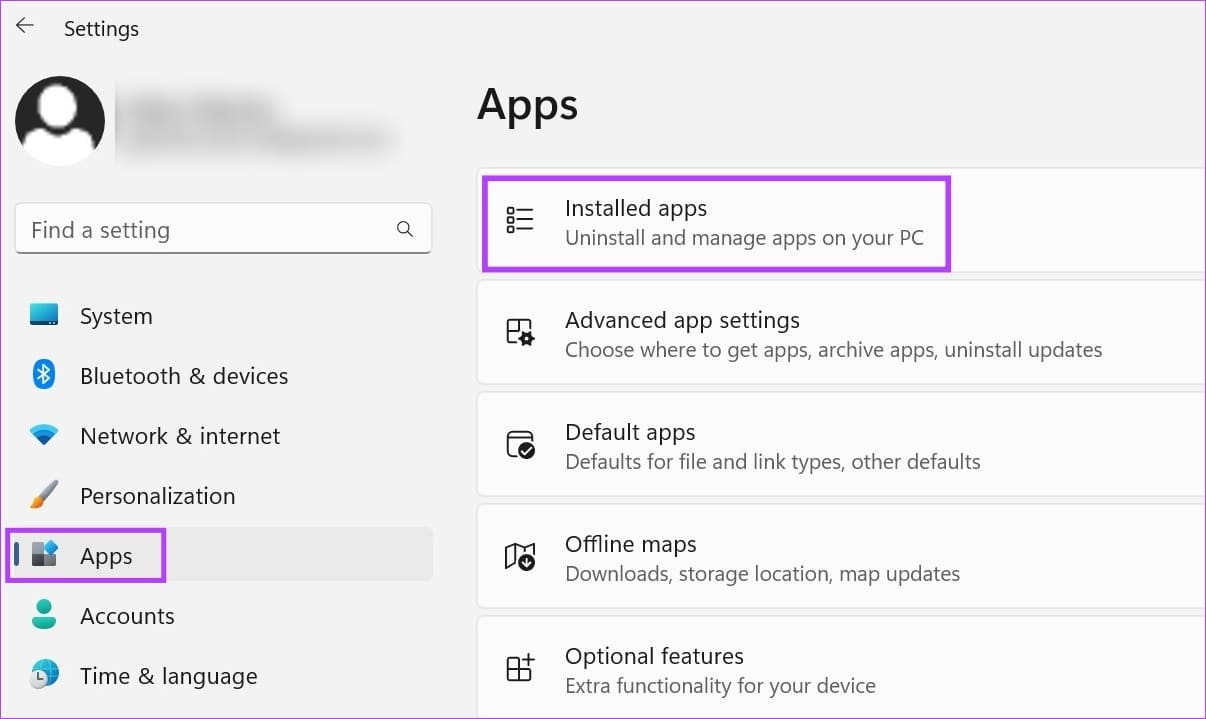
Step 2: Go to WhatsApp and click the three-dot icon. Click on Advanced options.
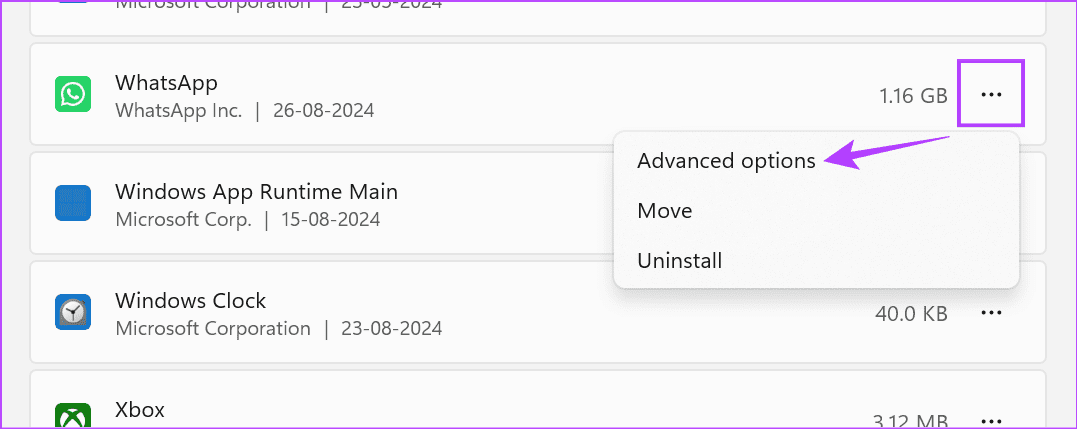
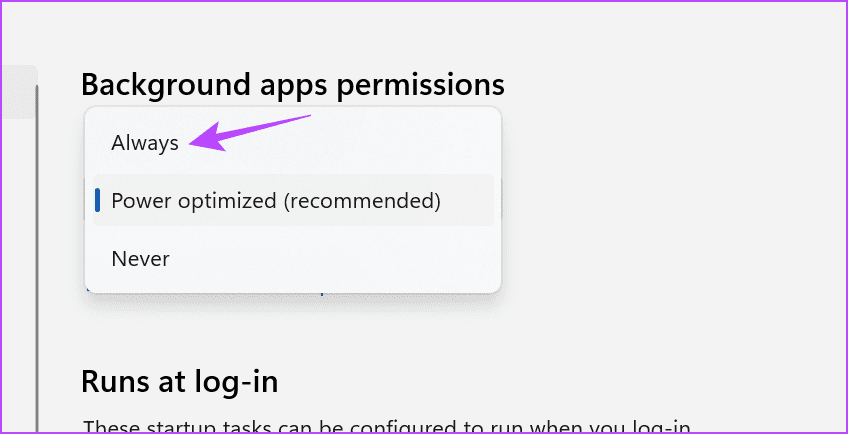
Step 3: Click the Background apps permissions drop-down and select Always.
Fix 5: Reset or Repair WhatsApp Desktop App
If your Windows apps are not working properly, you can use the settings menu to repair them. This can help fix any temporary issues. If that doesn’t work, reset the app. This will get rid of all the data for the WhatsApp desktop app without deleting the app. Here’s how to do it.
Step 1: Open Settings and click on Apps. Click on Installed apps.
Step 2: Go to WhatsApp and click the three-dot icon. Click on Advanced options.
Step 3: Click on Repair. Wait for a tick to appear. Then, try taking a WhatsApp call to check.
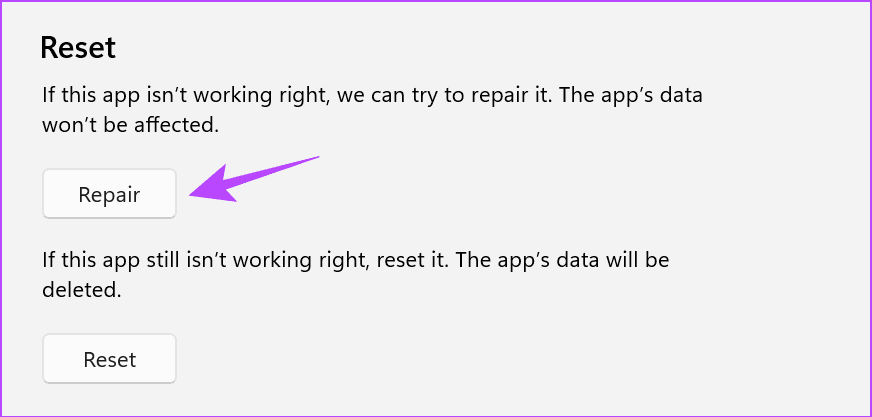
Step 4: If it still doesn’t work, click on Reset. Confirm when prompted.

Once done, restart the WhatsApp desktop app and finish the setup. Then, ask someone to call you to check if WhatsApp calls are now working.
Was this helpful?
Last updated on 30 August, 2024
1 Comment
Leave a Reply
Read Next
 2 Ways to Fix WhatsApp Calls Not Working on Mac
Basic Fixes Check your internet speed: WhatsApp calls need a stable internet connection.
2 Ways to Fix WhatsApp Calls Not Working on Mac
Basic Fixes Check your internet speed: WhatsApp calls need a stable internet connection.
 4 Ways to Fix WhatsApp Calls Not Ringing When Phone is Locked
Basic Fixes Restart device: Restart your smartphone to fix any temporary bugs and glitches.
4 Ways to Fix WhatsApp Calls Not Ringing When Phone is Locked
Basic Fixes Restart device: Restart your smartphone to fix any temporary bugs and glitches.
 5 Ways to Fix Telegram Desktop Video Calls Not Working
Basic Fixes Switch to 5GHz Wi-Fi: If you have a dual-band router, try switching to a 5GHz frequency band to get faster internet speeds.
5 Ways to Fix Telegram Desktop Video Calls Not Working
Basic Fixes Switch to 5GHz Wi-Fi: If you have a dual-band router, try switching to a 5GHz frequency band to get faster internet speeds.
 5 Ways to Fix Instagram Calls Not Ringing or Working
Try Basic Fixes Check your internet connection: A weak or unstable internet connection can cause Instagram to malfunction.
5 Ways to Fix Instagram Calls Not Ringing or Working
Try Basic Fixes Check your internet connection: A weak or unstable internet connection can cause Instagram to malfunction.
 Top 8 Ways to Fix Proximity Sensor Not Working During Calls on Android
There are several components that contribute to the basic functioning of a smartphone.
Top 8 Ways to Fix Proximity Sensor Not Working During Calls on Android
There are several components that contribute to the basic functioning of a smartphone.
 Top 5 Ways to Fix Facebook Messenger Calls Not Working (iPhone and Android)
Preliminary Fixes Check the Network Connection: A stable internet connection is crucial for Messenger calls.
Top 5 Ways to Fix Facebook Messenger Calls Not Working (iPhone and Android)
Preliminary Fixes Check the Network Connection: A stable internet connection is crucial for Messenger calls.
 How to Fix Messenger Video Calls Not Working on Windows 11
Basic Fixes Login again to your Messenger account: The very first thing you should do is to log out and then back into your Messenger account.
How to Fix Messenger Video Calls Not Working on Windows 11
Basic Fixes Login again to your Messenger account: The very first thing you should do is to log out and then back into your Messenger account.
 5 Fixes for No Sound in WhatsApp Video Calls on iPhone and Android
Basic Fixes Force quit and relaunch WhatsApp: This will reload the app and give it a fresh start on your iPhone or Android phone.
5 Fixes for No Sound in WhatsApp Video Calls on iPhone and Android
Basic Fixes Force quit and relaunch WhatsApp: This will reload the app and give it a fresh start on your iPhone or Android phone.
The article above may contain affiliate links which help support Guiding Tech. The content remains unbiased and authentic and will never affect our editorial integrity.


please my whatsapp voice call video call option on