


Common Fixes
- Force restart your iPhone: Press and quickly release Volume Up, followed by the Volume Down buttons. Hold the Side button and release it when the Apple logo appears.
- Enable and disable the Airplane Mode: Open the Settings app > toggle on the Airplane Mode > wait a few seconds > turn it off.
- Press the Power button: Press and quickly release it to see the incoming call screen.
- Eject and insert SIM card: If you use a physical SIM card, eject it using a SIM ejector pin. Clean it thoroughly and reinsert it.
- Disable Do Not Disturb: Swipe down from the top-right screen corner to open the Control Center > select Focus > tap Do Not Disturb to disable it.
- Free up the iPhone storage: Inspect your device storage under Settings > General > iPhone Storage > uninstall unnecessary apps to reclaim the free space.
- Install pending carrier settings update: Head to Settings > General > About to check new carrier settings update and tap Update when prompted.
- Update your iPhone: Open iPhone settings > select General > tap Software Update to update your iPhone.
Fix 1: Disable Call Forwarding
If you’ve pre-configured call forwarding, incoming calls will divert to the device with the set number instead of arriving on your iPhone. Disabling it manually should resolve the problem.
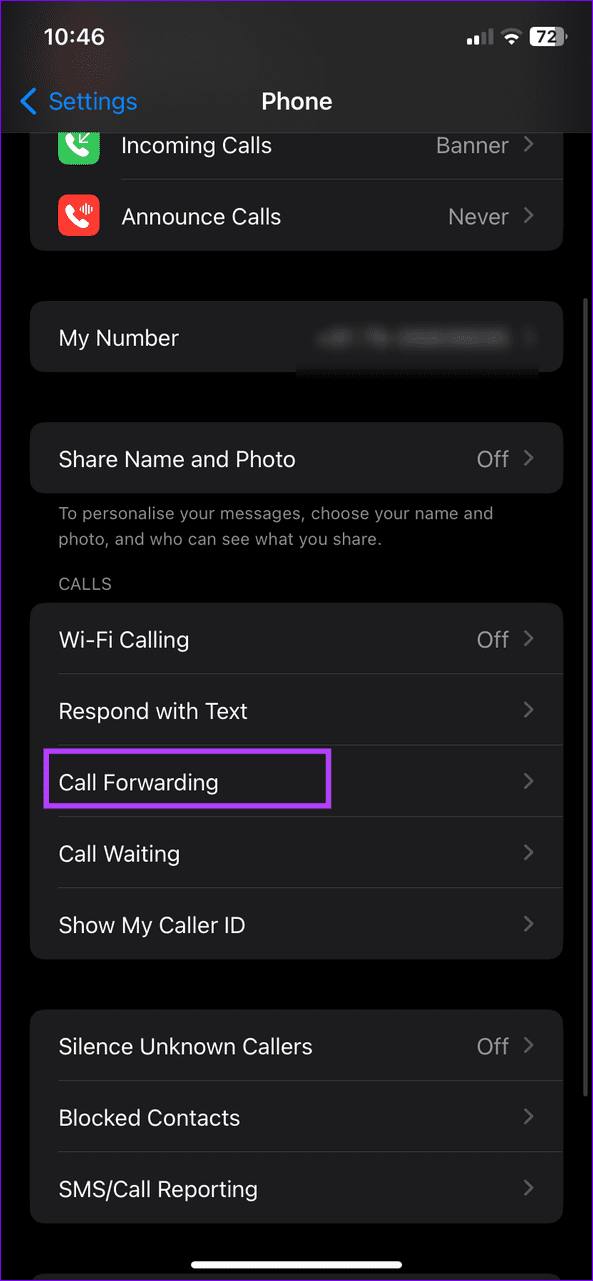
Step 1: Open the Settings app > select Phone > tap Call Forwarding.
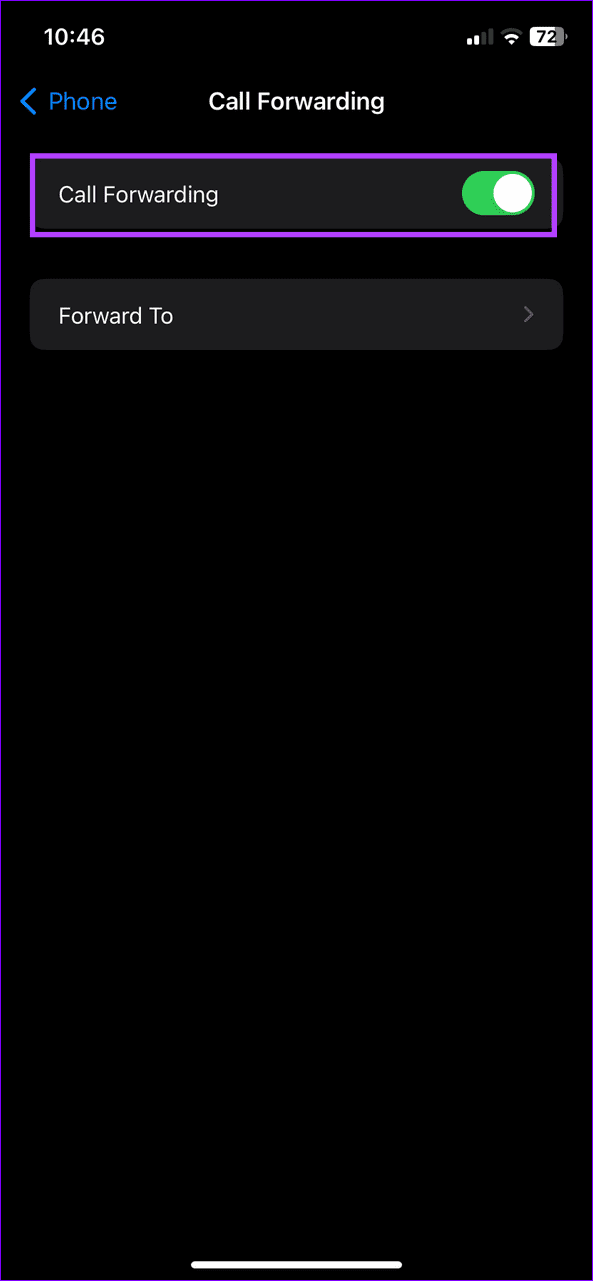
Step 2: Toggle off Call Forwarding.

Fix 2: Disable Wi-Fi Calling
While Wi-Fi calling is designed to enhance the calling experience, issues with the feature can prevent you from attending incoming calls on your iPhone. Turn it off to restore normal functionality.
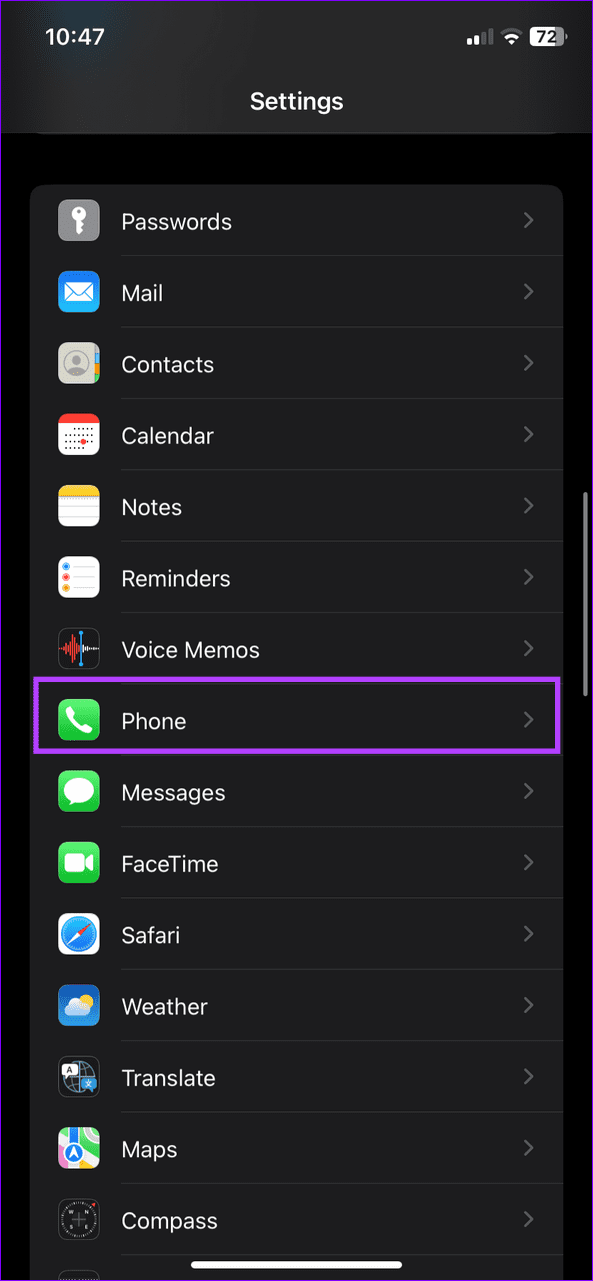
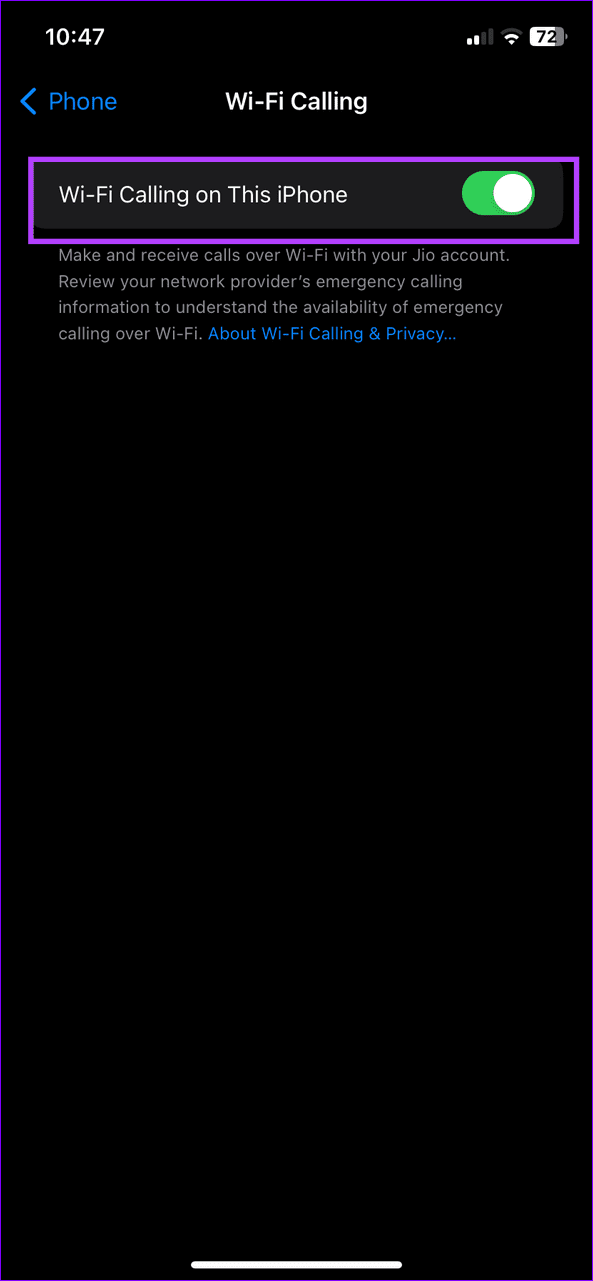
Select Phone under iPhone settings > tap Wi-Fi Calling > toggle off Wi-Fi Calling on This iPhone.

Fix 3: Reset Network Settings on iPhone
Lastly, if nothing works, reset your iPhone network settings to remove incorrect configurations that might be creating issues in answering calls.
Step 1: Open the Settings app > select General > tap on Transfer or Reset iPhone.
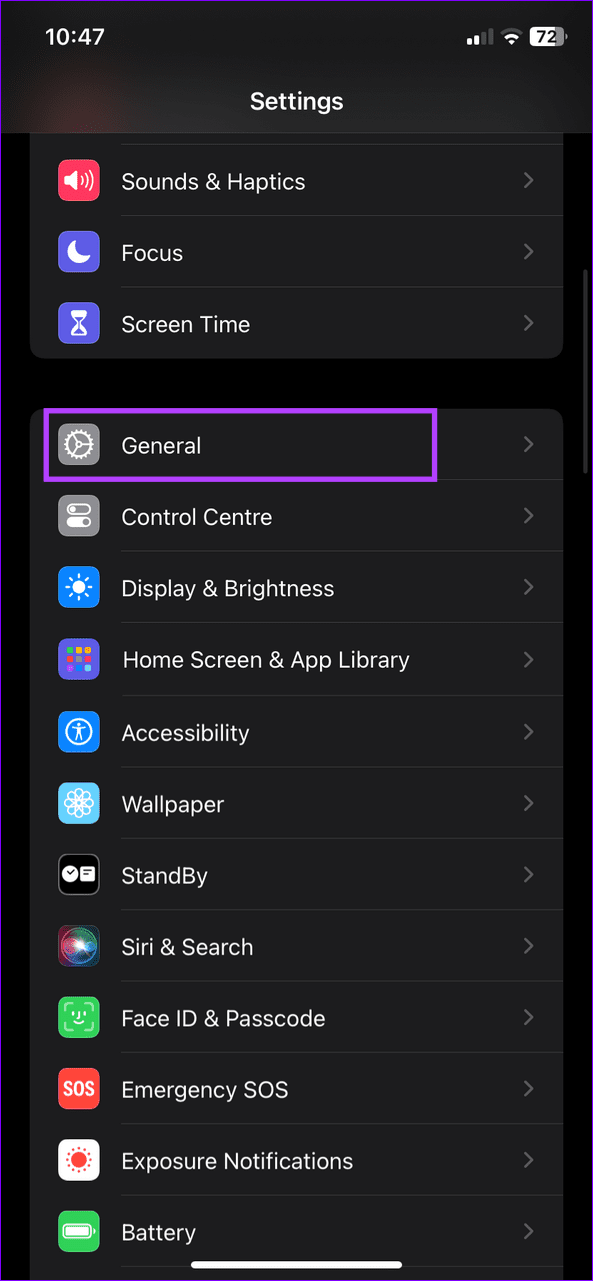

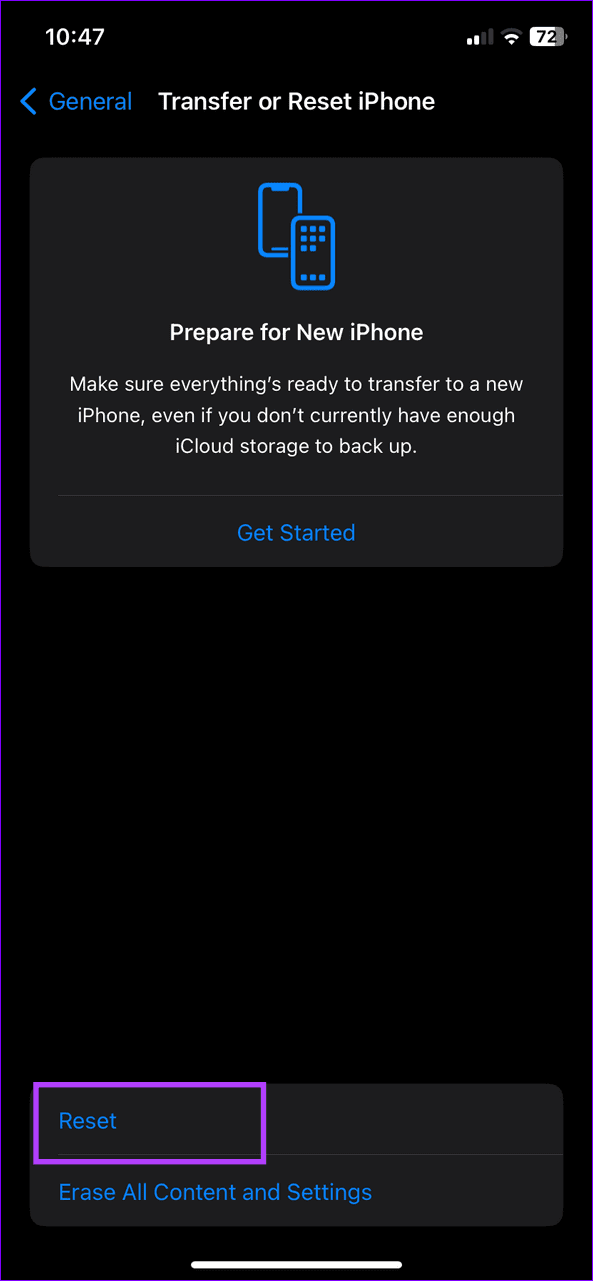
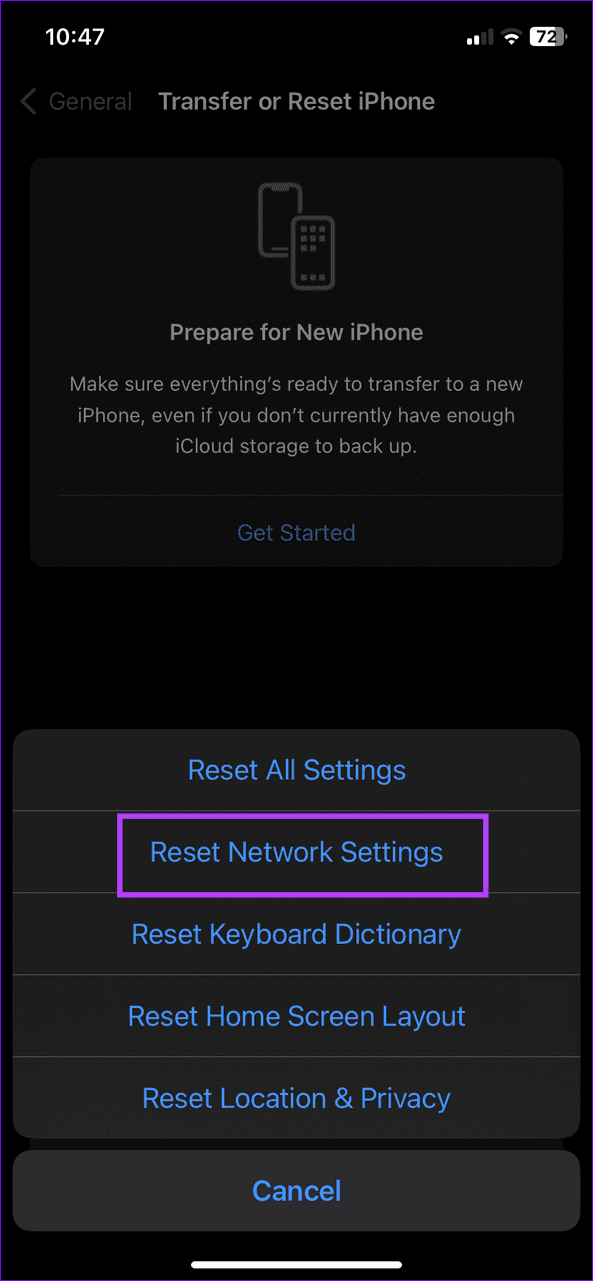
Step 2: Select Reset and tap Reset Network Settings. Enter your passcode when prompted to confirm the action.
Was this helpful?
Last updated on 11 July, 2024
Read Next
 4 Ways to Fix if You’re Unable to Answer Calls on Android
Basic Fixes Before we start, let us look at some preliminary fixes that might help resolve this issue.
4 Ways to Fix if You’re Unable to Answer Calls on Android
Basic Fixes Before we start, let us look at some preliminary fixes that might help resolve this issue.
 How to Answer Calls with Bluetooth Device on iPhone
Route Call Audio to Bluetooth Devices by Default To receive calls via Bluetooth devices, you must ensure two things.
How to Answer Calls with Bluetooth Device on iPhone
Route Call Audio to Bluetooth Devices by Default To receive calls via Bluetooth devices, you must ensure two things.
 3 Ways to Fix Unable to Join the Wi-Fi Network on iPhone
Basic Fixes Restart your iPhone and router: Long-press your iPhone's physical Power and Volume Up buttons and slide the power slider to shut it down.
3 Ways to Fix Unable to Join the Wi-Fi Network on iPhone
Basic Fixes Restart your iPhone and router: Long-press your iPhone's physical Power and Volume Up buttons and slide the power slider to shut it down.
 5 Ways to Fix “Unable to Load Photo” Error on iPhone
Try Basic Fixes Free up storage space: A lack of storage space could prevent your iPhone from loading photos from the cloud.
5 Ways to Fix “Unable to Load Photo” Error on iPhone
Try Basic Fixes Free up storage space: A lack of storage space could prevent your iPhone from loading photos from the cloud.
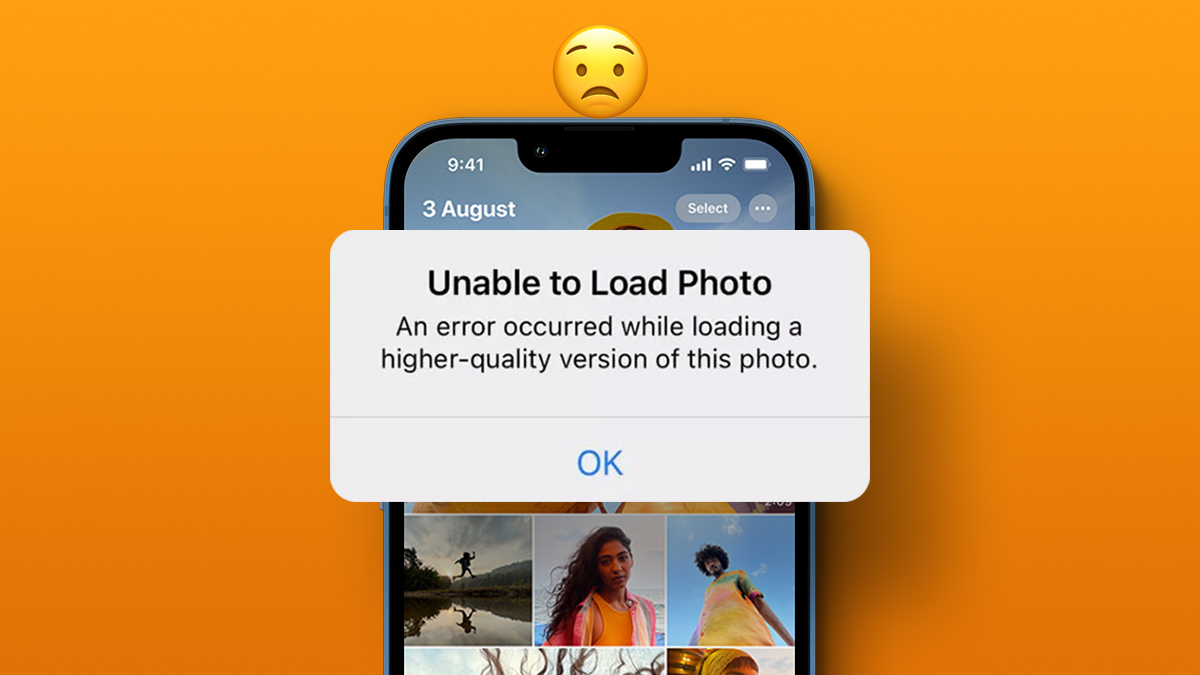 4 Ways to Fix Unable to Load Video or Photo Error on iPhone
Basic Fixes Turn off Low Power Mode: Unless your iPhone is running really low on battery, it's best to turn off Low Power Mode since it limits background activities like
4 Ways to Fix Unable to Load Video or Photo Error on iPhone
Basic Fixes Turn off Low Power Mode: Unless your iPhone is running really low on battery, it's best to turn off Low Power Mode since it limits background activities like
 4 Ways to Fix Unable to Clear History in Safari for iPhone
Fix 1: Disable Web Content Restrictions The Screen Time feature on your iPhone lets you apply content restrictions and block inappropriate websites.
4 Ways to Fix Unable to Clear History in Safari for iPhone
Fix 1: Disable Web Content Restrictions The Screen Time feature on your iPhone lets you apply content restrictions and block inappropriate websites.
 How to Fix “Unable to Start Collaboration” in iPhone Notes
Fix 1: Check iCloud Storage Space Suppose you have multiple notes stored on your iPhone, including media files like scanned documents, photos, and videos.
How to Fix “Unable to Start Collaboration” in iPhone Notes
Fix 1: Check iCloud Storage Space Suppose you have multiple notes stored on your iPhone, including media files like scanned documents, photos, and videos.
 3 Ways to Fix Unable to Log In to Instagram on Android and iPhone
Try Basic Fixes Temporarily disable VPN connection: Instagram might flag your login attempts as suspicious if it detects unusual network activity.
3 Ways to Fix Unable to Log In to Instagram on Android and iPhone
Try Basic Fixes Temporarily disable VPN connection: Instagram might flag your login attempts as suspicious if it detects unusual network activity.
The article above may contain affiliate links which help support Guiding Tech. The content remains unbiased and authentic and will never affect our editorial integrity.

