


Basic Fixes
- Check app compatibility: Launch the app > click on Edit > find the Substitutions sub-menu item. If it’s present, your app supports the text replacement feature on Mac.
- Update macOS and restart your Mac: Install the latest version of macOS and restart your Mac to eliminate bugs.
Fix 1: Enable Text Replacement for Compatible Apps
If your apps support the text expansion feature and it’s still not working, the feature may be disabled on the app. Here is how you can enable text replacement for compatible apps.
Step 1: Launch the app and click on the Edit menu. Now, click on Substitutions.
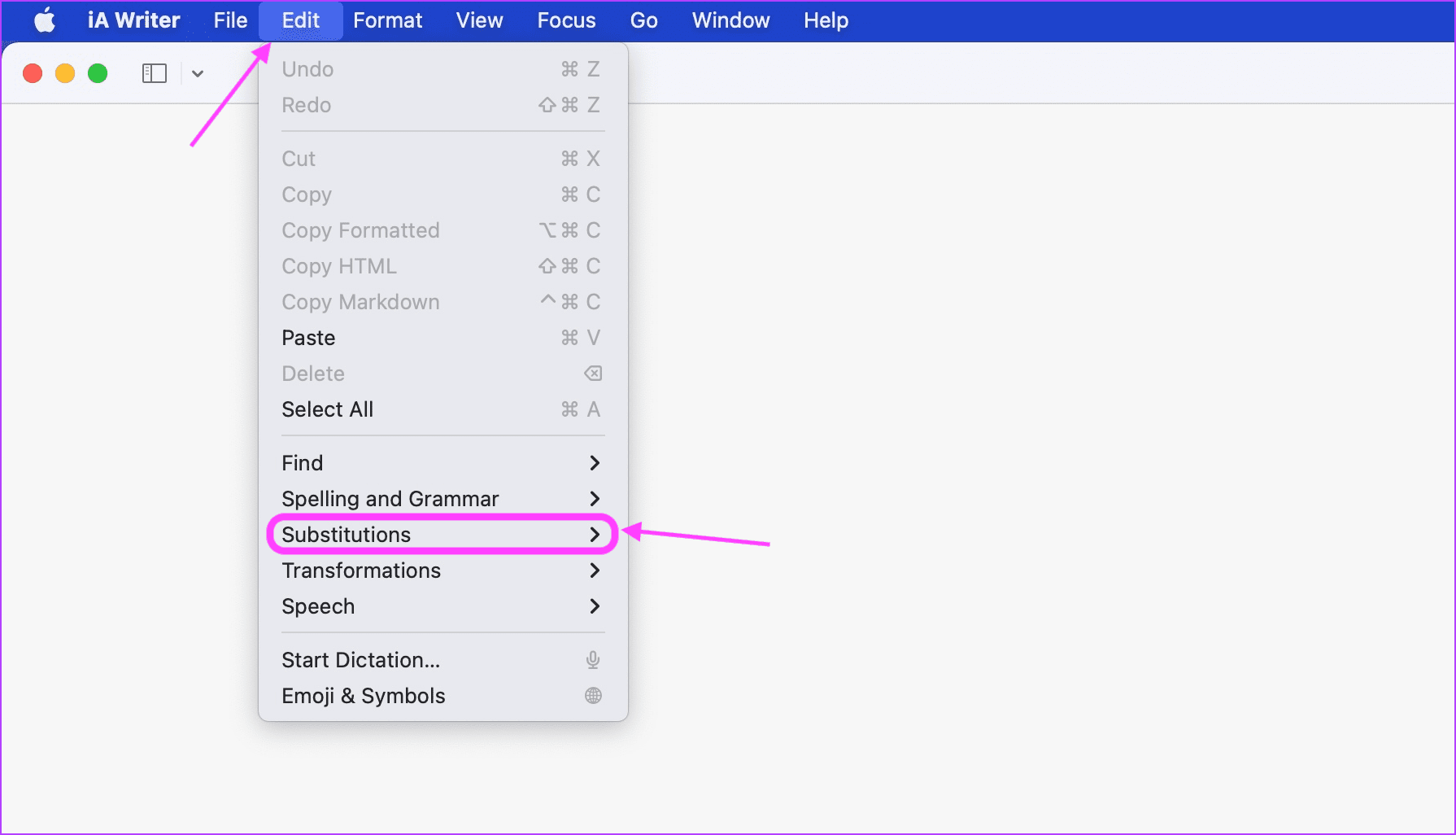
Step 2: If there’s no tick mark, click on Text Replacement to enable it

Fix 2: Use Spotlight for Quick Insertion With Incompatible Apps
Several prominent apps, including Microsoft Word, do not support the text replacement feature in macOS. While there’s nothing you can do to enable the feature in these apps, you can use a quick hack to overcome the incompatibility issue.
Step 1: When typing in an incompatible app like Microsoft Word, hit the CMD + Space keyboard combination to bring up Spotlight.

Step 2: Use your text shortcut to expand the text inside Spotlight.
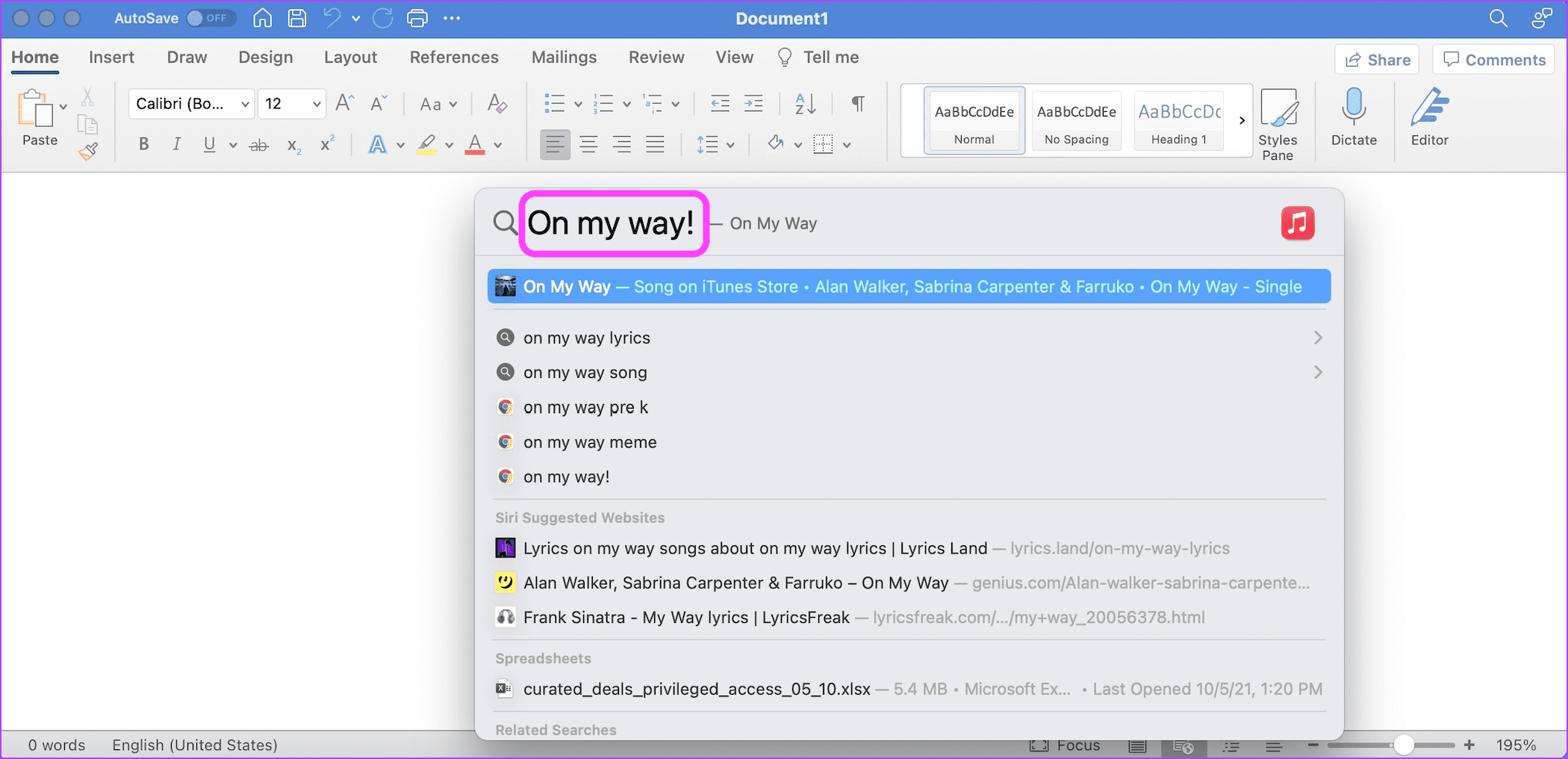
Step 3: Use the Cmd + A keyboard shortcut to select the text > Cmd + C to copy it > hit Escape to dismiss Spotlight.
Step 4: Use the Cmd + V keyboard shortcut to paste the copied text.

Fix 3: Add a New Text Replacement Item and Delete It
If text replacement is not working in a compatible app ever after enabling it, the feature is not working correctly. Users have reported that adding a new text replacement item and deleting it generally fixes the issue.
Open Settings > Keyboard > Text Replacement > click the Plus icon > fill in the Replace and With columns > select the newly added item and delete it.

Tip: Learn how to change the keyboard language on Mac.
Was this helpful?
Last updated on 18 July, 2024
1 Comment
Leave a Reply
Read Next
 How to Get Text Replacement on Windows
Method 1.
How to Get Text Replacement on Windows
Method 1.
 5 Best Replacement Earpads for Audio-Technica ATH-M50x Headphones
Audio-Technica makes terrific headphones and the company’s M50x and M50BT can still hold their own and sound superb, to say the least.
5 Best Replacement Earpads for Audio-Technica ATH-M50x Headphones
Audio-Technica makes terrific headphones and the company’s M50x and M50BT can still hold their own and sound superb, to say the least.
 How to Enable or Disable Inline Predictive Text on iPhone, iPad, and Mac
The Autocorrect feature has been there on Apple devices for a long time.
How to Enable or Disable Inline Predictive Text on iPhone, iPad, and Mac
The Autocorrect feature has been there on Apple devices for a long time.
 5 Ways to Fix Text Messaging Sound Not Working on Android
Basic Fixes Restart device: If there's any bug preventing you from receiving notifications, restarting your device will help.
5 Ways to Fix Text Messaging Sound Not Working on Android
Basic Fixes Restart device: If there's any bug preventing you from receiving notifications, restarting your device will help.
 5 Ways to Fix Voice-to-Text Not Working on Android
Basic Fixes Enable system-wide microphone access - Go to Settings > Security and Privacy > enable Microphone access.
5 Ways to Fix Voice-to-Text Not Working on Android
Basic Fixes Enable system-wide microphone access - Go to Settings > Security and Privacy > enable Microphone access.
 Top 10 Ways to Fix Google Meet Microphone Not Working on Windows and Mac
For the most part, Google Meet offers a seamless browser-based video conferencing experience on both Windows and macOS.
Top 10 Ways to Fix Google Meet Microphone Not Working on Windows and Mac
For the most part, Google Meet offers a seamless browser-based video conferencing experience on both Windows and macOS.
 Top 6 Ways to Fix Preview Not Working on Mac
Preview is a useful image viewer app that handles all your photo viewing and editing necessities.
Top 6 Ways to Fix Preview Not Working on Mac
Preview is a useful image viewer app that handles all your photo viewing and editing necessities.
 4 Ways to Fix Display Brightness Not Working on Mac
Fix 1: Check Display Dimming Settings Step 1: Open Settings > click on Battery from the left menu.
4 Ways to Fix Display Brightness Not Working on Mac
Fix 1: Check Display Dimming Settings Step 1: Open Settings > click on Battery from the left menu.
The article above may contain affiliate links which help support Guiding Tech. The content remains unbiased and authentic and will never affect our editorial integrity.

A big thanks to you Rachit !!