Try Basic Fixes
- Check if Telegram is down: It’s a good idea to check Telegram’s server status before proceeding with the other solutions on this list. You can visit a website like Downdetector to verify if others are experiencing similar issues. If the servers are down, you have no option but to wait for Telegram to fix the issue.
- Disable VPN: If you are using a VPN connection on your PC and connected to a country’s server where Telegram is banned, the service will not work. Try disabling your VPN temporarily and see if that gets Telegram to work again.
Fix 1: Reactivate Telegram Web Session
If Telegram Web isn’t showing new messages or you are having trouble sending them, you can try signing out and signing back in. Here’s how you can go about it.
Step 1: Head to the Telegram web app, click the three horizontal lines in the upper left corner, and select Settings from the menu that appears.

Step 2: Click the three-dot menu icon at the top to select the Log Out option.

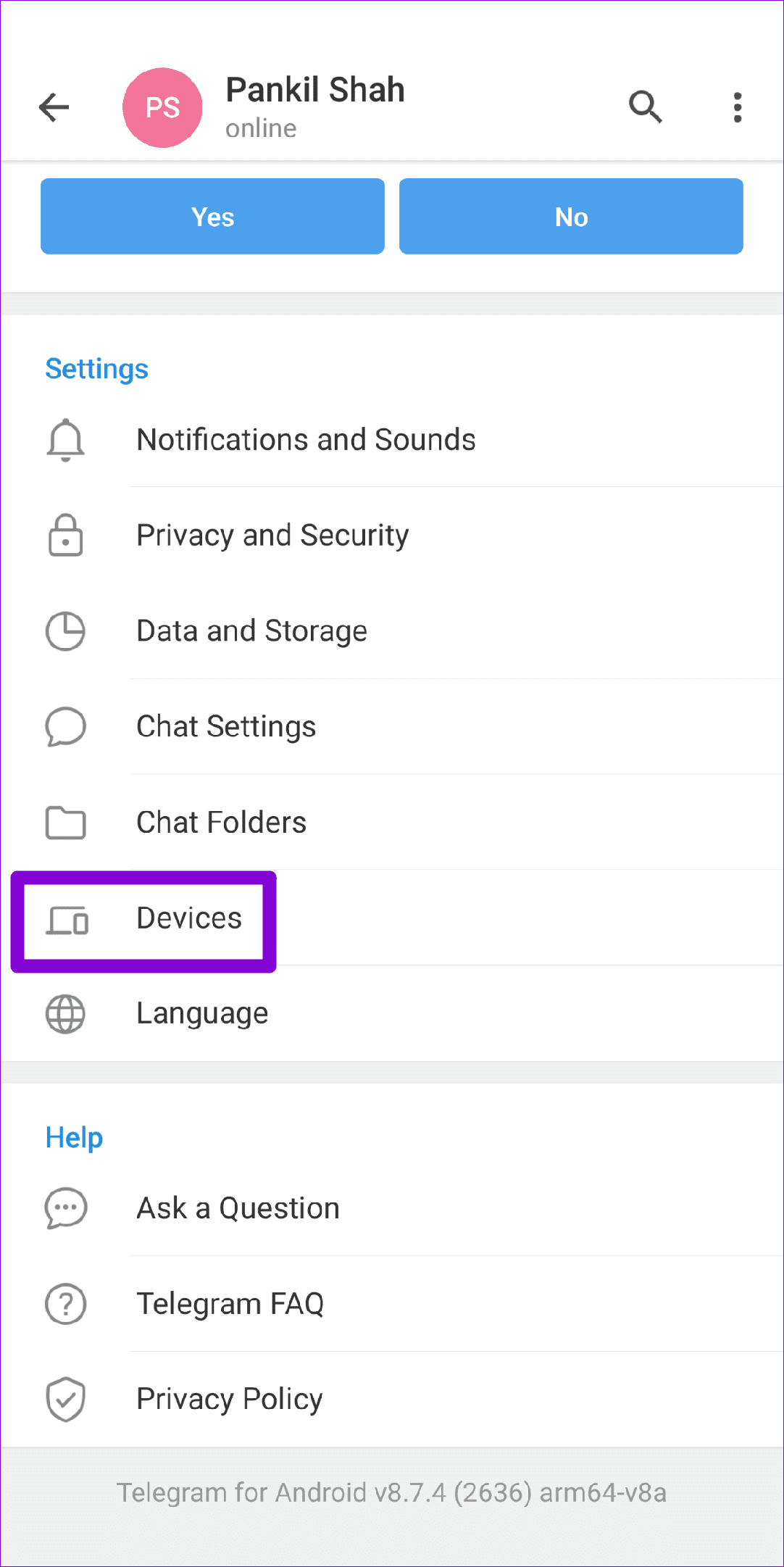
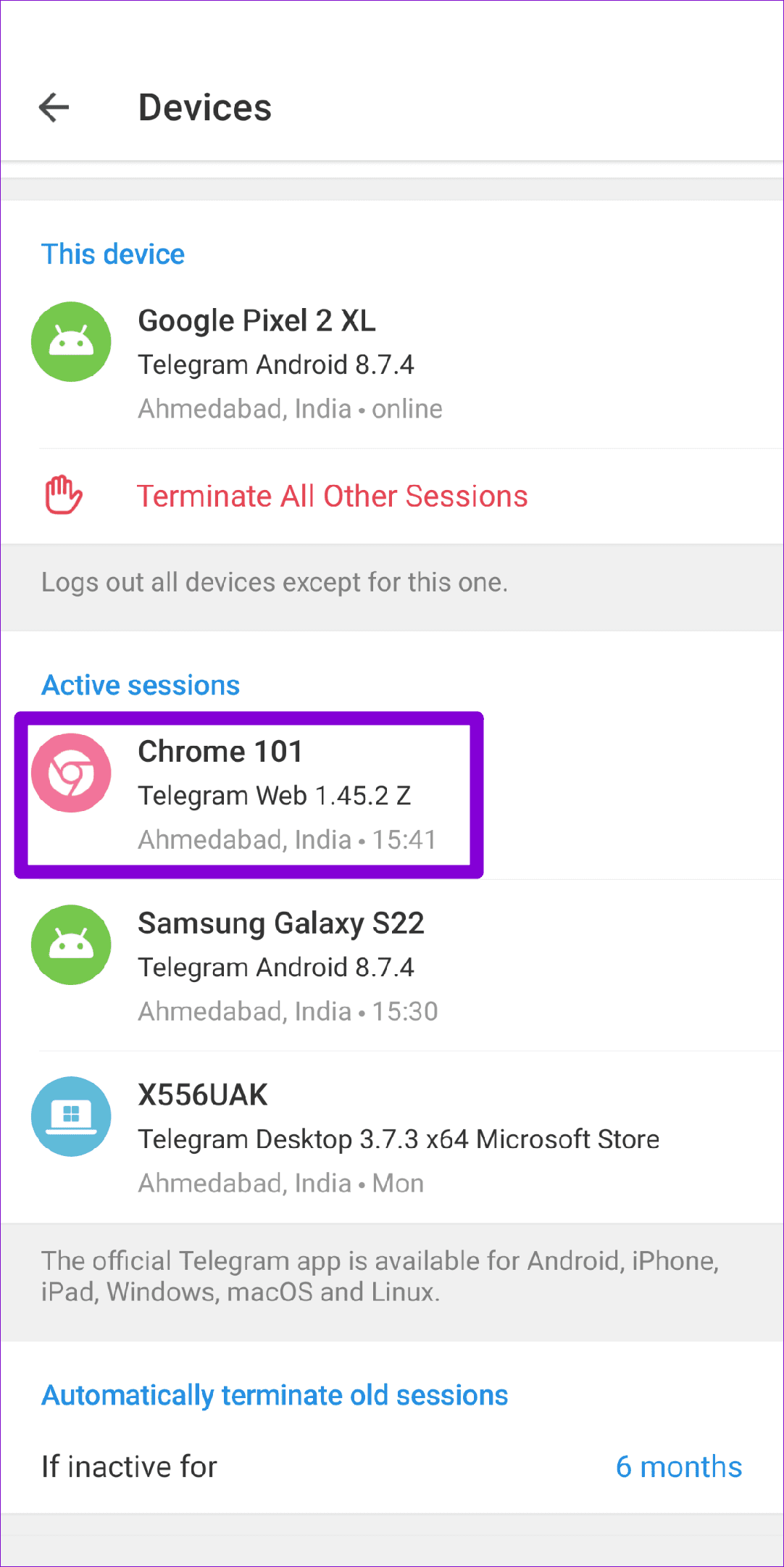
Alternatively, if Telegram Web isn’t working at all, you can terminate your web session from the Telegram app on your Android or iPhone. Here’s how.
Step 1: Open the Telegram app on your phone. Tap the three horizontal lines in the top left corner and select Settings.


Step 2: Scroll down to tap on Devices.
Step 3: Select your Telegram Web session and tap Terminate Session at the bottom.

Navigate to Telegram Web on your PC and sign in with your phone number or scan the QR code. Then, check if you can use Telegram in your browser.
Fix 2: Disable Browser Extensions
There are plenty of extensions for Telegram Web that allow you to apply themes, share links, and add extra features. If you’ve been using any of these extensions, one of them could be responsible for the issue.
To be sure of it, you’ll have to disable all the extensions on your browser and use Telegram Web.
Type in chrome://extensions (Chrome) or edge://extensions (Edge) in the address bar and press Enter. Turn off all the extensions one by one.

Restart your browser and try using Telegram Web again. If this helps, you can enable all the extensions individually to isolate the one causing the issue.
Fix 3: Clear Browser Cache and Cookies
Besides extensions, corrupted or old browsing data can also prevent the Telegram Web from functioning correctly. If that seems to be the case, you can try clearing the browser cache and cookies.
To clear browsing data in Chrome or Edge:
Step 1: Press Ctrl + Shift + Delete (Windows) or Command + Shift + Delete (macOS) on your keyboard to open the Clear Browsing Data panel.
Step 2: Use the drop-down menu next to Time Range to select All time and mark the boxes that read Cookies and other site data and Cached images and files.
Step 3: Hit the Clear data button to proceed.

Was this helpful?
Last updated on 21 June, 2024
Read Next
 Top 6 Ways to Fix Telegram Web Notifications Not Working
Telegram is one of the most popular instant messaging apps for multiple reasons.
Top 6 Ways to Fix Telegram Web Notifications Not Working
Telegram is one of the most popular instant messaging apps for multiple reasons.
 4 Fixes for Phone Not Scanning Telegram Web QR Code
Basic Fixes Clean your phone camera lens: A dirty or foggy camera lens cannot read the QR code from Telegram Web properly.
4 Fixes for Phone Not Scanning Telegram Web QR Code
Basic Fixes Clean your phone camera lens: A dirty or foggy camera lens cannot read the QR code from Telegram Web properly.
 4 Ways to Fix Google Messages for Web Not Working
Try Basic Fixes Turn off VPN: If you're using a VPN connection on your PC, you may want to turn it off.
4 Ways to Fix Google Messages for Web Not Working
Try Basic Fixes Turn off VPN: If you're using a VPN connection on your PC, you may want to turn it off.
 4 Ways to Fix Microsoft Outlook Web Not Working
Try Basic Fixes Check if Outlook is down: If Outlook servers are having an off day, you can't use Outlook in your web browser.
4 Ways to Fix Microsoft Outlook Web Not Working
Try Basic Fixes Check if Outlook is down: If Outlook servers are having an off day, you can't use Outlook in your web browser.
 5 Ways to Fix Microsoft Teams Web Not Working
Basic Fixes Sign out and sign back in: Authentication issues with your Microsoft account can sometimes cause Teams to stop working.
5 Ways to Fix Microsoft Teams Web Not Working
Basic Fixes Sign out and sign back in: Authentication issues with your Microsoft account can sometimes cause Teams to stop working.
 3 Ways to Fix TikTok Not Working in Web Browser
Preliminary Fixes Check network connection: Ensure your device has a stable network connection.
3 Ways to Fix TikTok Not Working in Web Browser
Preliminary Fixes Check network connection: Ensure your device has a stable network connection.
 3 Ways to Fix Paramount Plus Not Working on Web
Basic Fixes Check your network connection: Ensure your device has a good internet connection.
3 Ways to Fix Paramount Plus Not Working on Web
Basic Fixes Check your network connection: Ensure your device has a good internet connection.
 2 Ways to Fix Telegram Not Working on Mac
Basic Fixes Check if Telegram is down: Use DownDetector to check if the app is working fine for your current region.
2 Ways to Fix Telegram Not Working on Mac
Basic Fixes Check if Telegram is down: Use DownDetector to check if the app is working fine for your current region.
The article above may contain affiliate links which help support Guiding Tech. The content remains unbiased and authentic and will never affect our editorial integrity.