

Fix 1: Block Pop-Ups
Blocking pop-ups on Samsung Internet is one of the most effective ways to stop the browser from opening on its own. Hence, it’s the first thing you should do.
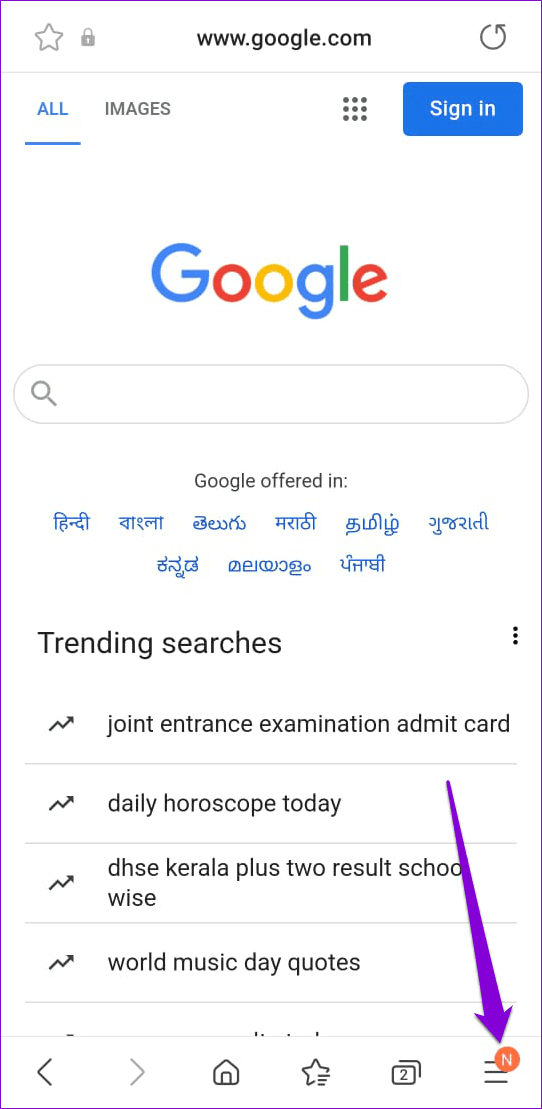
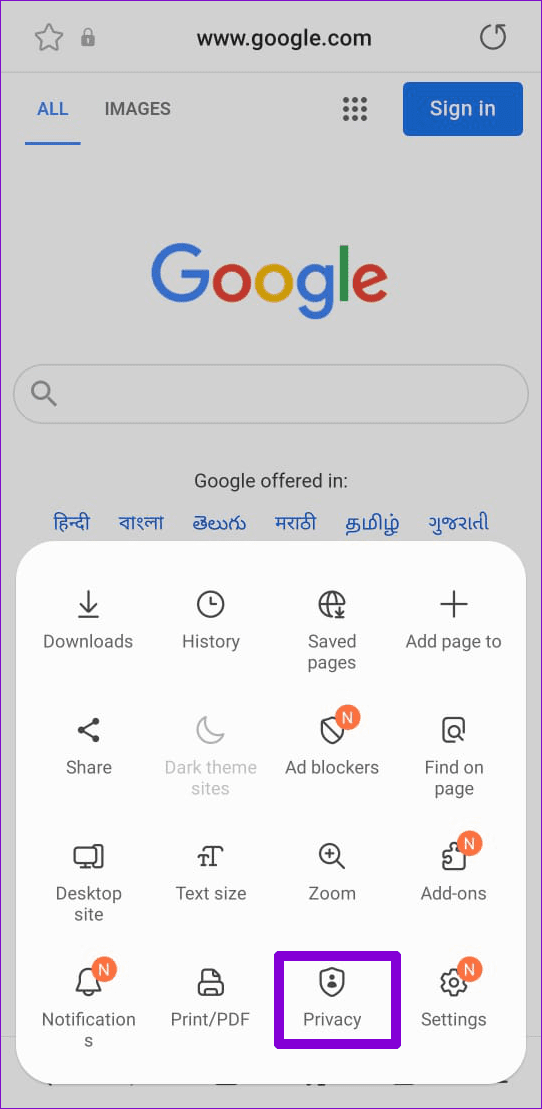
Step 1: In the Samsung Internet browser, tap the menu icon (three horizontal lines) at the bottom right and select Privacy.
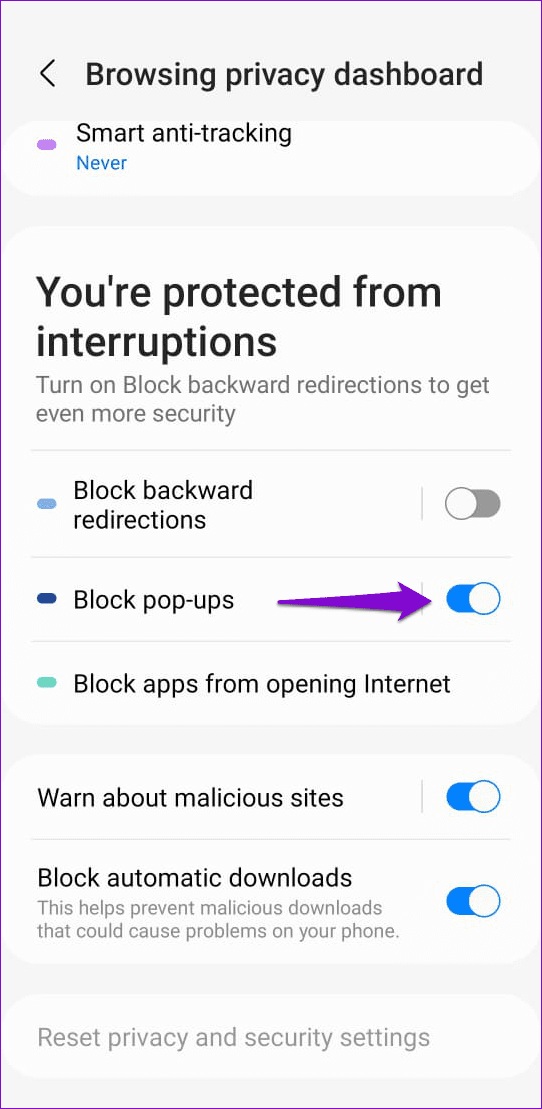
Step 2: Turn on the toggle for Block pop-ups.
Fix 2: Clear Cookies and Site Data
Existing cookies and site data stored by Samsung Internet can cause it to misbehave at times and open random websites. You can try clearing the existing browser data to see if that solves the issue.
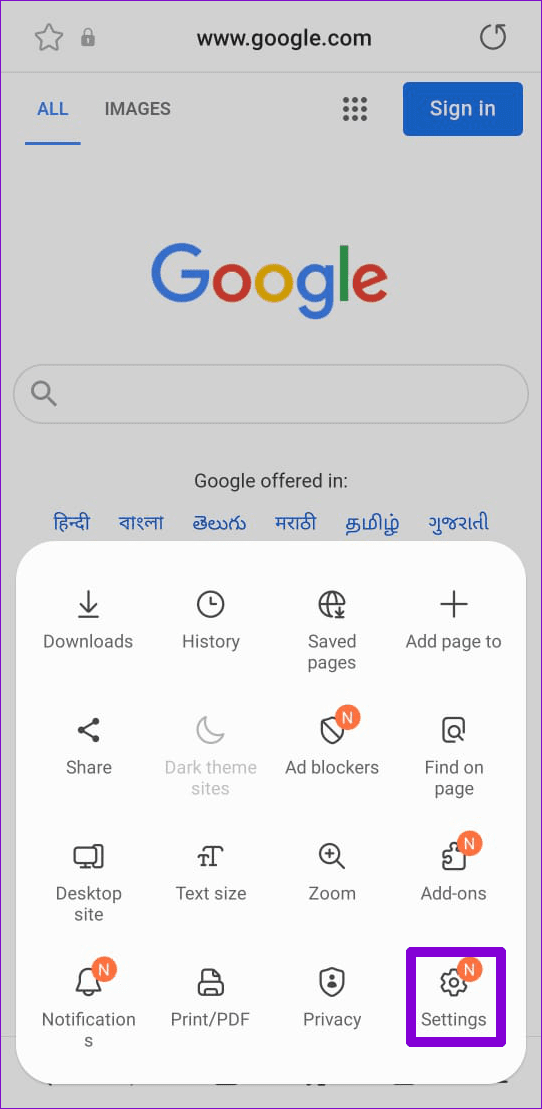
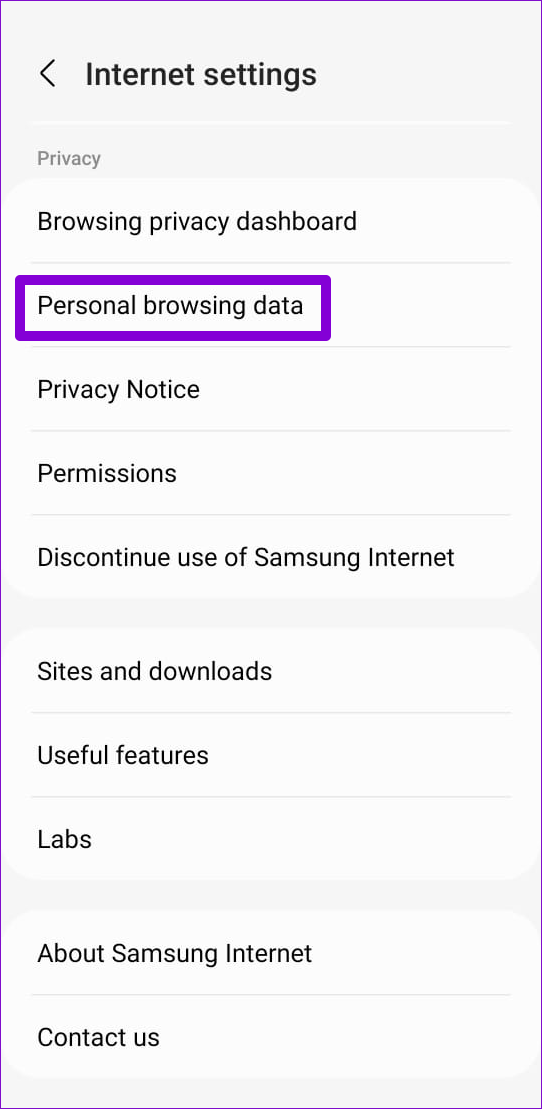
Step 1: Open the Samsung Internet browser > tap the menu icon at the bottom right > select Settings.
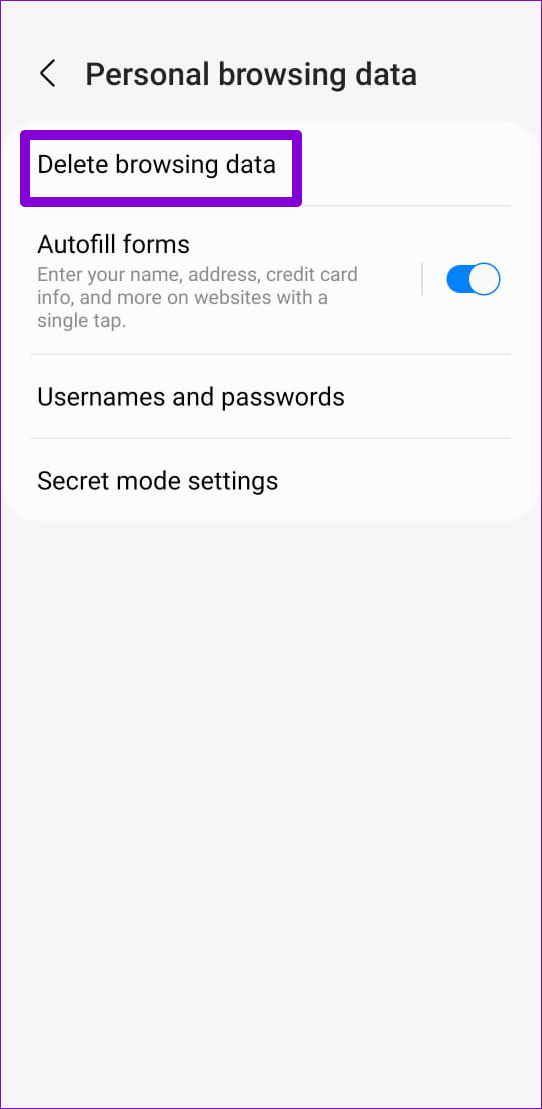
Step 2: Go to Personal browsing data > Delete browsing data.
Step 3: Select Cookies and site data > tap Delete data at the bottom > choose Delete when prompted.

Fix 3: Scan Your Phone Using Device Protection
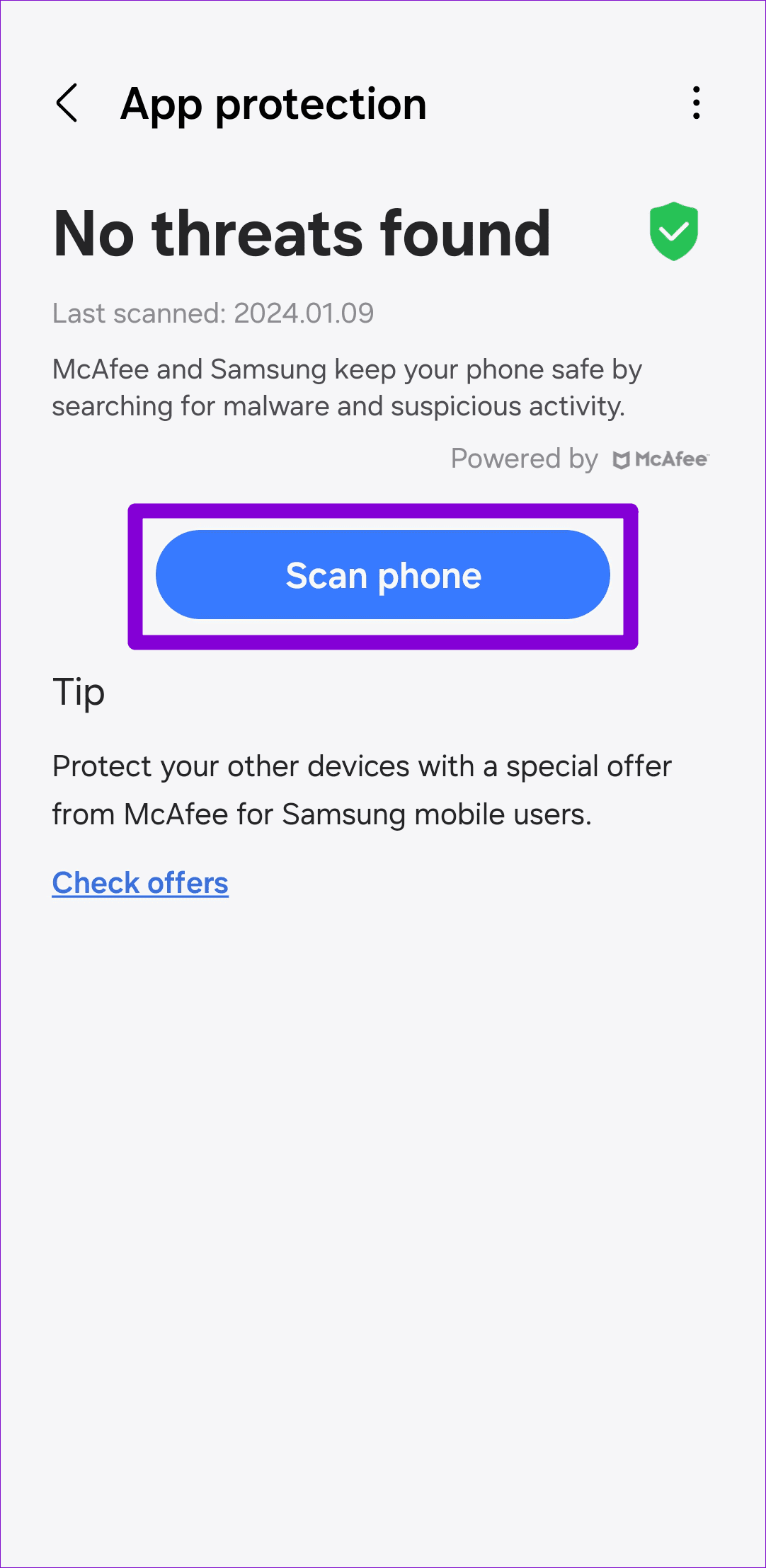
Such issues can also arise if your Samsung Galaxy phone is infected with malware. To rule out this possibility, scan your phone for malware using the Device Care feature.
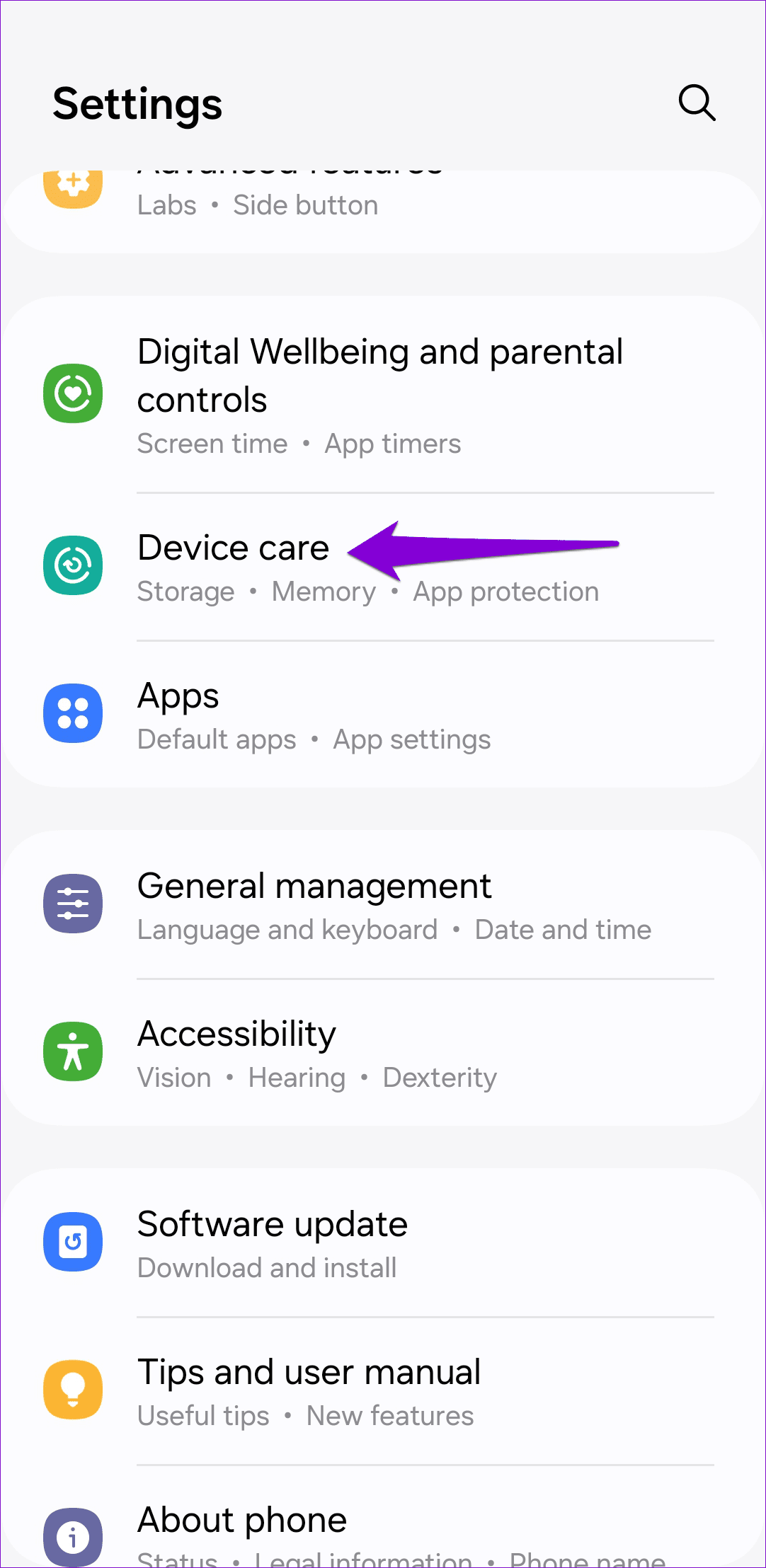
Step 1: Open Settings on your phone > tap on Device care.
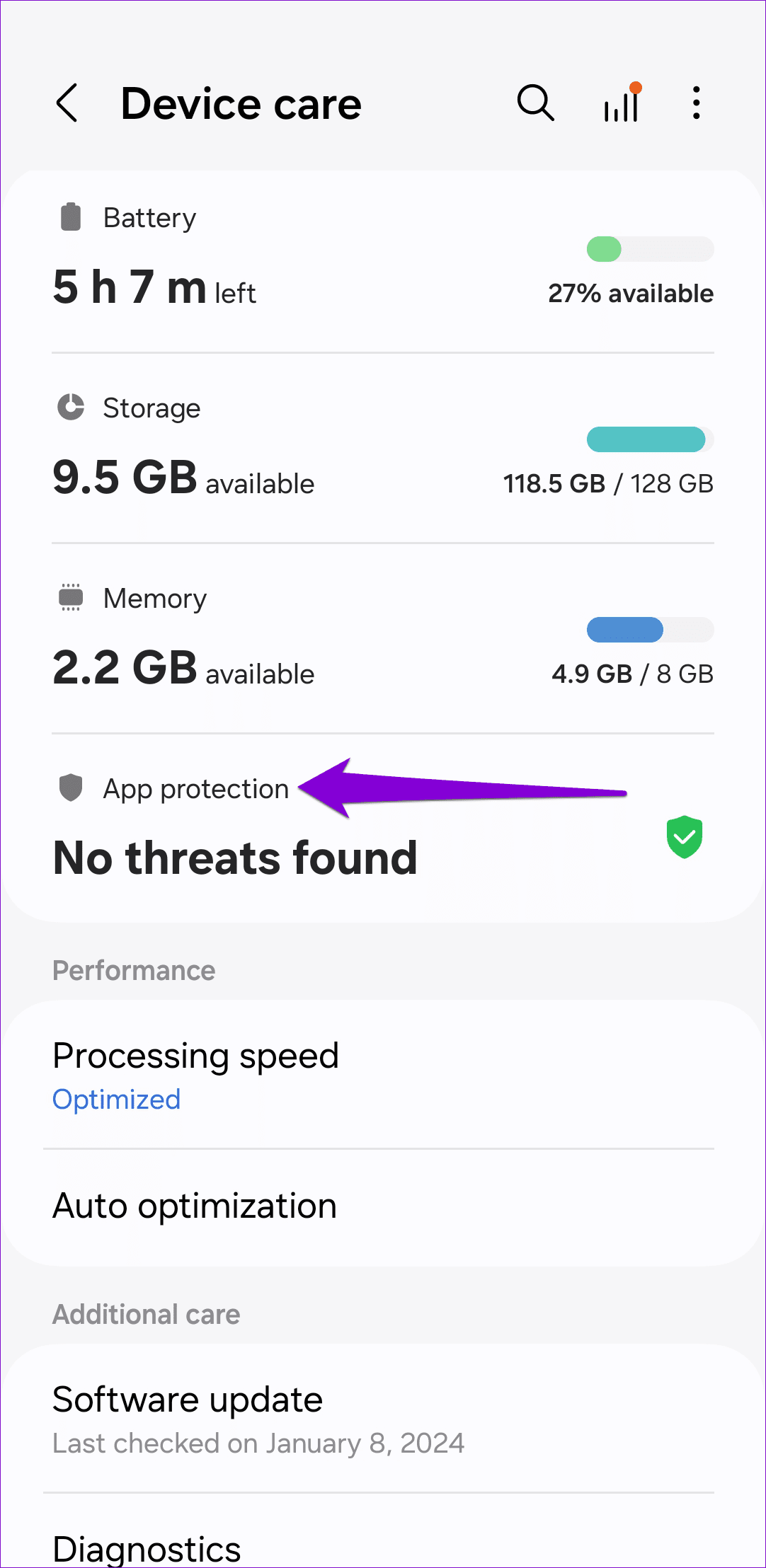
Step 2: Go to App protection > tap Scan phone to initiate a scan.
Fix 4: Delete Samsung Internet Cache
Like any other app, Samsung Internet also collects cache data on your phone. Although this data helps the browser run smoothly, it can also cause problems if it becomes old or corrupt. If that’s the case, clearing Samsung Internet’s cache data should solve the problem.
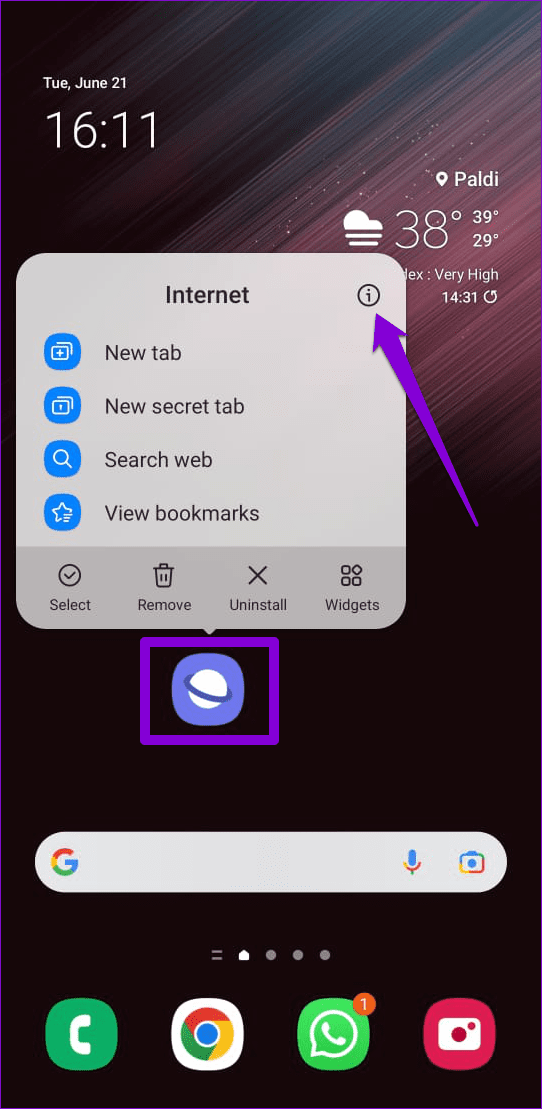
Step 1: Long-press on the Samsung Internet app icon > tap the info icon from the menu.
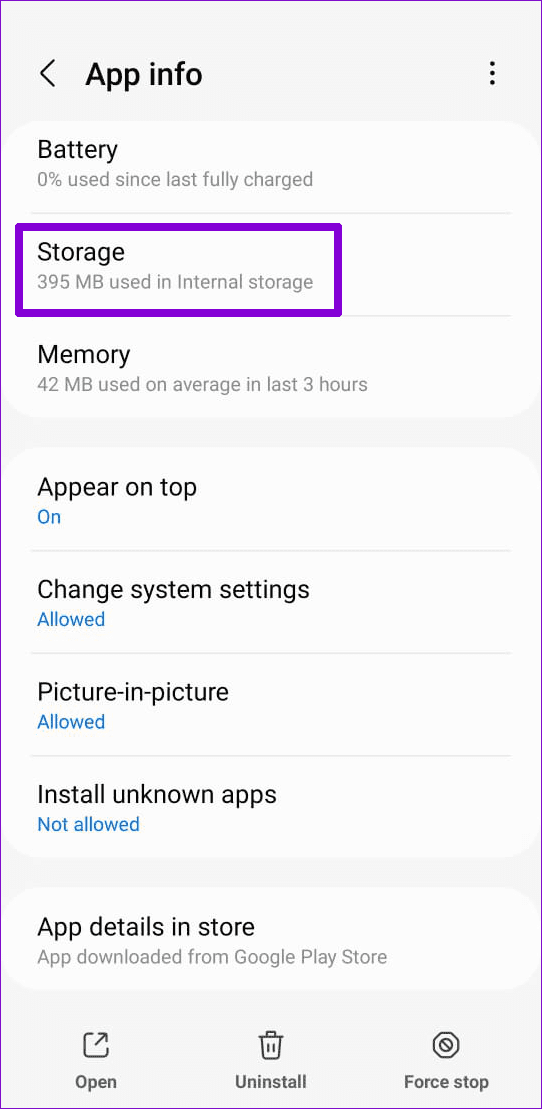
Step 2: Go to Storage > tap Clear cache at the bottom right.

Fix 5: Disable Samsung Internet
If Samsung Internet isn’t your primary browser, consider disabling it on your phone. This should prevent it from running in the background and resolve your issue.
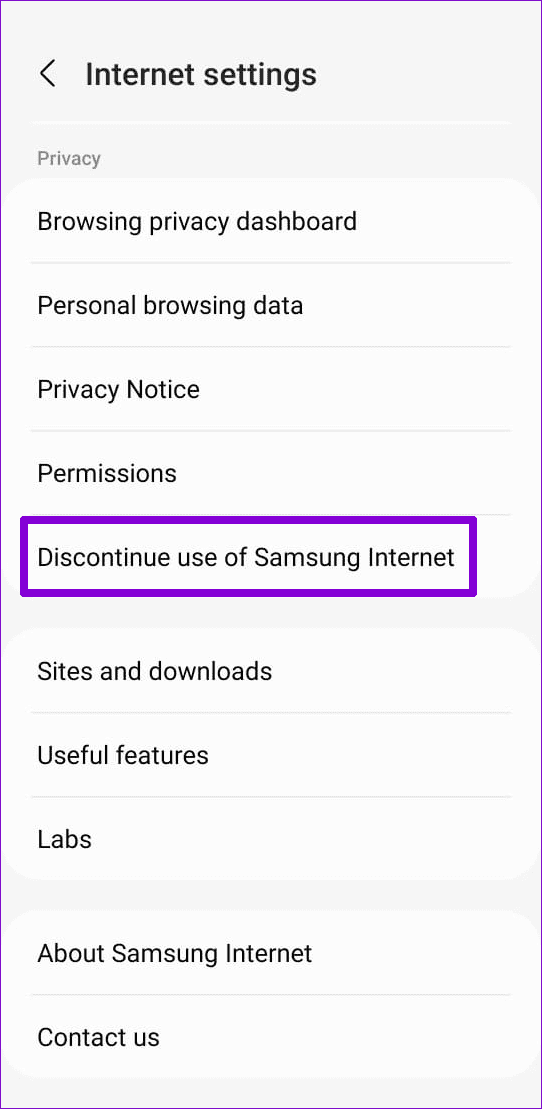
Step 1: In the Samsung Internet browser, head to Settings > Discontinue use of Samsung Internet.
Step 2: Tap Discontinue use > choose Discontinue when prompted.

Fix 6: Boot Into Safe Mode and Uninstall Recently Installed Apps
If you don’t want to disable or uninstall Samsung Internet, consider booting your phone into safe mode. This will let you determine whether a rogue third-party app is causing the Samsung Internet browser to keep popping up.
Press and hold the power button on your phone > long-press the Power off option > tap the green checkmark to enter safe mode.
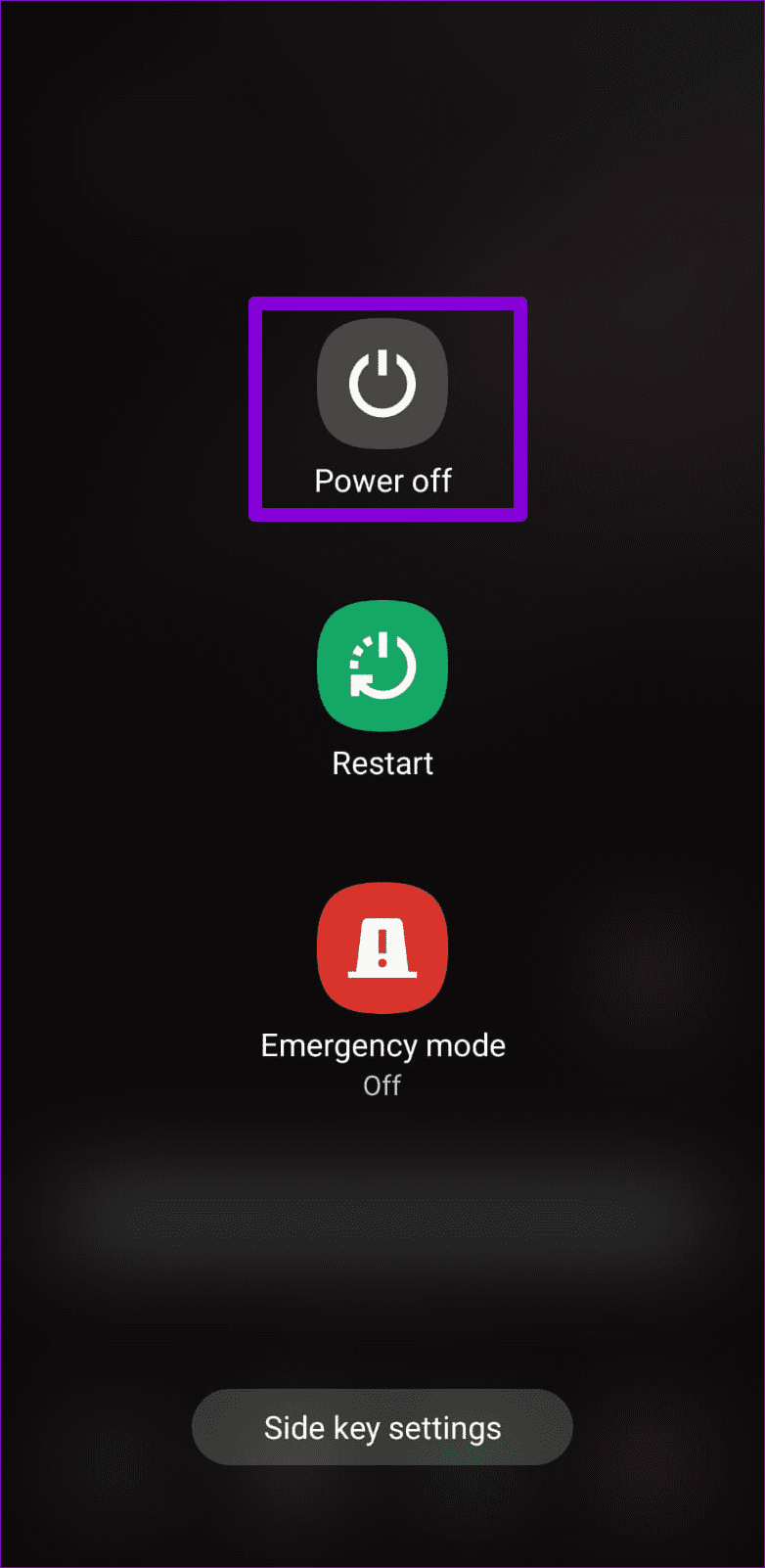
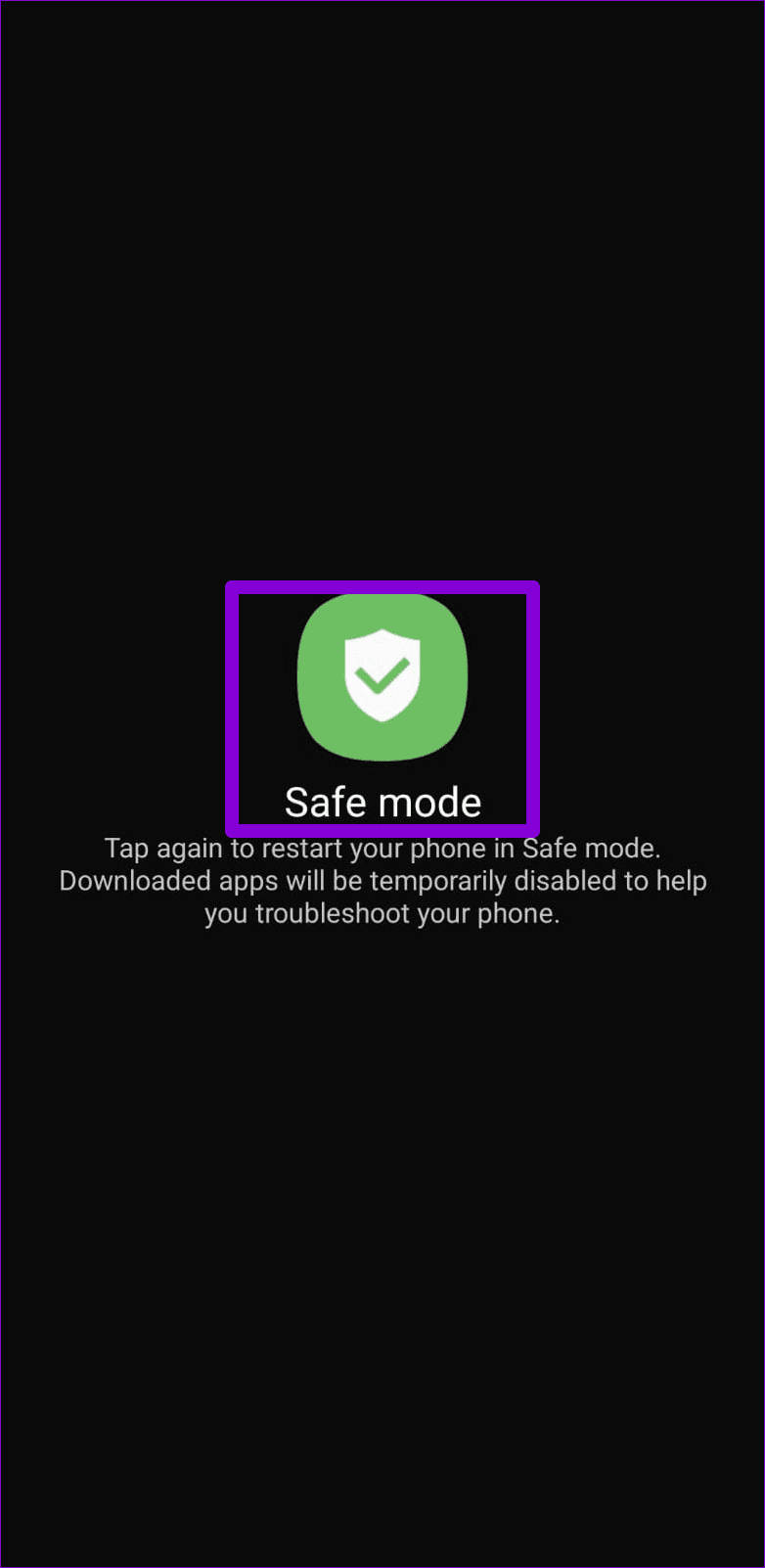
Use your phone in safe mode for a few minutes and observe if Samsung Internet opens automatically. If it doesn’t, one of your third-party apps may be causing the issue. So, you can attempt to resolve it by uninstalling recently installed apps one by one until the problem is fixed.
Was this helpful?
Last updated on 02 August, 2024
3 Comments
Leave a Reply
Read Next
 5 Ways to Fix Samsung Internet Browser Keeps Stopping on Android
Fix 1: Check Permissions and Force Stop Samsung Internet App Samsung Internet browser requires a few permissions to run on your Android.
5 Ways to Fix Samsung Internet Browser Keeps Stopping on Android
Fix 1: Check Permissions and Force Stop Samsung Internet App Samsung Internet browser requires a few permissions to run on your Android.
 5 Ways to Fix Samsung Internet Browser Not Loading Pages
Try Basic Fixes Check your internet connection: The Samsung Internet browser may have trouble loading web pages if there is a problem with your internet connection.
5 Ways to Fix Samsung Internet Browser Not Loading Pages
Try Basic Fixes Check your internet connection: The Samsung Internet browser may have trouble loading web pages if there is a problem with your internet connection.
 Samsung Internet vs Microsoft Edge: Which Browser Is Better on Android
Google Play Store on Android is full of web browser choices.
Samsung Internet vs Microsoft Edge: Which Browser Is Better on Android
Google Play Store on Android is full of web browser choices.
 How to Import Chrome Bookmarks to Samsung Internet Browser
Samsung Internet Browser is one of the finest alternatives to Chrome on Android, answering many of the persistent usability issues in Google’s flagship browser.
How to Import Chrome Bookmarks to Samsung Internet Browser
Samsung Internet Browser is one of the finest alternatives to Chrome on Android, answering many of the persistent usability issues in Google’s flagship browser.
 4 Ways to Stop Internet Explorer From Opening Edge
Method 1: Rename the BHO Folder Internet Explorer (IE) uses the Browser Helper Object (BHO) policy stored on your Windows PC to redirect you to Microsoft Edge.
4 Ways to Stop Internet Explorer From Opening Edge
Method 1: Rename the BHO Folder Internet Explorer (IE) uses the Browser Helper Object (BHO) policy stored on your Windows PC to redirect you to Microsoft Edge.
 2 Ways to Stop Downloads From Opening Automatically in Chrome
Method 1: Uncheck Always Open This File Option Chrome lets you automatically launch certain file types as soon as they've finished downloading locally.
2 Ways to Stop Downloads From Opening Automatically in Chrome
Method 1: Uncheck Always Open This File Option Chrome lets you automatically launch certain file types as soon as they've finished downloading locally.
 3 Ways to Fix Windows 11 Screen Keeps Locking Automatically
Fix 1: Increase Lock Screen Timeout You can start by verifying the set lock screen timeout duration on your PC.
3 Ways to Fix Windows 11 Screen Keeps Locking Automatically
Fix 1: Increase Lock Screen Timeout You can start by verifying the set lock screen timeout duration on your PC.
 3 Ways to Fix Mouse Keeps Scrolling Automatically Windows 10 and Windows 11
https://youtu.be/1UZ3PWNr-lE Try Basic Fixes Disconnect and reconnect the mouse: Unplug your mouse cable or wireless adapter from your computer and reconnect it to a different port.
3 Ways to Fix Mouse Keeps Scrolling Automatically Windows 10 and Windows 11
https://youtu.be/1UZ3PWNr-lE Try Basic Fixes Disconnect and reconnect the mouse: Unplug your mouse cable or wireless adapter from your computer and reconnect it to a different port.
The article above may contain affiliate links which help support Guiding Tech. The content remains unbiased and authentic and will never affect our editorial integrity.
So, on my Samsung device, this bloatware browser wants to make itself the default browser after every update and every time I restart the phone. I need this bloatware to be taken off the phone altogether. Galaxy j7 Crown will not let me disable the Samsung browser. Any advice on how to get rid of this POS bloatware????? I have other Samsung bloatware apps doing the same thing…. They also need to go!
It will not allow me to uninstall or even disable the app, neither on a long tap nor in settings
I have been struggling with this problem with my S23 Ultra for about 3 months. Previously I had the issue with Note 9 and had to do a factory reset to fix it. Finally, figured out the issue. There is a setting in Block apps from opening the internet and it shows the problematic app. The I had was Gifmaster and it has opened about 900 times.