- Free up storage space: If your device has low storage space, Android might have difficulties performing certain tasks and run into errors such as this one. To avoid this, ensure that your device has at least 1GB of free storage space to work with.
- Remove the SD card: Issues with your SD card can also prevent Android from accessing essential files and information. For instance, if your SD card is corrupted, Android will fail to fetch app data, leading to such issues. To check for this possibility, remove the SD card and restart your phone.
- Install app and Android updates: Running an outdated version of apps or the Android OS can also cause such anomalies. To fix this, keep your apps and Android up to date.
Fix 1: Try Safe Mode
If the above solutions didn’t help much and you’re still bothered by the “Process system isn’t responding” error, boot your Android phone into Safe Mode. This will allow you to use your phone without any third-party apps and services, helping you determine if one of them is causing the issue.
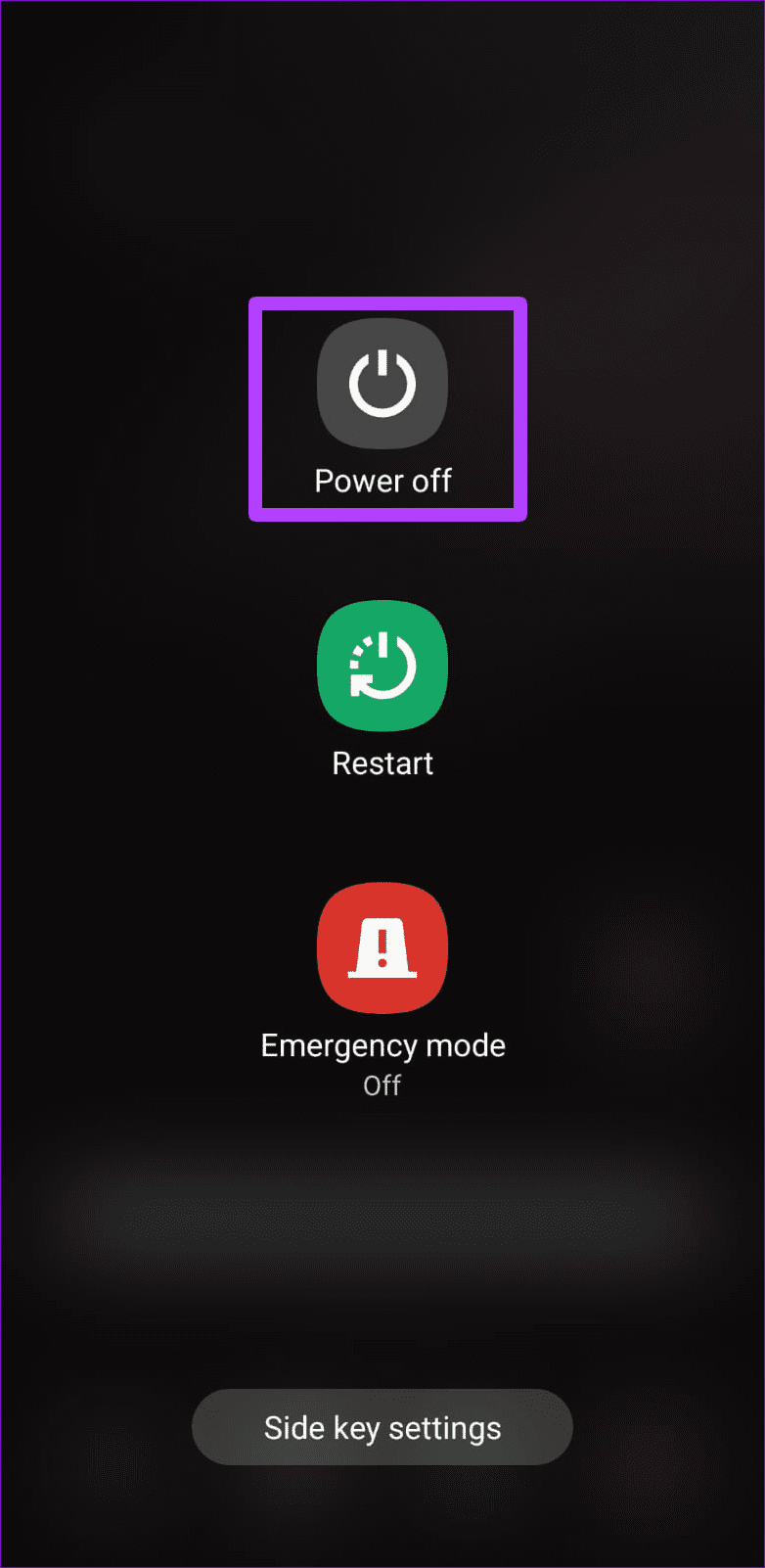
Press and hold the power button on your Android. Then, long-tap on Power off and tap the green checkmark to boot into Safe Mode.
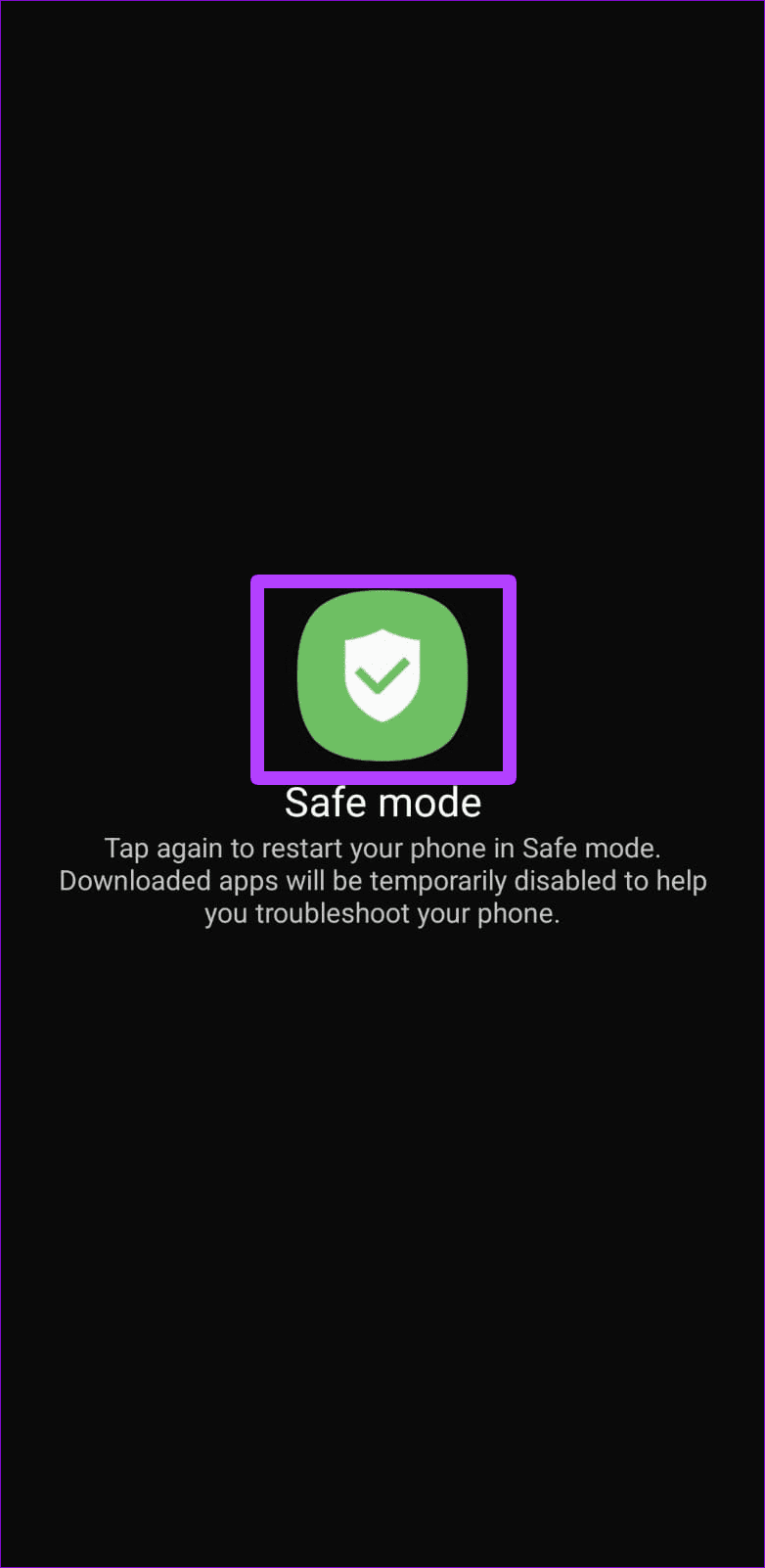
If your device works fine in Safe Mode, it could be one of the third-party apps installed that’s causing the issue. Apps or games that you’ve installed recently are most likely the culprit. So, start with them.
Fix 2: Factory Reset Your Phone
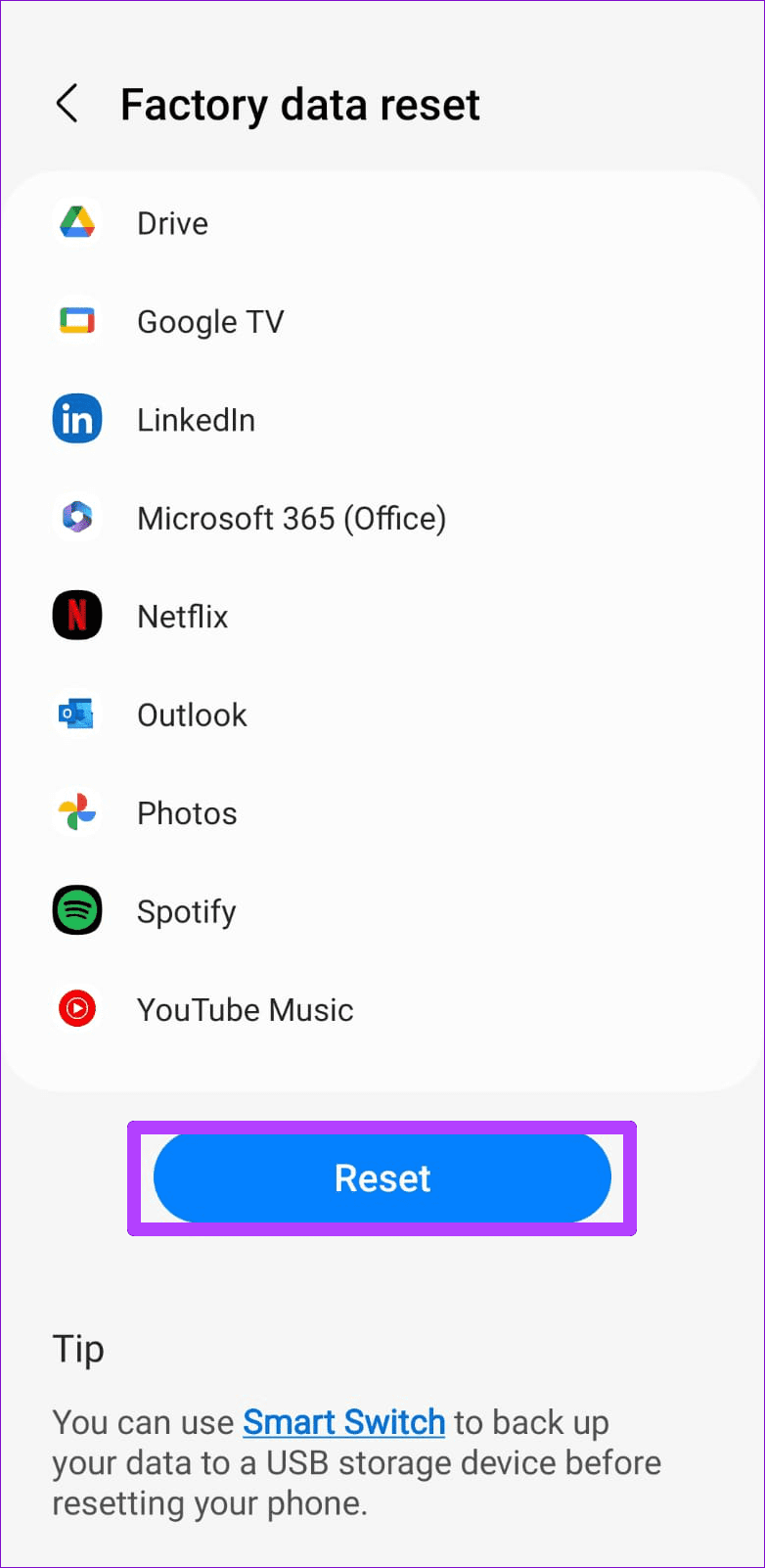
If the error persists, perform a factory reset to fix the “Process system isn’t responding” error. Note that this will remove all your apps, contacts, system settings, media files, and more. So, ensure to back up any important data before proceeding.
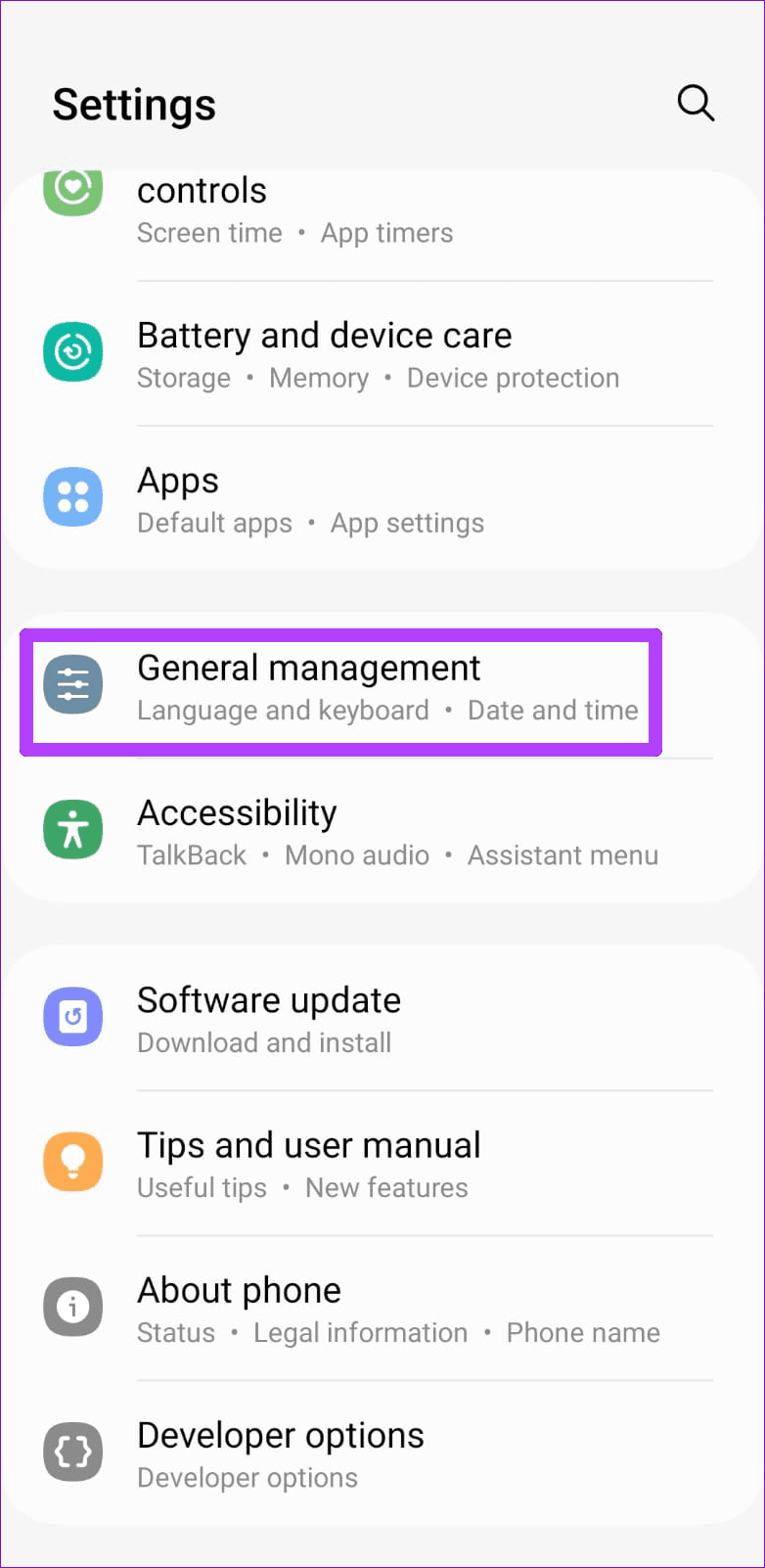
Step 1: Open the Settings app and head to General Management > Reset.
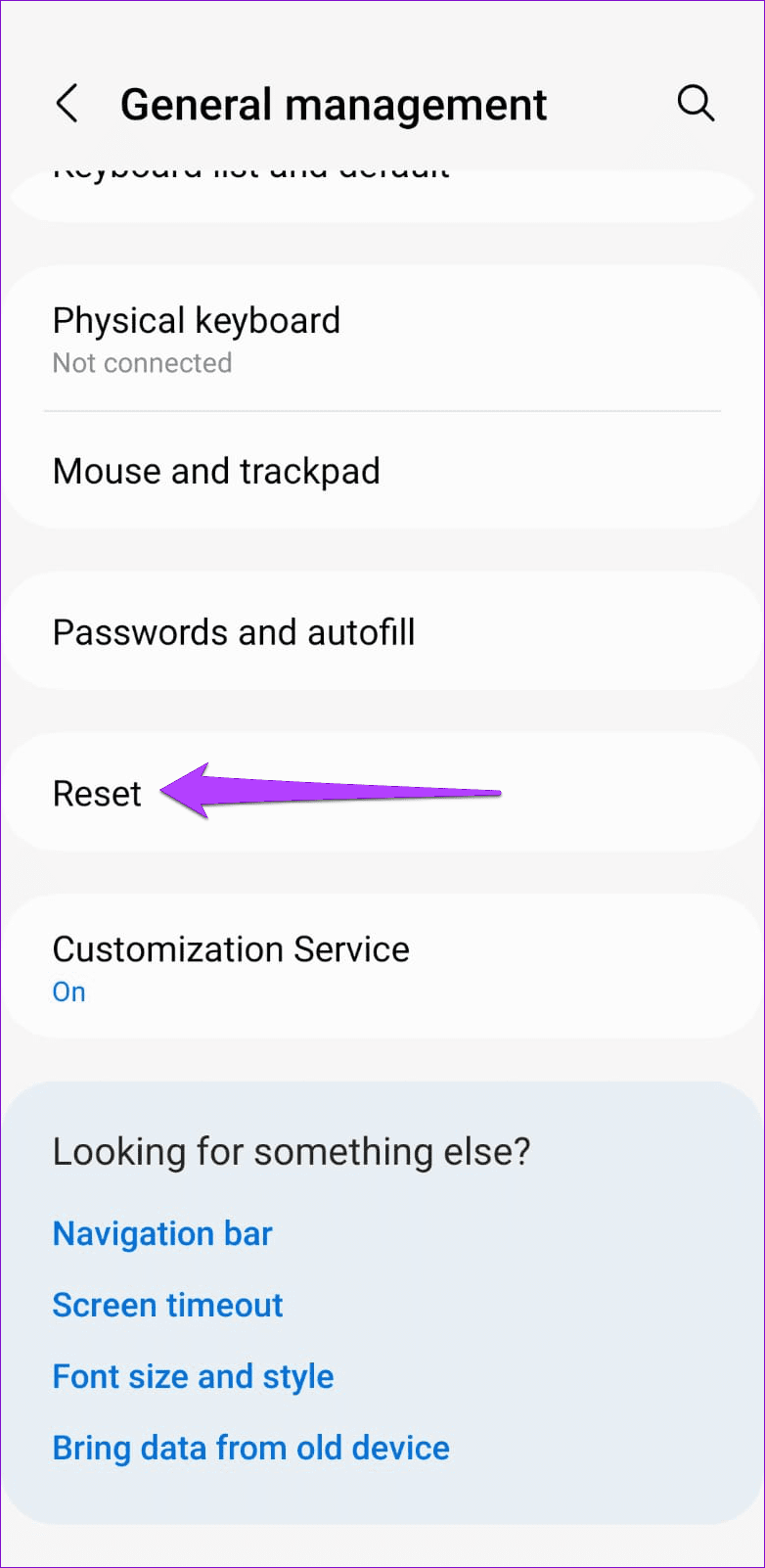
Step 2: Select Factory data reset > tap Reset to confirm.

Was this helpful?
Last updated on 01 May, 2024
Read Next
 3 Ways to Fix Google Chrome Not Responding Error
Basic Fixes Restart Google Chrome: If Google Chrome isn't responding, restart the browser.
3 Ways to Fix Google Chrome Not Responding Error
Basic Fixes Restart Google Chrome: If Google Chrome isn't responding, restart the browser.
 6 Ways to Fix WhatsApp Not Responding on Android
Basic Fixes Check WhatsApp servers: Access DownDetector to check an active WhatsApp server outage.
6 Ways to Fix WhatsApp Not Responding on Android
Basic Fixes Check WhatsApp servers: Access DownDetector to check an active WhatsApp server outage.
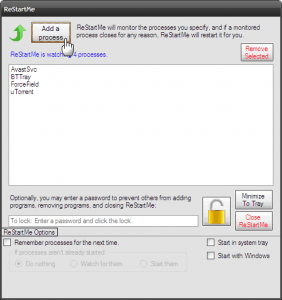 Quickly Auto-Restart a Windows Process or Program that Crashes
No one’s ever been killed in a Windows crash, so the Microsoft jokes don’t die down.
Quickly Auto-Restart a Windows Process or Program that Crashes
No one’s ever been killed in a Windows crash, so the Microsoft jokes don’t die down.
 Difference Between Process and Service in Windows 10: GT Explains
A few days ago, while I was busy writing a guide Chrome started lagging, and I had to open the Task Manager to kill the associated process.
Difference Between Process and Service in Windows 10: GT Explains
A few days ago, while I was busy writing a guide Chrome started lagging, and I had to open the Task Manager to kill the associated process.
 Top 6 Ways to Fix Zoom Not Responding on Windows 10
Zoom has certainly become an integral part of education and work.
Top 6 Ways to Fix Zoom Not Responding on Windows 10
Zoom has certainly become an integral part of education and work.
 5 Ways to Fix Firefox Not Responding on Windows 10 and Windows 11
Fix 1: Force Close Firefox Processes Sometimes, Firefox processes may become unresponsive on your PC due to temporary issues.
5 Ways to Fix Firefox Not Responding on Windows 10 and Windows 11
Fix 1: Force Close Firefox Processes Sometimes, Firefox processes may become unresponsive on your PC due to temporary issues.
 2 Ways to Fix Alexa Not Responding to Voice Commands
Basic Troubleshoot Ensure Wi-Fi is working: If the network connection is unstable, Alexa may not respond to your question or process a request.
2 Ways to Fix Alexa Not Responding to Voice Commands
Basic Troubleshoot Ensure Wi-Fi is working: If the network connection is unstable, Alexa may not respond to your question or process a request.
 4 Ways to Fix Microsoft Excel Not Responding on Windows 11
Fix 1: Open Microsoft Excel in Safe Mode and Disable Add-Ins You can open Excel in Safe Mode to run the app without add-ins.
4 Ways to Fix Microsoft Excel Not Responding on Windows 11
Fix 1: Open Microsoft Excel in Safe Mode and Disable Add-Ins You can open Excel in Safe Mode to run the app without add-ins.
The article above may contain affiliate links which help support Guiding Tech. The content remains unbiased and authentic and will never affect our editorial integrity.