Try Basic Fixes
- Check if Outlook is down: If Outlook servers are having an off day, you can’t use Outlook in your web browser. Visit Microsoft’s service status page and check the server status of Outlook on it.
- Sign out and sign in: Authentication issues with your Microsoft account might prevent you from sending or receiving emails in Outlook. Try signing out of your account and then signing back in, and see if that helps.
Fix 1: Disable Ad Blocker Extensions
Ad blocker extensions can prevent Outlook from loading properly in the browser. Temporarily disable the ad blocker extension to see if this resolves the issue.
Type chrome://extensions (Chrome) or edge://extensions (Edge) in the address bar at the top and press Enter. Use the toggle to disable the ad blocker extension.

If this method works, pause the ad blocker on Outlook to fix the issue for good.

Fix 2: Reset Site Permissions for Outlook
Some Outlook web features may not work in your browser if you have denied any important site permissions. For example, if you’ve disabled notification permissions for Outlook, you won’t get any alerts for emails or calendar events.
Instead of checking each site permission individually, you can reset site permissions for Outlook and start over. To do so, click the padlock icon on the left of the URL and click Reset permissions.

Fix 3: Enable JavaScript
JavaScript is responsible for loading many elements of a web page. When it is disabled, some websites may have difficulties loading visual content. To avoid this, keep JavaScript enabled in your browser.
Enable JavaScript in Chrome
Step 1: In Google Chrome, type chrome://settings/content/javascript in the address bar at the top and press Enter.
Step 2: Under Default behavior, select the Sites can use Javascript option.

Enable JavaScript in Edge
Step 1: In Microsoft Edge, type edge://settings/content/javascript in the Address bar at the top and hit Enter.
Step 2: Turn on the toggle for Allowed.

Fix 4: Clear Browsing Cache
Outdated or corrupt browser cache data could prevent websites like Outlook from loading correctly at times. In most cases, you can fix such issues by clearing the browser cache.
If you use Chrome or Edge, press Ctrl + Shift + Delete to open the “Clear browsing data” panel. Select All time in the Time Range option. Check the box for Cached images and files and hit Clear data.

Was this helpful?
Last updated on 29 July, 2024
Read Next
 How to Recall an Email on Microsoft Outlook for Desktop and Web
Have you experienced panic after sending an email because you noticed an error or you forgot to include an important attachment?
How to Recall an Email on Microsoft Outlook for Desktop and Web
Have you experienced panic after sending an email because you noticed an error or you forgot to include an important attachment?
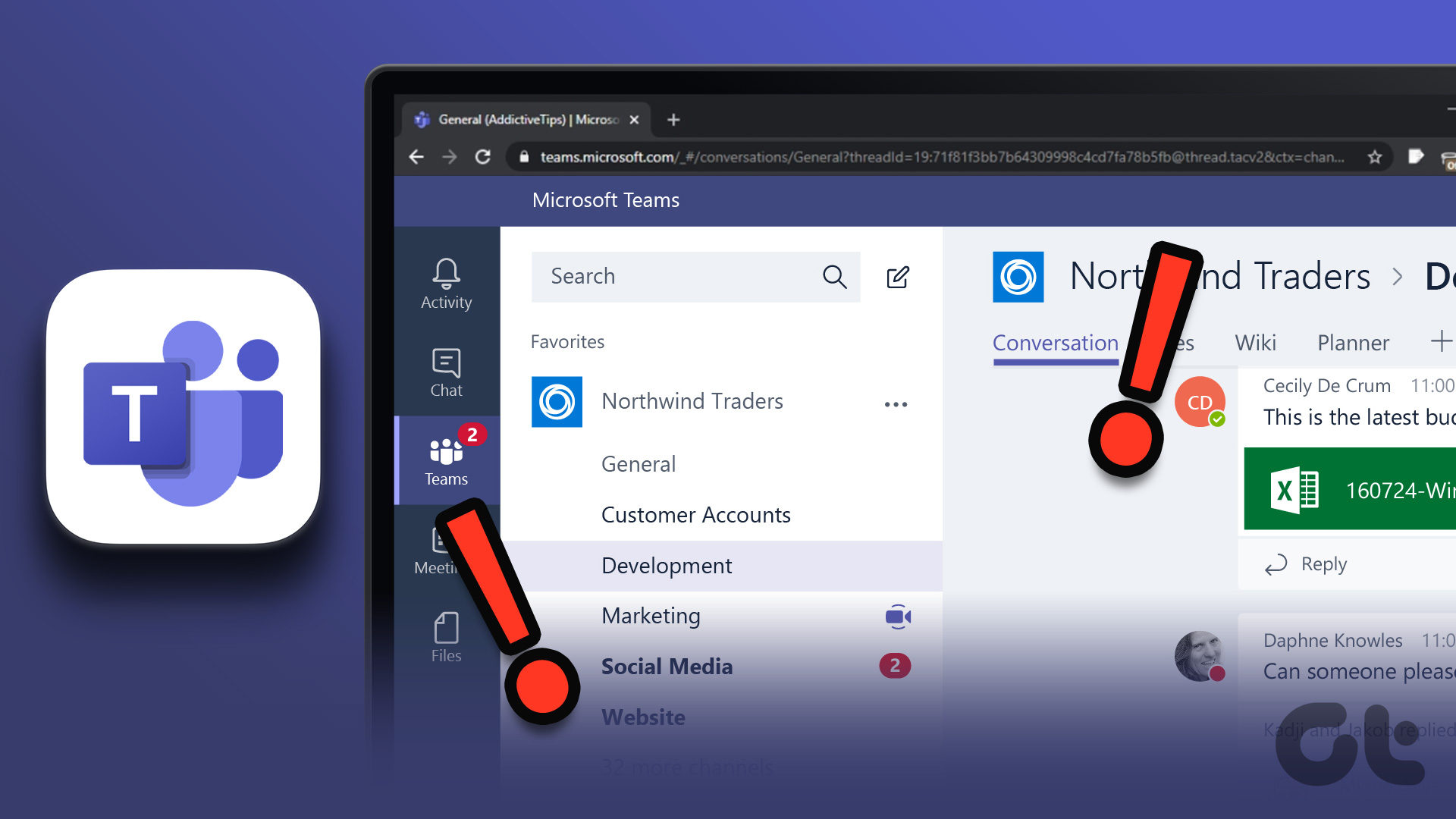 5 Ways to Fix Microsoft Teams Web Not Working
Basic Fixes Sign out and sign back in: Authentication issues with your Microsoft account can sometimes cause Teams to stop working.
5 Ways to Fix Microsoft Teams Web Not Working
Basic Fixes Sign out and sign back in: Authentication issues with your Microsoft account can sometimes cause Teams to stop working.
 4 Fixes for Outlook Web Not Receiving Emails
Basic Fixes Check outlook server status: Visit DownDetector and check whether Outlook servers are responding in your region.
4 Fixes for Outlook Web Not Receiving Emails
Basic Fixes Check outlook server status: Visit DownDetector and check whether Outlook servers are responding in your region.
 How to Mark Emails as Read in Outlook on Web, Desktop, or Mobile App
Outlook is a widely used email client for personal and professional purposes.
How to Mark Emails as Read in Outlook on Web, Desktop, or Mobile App
Outlook is a widely used email client for personal and professional purposes.
 How to Turn Off Focused Inbox in Outlook on Web, Desktop, or Mobile
Not too long ago, Outlook introduced a Focused Inbox feature that automatically sorts your incoming email into two tabs.
How to Turn Off Focused Inbox in Outlook on Web, Desktop, or Mobile
Not too long ago, Outlook introduced a Focused Inbox feature that automatically sorts your incoming email into two tabs.
 How to Download Emails From Outlook on Web, Desktop, and Mobile
How to Download an Email From Outlook’s Web Version Note: You may choose to skip this method if you have multiple emails you want to download.
How to Download Emails From Outlook on Web, Desktop, and Mobile
How to Download an Email From Outlook’s Web Version Note: You may choose to skip this method if you have multiple emails you want to download.
 How to Delete Multiple Emails in Outlook on Mobile and Web
How to Delete Multiple Outlook Emails on Mobile Let's first start with how you can mass delete emails from the Microsoft Outlook app on your mobile.
How to Delete Multiple Emails in Outlook on Mobile and Web
How to Delete Multiple Outlook Emails on Mobile Let's first start with how you can mass delete emails from the Microsoft Outlook app on your mobile.
 How to Change Outlook Password on Mobile, Desktop, and Web
Change Password in Outlook Mobile App The Outlook client app on Android and iPhone doesn’t have the option to change your account password.
How to Change Outlook Password on Mobile, Desktop, and Web
Change Password in Outlook Mobile App The Outlook client app on Android and iPhone doesn’t have the option to change your account password.
The article above may contain affiliate links which help support Guiding Tech. The content remains unbiased and authentic and will never affect our editorial integrity.