Basic Fixes:
- Check the microphone on the iPad: To check the device’s microphone, open the camera app on your iPad and record a video. Try to capture the surrounding sound in the video. If you can hear the sound, the microphone works fine on the iPad.
- Remove the case: Some manufacturers might not offer precise cutouts for iPad cases, blocking the microphones. Closely inspect the iPad case you are using and check if the case is blocking microphone holes. If so, remove it and try again.
- Turn Bluetooth off: If Bluetooth is enabled, your iPad might accidentally connect to other sound devices, causing the connected device’s microphone to become the input device. So, turn Bluetooth off to prevent that.
- Ensure the microphone is unmuted: If you have manually muted the microphone within the app, it won’t work. So, unmute the microphone within the app and try using it again.
- Check for app and software updates: If you face microphone issues in a specific app, you may need to install the latest app update from the iPad App Store. However, if the issue is systemwide, check and install the latest iPadOS updates and try using the microphone again.
Fix 1: Ensure the App Has Microphone Permission
Apps like Zoom, Meet, and Teams will ask for microphone permission upon startup. If you have accidentally denied them microphone permission, these apps can’t utilize your device’s microphone. In this case, manually check and enable microphone permission. Here’s how.
Step 1: Open the Settings app and tap on the relevant app.
Step 2: Enable the Microphone toggle. Repeat this process for any other relevant app.

Fix 2: Clean iPad Microphone
If construction is in progress near your house or you’re usually out and about with your iPad, dust might settle on the microphone. In this case, use a soft-bristled brush or painter’s tape to clean the iPad microphone. Then, try using it again.
Also Read: How to fix iPad making static noise or buzzing sound
Fix 3: Reset Settings
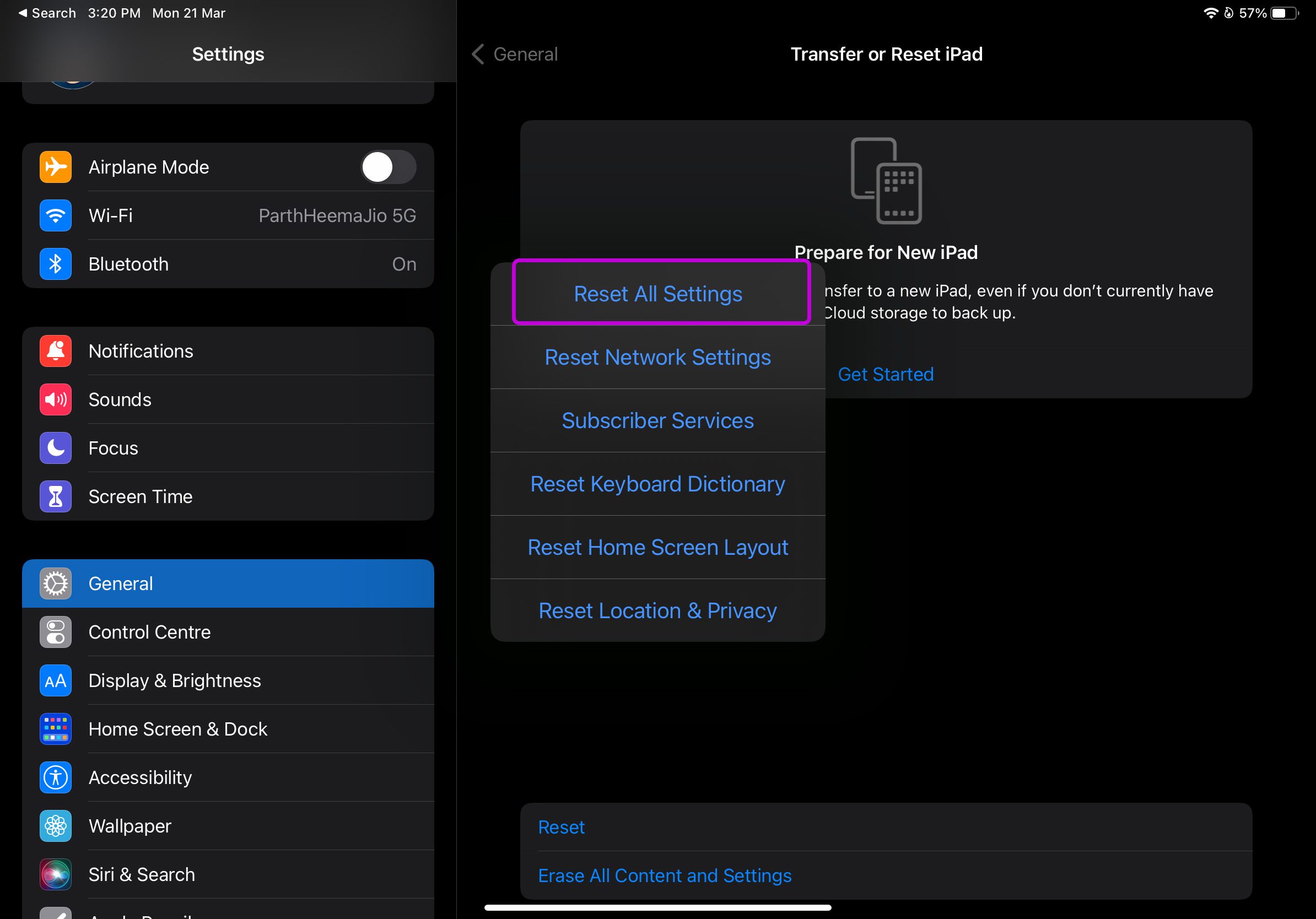
A wrong setting tweak on your iPad may lead to the microphone not working issue. iPadOS allows you to reset settings to the default setup and delete any such errant settings without affecting other iPad data. Here’s how to do it.
Step 1: Open Settings and tap on General. Then, tap on Transfer or Reset iPad.

Step 2: Here, tap on Reset.

Step 3: Select Reset All Settings and follow the on-screen instructions to finish.
Fix 4: Ensure Headphone Mode Is Not Enabled
Even though you have removed wired headphones from your iPad, it might still be stuck in headphone mode. In this case, the iPad will continue to use the connected device’s mics. You must clean the headphone jack and remove your iPad from headphone mode. Then, try using the microphone again.
Was this helpful?
Last updated on 27 June, 2024
Read Next
 5 Ways to Fix Microphone Not Working on iPhone
Try Basic Fixes Unplug all the accessories and disable Bluetooth: One of the external accessories connected to your iPhone may be causing problems with the microphone.
5 Ways to Fix Microphone Not Working on iPhone
Try Basic Fixes Unplug all the accessories and disable Bluetooth: One of the external accessories connected to your iPhone may be causing problems with the microphone.
 6 Ways to Fix Microphone Not Working on Apple Watch
Basic Fixes Restart Apple Watch: Restart your Apple Watch to fix temporary bugs and glitches.
6 Ways to Fix Microphone Not Working on Apple Watch
Basic Fixes Restart Apple Watch: Restart your Apple Watch to fix temporary bugs and glitches.
 Top 10 Ways to Fix Google Meet Microphone Not Working on Windows and Mac
For the most part, Google Meet offers a seamless browser-based video conferencing experience on both Windows and macOS.
Top 10 Ways to Fix Google Meet Microphone Not Working on Windows and Mac
For the most part, Google Meet offers a seamless browser-based video conferencing experience on both Windows and macOS.
 7 Ways to Fix Microphone Not Working Issue on Windows 11
Try Basic Fixes Check the microphone connection: If you’re using an external microphone on your PC, check its physical connection to see if it's connected properly.
7 Ways to Fix Microphone Not Working Issue on Windows 11
Try Basic Fixes Check the microphone connection: If you’re using an external microphone on your PC, check its physical connection to see if it's connected properly.
 Top 8 Ways to Fix WhatsApp Microphone Not Working on iPhone and Android
Thanks to group calls, the ability to share and create call links, and desktop support, WhatsApp voice and video calls are gaining traction among users.
Top 8 Ways to Fix WhatsApp Microphone Not Working on iPhone and Android
Thanks to group calls, the ability to share and create call links, and desktop support, WhatsApp voice and video calls are gaining traction among users.
 2 Ways to Fix Microphone Not Working on Instagram
Basic Fixes: Force close all background apps: If other apps use the microphone in the background, you may have issues accessing it on Instagram. You can close such apps on your
2 Ways to Fix Microphone Not Working on Instagram
Basic Fixes: Force close all background apps: If other apps use the microphone in the background, you may have issues accessing it on Instagram. You can close such apps on your
 How to Fix Microphone Not Working on Facebook Messenger
Basic Troubleshoot Remove the phone case: If your phone case blocks the microphone, you may notice muffled audio during video recording and calls.
How to Fix Microphone Not Working on Facebook Messenger
Basic Troubleshoot Remove the phone case: If your phone case blocks the microphone, you may notice muffled audio during video recording and calls.
 6 Ways to Fix Windows Not Detecting Microphone in Headset
Basic Fixes Check cable and Bluetooth connection: Check the microphone and its wire for significant damage on either side.
6 Ways to Fix Windows Not Detecting Microphone in Headset
Basic Fixes Check cable and Bluetooth connection: Check the microphone and its wire for significant damage on either side.
The article above may contain affiliate links which help support Guiding Tech. The content remains unbiased and authentic and will never affect our editorial integrity.