

Try Basic Fixes
- Force restart your iPhone: Several users on an Apple Community post reported fixing location issues on their iPhones by performing a force reboot. To do the same, press and quickly release the volume up button. Then, press and quickly release the volume down button. After that, press and hold the side button until the Apple logo appears.
- Disable Low Data Mode and Low Power Mode: Enabling the data saver mode on your iPhone can prevent apps from using the internet freely. Similarly, enabling a battery saver can also pause background activities on your iPhone. Hence, it’s best to turn them off.
- Install iOS updates: Issues with the location services on your iPhone may be related to a buggy or outdated iOS build. Try installing any pending iOS updates to see if that resolves the problem with location services.
Fix 1: Restart Location Services
To start off, you should disable and re-enable location services on your iPhone. If it’s just a minor glitch causing the issue, then this should do the trick and save you a lot of time.
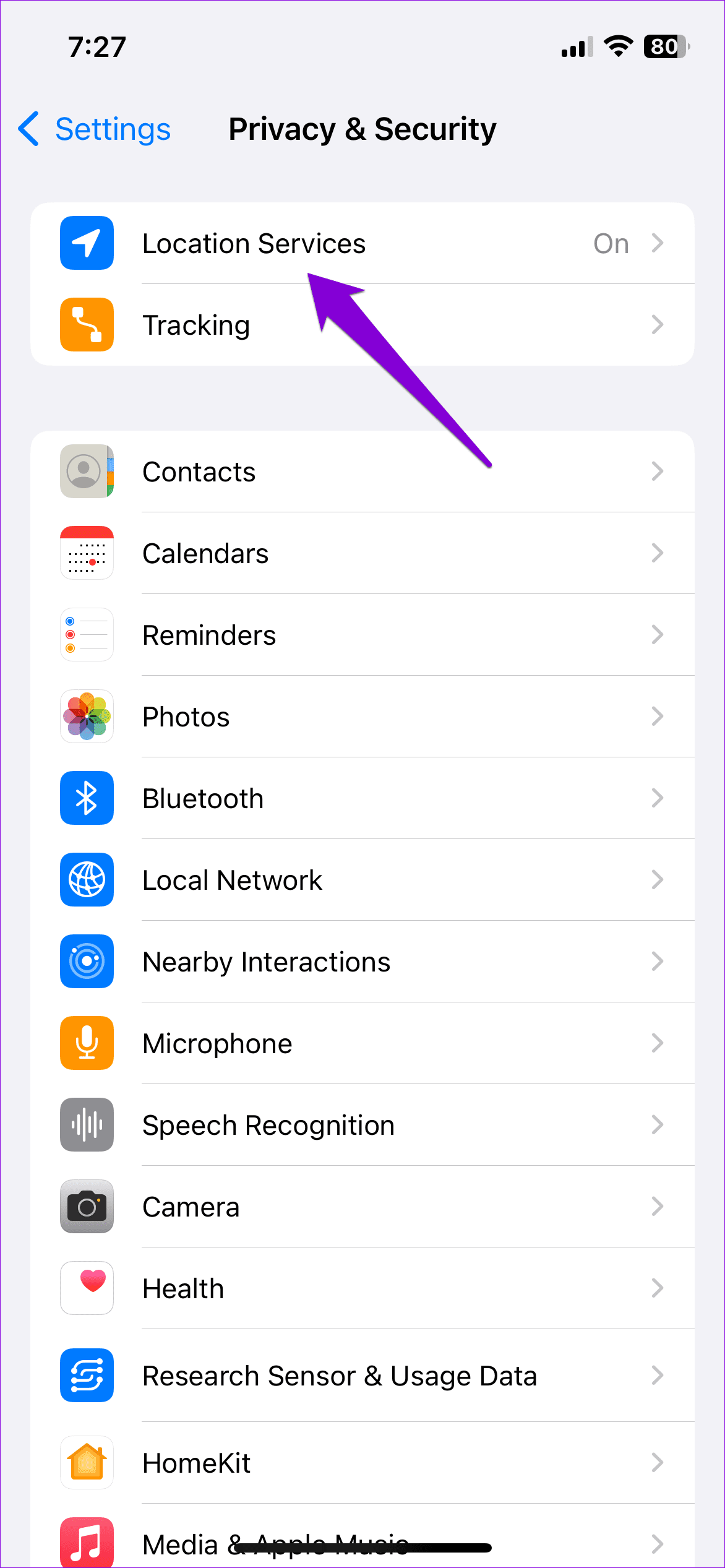
Step 1: Open the Settings app on your iPhone. Head to Privacy & Security > Location Services.
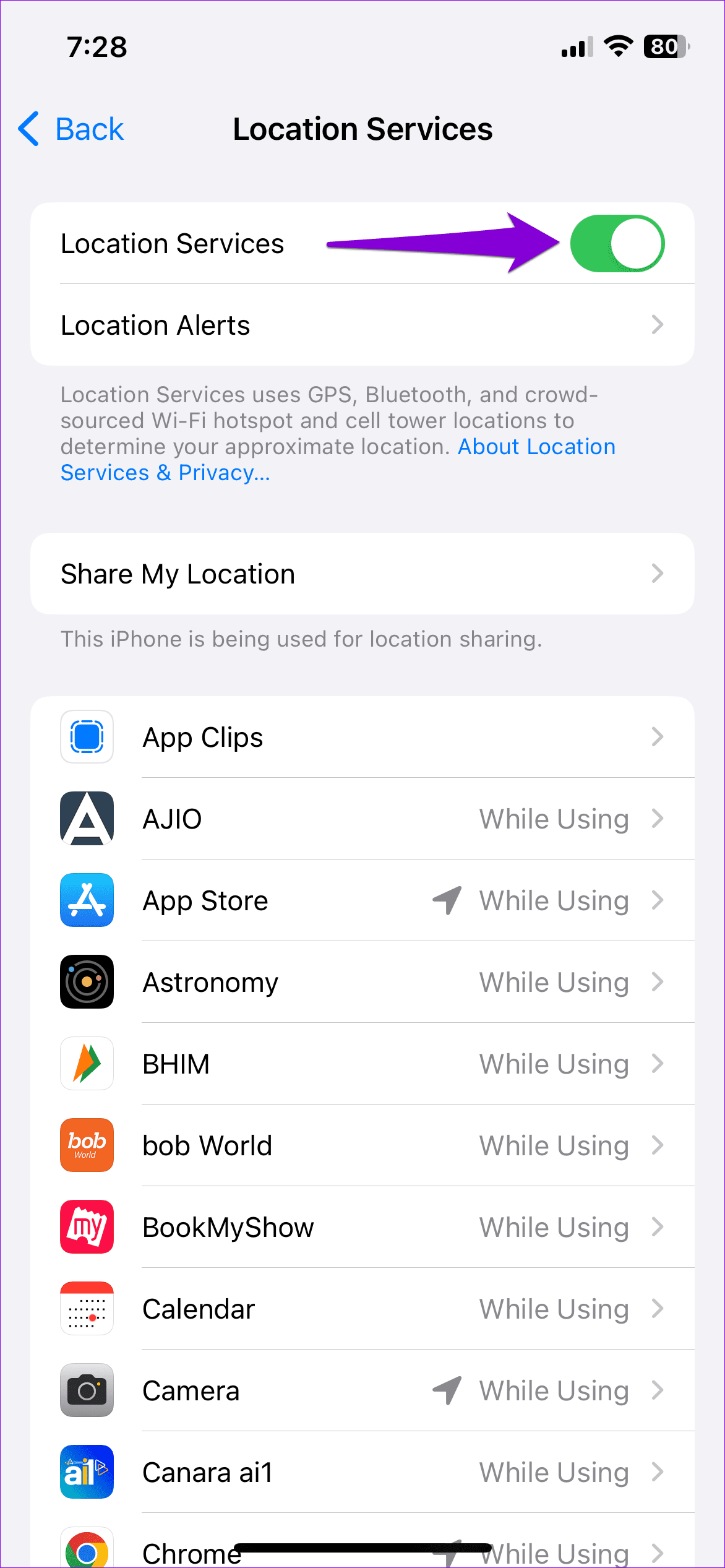
Step 2: Toggle off the switch next to Location Services. Wait for a few seconds and toggle it back on.

Fix 2: Check Content & Privacy Restrictions in Screen Time
If you can’t seem to toggle location services on your iPhone because the option is grayed out, you may have accidentally enabled privacy restrictions using Screen Time on your iPhone. Here’s how to fix that.
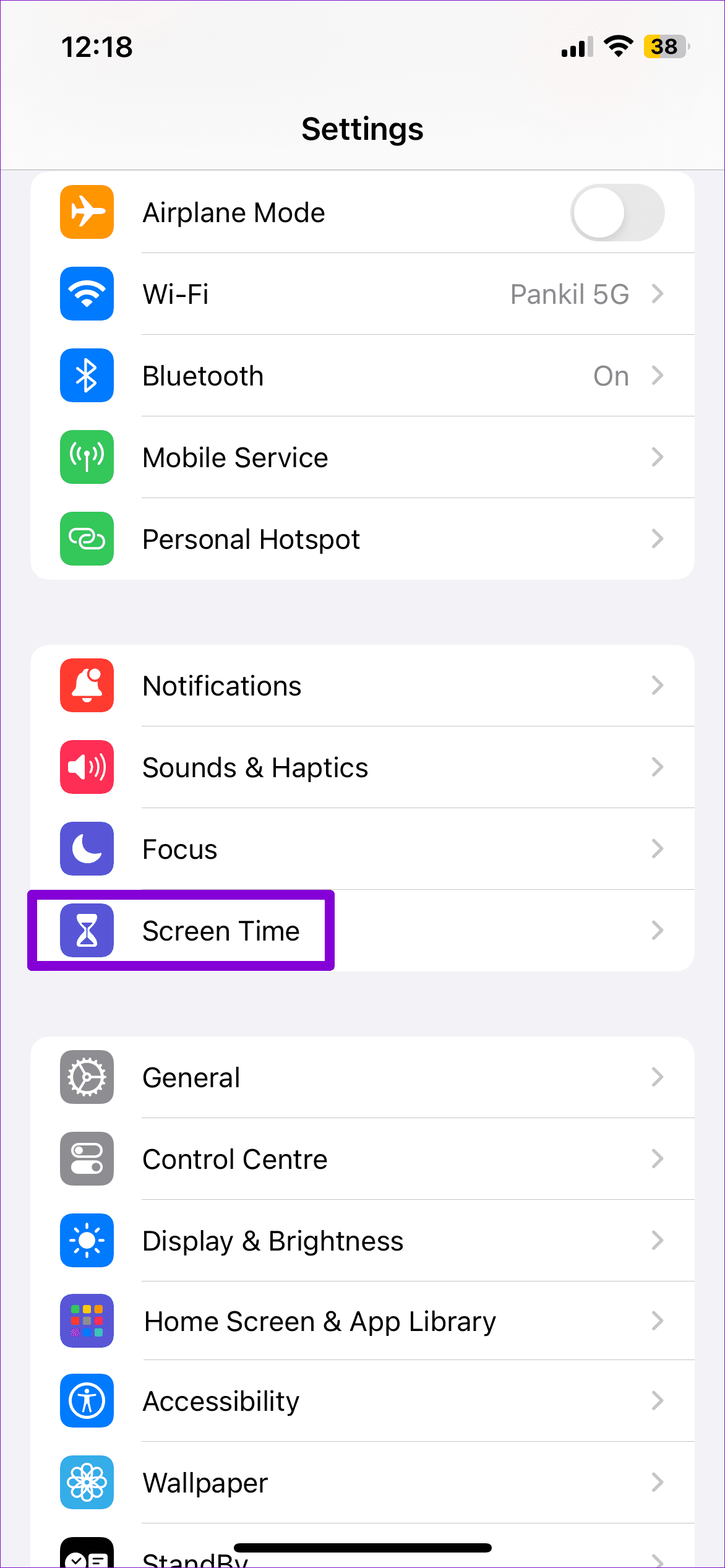
Step 1: Open the Settings menu and go to Screen Time > Content & Privacy Restrictions.

Step 2: Tap on Location Services. Select Allow Changes and enable the toggle next to Location Services.


Fix 3: Enable Precise Location for Apps
Apps like Google Maps, Uber, and similar ones rely on accurate location data to determine your whereabouts. If apps on your iPhone are unable to pinpoint your exact location, you need to review their location permissions and enable the precise location option.
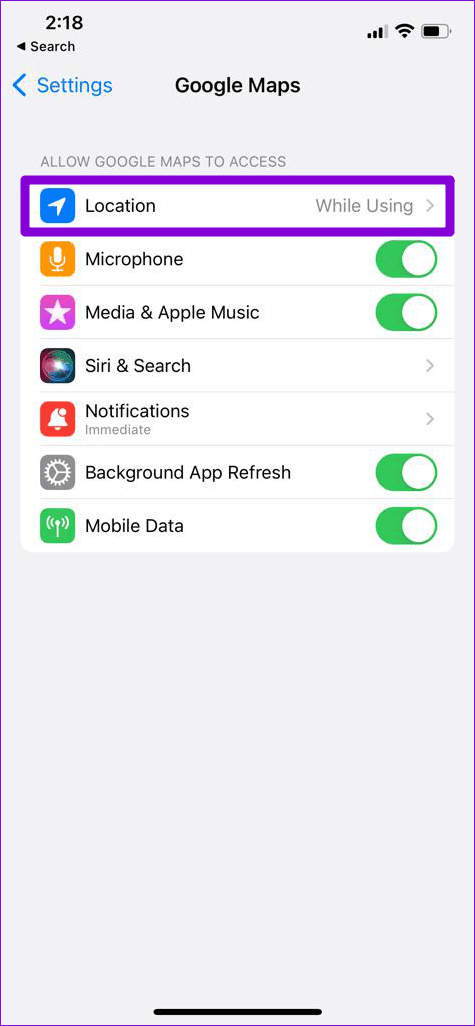
Step 1: Open the Settings app and go to the app for which you want to configure the precise location option.
Step 2: Tap on Location Services and turn on the toggle next to Precise Location.


You will need to repeat the above steps for each app that is failing to detect your location with accuracy.
Fix 4: Enable Share My Location
Are you getting the “Location Not Available” error while using the location sharing feature on your iPhone? If so, you need to ensure that the Share My Location toggle in the Find My menu is turned on.
Step 1: Open the Settings app and tap on your name at the top.
Step 2: Select Find My and turn on the switch next to Share My Location. If it’s already on, try turning it off and then back on.


Fix 5: Sign Out of iCloud and Sign Back In
If you still can’t use location sharing, you can try signing out of iCloud and signing back in. This should refresh your account’s connection and resolve any issues that may be preventing your iPhone from sharing the location.
Step 1: Open the Settings app and tap on your name at the top.
Step 2: Scroll to the bottom of the page and tap on Sign Out. Then, tap on Sign Out in the top right corner.


Sign back in with your Apple ID credentials and check if the issue is still there.
Fix 6: Enable Background App Refresh
Apps on your iPhone rely on the Background App Refresh feature to sync data when you’re not using them. It’s important to ensure that you’ve enabled the Background App Refresh feature for your apps so that they can continue to track your location even when minimized.
Step 1: Open the Settings app and head to General > Background App Refresh.

Step 2: Select the Background App Refresh option at the top and select Wi-Fi & Mobile Data from the following screen.


Fix 7: Check Date and Time Settings
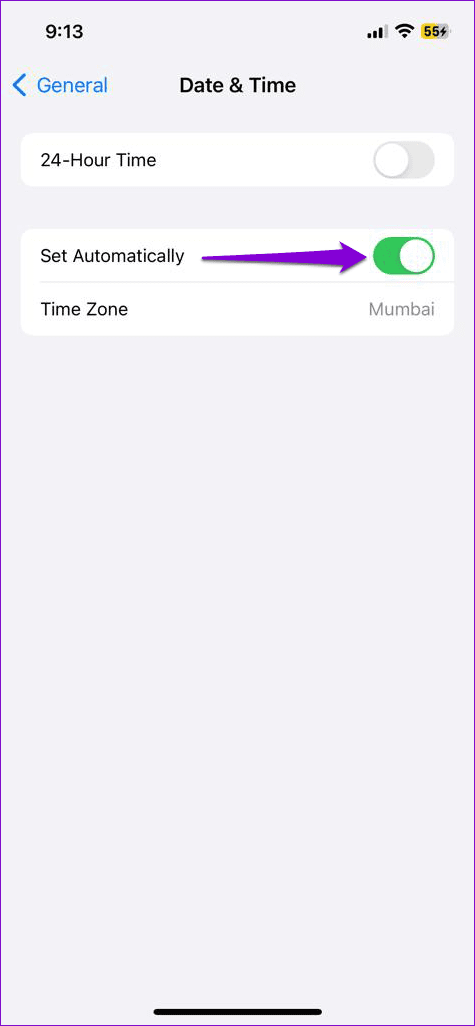
Configuring your iPhone with the correct date and time is essential for improving GPS accuracy. To achieve this, it’s best to set your iPhone to utilize a network-provided date and time.
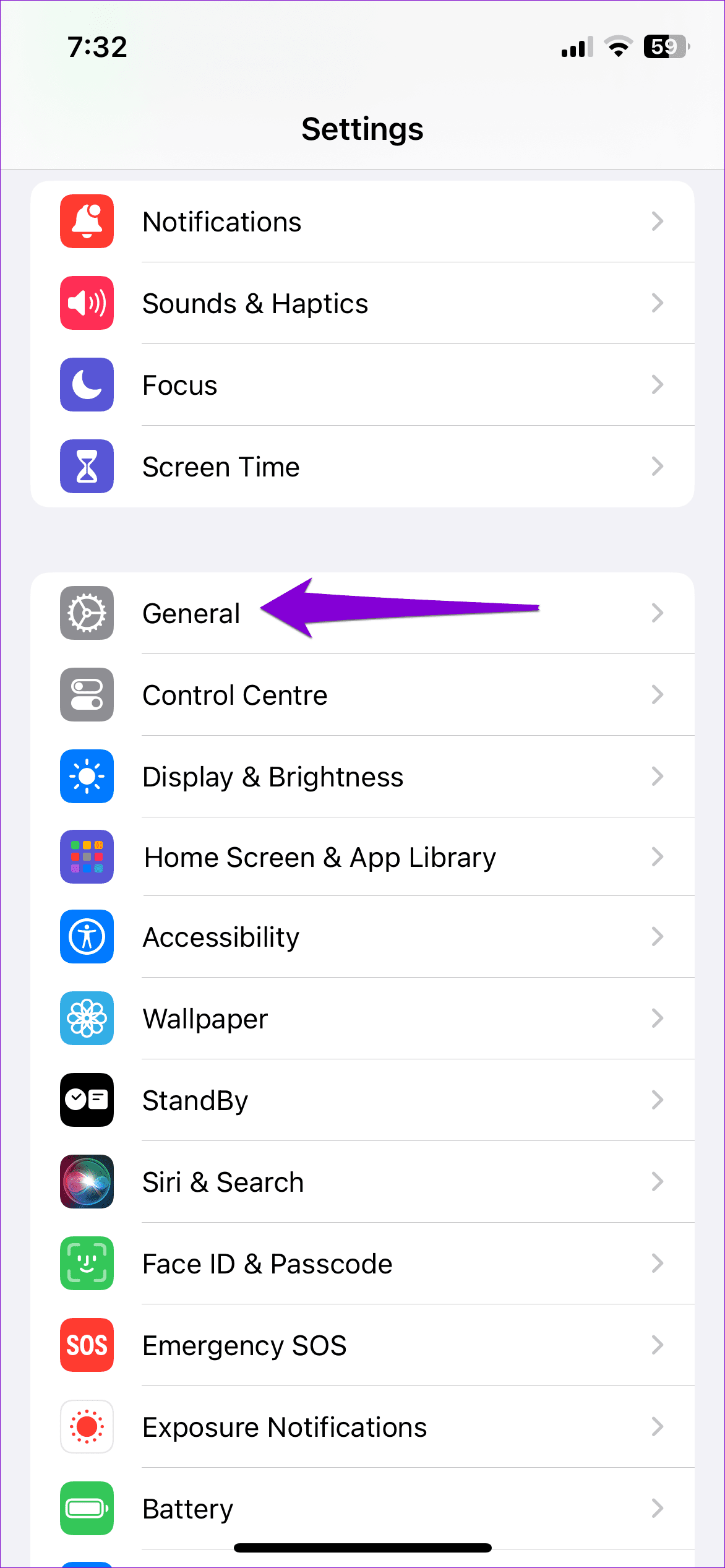
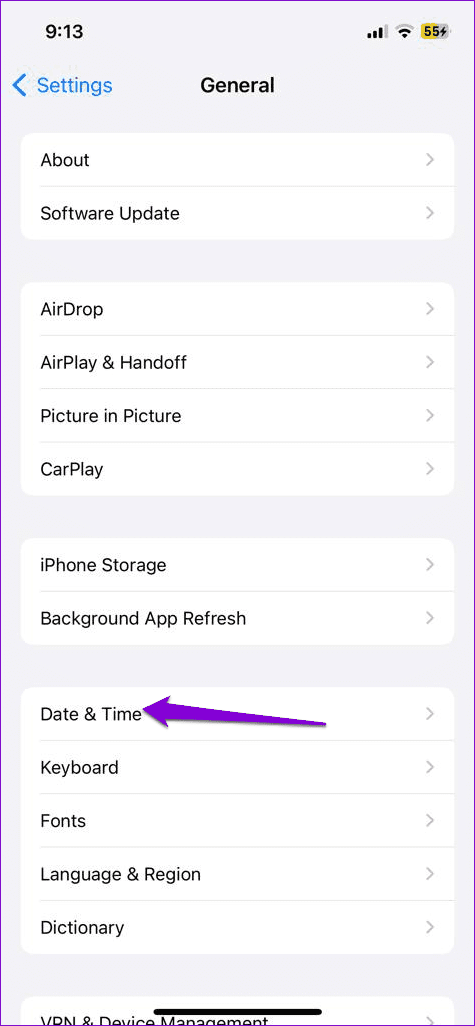
Step 1: Launch the Settings app, scroll down to General, and tap on it.
Step 2: Tap on Date & Time and toggle on the switch next to Set Automatically.
Fix 8: Reset Location and Privacy Settings
If the above solutions prove ineffective, you may want to consider resetting the location settings on your iPhone. This action will restore all location preferences to their default values and should resolve the issue.
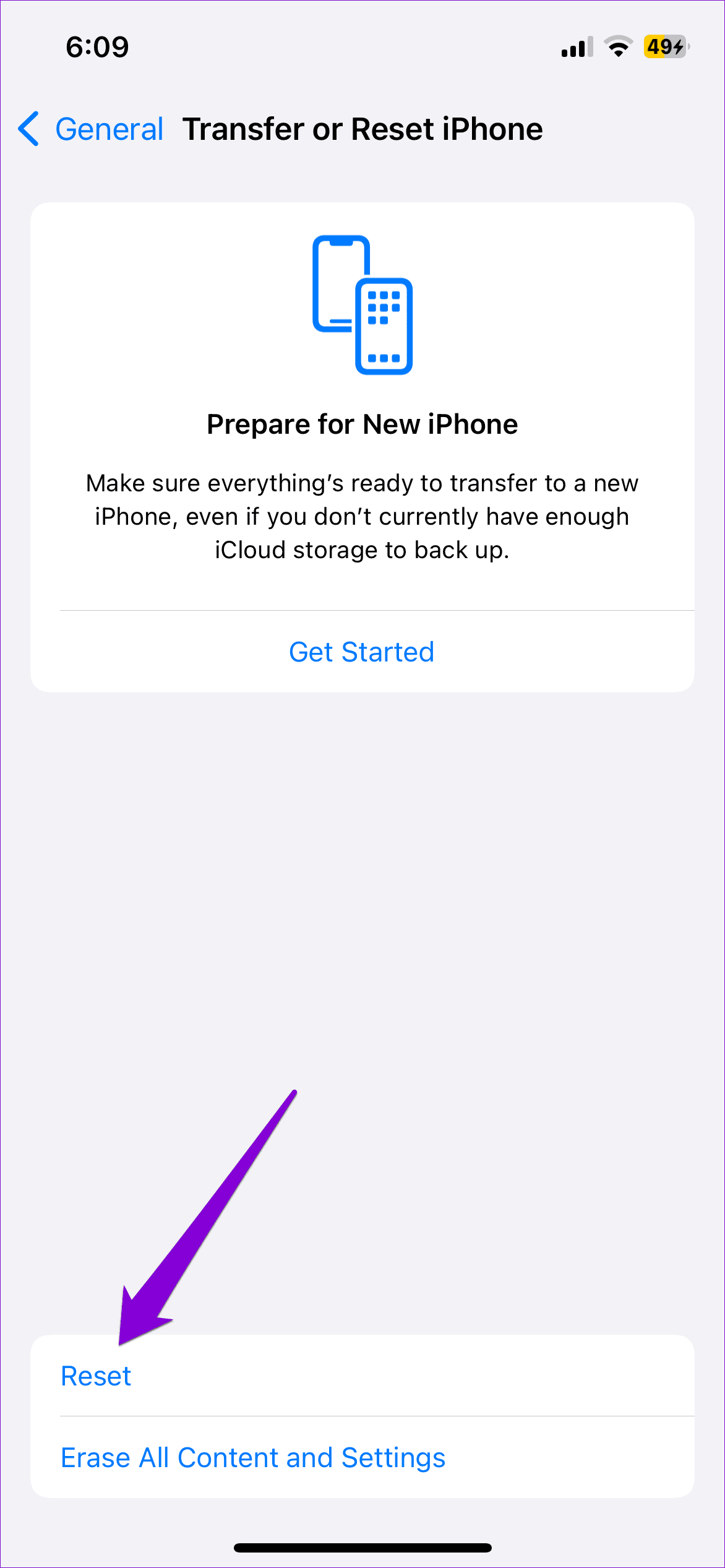
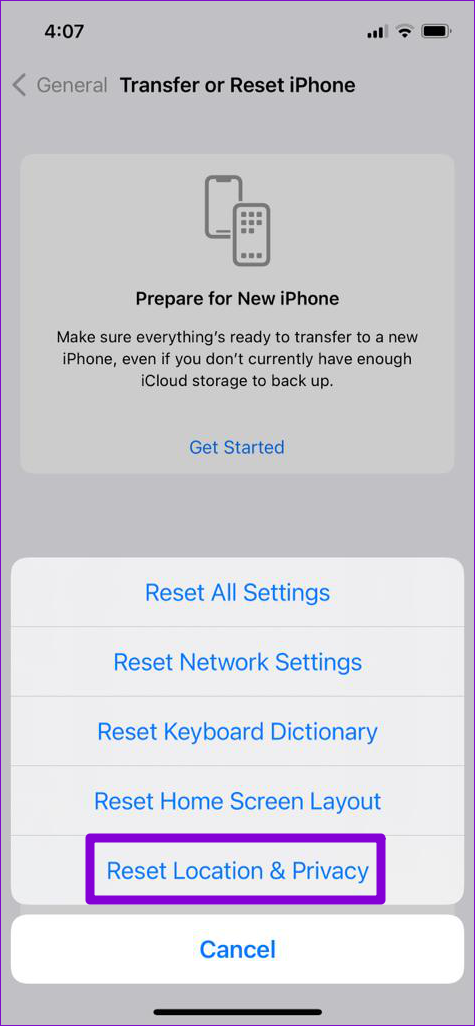
Step 1: Open Settings on your iPhone, navigate to General, and tap on Transfer or Reset iPhone.
Step 2: Tap on Reset and select Reset Location & Privacy from the menu that appears.

Was this helpful?
Last updated on 15 July, 2024
1 Comment
Leave a Reply
Read Next
 5 Ways to Fix Location Services Not Working on Android
Fix 1: Enable Google Location Accuracy When your Android phone fails to determine your location accurately, you may face issues while using apps like Google Maps, Uber, and such.
5 Ways to Fix Location Services Not Working on Android
Fix 1: Enable Google Location Accuracy When your Android phone fails to determine your location accurately, you may face issues while using apps like Google Maps, Uber, and such.
 4 Ways to Fix Location Services Not Working on Mac
Basic Fixes Restart your Mac: Sometimes a simple restart will solve a lot of issues on your Mac.
4 Ways to Fix Location Services Not Working on Mac
Basic Fixes Restart your Mac: Sometimes a simple restart will solve a lot of issues on your Mac.
 4 Ways to Fix Location Services Grayed Out on Windows 11
Fix 1: Configure Geolocation Service Geolocation Service is a small program that needs to run in the background for the location services to work.
4 Ways to Fix Location Services Grayed Out on Windows 11
Fix 1: Configure Geolocation Service Geolocation Service is a small program that needs to run in the background for the location services to work.
 4 Ways to Fix Instagram Location Not Working on iPhone and Android
Basic Fixes Disable airplane mode: Disable airplane mode on your phone to capture your GPS location so that apps can use it.
4 Ways to Fix Instagram Location Not Working on iPhone and Android
Basic Fixes Disable airplane mode: Disable airplane mode on your phone to capture your GPS location so that apps can use it.
 4 Ways to Fix Google Play Services Draining Battery on Android
Basic Fixes Check recently installed apps: If you observed an increase in battery drain only recently, uninstall any newly downloaded apps.
4 Ways to Fix Google Play Services Draining Battery on Android
Basic Fixes Check recently installed apps: If you observed an increase in battery drain only recently, uninstall any newly downloaded apps.
 5 Ways to Fix Services Not Opening on Windows 11
Fix 1: Check Default File Association for MSC Files MSC (Microsoft Saved Console) files on your computer store information about various systems and third-party services.
5 Ways to Fix Services Not Opening on Windows 11
Fix 1: Check Default File Association for MSC Files MSC (Microsoft Saved Console) files on your computer store information about various systems and third-party services.
 4 Ways to Fix Gaming Services Won’t Update on Windows
Try Basic Fixes Close the Xbox app and try again: Since the Gaming Services app is tightly integrated with the Xbox app, you may have trouble installing or updating it
4 Ways to Fix Gaming Services Won’t Update on Windows
Try Basic Fixes Close the Xbox app and try again: Since the Gaming Services app is tightly integrated with the Xbox app, you may have trouble installing or updating it
 5 Ways to Fix Live Location Not Updating on Android and iPhone
Fix 1: Ensure Location Services Are Enabled Enabling location services on your phone is the most basic step before you can share your live location.
5 Ways to Fix Live Location Not Updating on Android and iPhone
Fix 1: Ensure Location Services Are Enabled Enabling location services on your phone is the most basic step before you can share your live location.
The article above may contain affiliate links which help support Guiding Tech. The content remains unbiased and authentic and will never affect our editorial integrity.

No it didn’t help. My phone is not seeing my new Air Tags.