

Fix 1: Disable Browser Extensions (for Desktop Only)
Using third-party extensions in Chrome allows you to extend the browser’s functionality. Although there are plenty of excellent Chrome extensions that can enhance your experience, not all of them are reliable.
If you suspect one of your extensions is causing this problem, consider disabling them all temporarily. Type chrome://extensions in the address bar at the top and press Enter. Then, use the toggles to disable all the extensions one by one.
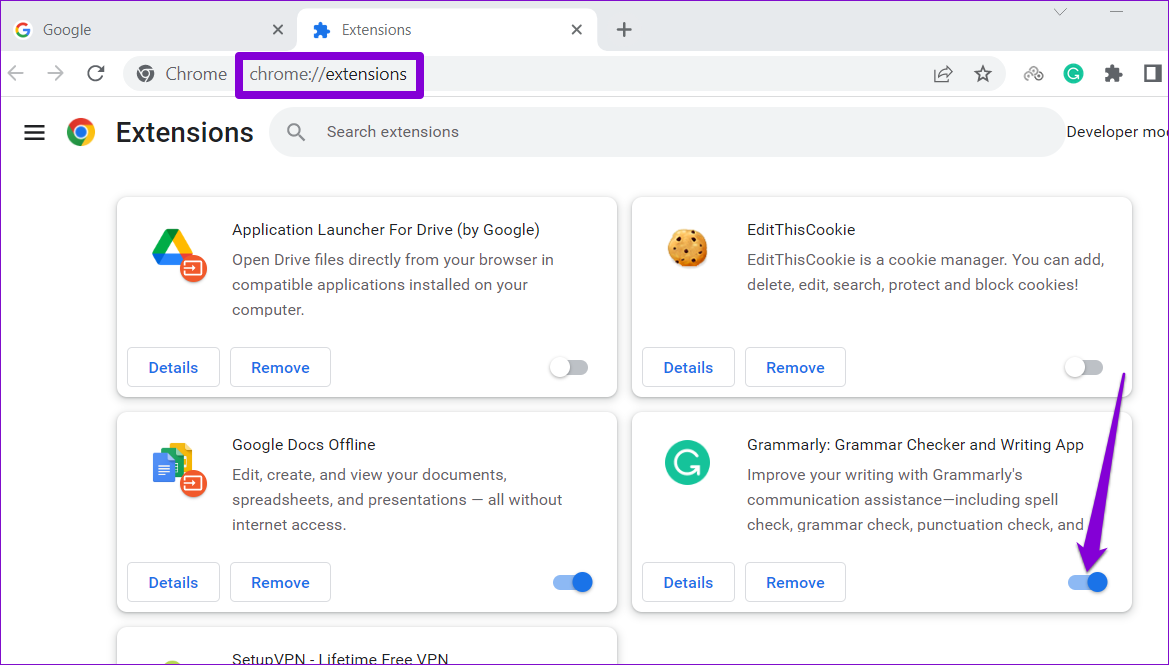
After this, restart Chrome and try opening a few links. If disabling extensions solves the problem, re-enable your extensions one at a time to find the one causing the problem.
Fix 2: Clear Browser Cache and Cookies
As you surf the web, Google Chrome collects temporary data to save bandwidth and reduce loading times. However, if that data has become inaccessible, Chrome may have difficulty opening links or performing other tasks. To fix it, clear Chrome’s cache and cookies by following the steps below.
On Desktop
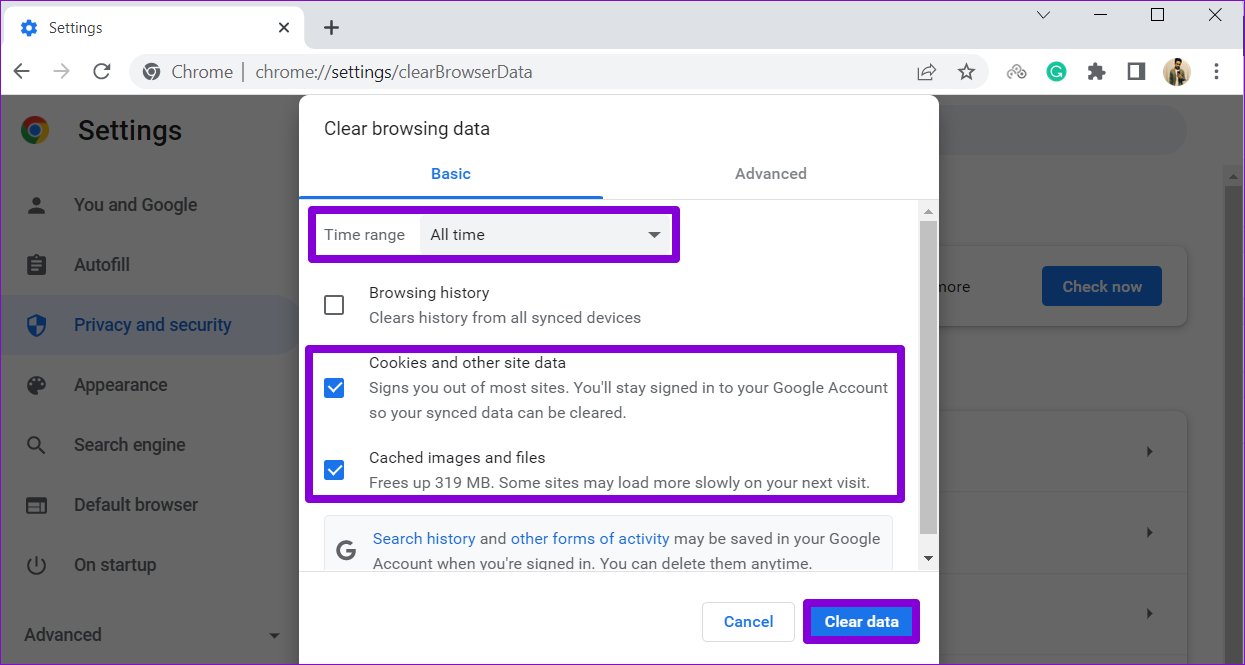
Step 1: Press the Ctrl + Shift + Delete (or Command + Shift + Delete on Mac) shortcut to open the Clear browsing data panel.
Step 2: Select All time in the Time range menu. Then, check the boxes for Cookies and other site data and Cached images and files.
Step 3: Click Clear data to proceed.
Mobile
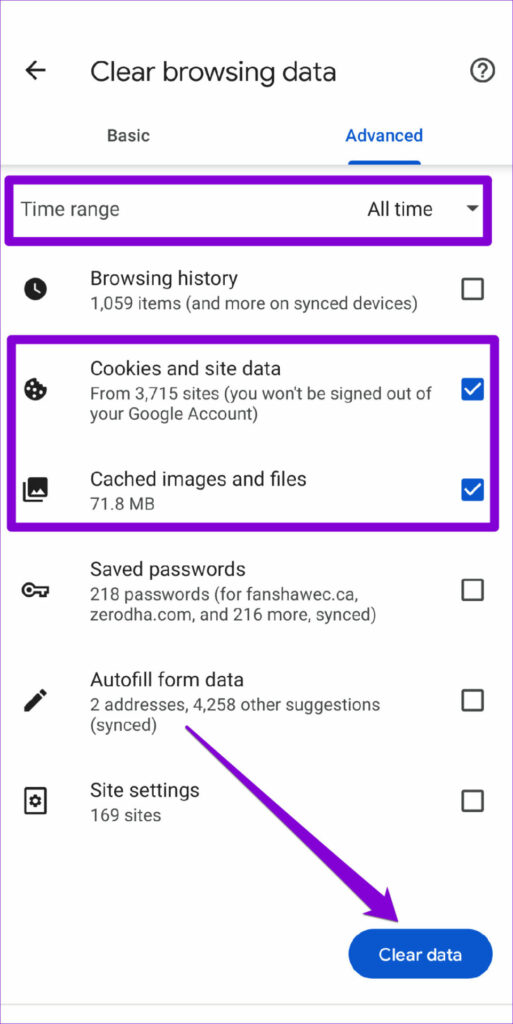
Step 1: Open Chrome on your phone > tap the three-dot menu icon at the top right > select Settings.
Step 2: Select Privacy and security.


Step 3: Select Clear Browsing Data.
Step 4: Select All time in the Time range menu. Mark the Cookies and site data and Cached images and files options before hitting Clear data.

Fix 3: Uninstall and Reinstall Google Chrome
Although rare, Chrome’s app data can sometimes become corrupt and cause anomalies. So, your best option is to uninstall and reinstall the browser on your device. This will not only remove any corrupted app data but also update the browser to the latest version.
If you’re using Chrome on a computer, download a fresh copy of the Chrome installer before you remove the browser.
Was this helpful?
Last updated on 01 August, 2024
1 Comment
Leave a Reply
Read Next
 4 Ways to Fix X (Twitter) Links Not Opening in Chrome and Safari
Basic Fixes: Open page in Incognito Mode: Incognito mode allows you to load your browser without any extensions, cookies, or cache data.
4 Ways to Fix X (Twitter) Links Not Opening in Chrome and Safari
Basic Fixes: Open page in Incognito Mode: Incognito mode allows you to load your browser without any extensions, cookies, or cache data.
 4 Ways to Fix Links Not Opening in Telegram for Android and iPhone
Try Basic Fixes Check if Telegram is down: Telegram links may stop working if there’s an issue with its servers.
4 Ways to Fix Links Not Opening in Telegram for Android and iPhone
Try Basic Fixes Check if Telegram is down: Telegram links may stop working if there’s an issue with its servers.
 How to Fix Links Not Opening or Working in X (Twitter) App
Basic Fixes: Restart your device: Restarting your smartphone helps close and restart the app process from scratch.
How to Fix Links Not Opening or Working in X (Twitter) App
Basic Fixes: Restart your device: Restarting your smartphone helps close and restart the app process from scratch.
 4 Fixes for Links Not Opening in WhatsApp on iPhone and Android
Basic Fixes Check if the link is working: If the links you shared with your contact are not working, you should check whether the link is correct.
4 Fixes for Links Not Opening in WhatsApp on iPhone and Android
Basic Fixes Check if the link is working: If the links you shared with your contact are not working, you should check whether the link is correct.
 5 Fixes for Links Not Opening in Facebook Messenger for Android and iPhone
Fix 1: Allow Messenger to Open Supported Links (Android) Messenger may fail to open links on your Android phone due to a lack of relevant permissions.
5 Fixes for Links Not Opening in Facebook Messenger for Android and iPhone
Fix 1: Allow Messenger to Open Supported Links (Android) Messenger may fail to open links on your Android phone due to a lack of relevant permissions.
 3 Ways to Stop Mac From Opening Links in Safari
Method 1: Change the Default Browser on Your Mac Your Mac comes with Safari as the default browser.
3 Ways to Stop Mac From Opening Links in Safari
Method 1: Change the Default Browser on Your Mac Your Mac comes with Safari as the default browser.
 2 Ways to Share Webpage Links From Google Chrome
Method 1: Share a Webpage Link From Chrome Between Devices Chrome allows you to share webpage links across all your devices, provided that you’re using the same Google account on
2 Ways to Share Webpage Links From Google Chrome
Method 1: Share a Webpage Link From Chrome Between Devices Chrome allows you to share webpage links across all your devices, provided that you’re using the same Google account on
 Top 4 Ways to Open All Links in New Tabs in Chrome
Method 1: Scroll Wheel/Middle Mouse Button If you do not like the idea of having a Chrome extension, you can trust the mouse to handle this job for you.
Top 4 Ways to Open All Links in New Tabs in Chrome
Method 1: Scroll Wheel/Middle Mouse Button If you do not like the idea of having a Chrome extension, you can trust the mouse to handle this job for you.
The article above may contain affiliate links which help support Guiding Tech. The content remains unbiased and authentic and will never affect our editorial integrity.


This is not helpful.