


Fix 1. Enable Keyboard Shortcut for Gmail
Google might not enable keyboard shortcuts for your Gmail account by default. You must turn on the Gmail settings option.
Step 1: Open Gmail in a web browser and sign in with your Google account details.
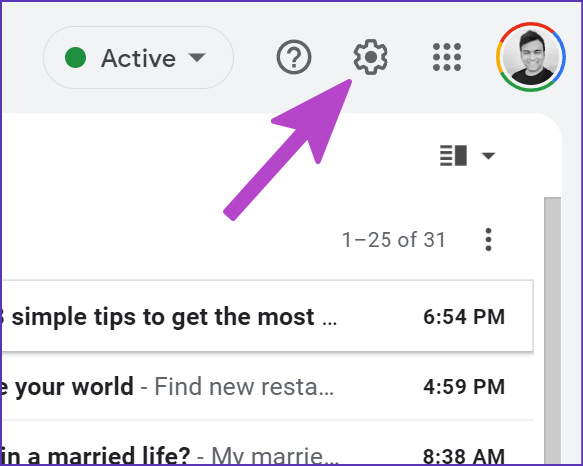
Step 2: Select the Settings gear at the top right.
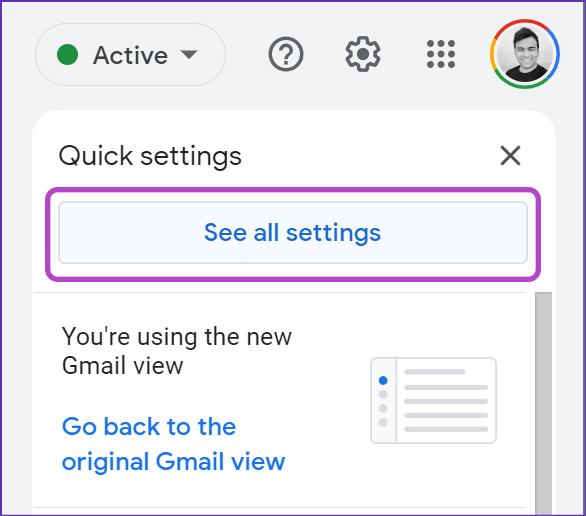
Step 3: Click the See all settings button.
Step 4: Switch to the Keyboard shortcuts section.
Step 5: Select the radio button for Keyboard shortcut on.

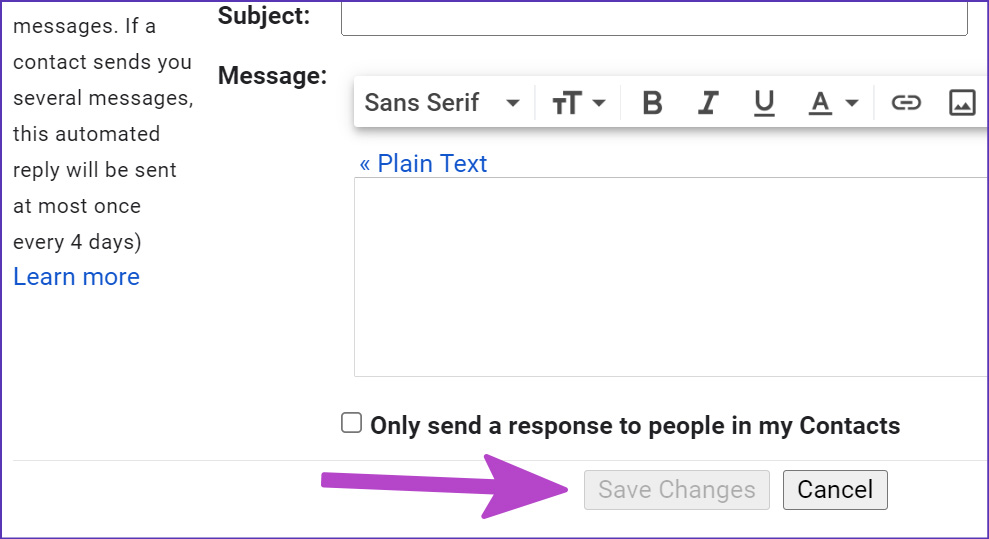
Step 6: Scroll down and click Save Changes.
Return to the Gmail home menu and start using keyboard shortcuts. If they still don’t work, close the browser tab and open it again.
Fix 2. Ensure Your Browser Is in Active Window
None of your Gmail keyboard shortcuts will work if any other app or browser tab is active on your PC or Mac.
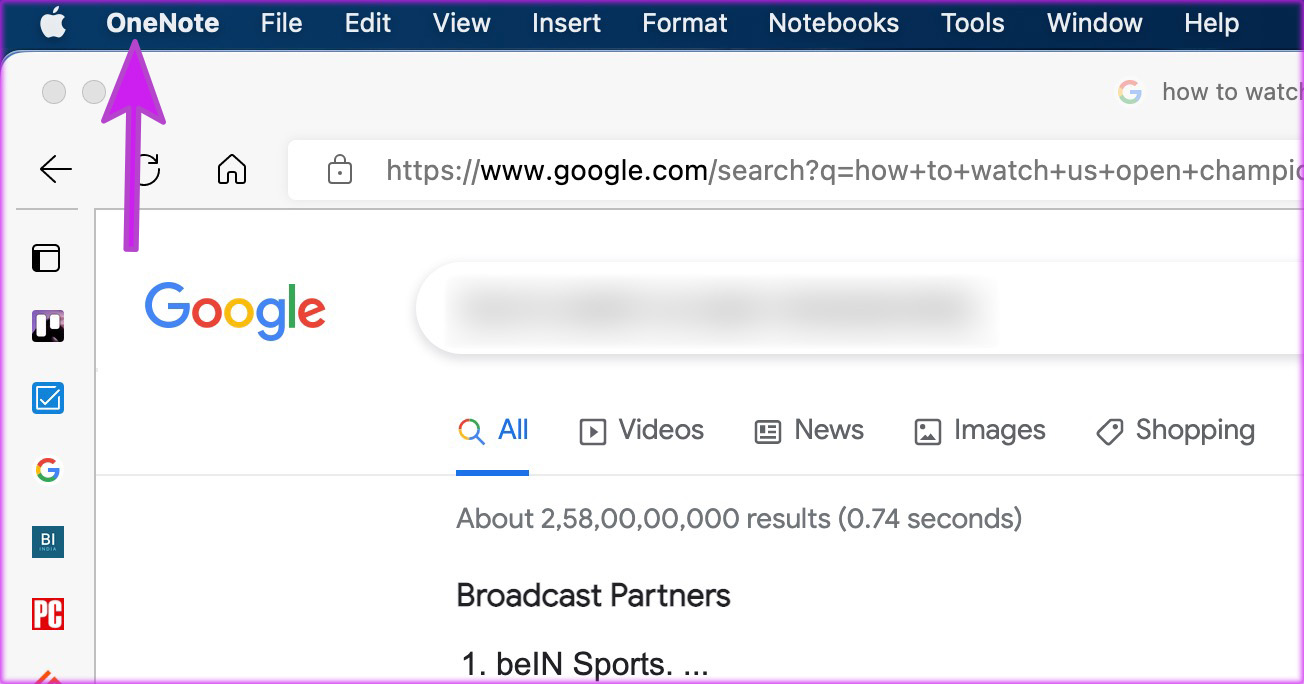
macOS shows the currently active app name at the top left. If it’s not showing your browser, select it from the Mac dock and make it active.
Fix 3. Check for Keyboard Issues
Are you facing issues with any specific keys on the keyboard? Most Gmail shortcuts need alphabetical keys to work correctly. We have had problems with space and some alphabetical keys on Mac for a while. We noticed the keyboard double-typing or, sometimes, failing to register keystrokes. It’s a known issue among butterfly keys on MacBooks.
We tried several tricks and quickly fixed keyboard issues on the Mac. Similarly, if you face double-typing issues on Windows, you may run into keyboard shortcut issues in Gmail. If a specific key is not working on your keyboard, you can always customize keyboard shortcuts in Gmail.
Fix 4. Customize Gmail Keyboard Shortcuts
The best part about Gmail shortcuts is that you can create new custom ones. You can easily customize them to your preferred key combination and get work done. Once you enable keyboard shortcuts in Gmail (check the first trick), you will see a dedicated Keyboard Shortcuts menu in Gmail settings.
Step 1: Go to the Keyboard Shortcuts section in Gmail Settings.
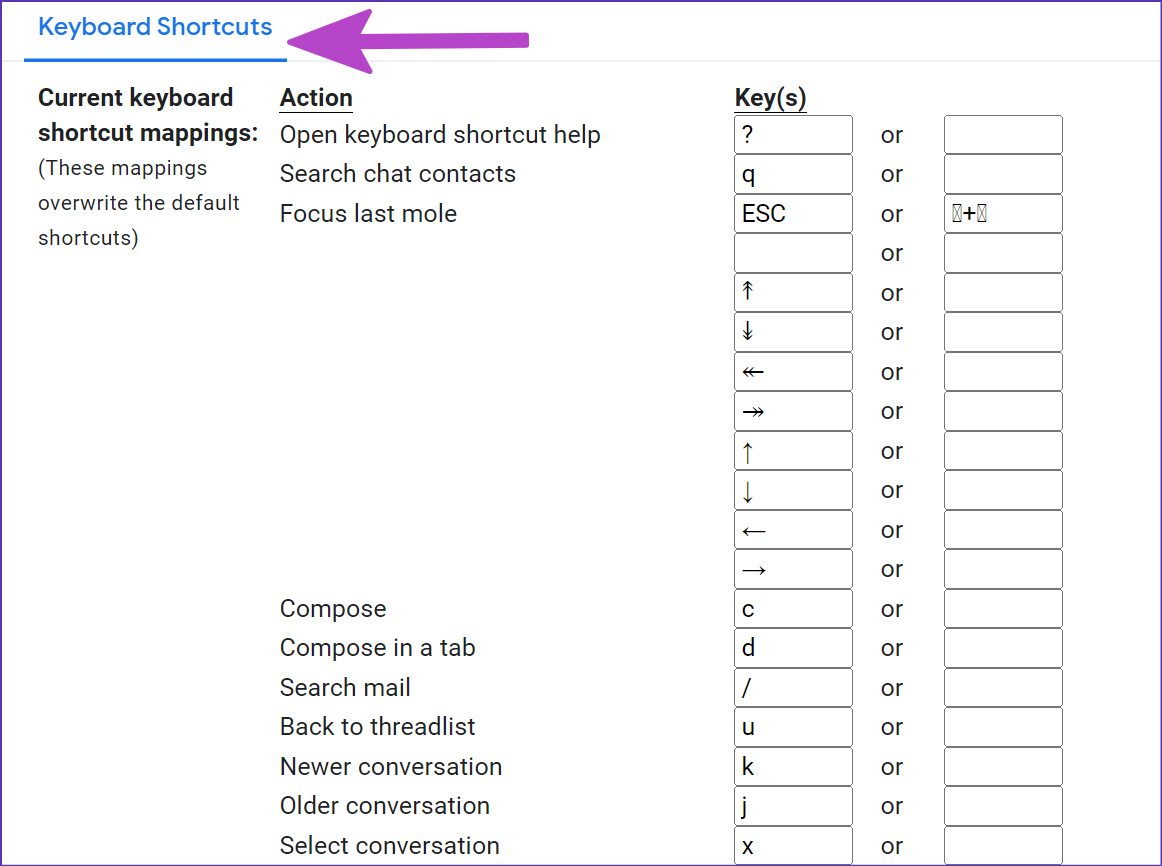
Step 2: Check the current keyboard shortcut mappings, remove what is not working for you, and replace it with a new one (these keyboard shortcuts are case-sensitive).
Step 3: Scroll down and press the Save Changes button, and your new keyboard shortcuts are ready.
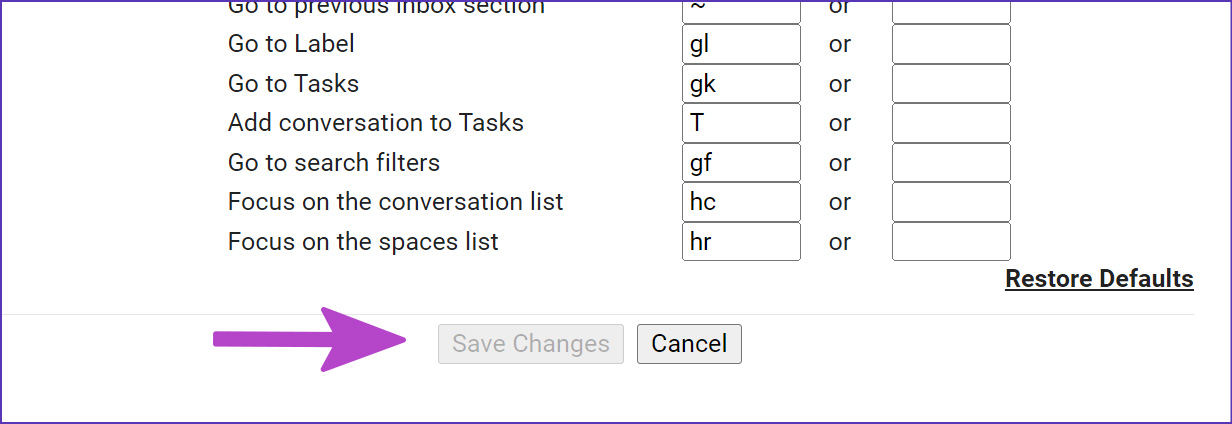
When the ‘C’ letter stopped working on my MacBook, I couldn’t compose emails using the shortcut. Remapping the function to the ‘Y’ key got things going. From the same Keyboard Shortcuts menu in Gmail Settings, you can note down every Gmail keyboard shortcut at your fingertips.
Fix 5. Go back to the Previous Gmail Look
The new Gmail redesign might have messed up your account’s keyboard shortcuts. Google allows you to revert to the original Gmail design to restore your ideal email setup.
Step 1: Go to Gmail Settings.
Step 2: Click on Go back to the original Gmail view link.
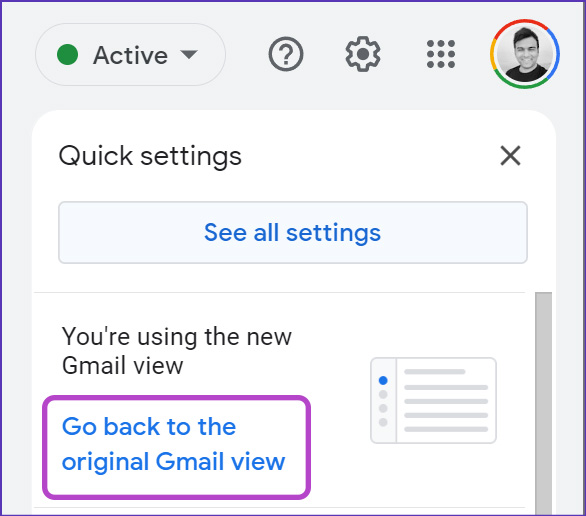
Step 3: Specify the reason for switching and try Gmail shortcuts again.
Fix 6. Try Another Browser
Keyboard shortcuts not working in Gmail might be due to a bug in your browser. Google services work best on the company’s Chrome browser. You can switch to Google Chrome or use other Chromium-based options like Microsoft Edge, Opera, Vivaldi, or Brave.
Was this helpful?
Last updated on 03 September, 2024
3 Comments
Leave a Reply
Read Next
 4 Ways to Fix Keyboard Shortcuts Not Working on Windows 11
Preliminary Fixes Disable Game Mode: Gaming keyboards often have special modes that disable keyboard shortcuts.
4 Ways to Fix Keyboard Shortcuts Not Working on Windows 11
Preliminary Fixes Disable Game Mode: Gaming keyboards often have special modes that disable keyboard shortcuts.
 A Guide to Fixing Keyboard Shortcuts Not Working on Windows 10
When you get used to keyboard shortcuts, there's no going back.
A Guide to Fixing Keyboard Shortcuts Not Working on Windows 10
When you get used to keyboard shortcuts, there's no going back.
 5 Fixes for Keyboard Shortcuts Not Working in Microsoft Excel for Windows
Fix 1: Use the On-Screen Keyboard First, you must perform a few keyboard shortcuts using the On-Screen Keyboard (OSK) on Windows.
5 Fixes for Keyboard Shortcuts Not Working in Microsoft Excel for Windows
Fix 1: Use the On-Screen Keyboard First, you must perform a few keyboard shortcuts using the On-Screen Keyboard (OSK) on Windows.
 6 Chrome Extensions to Add Custom Keyboard Shortcuts
1.
6 Chrome Extensions to Add Custom Keyboard Shortcuts
1.
 How to Customize Keyboard Shortcuts in Firefox 67
Keyboard shortcuts always come in handy no matter what software you’re using on your system.
How to Customize Keyboard Shortcuts in Firefox 67
Keyboard shortcuts always come in handy no matter what software you’re using on your system.
 Top 11 Google Photos Keyboard Shortcuts
In 2016, Google killed its primary photo app Picasa for Google Photos.
Top 11 Google Photos Keyboard Shortcuts
In 2016, Google killed its primary photo app Picasa for Google Photos.
 26 Outlook Keyboard Shortcuts for Windows and Mac
1.
26 Outlook Keyboard Shortcuts for Windows and Mac
1.
 37 Discord Keyboard Shortcuts for Windows and Mac
Discord Hotkeys for Windows and macOS Here are the Discord Keyboard Shortcuts to improve your daily productivity.
37 Discord Keyboard Shortcuts for Windows and Mac
Discord Hotkeys for Windows and macOS Here are the Discord Keyboard Shortcuts to improve your daily productivity.
The article above may contain affiliate links which help support Guiding Tech. The content remains unbiased and authentic and will never affect our editorial integrity.

None of these helped. I have two profiles in gmail; in one, the ESC works to get me back to the threadlist, which is my preference. In the other, main gmail account that I use, the ESC key stopped working and I cannot get it to come back.
Thanks, it’s worked. The setting for the keyboard shortcut was disabled in my case.
I recently installed a new graphics card (AMD Radeon). When I installed the graphics keys, it automatically enabled hot keys. The hot keys that matched my Gmail hot keys would not work. After disabling my graphics card hot keys, everything worked again.