


Basic Fixes:
- Restart the router and iPad: Power off your iPad and Wi-Fi router. Wait a few minutes and turn the router back on. Then, restart your iPad and wait for it to connect to the Wi-Fi.
- Enable and disable Airplane Mode: Turning on Airplane Mode disables all the network connectivity on the iPad, allowing you to reboot the network connection. Open the Control Center and enable Airplane mode. Disable it after a minute or two and check again.
- Turn off VPN: When one of the connected VPN servers faces an outage, you will face issues with Wi-Fi connectivity on the iPad. Disconnect the VPN service on your iPad and try again.
- Check for iPadOS updates: Since you don’t have internet connectivity on your iPad, you can’t download the newest iPadOS update. Connect your iPad to a computer, open iTunes, and install pending iPadOS updates to fix Wi-Fi issues.
Fix 1: Forget and Reconnect Wi-Fi Network
You can disconnect the current Wi-Fi network and reconnect it. This can help fix any temporary Wi-Fi glitches. Here’s how to do it.
Step 1: Open Settings and tap on Wi-Fi. Tap the i button beside the relevant Wi-Fi.

Step 2: Select Forget This Network. Connect to the Wi-Fi again and check.

Fix 2: Disable Private Wi-Fi Address
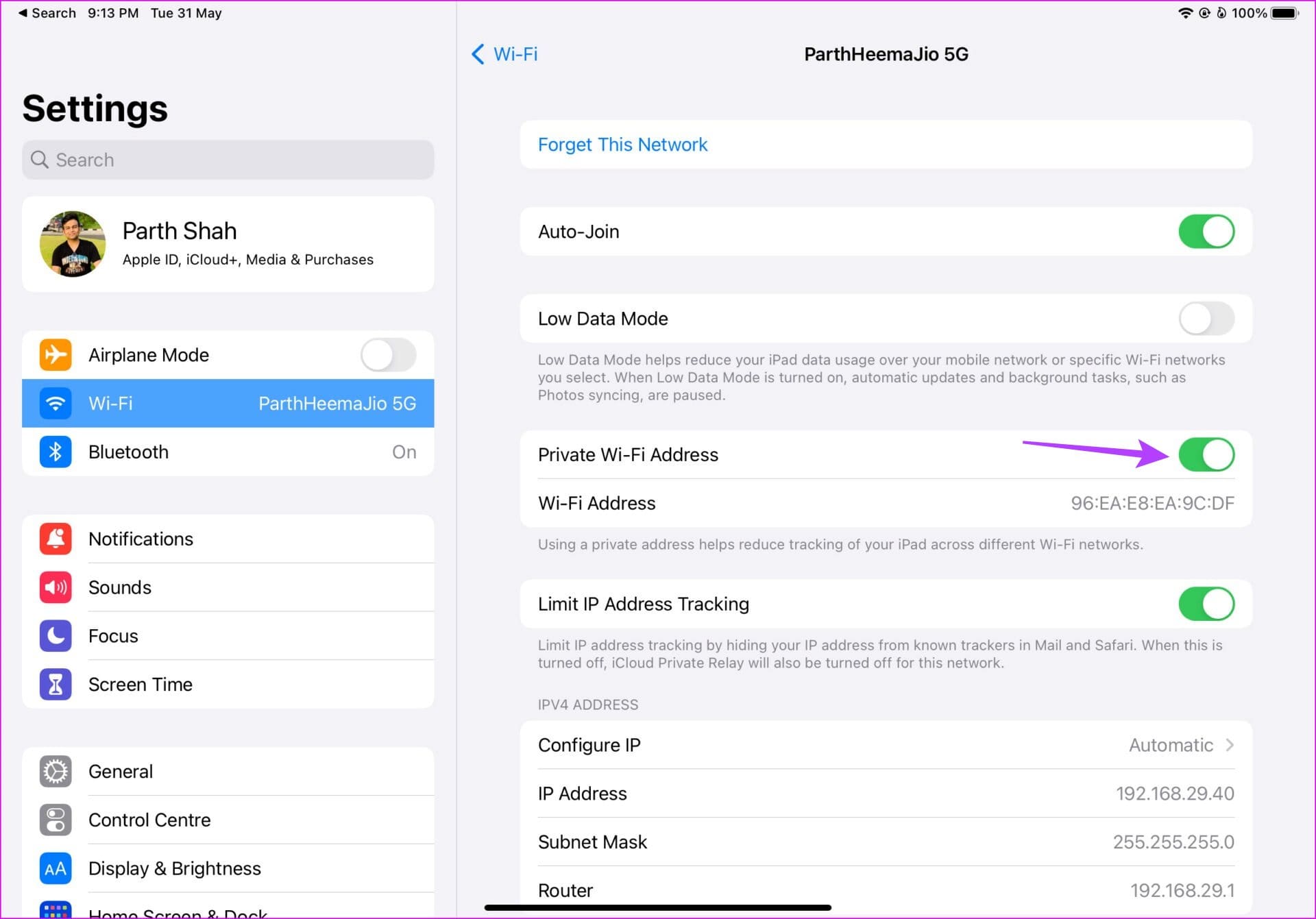
Apple allows you to change your device’s Media Access Control (MAC) address for different networks, helping you hide your identity. However, this can also cause Wi-Fi not to work in some cases. So, disable this setting on your iPad and see if this fixes the issue. Here’s how.
Step 1: Open Settings → Wi-Fi → i button beside the relevant Wi-Fi.
Step 2: Turn off the Private Wi-Fi Address toggle.
Fix 3: Set Date and Time to Automatic
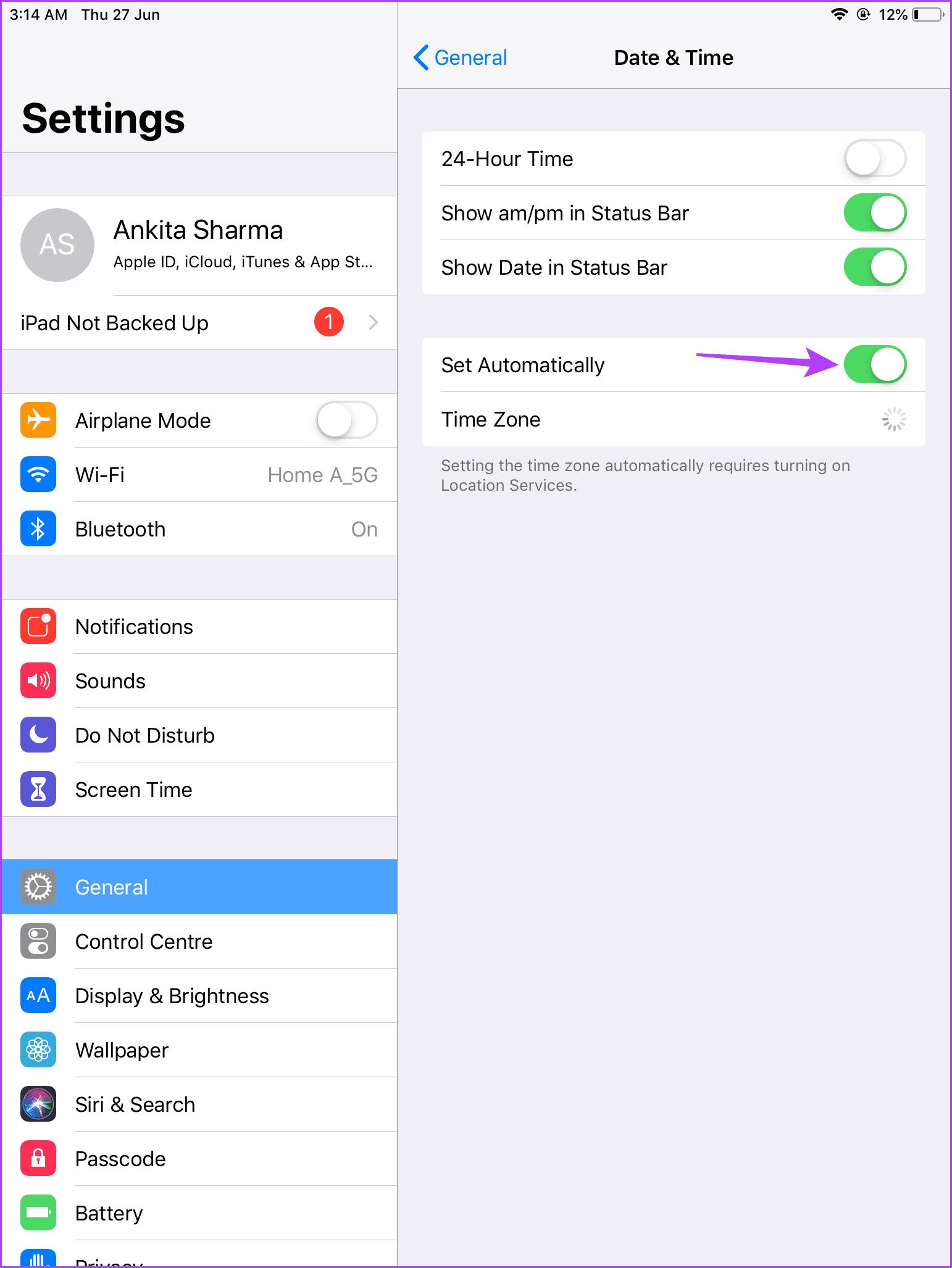
If your iPad’s date and time settings are not correct as per your current timezone, it might cause issues when using certain iPad services. To ensure this does not happen, set the date and time to update automatically on your iPad using the below steps.
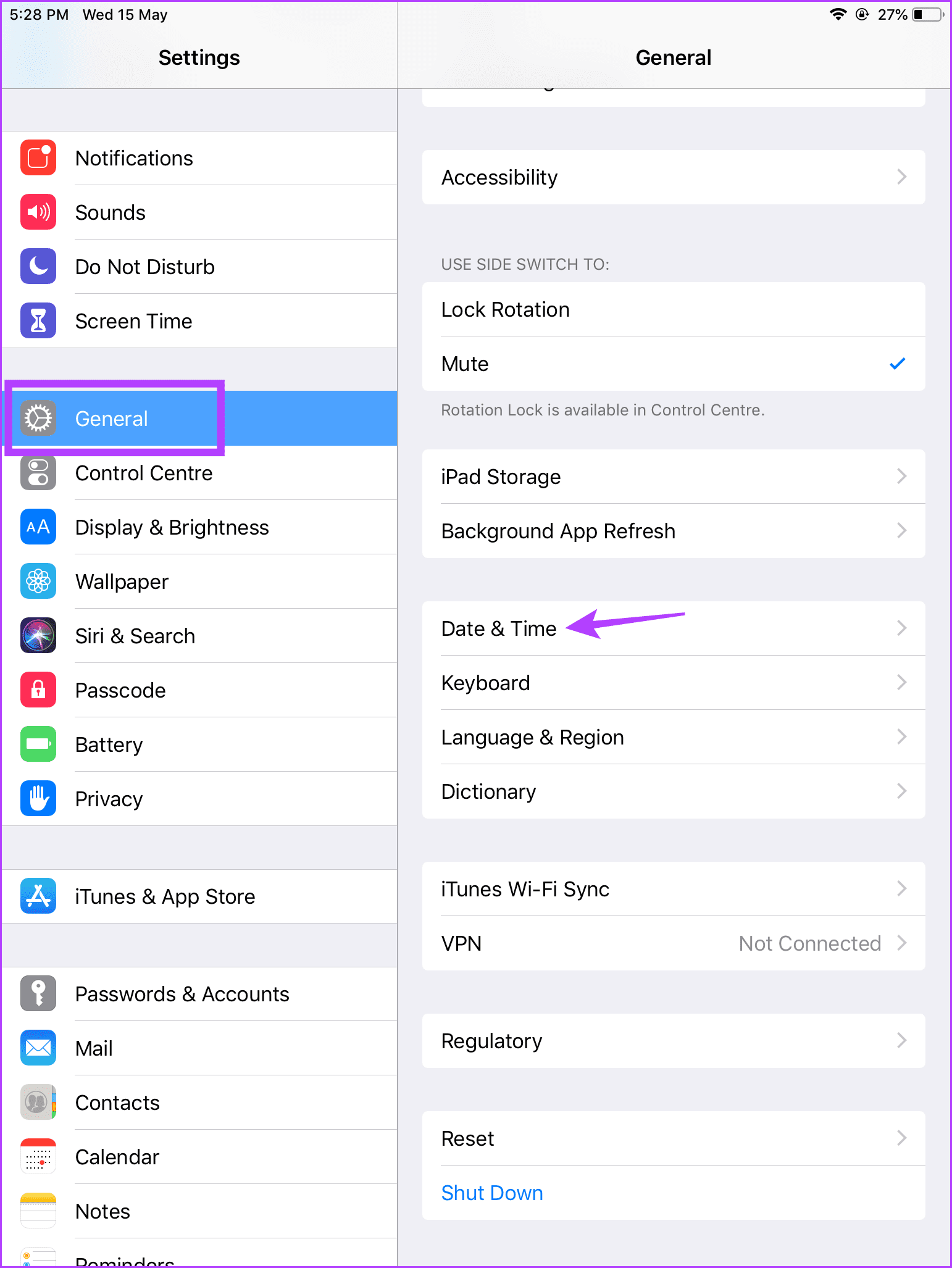
Step 1: Open Settings and tap on General. Tap on Date & Time.
Step 2: Enable the Set Automatically toggle.
Also Read: How to fix iPad not updating issue
Fix 4: Disable Low Data Mode
While the Low Data Mode is designed to reduce data usage on iPad, the function may interfere with normal Wi-Fi operations on the device. Disable Low Data Mode for a working Wi-Fi connection. Here’s how to do it
Step 1: Open Settings → Wi-Fi → i button beside the relevant Wi-Fi.
Step 2: Disable the Low Data Mode toggle.

Fix 5: Disable Limit IP Address Tracking
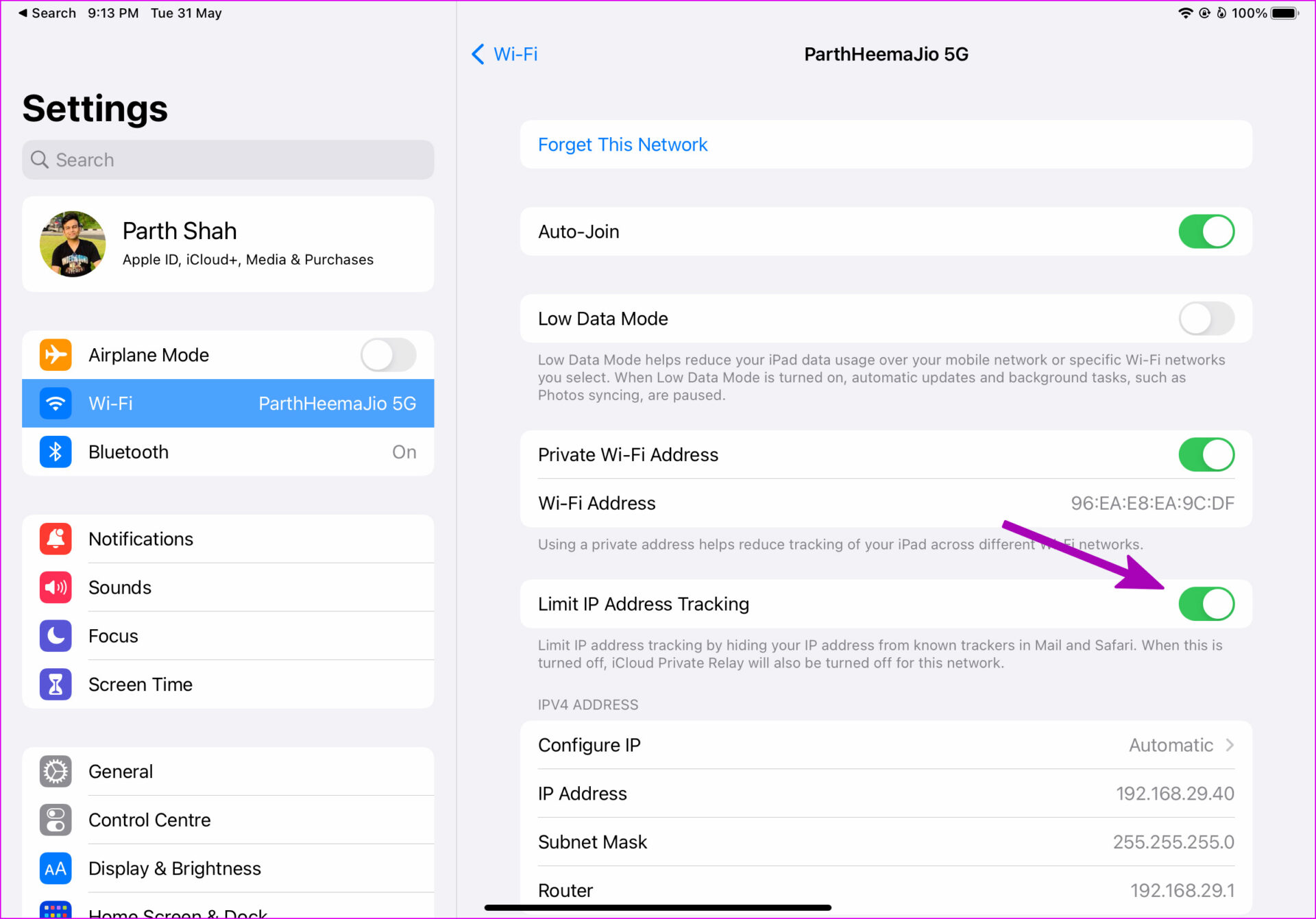
Are you facing Wi-Fi connectivity issues in Safari for iPad? The problem might be related to iCloud Private Relay, which reroutes the traffic through Apple-branded servers. You must disable the Limit IP Address Tracking toggle to turn off iCloud Private Relay for the Wi-Fi network. Here’s how.
Step 1: Open Settings → Wi-Fi → i button beside your Wi-Fi.
Step 2: Disable Limit IP Address Tracking toggle.
Fix 6: Reset Network Settings
Glitches in network settings can also lead to issues with internet connectivity on your iPad. To fix them, use the reset network settings option on your iPad. This will delete all custom network settings without affecting device data. Here’s how to do it.
Step 1: Open Settings and tap on General. Tap on Transfer or Reset iPad.

Step 2: Tap on Reset and select Reset Network Settings.

Follow the on-screen instructions to finish the process. Once done, connect to your Wi-Fi network and check if the Wi-Fi is working as expected on your iPad.
Was this helpful?
Last updated on 28 June, 2024
4 Comments
Leave a Reply
Read Next
 4 Ways to Fix Wi-Fi Connected but No Internet on Windows 11
Common Fixes Let's begin with some basic solutions to fix the Wi-Fi connected but no internet issue on your Windows machine: Check your internet plan - If you have exceeded
4 Ways to Fix Wi-Fi Connected but No Internet on Windows 11
Common Fixes Let's begin with some basic solutions to fix the Wi-Fi connected but no internet issue on your Windows machine: Check your internet plan - If you have exceeded
 4 Ways to Fix Wi-Fi Connected But No Internet on Android
https://youtu.be/tuxyxswCbWI Try Basic Fixes Sign in to the network: Although most public Wi-Fi networks are free to use, some require you to sign in with your email address or phone
4 Ways to Fix Wi-Fi Connected But No Internet on Android
https://youtu.be/tuxyxswCbWI Try Basic Fixes Sign in to the network: Although most public Wi-Fi networks are free to use, some require you to sign in with your email address or phone
 Top 7 Ways to Fix Samsung Galaxy Phone Connected to Wi-Fi But No Internet
Most Samsung Galaxy phone users prefer a robust Wi-Fi connection to download large apps, games, TV shows, movies, and playlists from the likes of Netflix, Disney Plus, and Spotify.
Top 7 Ways to Fix Samsung Galaxy Phone Connected to Wi-Fi But No Internet
Most Samsung Galaxy phone users prefer a robust Wi-Fi connection to download large apps, games, TV shows, movies, and playlists from the likes of Netflix, Disney Plus, and Spotify.
 4 Fixes for iPhone Connected to Wi-Fi but Internet Not Working Issue
Basic Fixes: Restart the iPhone and modem: Long-press the power button and turn off your iPhone.
4 Fixes for iPhone Connected to Wi-Fi but Internet Not Working Issue
Basic Fixes: Restart the iPhone and modem: Long-press the power button and turn off your iPhone.
 4 Ways to Fix iPad Not Connecting to the Internet
Basic Fixes: Restart your iPad: Restarting your iPad can help fix any temporary issues preventing it from connecting to the internet.
4 Ways to Fix iPad Not Connecting to the Internet
Basic Fixes: Restart your iPad: Restarting your iPad can help fix any temporary issues preventing it from connecting to the internet.
 How to Fix AirPods Connected but No Sound on Mobile and PC
Note: The solutions in this guide apply to all generations or editions of the Apple AirPods — AirPods 1, AirPods 2, AirPods 3, AirPods Pro, and the AirPods Pro 2nd
How to Fix AirPods Connected but No Sound on Mobile and PC
Note: The solutions in this guide apply to all generations or editions of the Apple AirPods — AirPods 1, AirPods 2, AirPods 3, AirPods Pro, and the AirPods Pro 2nd
 Top 5 Ways to Fix Bluetooth Headphones Connected but No Sound on Windows 10
On a usual day, you'd hook your wireless Bluetooth headphones to your PC to listen to a song.
Top 5 Ways to Fix Bluetooth Headphones Connected but No Sound on Windows 10
On a usual day, you'd hook your wireless Bluetooth headphones to your PC to listen to a song.
 How to Fix “Fire TV Stick Connected With Problems” Error
Basic Fixes: Restart the Fire TV Stick and router: Temporary connection problems can cause internet issues on your Fire TV Stick.
How to Fix “Fire TV Stick Connected With Problems” Error
Basic Fixes: Restart the Fire TV Stick and router: Temporary connection problems can cause internet issues on your Fire TV Stick.
The article above may contain affiliate links which help support Guiding Tech. The content remains unbiased and authentic and will never affect our editorial integrity.
Maybe it could be that I still have my first generation iPad..I don’t see the little I you mentioned.
No joy, I’m afraid, after doing all that, I still have that annoying message “No Internet Connection” and Safari cannot find the server. I wonder whether it is AVG Secure VPN that is spoiling the party?
After checking all the recommendations, nothing helped((. Ipad 10.5 pro 2017 is just crap!
It turns out the child installed a VPN for the game Brawl Stars!!! After deleting the profile, I can use the tablet normally!